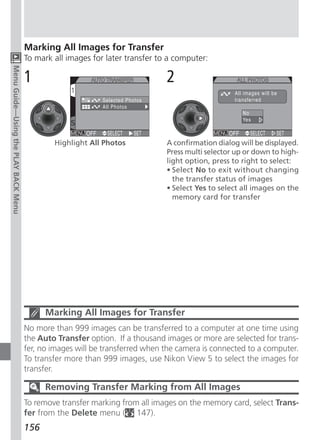
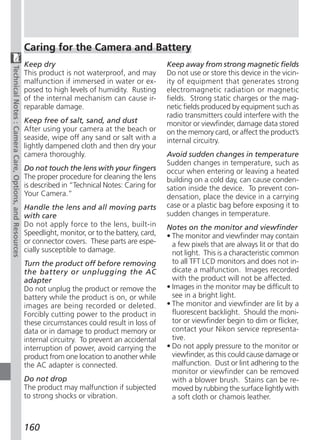
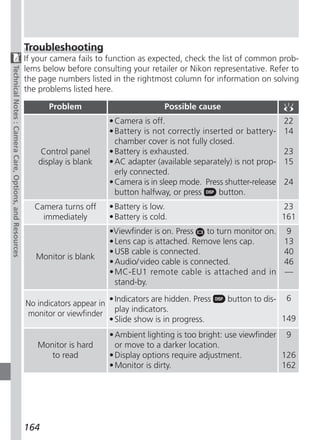
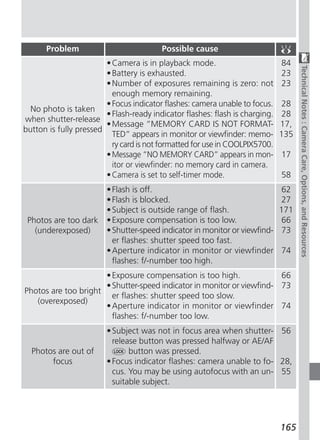
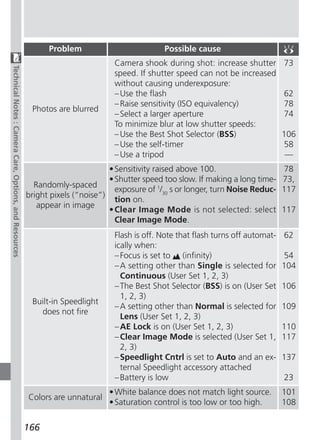
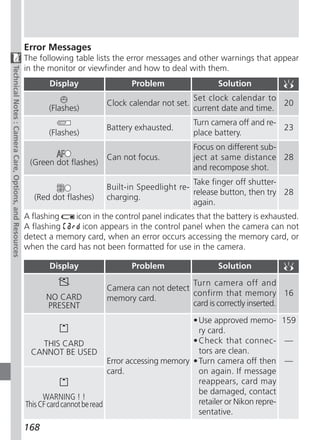
En


The   Guide to Digital Photography
          with the


      DIGITAL CAMERA
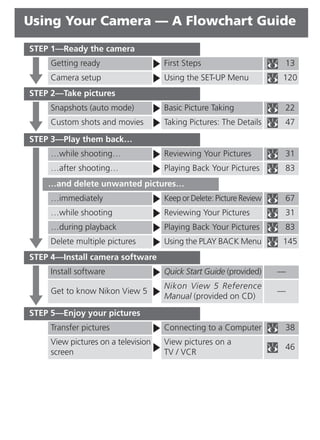
Using Your Camera — A Flowchart Guide
STEP 1—Ready the camera
     Getting ready                   First Steps                      13
     Camera setup                    Using the SET-UP Menu            120
STEP 2—Take pictures
     Snapshots (auto mode)           Basic Picture Taking             22
     Custom shots and movies         Taking Pictures: The Details     47

STEP 3—Play them back…
     …while shooting…                Reviewing Your Pictures          31
     …after shooting…                Playing Back Your Pictures       83
    …and delete unwanted pictures…
     …immediately                    Keep or Delete: Picture Review   67
     …while shooting                 Reviewing Your Pictures          31
     …during playback                Playing Back Your Pictures       83
     Delete multiple pictures        Using the PLAY BACK Menu         145
STEP 4—Install camera software
     Install software                Quick Start Guide (provided)     —
                                     Nikon View 5 Reference
     Get to know Nikon View 5                                         —
                                     Manual (provided on CD)

STEP 5—Enjoy your pictures
     Transfer pictures               Connecting to a Computer         38
     View pictures on a television   View pictures on a
                                                                      46
     screen                          TV / VCR
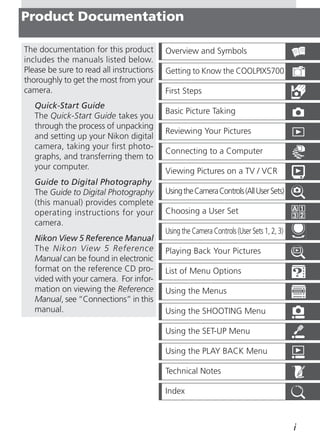
Product Documentation

The documentation for this product        Overview and Symbols
includes the manuals listed below.
Please be sure to read all instructions   Getting to Know the COOLPIX5700
thoroughly to get the most from your
camera.                                   First Steps
   Quick-Start Guide
                                          Basic Picture Taking
   The Quick-Start Guide takes you
   through the process of unpacking
                                          Reviewing Your Pictures
   and setting up your Nikon digital
   camera, taking your first photo-
                                          Connecting to a Computer
   graphs, and transferring them to
   your computer.
                                          Viewing Pictures on a TV / VCR
   Guide to Digital Photography
   The Guide to Digital Photography       Using the Camera Controls (All User Sets)
   (this manual) provides complete
   operating instructions for your        Choosing a User Set
   camera.
                                          Using the Camera Controls (User Sets 1, 2, 3)
   Nikon View 5 Reference Manual
   The Nikon View 5 Reference             Playing Back Your Pictures
   Manual can be found in electronic
   format on the reference CD pro-        List of Menu Options
   vided with your camera. For infor-
   mation on viewing the Reference        Using the Menus
   Manual, see “Connections” in this
   manual.                                Using the SHOOTING Menu

                                          Using the SET-UP Menu

                                          Using the PLAY BACK Menu

                                          Technical Notes

                                          Index


                                                                                          i
For Your Safety

To prevent damage to your Nikon product or injury to yourself or to others,
read the following safety precautions in their entirety before using this equip-
ment. Keep these safety instructions where all those who use the product will
read them.
The consequences that could result from failure to observe the precautions listed
in this section are indicated by the following symbol:
        This icon marks warnings, information that should be read before
        using your Nikon product to prevent possible injury.

WARNINGS                                            Do not place strap around neck
                                                    Placing the camera strap around your
     Do not look at the sun through the             neck could result in strangulation.
     viewfinder                                     Special care should be taken to avoid
     Viewing the sun or other strong light          placing the strap around the neck of
     source through the viewfinder could            an infant or child.
     cause permanent visual impairment.
                                                    Do not disassemble
                                                    Touching the product’s internal parts
     Do not leave the viewfinder ex-
                                                    could result in injury. In the event of
     posed to direct sunlight
                                                    a malfunction, the product should be
     If left in direct sunlight, the lens of the
                                                    repaired only by a qualified technician.
     viewfinder could concentrate sunlight
                                                    Should the product break open as the
     on the viewfinder’s LCD and cause
                                                    result of a fall or other accident, re-
     damage.
                                                    move the battery and/or AC adapter
     Turn off immediately in the event              and then take the product to a Nikon-
     of malfunction                                 authorized service center for inspec-
     Should you notice smoke or an un-              tion.
     usual smell coming from the equip-              Observe proper precautions when
     ment or from the AC adapter (avail-             handling batteries
     able separately), unplug the AC                 Batteries may leak or explode if im-
     adapter and remove the battery im-              properly handled. Observe the follow-
     mediately, taking care to avoid burns.          ing precautions when handling batter-
     Continued operation could result in             ies for use in this product:
     injury. After removing the battery,           • Be sure the product is off before re-
     take the equipment to a Nikon-autho-            placing the battery. If you are using an
     rized service center for inspection.            AC adapter, be sure it is unplugged.
     Do not use in the presence of flam-           • Use only a rechargeable Nikon EN-EL1
     mable gas                                       lithium-ion battery (supplied) or a six-
     Do not use electronic equipment in              volt 2CR5 (DL245) lithium battery
     the presence of flammable gas, as this          (available separately).
     could result in explosion or fire.

ii
• When inserting the battery, do not at-   Removing memory cards
  tempt to insert it upside down or        Memory cards may become hot dur-
  backwards.                               ing use. Observe due caution when
• Do not short or disassemble the bat-     removing memory cards from the
  tery.                                    camera.
• Do not expose the battery to flame or
                                           CD-ROMs
  to excessive heat.
                                           The CD-ROMs on which the software
• Do not immerse in or expose to wa-
                                           and manuals are distributed should
  ter.
                                           not be played back on audio CD
• Do not transport or store with metal
                                           equipment. Playing CD-ROMs on an
  objects such as necklaces or hairpins.
                                           audio CD player could cause hearing
• Batteries are prone to leakage when
                                           loss or damage the equipment.
  fully discharged. To avoid damage to
  the product, be sure to remove the       Observe caution when operating
  battery when no charge remains.          the flash
• When the battery is not in use, attach   Using the flash close to your subject’s
  the terminal cover and store in a cool   eyes could cause temporary visual im-
  place.                                   pairment. Particular care should be
• Immediately after use, or when the       observed if photographing infants,
  product is used on battery power for     when the flash should be no less than
  an extended period, the battery may      one meter (39˝) from the subject.
  be hot. Before removing the battery,     When using the viewfinder
  turn the camera off and allow the        When operating the diopter adjust-
  battery to cool.                         ment dial with your eye to the
• Discontinue use immediately should       viewfinder, care should be taken not
  you notice any changes in the battery,   to put your finger in your eye acciden-
  such as discoloration or deformation.    tally.
 Use appropriate cables                    Avoid contact with liquid crystal
 When connecting cables to the input       Should the monitor or viewfinder
 and output jacks, use only the cables     break, care should be taken to avoid
 provided or sold by Nikon for the pur-    injury due to broken glass and to pre-
 pose, to maintain compliance with         vent liquid crystal from the monitor
 product regulations.                      touching the skin or entering the eyes
 Keep out of reach of children             or mouth.
 Particular care should be taken to pre-
 vent infants from putting the battery
 or other small parts into their mouths.


                                                                               iii
Notices

• No part of the manuals included with this product may be reproduced, trans-
  mitted, transcribed, stored in a retrieval system, or translated into any lan-
  guage in any form, by any means, without Nikon’s prior written permission.
• Nikon reserves the right to change the specifications of the hardware and
  software described in these manuals at any time and without prior notice.
• Nikon will not be held liable for any damages resulting from the use of this
  product.
• While every effort has been made to ensure that the information in these
  manuals is accurate and complete, we would appreciate it were you to bring
  any errors or omissions to the attention of the Nikon representative in your
  area (address provided separately).

Notice for customers in Canada
CAUTION
This class B digital apparatus meets all requirements of the Canadian Interfer-
ence Causing Equipment Regulations.
ATTENTION
Cet appareil numérique de la classe B respecte toutes les exigences du Règle-
ment sur le matériel brouilleur du Canada.


      A Note on Electronically-Controlled Cameras
In extremely rare instances, unusual characters may appear in the control panel
and the camera may stop functioning. In most cases, this phenomenon is
caused by a strong external static charge. Turn the camera off, remove and
replace the battery, and turn the camera on again, or, if you are using an AC
adapter (available separately), disconnect and reconnect the adapter and turn
the camera on again. In the event of continued malfunction, contact your
retailer or Nikon representative. Note that disconnecting the power source as
described above may result in loss of any data not recorded to the memory card
at the time the problem occurred. Data already recorded to the memory card
will not be affected.
iv
Notice for customers in the U.S.A.
Federal Communications Commission (FCC) Radio Frequency Interfer-
ence Statement
This equipment has been tested and
found to comply with the limits for a
Class B digital device, pursuant to Part
15 of the FCC rules. These limits are
designed to provide reasonable pro-
tection against harmful interference in a residential installation. This equip-
ment generates, uses, and can radiate radio frequency energy and, if not in-
stalled and used in accordance with the instructions, may cause harmful inter-
ference to radio communications. However, there is no guarantee that inter-
ference will not occur in a particular installation. If this equipment does cause
harmful interference to radio or television reception, which can be determined
by turning the equipment off and on, the user is encouraged to try to correct
the interference by one or more of the following measures:
• Reorient or relocate the receiving antenna.
• Increase the separation between the equipment and receiver.
• Connect the equipment into an outlet on a circuit different from that to
   which the receiver is connected.
• Consult the dealer or an experienced radio/television technician for help.
CAUTIONS
Modifications
The FCC requires the user to be notified that any changes or modifications made
to this device that are not expressly approved by Nikon Corporation may void
the user's authority to operate the equipment.
Interface Cables
Use the interface cables sold or provided by Nikon for your equipment. Using
other interface cables may exceed the limits of Class B Part 15 of the FCC rules.
Nikon Inc.,
1300 Walt Whitman Road, Melville, New York
11747-3064, U.S.A.
Tel.: 631-547-4200


                                                                               v
Notice Concerning Prohibition of Copying or Reproduction
Note that simply being in possession of material that has been digitally copied or repro-
duced by means of a scanner, digital camera or other device may be punishable by law.
• Items prohibited by law from being • Cautions on certain copies and repro-
  copied or reproduced                         ductions
  Do not copy or reproduce paper money, The government has issued cautions on
  coins, securities, government bonds, or copies or reproductions of securities is-
  local government bonds, even if such cop- sued by private companies (shares, bills,
  ies or reproductions are stamped checks, gift certificates, etc.), commuter
  “Sample.”                                    passes, or coupon tickets, except when a
  The copying or reproduction of paper minimum of necessary copies are to be
  money, coins, or securities which are cir- provided for business use by a company.
  culated in a foreign country is prohibited. Also, do not copy or reproduce passports
                                               issued by the government, licenses issued
  Unless the prior permission of the govern-
                                               by public agencies and private groups, ID
  ment has been obtained, the copying or
                                               cards, and tickets, such as passes and meal
  reproduction of unused postage stamps
                                               coupons.
  or post cards issued by the government is
  prohibited.                                • Comply with copyright notices
                                               The copying or reproduction of copy-
  The copying or reproduction of stamps
                                               righted creative works such as books, mu-
  issued by the government and of certified
                                               sic, paintings, woodcut prints, maps,
  documents stipulated by law is prohibited.
                                               drawings, movies, and photographs is
                                               prohibited except when it is done for per-
                                               sonal use at home or for similar restricted
                                               and non-commercial use.


Trademark Information
Apple, the Apple logo, Macintosh, Mac OS, PowerBook, and QuickTime are registered trademarks of
Apple Computer, Inc. Finder, iMac, and iBook are trademarks of Apple Computer, Inc. IBM and Microdrive
are registered trademarks of International Business Machines Corporation. Microsoft and Windows are
registered trademarks of Microsoft Corporation. Pentium is a trademark of Intel Corporation. Internet
is a trademark of Digital Equipment Corporation. CompactFlash is a trademark of SanDisk Corpora-
tion. Lexar Media is a trademark of Lexar Media Corporation. Adobe and Acrobat are registered trade-
marks of Adobe Systems Inc. Zip is a registered trademark of Iomega Corporation in the U.S. and other
countries. All other trade names mentioned in this manual or the other documentation provided with
your Nikon product are trademarks or registered trademarks of their respective holders.
vi
Table of Contents

   Product Documentation ................................................................................                i
   For Your Safety .............................................................................................        ii
   Notices .........................................................................................................   iv
Getting Started ..............................................................................................          1
 Overview and Symbols ................................................................................                  2
  Overview ......................................................................................................       2
  Symbols ........................................................................................................      3
 Getting to Know the COOLPIX5700 ...........................................................                            4
  Parts of the COOLPIX5700 .............................................................................                4
  Camera Displays ...........................................................................................           6
  Camera Parts—The Details ...........................................................................                  9
 First Steps .....................................................................................................     13
  Step 1—Attach the Camera Strap ..................................................................                    13
  Step 2—Insert the Battery .............................................................................              14
  Step 3—Insert the Memory Card ..................................................................                     16
  Step 4—Choose a Language ........................................................................                    18
  Step 5—Set the Time and Date .....................................................................                   19
Taking and Reviewing Pictures .....................................................................                    21
 Basic Picture Taking ......................................................................................           22
  Step 1—Ready the Camera ...........................................................................                  22
  Step 2—Select User Set A .............................................................................               25
  Step 3—Adjust Camera Settings (Optional) ...................................................                         25
  Step 4—Frame the Shot ...............................................................................                26
  Step 5—Focus and Shoot .............................................................................                 28
  Step 6—Put the Camera Away .....................................................................                     30
 Reviewing Your Pictures ...............................................................................               31
  Quick Review .................................................................................................       32
  Full-Screen Review ........................................................................................          33
  Thumbnail Review ........................................................................................            35
Doing More with Your Digital Camera .........................................................                          37
 Connecting to a Computer ..........................................................................                   38
  Before You Begin: Installing Nikon View 5 .....................................................                      38
  Making the Connection: Connecting to Your Computer ...............................                                   40
 Viewing Pictures on a TV / VCR ....................................................................                   46


                                                                                                                       vii
Taking Pictures: The Details ..........................................................................           47
 Using the Camera Controls (All User Sets) .................................................                      48
  Making Effective Use of Memory: Image Quality and Size .............................                            48
  Focus Mode: The           Button .......................................................................        53
  Delaying Shutter Release: Self-Timer Mode ...................................................                   58
  Optical and Digital Zoom: The                  Button .................................................         60
  Flash Mode: The          Button ........................................................................        62
  Exposure Compensation: The                 Button .....................................................         66
  Keep or Delete: Picture Review .....................................................................            67
 Choosing a User Set ......................................................................................       68
 Using the Camera Controls (User Sets 1,2,3) ..............................................                       70
  Controlling Shutter Speed and Aperture: Exposure Mode .............................                             70
  Making Movies: Movie Mode .......................................................................               77
  Reacting Faster to Light: Sensitivity (ISO Equivalency) ....................................                    78
  Focusing by Hand: Manual Focus ..................................................................               80
Playing Back Your Pictures .............................................................................          83
  Full-Screen Playback ......................................................................................     84
  Thumbnail Playback ......................................................................................       86
  Taking a Closer Look: Playback Zoom ............................................................                87
  Viewing Image Information ..........................................................................            88
  Movie Playback .............................................................................................    90
Menu Guide ...................................................................................................    91
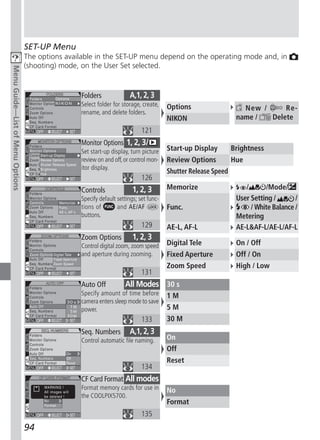
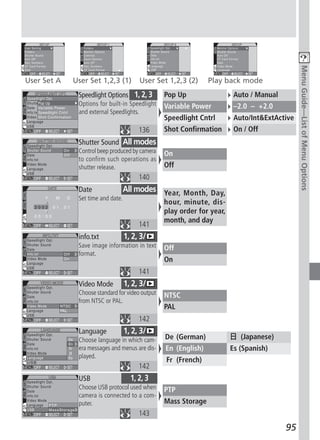
 List of Menu Options ...................................................................................         92
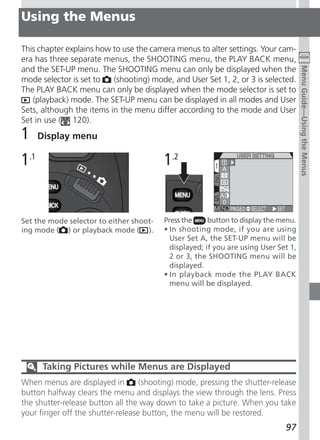
 Using the Menus ..........................................................................................       97
 Using the SHOOTING Menu ........................................................................                100
  Keeping Colors True: White Balance .............................................................               101
  Measuring Light: Metering ...........................................................................          103
  Making Movies and Taking Photographs in a Sequence: Continuous ..................                              104
  Getting Sharper Pictures: Best Shot Selector ..................................................                106
  Adjusting Contrast and Brightness: Image Adjustment ...................................                        107
  Controlling Color: Saturation Control ...........................................................              108
  Settings for Optional Converter Lenses: Lens ................................................                  109
  Controlling Exposure: Exposure Options .........................................................               110
  Controlling Focus: Focus Options ..................................................................            112
  Making Edges More Distinct: Image Sharpening ............................................                      114
  Varying Settings Automatically: Auto Bracketing ............................................                   115
  Avoiding “Grainy” Pictures: Noise Reduction ................................................                   117
  Restoring Default Settings: Reset All .............................................................            118


viii
Using the SET-UP Menu ...............................................................................                  120
  Organizing Your Pictures: Folders ..................................................................                  121
  Adjusting Monitor Settings: Monitor Options ................................................                          126
  Customizing Camera Controls: Controls .......................................................                         129
  Controlling Zoom: Zoom Options ..................................................................                     131
  Conserving Battery Power: Auto Off .............................................................                      133
  File Numbering: Seq. Numbers ......................................................................                   134
  Formatting Memory Cards: CF Card Format ..................................................                            135
  Controlling the Flash: Speedlight Options .....................................................                       136
  Audio Confirmation: Shutter Sound ..............................................................                      140
  Setting the Time and Date: Date ....................................................................                  141
  Storing Photo Info in a Separate File: info.txt ................................................                      141
  Choosing a Video Standard: Video Mode .......................................................                         142
  Choosing a Language: Language ..................................................................                      142
  Choosing a USB Protocol: USB ......................................................................                   143
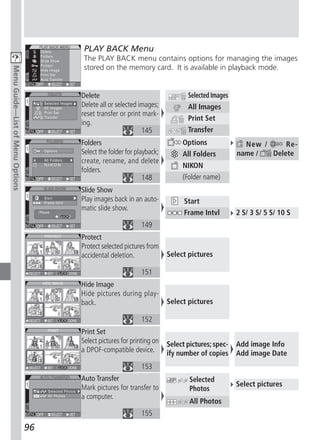
 Using the PLAY BACK Menu .......................................................................                       145
  Deleting Images: Delete ................................................................................              145
  Selecting a Folder for Playback: Folders .........................................................                    148
  Automated Playback: Slide Show ..................................................................                     149
  Safeguarding Valuable Images: Protect .........................................................                       151
  Hiding Images During Playback: Hide Image .................................................                           152
  Ordering Prints: Print Set ...............................................................................            153
  Selecting Images for Transfer: Auto Transfer ..................................................                       155
Technical Notes: Camera Care, Options, and Resources .............................                                      157
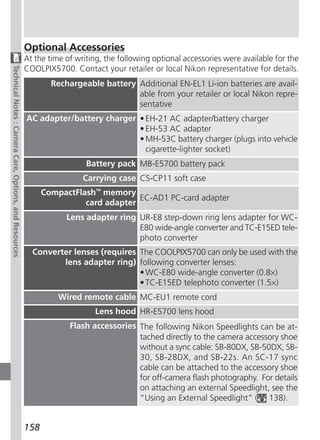
  Optional Accessories ......................................................................................           158
  Caring for the Camera and Battery ...............................................................                     160
  Web Resources .............................................................................................           163
  Troubleshooting ............................................................................................          164
  Specifications ...............................................................................................        171
Index ...............................................................................................................   175


                                                                                                                         ix
x
Overview and
      Getting                                          Symbols

                                                                       2–3

      Started                                          Getting to Know
                                                       the COOLPIX5700

                                                                      4–12
                                                       First Steps
This chapter is divided into the following sections:
Overview and Symbols
Describes organization of, and the symbols used to                   13–20
navigate through, this manual.
Getting to Know the COOLPIX5700
Introduces the various parts of the camera and
where to find additional information.
First Steps
Takes you through the basic steps required to get
your camera ready.

  STEP 1    Attach the Camera Strap           13
  STEP 2    Insert the Battery              14–15
  STEP 3    Insert the Memory Card          16–17
  STEP 4    Choose a Language               18–19
  STEP 5    Set the Time and Date           19–20


                                                                         1
Overview and Symbols

                                       Overview
                                       Thank you for purchasing a COOLPIX5700 digital camera. This manual explains
                                       the features of your camera and how to use it. The manual’s chapters are listed
Getting Started—Overview and Symbols


                                       below along with a brief description of what each chapter contains.
                                       Getting Started: This chapter. Introduces the parts of your camera and the
                                       first steps necessary to ready your camera for taking pictures.
                                       Taking and Reviewing Pictures: Explains the basics of taking and reviewing
                                       pictures.
                                       Doing More with Your Digital Camera: Explains how to connect your cam-
                                       era to a computer and how to view your pictures on a TV or VCR.
                                       Taking Pictures—The Details: Explains how to use the camera’s controls and
                                       User Sets.
                                       Playing Back Your Pictures: Explains how to play back your pictures and de-
                                       tails on the image information displayed in the monitor or viewfinder in full-
                                       screen playback mode.
                                       Menu Guide: Describes how to operate the camera’s menus, and gives a full
                                       explanation of all the menus in your camera.
                                       Technical Notes: Describes how to care for your camera, optional accesso-
                                       ries, additional resources and troubleshooting information, and lists your
                                       camera’s specifications.


                                             Use Only Nikon Brand Electronic Accessories
                                       Your Nikon COOLPIX digital camera is designed to the highest standards and
                                       includes complex electronic circuitry. Only Nikon brand electronic accessories
                                       (including battery chargers, batteries, and AC adapters) certified by Nikon spe-
                                       cifically for use with your Nikon digital camera are engineered and proven to
                                       operate within the operational and safety requirements of this electronic cir-
                                       cuitry.
                                       THE USE OF NON-NIKON ELECTRONIC ACCESSORIES COULD DAMAGE YOUR CAMERA AND MAY VOID
                                       YOUR NIKON WARRANTY.

                                       For more information about Nikon brand accessories, contact your local au-
                                       thorized Nikon dealer.
                                       2
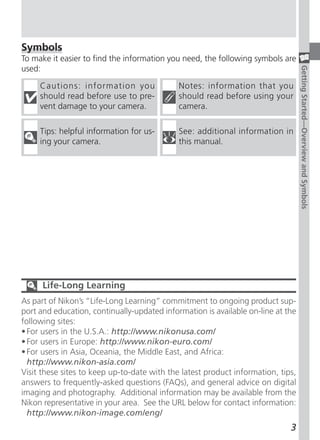
Symbols
To make it easier to find the information you need, the following symbols are
used:


                                                                                  Getting Started—Overview and Symbols
     Cautions: information you               Notes: information that you
     should read before use to pre-          should read before using your
     vent damage to your camera.             camera.

     Tips: helpful information for us-       See: additional information in
     ing your camera.                        this manual.


      Life-Long Learning
As part of Nikon’s “Life-Long Learning” commitment to ongoing product sup-
port and education, continually-updated information is available on-line at the
following sites:
• For users in the U.S.A.: http://www.nikonusa.com/
• For users in Europe: http://www.nikon-euro.com/
• For users in Asia, Oceania, the Middle East, and Africa:
  http://www.nikon-asia.com/
Visit these sites to keep up-to-date with the latest product information, tips,
answers to frequently-asked questions (FAQs), and general advice on digital
imaging and photography. Additional information may be available from the
Nikon representative in your area. See the URL below for contact information:
  http://www.nikon-image.com/eng/
                                                                             3
Getting to Know the COOLPIX5700

                                                  Parts of the COOLPIX5700
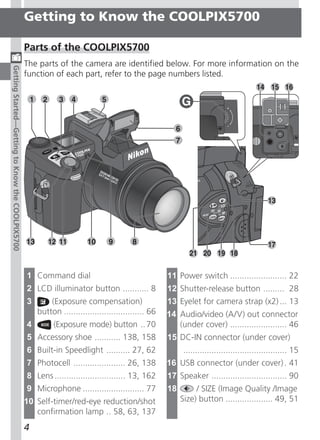
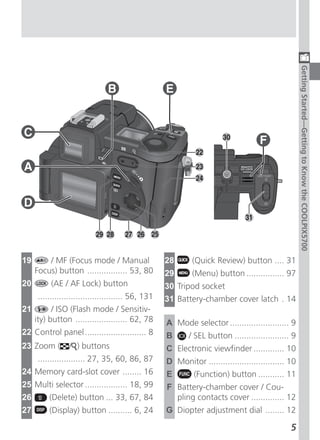
                                                  The parts of the camera are identified below. For more information on the
Getting Started—Getting to Know the COOLPIX5700


                                                  function of each part, refer to the page numbers listed.


                                                  1 Command dial                                     11 Power switch ........................ 22
                                                  2 LCD illuminator button ........... 8             12 Shutter-release button ......... 28
                                                  3       (Exposure compensation)                    13 Eyelet for camera strap (x2) ... 13
                                                      button .................................. 66   14 Audio/video (A/V) out connector
                                                  4         (Exposure mode) button .. 70                (under cover) ........................ 46
                                                  5 Accessory shoe ........... 138, 158              15 DC-IN connector (under cover)
                                                  6 Built-in Speedlight .......... 27, 62                  ............................................ 15
                                                  7 Photocell ...................... 26, 138         16 USB connector (under cover) . 41
                                                  8 Lens .............................. 13, 162      17 Speaker ................................ 90
                                                  9 Microphone .......................... 77         18        / SIZE (Image Quality /Image
                                                  10 Self-timer/red-eye reduction/shot                    Size) button .................... 49, 51
                                                     confirmation lamp .. 58, 63, 137
                                                  4
Getting Started—Getting to Know the COOLPIX5700
19       / MF (Focus mode / Manual                   28      (Quick Review) button .... 31
     Focus) button ................. 53, 80          29      (Menu) button ................ 97
20         (AE / AF Lock) button                     30 Tripod socket
      .................................... 56, 131   31 Battery-chamber cover latch . 14
21         / ISO (Flash mode / Sensitiv-
     ity) button ...................... 62, 78       A Mode selector ......................... 9
22 Control panel .......................... 8        B      / SEL button ....................... 9
23 Zoom (        / ) buttons                         C Electronic viewfinder ............. 10
      .................... 27, 35, 60, 86, 87        D Monitor ................................ 10
24 Memory card-slot cover ........ 16                E        (Function) button ........... 11
25 Multi selector .................. 18, 99          F Battery-chamber cover / Cou-
26        (Delete) button ... 33, 67, 84               pling contacts cover .............. 12
27        (Display) button .......... 6, 24          G Diopter adjustment dial ........ 12

                                                                                                5
Camera Displays
                                                  Monitor or Viewfinder (Shooting Mode)
Getting Started—Getting to Know the COOLPIX5700


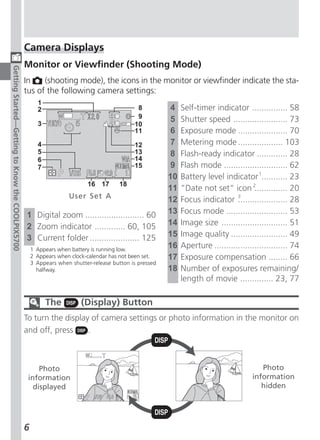
                                                  In    (shooting mode), the icons in the monitor or viewfinder indicate the sta-
                                                  tus of the following camera settings:
                                                        1
                                                        2                                     8           4   Self-timer indicator ............... 58
                                                                                              9           5   Shutter speed ....................... 73
                                                        3                                    10
                                                                                             11           6   Exposure mode ..................... 70
                                                        4                                    12           7   Metering mode ................... 103
                                                        5                                    13           8   Flash-ready indicator ............. 28
                                                        6                                    14
                                                        7                                    15           9   Flash mode ........................... 62
                                                                                                         10   Battery level indicator 1........... 23
                                                                           16 17        18
                                                                                                         11   ”Date not set“ icon 2.............. 20
                                                                    User Set A                           12   Focus indicator 3  ..................... 28
                                                  1 Digital zoom ......................... 60            13   Focus mode .......................... 53
                                                  2 Zoom indicator ............. 60, 105                 14   Image size ............................ 51
                                                  3 Current folder ..................... 125             15   Image quality ........................ 49
                                                      1 Appears when battery is running low.
                                                                                                         16   Aperture ............................... 74
                                                      2 Appears when clock-calendar has not been set.    17   Exposure compensation ........ 66
                                                      3 Appears when shutter-release button is pressed
                                                        halfway.                                         18   Number of exposures remaining/
                                                                                                              length of movie .............. 23, 77

                                                            The          (Display) Button
                                                  To turn the display of camera settings or photo information in the monitor on
                                                  and off, press     .


                                                       Photo                                                                               Photo
                                                   information                                                                          information
                                                     displayed                                                                             hidden


                                                  6
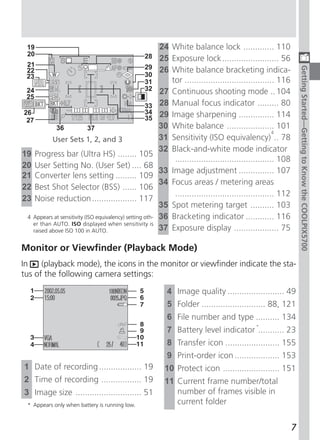
19                                                     24 White balance lock ............. 110
  20                                            28       25 Exposure lock ........................ 56
 21                                                 29 26 White balance bracketing indica-


                                                                                                                  Getting Started—Getting to Know the COOLPIX5700
 22
 23                                                 30
                                                    31      tor ...................................... 116
 24                                                 32 27 Continuous shooting mode .. 104
 25
                                                    33 28 Manual focus indicator ......... 80
26                                                  34 29 Image sharpening ............... 114
 27                                                 35
            36              37                           30 White balance .................... 101
                                                                                                      4
           User Sets 1, 2, and 3                         31 Sensitivity (ISO equivalency) .. 78
                                                         32 Black-and-white mode indicator
19 Progress bar (Ultra HS) ........ 105
                                                             .......................................... 108
20 User Setting No. (User Set) .... 68
                                                         33 Image adjustment ............... 107
21 Converter lens setting ......... 109
                                                         34 Focus areas / metering areas
22 Best Shot Selector (BSS) ...... 106
                                                             .......................................... 112
23 Noise reduction ................... 117
                                                         35 Spot metering target .......... 103
 4 Appears at sensitivity (ISO equivalency) setting oth- 36 Bracketing indicator ............ 116
   er than AUTO. ISO displayed when sensitivity is
   raised above ISO 100 in AUTO.                         37 Exposure display ................... 75

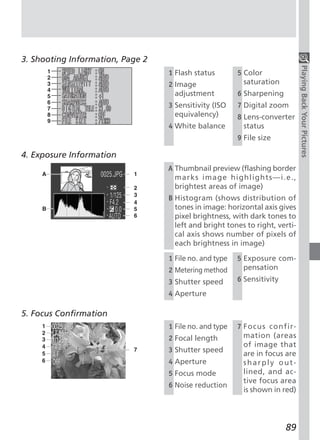
Monitor or Viewfinder (Playback Mode)
In    (playback mode), the icons in the monitor or viewfinder indicate the sta-
tus of the following camera settings:

                                                         4 Image quality ........................ 49
                                                         5 Folder ........................... 88, 121
                                                         6 File number and type .......... 134
                                                                                             *
                                                         7 Battery level indicator ........... 23
                                                         8 Transfer icon ....................... 155
                                                         9 Print-order icon ................... 153
1 Date of recording .................. 19               10 Protect icon ........................ 151
2 Time of recording ................. 19                11 Current frame number/total
3 Image size ............................ 51               number of frames visible in
  * Appears only when battery is running low.              current folder


                                                                                                              7
Control Panel
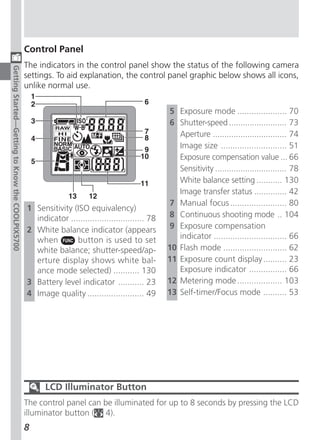
                                                  The indicators in the control panel show the status of the following camera
Getting Started—Getting to Know the COOLPIX5700


                                                  settings. To aid explanation, the control panel graphic below shows all icons,
                                                  unlike normal use.


                                                                                                    5 Exposure mode ..................... 70
                                                                                                    6 Shutter-speed ......................... 73
                                                                                                      Aperture ................................ 74
                                                                                                      Image size ............................ 51
                                                                                                      Exposure compensation value ... 66
                                                                                                      Sensitivity ............................... 78
                                                                                                      White balance setting ........... 130
                                                                                                      Image transfer status .............. 42
                                                                                                    7 Manual focus ........................ 80
                                                  1 Sensitivity (ISO equivalency)
                                                    indicator ............................... 78    8 Continuous shooting mode .. 104
                                                  2 White balance indicator (appears                9 Exposure compensation
                                                    when         button is used to set                indicator ............................... 66
                                                    white balance; shutter-speed/ap-               10 Flash mode ........................... 62
                                                    erture display shows white bal-                11 Exposure count display .......... 23
                                                    ance mode selected) ........... 130               Exposure indicator ................ 66
                                                  3 Battery level indicator ........... 23         12 Metering mode ................... 103
                                                  4 Image quality ........................ 49      13 Self-timer/Focus mode .......... 53


                                                        LCD Illuminator Button
                                                  The control panel can be illuminated for up to 8 seconds by pressing the LCD
                                                  illuminator button ( 4).
                                                  8
Camera Parts — The Details
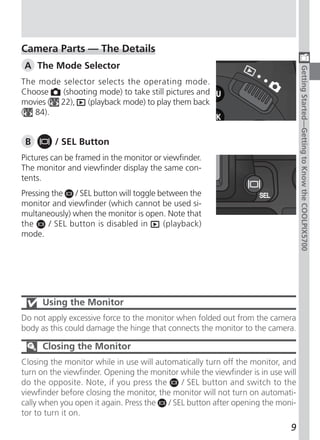
A The Mode Selector


                                                                                  Getting Started—Getting to Know the COOLPIX5700
The mode selector selects the operating mode.
Choose    (shooting mode) to take still pictures and
movies ( 22),    (playback mode) to play them back
( 84).


 B       / SEL Button
Pictures can be framed in the monitor or viewfinder.
The monitor and viewfinder display the same con-
tents.
Pressing the / SEL button will toggle between the
monitor and viewfinder (which cannot be used si-
multaneously) when the monitor is open. Note that
the     / SEL button is disabled in    (playback)
mode.


      Using the Monitor
Do not apply excessive force to the monitor when folded out from the camera
body as this could damage the hinge that connects the monitor to the camera.

      Closing the Monitor
Closing the monitor while in use will automatically turn off the monitor, and
turn on the viewfinder. Opening the monitor while the viewfinder is in use will
do the opposite. Note, if you press the      / SEL button and switch to the
viewfinder before closing the monitor, the monitor will not turn on automati-
cally when you open it again. Press the  / SEL button after opening the moni-
tor to turn it on.
                                                                             9
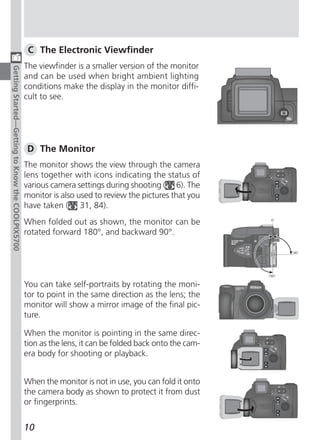
C The Electronic Viewfinder
                                                  The viewfinder is a smaller version of the monitor
Getting Started—Getting to Know the COOLPIX5700


                                                  and can be used when bright ambient lighting
                                                  conditions make the display in the monitor diffi-
                                                  cult to see.


                                                  D The Monitor
                                                  The monitor shows the view through the camera
                                                  lens together with icons indicating the status of
                                                  various camera settings during shooting ( 6). The
                                                  monitor is also used to review the pictures that you
                                                  have taken ( 31, 84).
                                                  When folded out as shown, the monitor can be
                                                  rotated forward 180°, and backward 90°.


                                                  You can take self-portraits by rotating the moni-
                                                  tor to point in the same direction as the lens; the
                                                  monitor will show a mirror image of the final pic-
                                                  ture.

                                                  When the monitor is pointing in the same direc-
                                                  tion as the lens, it can be folded back onto the cam-
                                                  era body for shooting or playback.


                                                  When the monitor is not in use, you can fold it onto
                                                  the camera body as shown to protect it from dust
                                                  or fingerprints.


                                                  10
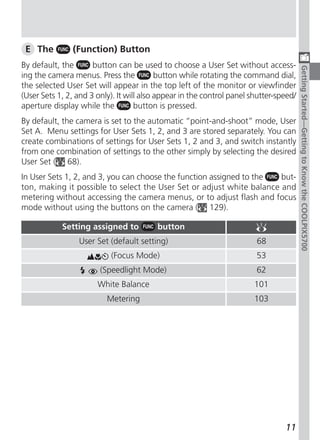
E The         (Function) Button
By default, the       button can be used to choose a User Set without access-


                                                                                        Getting Started—Getting to Know the COOLPIX5700
ing the camera menus. Press the            button while rotating the command dial,
the selected User Set will appear in the top left of the monitor or viewfinder
(User Sets 1, 2, and 3 only). It will also appear in the control panel shutter-speed/
aperture display while the          button is pressed.
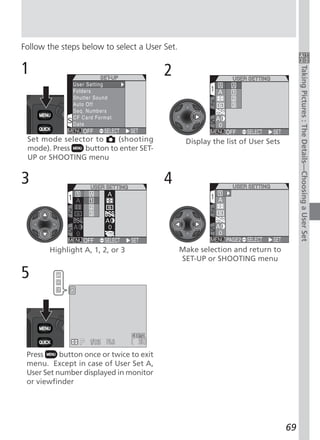
By default, the camera is set to the automatic “point-and-shoot” mode, User
Set A. Menu settings for User Sets 1, 2, and 3 are stored separately. You can
create combinations of settings for User Sets 1, 2 and 3, and switch instantly
from one combination of settings to the other simply by selecting the desired
User Set ( 68).
In User Sets 1, 2, and 3, you can choose the function assigned to the  but-
ton, making it possible to select the User Set or adjust white balance and
metering without accessing the camera menus, or to adjust flash and focus
mode without using the buttons on the camera ( 129).

            Setting assigned to           button
                 User Set (default setting)                             68
                           (Focus Mode)                                 53
                        (Speedlight Mode)                               62
                       White Balance                                    101
                          Metering                                      103


                                                                                 11
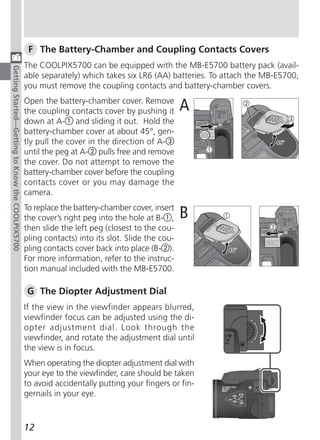
F The Battery-Chamber and Coupling Contacts Covers
                                                  The COOLPIX5700 can be equipped with the MB-E5700 battery pack (avail-
Getting Started—Getting to Know the COOLPIX5700


                                                  able separately) which takes six LR6 (AA) batteries. To attach the MB-E5700,
                                                  you must remove the coupling contacts and battery-chamber covers.
                                                  Open the battery-chamber cover. Remove
                                                  the coupling contacts cover by pushing it       A
                                                  down at A- and sliding it out. Hold the
                                                  battery-chamber cover at about 45°, gen-
                                                  tly pull the cover in the direction of A-
                                                  until the peg at A- pulls free and remove
                                                  the cover. Do not attempt to remove the
                                                  battery-chamber cover before the coupling
                                                  contacts cover or you may damage the
                                                  camera.
                                                  To replace the battery-chamber cover, insert
                                                  the cover’s right peg into the hole at B- ,     B
                                                  then slide the left peg (closest to the cou-
                                                  pling contacts) into its slot. Slide the cou-
                                                  pling contacts cover back into place (B- ).
                                                  For more information, refer to the instruc-
                                                  tion manual included with the MB-E5700.

                                                  G The Diopter Adjustment Dial
                                                  If the view in the viewfinder appears blurred,
                                                  viewfinder focus can be adjusted using the di-
                                                  opter adjustment dial. Look through the
                                                  viewfinder, and rotate the adjustment dial until
                                                  the view is in focus.
                                                  When operating the diopter adjustment dial with
                                                  your eye to the viewfinder, care should be taken
                                                  to avoid accidentally putting your fingers or fin-
                                                  gernails in your eye.


                                                  12
First Steps

Complete the steps in this section before using your camera for the first time.

Step 1—Attach the Camera Strap


                                                                                  Getting Started—First Steps
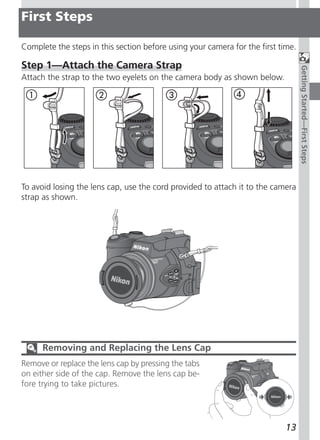
Attach the strap to the two eyelets on the camera body as shown below.


To avoid losing the lens cap, use the cord provided to attach it to the camera
strap as shown.


      Removing and Replacing the Lens Cap
Remove or replace the lens cap by pressing the tabs
on either side of the cap. Remove the lens cap be-
fore trying to take pictures.


                                                                           13
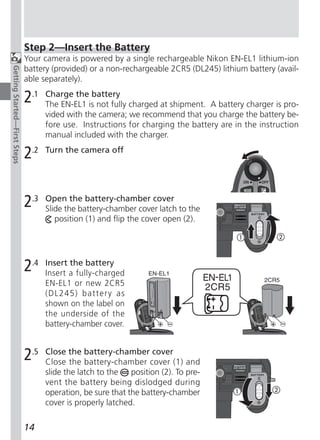
Step 2—Insert the Battery
                              Your camera is powered by a single rechargeable Nikon EN-EL1 lithium-ion
                              battery (provided) or a non-rechargeable 2CR5 (DL245) lithium battery (avail-
Getting Started—First Steps


                              able separately).

                              2.1   Charge the battery
                                    The EN-EL1 is not fully charged at shipment. A battery charger is pro-
                                    vided with the camera; we recommend that you charge the battery be-
                                    fore use. Instructions for charging the battery are in the instruction
                                    manual included with the charger.

                              2.2   Turn the camera off


                              2.3   Open the battery-chamber cover
                                    Slide the battery-chamber cover latch to the
                                       position (1) and flip the cover open (2).


                              2.4   Insert the battery
                                    Insert a fully-charged
                                    EN-EL1 or new 2CR5
                                    (DL245) battery as
                                    shown on the label on
                                    the underside of the
                                    battery-chamber cover.


                              2.5   Close the battery-chamber cover
                                    Close the battery-chamber cover (1) and
                                    slide the latch to the   position (2). To pre-
                                    vent the battery being dislodged during
                                    operation, be sure that the battery-chamber
                                    cover is properly latched.

                              14
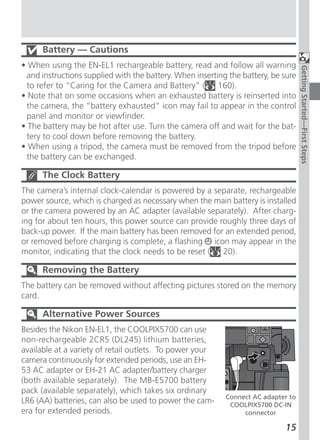
Battery — Cautions
• When using the EN-EL1 rechargeable battery, read and follow all warning


                                                                                   Getting Started—First Steps
 and instructions supplied with the battery. When inserting the battery, be sure
 to refer to “Caring for the Camera and Battery” (       160).
• Note that on some occasions when an exhausted battery is reinserted into
 the camera, the “battery exhausted” icon may fail to appear in the control
 panel and monitor or viewfinder.
• The battery may be hot after use. Turn the camera off and wait for the bat-
 tery to cool down before removing the battery.
• When using a tripod, the camera must be removed from the tripod before
 the battery can be exchanged.

      The Clock Battery
The camera’s internal clock-calendar is powered by a separate, rechargeable
power source, which is charged as necessary when the main battery is installed
or the camera powered by an AC adapter (available separately). After charg-
ing for about ten hours, this power source can provide roughly three days of
back-up power. If the main battery has been removed for an extended period,
or removed before charging is complete, a flashing icon may appear in the
monitor, indicating that the clock needs to be reset (  20).

      Removing the Battery
The battery can be removed without affecting pictures stored on the memory
card.

      Alternative Power Sources
Besides the Nikon EN-EL1, the COOLPIX5700 can use
non-rechargeable 2CR5 (DL245) lithium batteries,
available at a variety of retail outlets. To power your
camera continuously for extended periods, use an EH-
53 AC adapter or EH-21 AC adapter/battery charger
(both available separately). The MB-E5700 battery
pack (available separately), which takes six ordinary
                                                           Connect AC adapter to
LR6 (AA) batteries, can also be used to power the cam-      COOLPIX5700 DC-IN
era for extended periods.                                       connector

                                                                            15
Step 3—Insert the Memory Card
                              Your Nikon digital camera uses CompactFlash™ (CF) memory cards (Type I or II)
                              or IBM Microdrive® memory cards to store pictures ( 159). Memory cards are
Getting Started—First Steps


                              inserted as follows:

                              3.1   Turn the camera off


                              3.2   Insert the memory card
                                    Open the card-slot cover (1) and make sure the eject button is pressed all
                                    the way down (2).
                                    Memory cards are labeled with an arrow (v) showing the direction of
                                    insertion. With this label facing the back of the camera (the side with
                                    the monitor), insert the card in the direction of the arrow (3), sliding it in
                                    until it is firmly in place.
                                    Close the card slot cover (4).


                              16
Inserting Memory Cards
• If the eject button is up when the card-slot


                                                                                           Getting Started—First Steps
  cover is closed, closing the cover will par-
  tially eject the memory card, causing er-
  rors when the camera is turned on. Be
  sure the eject button is down (i.e., in po-
  sition ) before inserting memory cards.
• Insert memory cards terminals (two rows
  of small holes) first.
• Be sure the memory card is oriented cor-                  Terminals
  rectly before trying to insert the card, oth-                                    Front
                                                                                   label
  erwise you may damage the camera or                  Direction of
  card.                                                   insertion


                                                       Insert card terminals first with
                                                       front label facing camera back


      Formatting Memory Cards
While the memory card provided with your camera is formatted at shipment,
other memory cards must be formatted before first use. For more informa-
tion on formatting cards, see “Formatting Memory Cards” (   135).

      Removing Memory Cards
Memory cards can be removed without loss of
data when the camera is off. To remove a
memory card, turn the camera off and open the
card-slot cover. Press the eject button to pop it
up to position       (1), and press it again to par-
tially eject the card (2). Then remove the card by
hand.

      Hot Memory Cards
Memory cards may become hot during use. Observe due caution when re-
moving memory cards from the camera.


                                                                                     17
Step 4—Choose a Language
                              Menus and messages can be displayed in German, English, French, Japanese,
                              and Spanish.
Getting Started—First Steps


                              4.1                                    4.2


                              Set mode selector to   and turn cam-   Open the monitor. If no images exist on
                              era on                                 memory card, “CARD CONTAINS NO
                                                                     IMAGES” message will appear in moni-
                                                                     tor; ignore it and proceed to next step


                              4.3                                    4.4


                              Press    button to display PLAY BACK            Highlight page tab
                              menu

                              4.5                                    4.6


                              Highlight SET-UP menu page tab (S)        Position cursor in SET-UP menu


                              18
4.7                                      4.8
                                                        Monitor Options


                                                                                   Getting Started—First Steps
                                                        Shutter Sound
                                                        Auto Off
                                                        CF Card For mat
                                                        Date
                                                        Video Mode
                                                        Language


         Highlight Language                         Display options


4.9                                      4.10
               Monitor Options
               Shutter Sound
               Auto Off
               CF Card For mat
               Date
               Video Mode
               Language


 Choose a language from:                 Make selection and return to SET-UP
    De Deutsch (German)                  menu
    En English
    Fr Français (French)
         Japanese
    Es Español (Spanish)

Step 5—Set the Time and Date
The time and date of shooting is recorded with all pictures and movies you take.
To set the camera’s internal clock to the correct time and date, follow steps
4.1 to 4.6 in the previous section, then follow the steps below:

5.1                                      5.2


           Highlight Date                          Display Date menu

                                                                            19
5.3                                      5.4
Getting Started—First Steps


                              Highlight Year, Month, Day, hour, or     Edit selected item. Repeat steps 5.3
                              minute (selected item highlighted in     and 5.4 until all items have been set
                              red)


                              5.5                                      5.6


                                        Highlight Y M D                Choose order in which year, month,
                                                                       and day will be displayed


                              5.7


                              Save changes to settings and return to
                              SET-UP menu
                              To return to    (playback) mode, press the       button.


                                    Flashing Clock Icon
                              If the time and date have not been set, a flashing clock icon ( ) will appear in
                              the top right corner of the monitor or viewfinder when the camera is in
                              (shooting) mode. Any pictures taken before the time and date have been set
                              will have a time stamp of “0000.00.00 00:00”.
                              20
Basic Picture
      Taking and                                        Taking

                                                                        22–30

      Reviewing                                         Reviewing Your
                                                        Pictures


      Pictures                                                          31–35


This chapter is divided into the following sections :
Basic Picture Taking
Outlines the basic steps necessary to take your first
digital picture.

  STEP 1    Ready the Camera                22–24
  STEP 2    Select User Set A                 25
  STEP 3    Adjust Camera Settings            25
  STEP 4    Frame the Shot                  26–27
  STEP 5    Focus and Shoot                 28–29
  STEP 6    Put the Camera Away               30

Reviewing Your Pictures
Illustrates how to review your pictures in the moni-
tor or viewfinder.


                                                                           21
Basic Picture Taking

                                                     This section details the steps for taking pictures in the automatic “point and
                                                     shoot” mode, User Set A. When you first use the camera, it will be set to User
                                                     Set A by default.
Taking and Reviewing Pictures—Basic Picture Taking


                                                     Step 1—Ready the Camera
                                                     Before using your camera, complete the following steps:

                                                     1.1   Remove the lens cap
                                                           Remove the lens cap by pressing the tabs on
                                                           either side of the cap.


                                                     1.2   Open the monitor as shown in (1) through (5)


                                                     1.3   Slide the mode selector to        (shooting mode)


                                                     1.4   Turn the camera on
                                                           A beep will sound and the lens will extend. After a
                                                           short pause, current settings will be displayed in the
                                                           control panel and the monitor or viewfinder; the
                                                           monitor or viewfinder will show the view through the
                                                           lens.

                                                     22
1.5   Check indicators in the control panel, monitor or viewfinder
      Check the battery indicator to make sure the battery has enough power.
      See the table below for battery indicator meanings.


                                                                                  Taking and Reviewing Pictures—Basic Picture Taking
      Make sure the memory card has enough memory. If the number of ex-
      posures remaining reaches zero, or if the “OUT OF MEMORY” message
      is displayed in the monitor or viewfinder, change the memory card or de-
      lete some images ( 33, 35) to free up space on the card. It may be pos-
      sible to record more pictures at a different image quality or size ( 49).
                             Battery indicator

                                Number of
                                exposures
                                remaining


               Monitor                           Control panel


Monitor Control Panel             Meaning                Camera status
  None                       Battery fully charged. Camera functions normally.
                             Low battery. Charge
                                                   As above, except that
                             EN-EL1 as soon as
                                                   monitor will go blank after
                             possible or ready a
                                                   using flash as flash re-
                             new 2CR5 (DL245)
                                                   charges.
                             battery.
                             Battery exhausted.
                             Recharge EN-EL1 or
                                                No pictures can be taken
                             replace with fully
                                                until battery has been re-
 (Flashes)     (Flashes)     charged EN-EL1, or
                                                charged or replaced.
                             use a new 2CR5
                             (DL245) battery.


                                                                           23
Auto Power Off
                                                     To save power, the camera will enter “sleep” mode if no operations are per-
Taking and Reviewing Pictures—Basic Picture Taking


                                                     formed for the period of time specified in the Auto Off menu (default 30 sec-
                                                     onds;    133). In sleep mode, the monitor or viewfinder turn off and all cam-
                                                     era functions are deactivated. The camera itself is effectively off. To reactivate
                                                     the camera, press      or press the shutter-release button halfway.

                                                           The      / SEL Button
                                                     Press the   / SEL button to switch between the monitor and viewfinder when
                                                     the monitor is open. The monitor and viewfinder display the same contents.


                                                     24
Step 2—Select User Set A
The following steps assume the camera is in the au-
tomatic “point and shoot” mode, User Set A.


                                                                                  Taking and Reviewing Pictures—Basic Picture Taking
When you first use the camera, it will be set to User
Set A by default. If a , , or appears in the up-
per left corner of the monitor or viewfinder, the
camera is set to User Set 1, 2 or 3 respectively. For
details on setting the camera to User Set A, see
”Choosing a User Set“ ( 68).


Step 3—Adjust Camera Settings (Optional)
In User Set A, you can use the      ,    ,    , and      buttons to control the
settings listed in the following table. The default settings, suitable for most
situations, are also shown below. Refer to the rightmost column page num-
bers for information on changing these settings. This section assumes that the
defaults are used.

   Setting        Default           Description            Control
                             Speedlight pops up and
  Flash mode       Auto      fires automatically in poor               62
                             lighting.
                      Camera focuses automati-
 Focus mode Autofocus cally at distances over                          53
                      50 cm (1´8˝).
                        Pictures compressed for
    Image               balance between quality
                 NORMAL                                                49
    quality             and file size that is ideal for
                        snapshots.

                             Pictures are 2,560 × 1,920
  Image size        FULL                                      +        51
                             pixels in size.

                             Camera records one pic-
 Continuous
                   Single    ture each time shutter-re-                104
   mode
                             lease button is pressed.
                                                                             25
Step 4—Frame the Shot
                                                     After adjusting camera settings, you are ready to frame your shot.
Taking and Reviewing Pictures—Basic Picture Taking


                                                     4.1   Ready the camera
                                                           To prevent camera shake, hold the camera steadily in both hands.
                                                           Switch between the monitor or viewfinder, whichever best suits your
                                                           shooting conditions, by pressing the  / SEL button.


                                                                                               To avoid blocking red-
                                                                Avoid pressing buttons         eye reduction lamp, keep
                                                                on side of camera while        fingers below ridges on
                                                                shooting                       camera grip


                                                           Don’t Block the Shot
                                                     To avoid dark or partially obscured pictures, keep your fingers and other ob-
                                                     jects away from the lens, flash, and photocell. Ridges on the camera grip also
                                                     keep your fingers from blocking the red-eye reduction lamp when holding the
                                                     camera.
                                                     26
4.2   Frame your subject
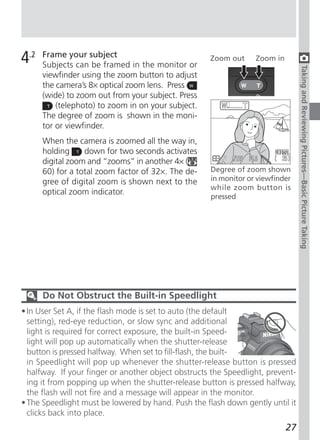
      Subjects can be framed in the monitor or
                                                     Zoom out     Zoom in


                                                                                 Taking and Reviewing Pictures—Basic Picture Taking
      viewfinder using the zoom button to adjust
      the camera’s 8× optical zoom lens. Press
      (wide) to zoom out from your subject. Press
          (telephoto) to zoom in on your subject.
      The degree of zoom is shown in the moni-
      tor or viewfinder.
      When the camera is zoomed all the way in,
      holding     down for two seconds activates
      digital zoom and “zooms” in another 4× (
      60) for a total zoom factor of 32×. The de-    Degree of zoom shown
      gree of digital zoom is shown next to the      in monitor or viewfinder
                                                     while zoom button is
      optical zoom indicator.
                                                     pressed


      Do Not Obstruct the Built-in Speedlight
• In User Set A, if the flash mode is set to auto (the default
  setting), red-eye reduction, or slow sync and additional
  light is required for correct exposure, the built-in Speed-
  light will pop up automatically when the shutter-release
  button is pressed halfway. When set to fill-flash, the built-
  in Speedlight will pop up whenever the shutter-release button is pressed
  halfway. If your finger or another object obstructs the Speedlight, prevent-
  ing it from popping up when the shutter-release button is pressed halfway,
  the flash will not fire and a message will appear in the monitor.
• The Speedlight must be lowered by hand. Push the flash down gently until it
  clicks back into place.
                                                                            27
Step 5—Focus and Shoot

                                                     5.1              Focus
Taking and Reviewing Pictures—Basic Picture Taking


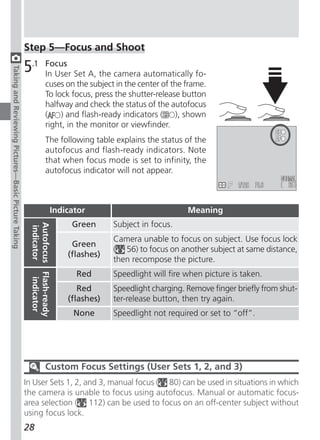
                                                                      In User Set A, the camera automatically fo-
                                                                      cuses on the subject in the center of the frame.
                                                                      To lock focus, press the shutter-release button
                                                                      halfway and check the status of the autofocus
                                                                      (    ) and flash-ready indicators ( ), shown
                                                                      right, in the monitor or viewfinder.
                                                                      The following table explains the status of the
                                                                      autofocus and flash-ready indicators. Note
                                                                      that when focus mode is set to infinity, the
                                                                      autofocus indicator will not appear.


                                                                              Indicator                            Meaning
                                                                                   Green      Subject in focus.
                                                      Autofocus Flash-ready
                                                      indicator


                                                                                              Camera unable to focus on subject. Use focus lock
                                                                                   Green
                                                                                              ( 56) to focus on another subject at same distance,
                                                                                  (flashes)
                                                                                              then recompose the picture.
                                                                                    Red       Speedlight will fire when picture is taken.
                                                                 indicator


                                                                                     Red      Speedlight charging. Remove finger briefly from shut-
                                                                                  (flashes)   ter-release button, then try again.
                                                                                    None      Speedlight not required or set to “off”.


                                                                      Custom Focus Settings (User Sets 1, 2, and 3)
                                                     In User Sets 1, 2, and 3, manual focus ( 80) can be used in situations in which
                                                     the camera is unable to focus using autofocus. Manual or automatic focus-
                                                     area selection ( 112) can be used to focus on an off-center subject without
                                                     using focus lock.
                                                     28
5.2   Take the picture
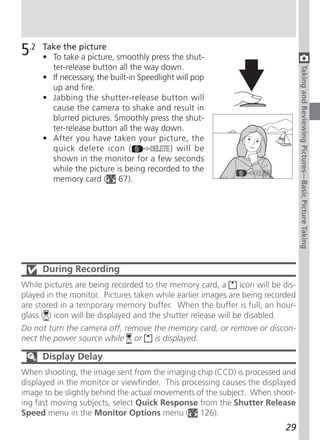
      • To take a picture, smoothly press the shut-
        ter-release button all the way down.


                                                                                    Taking and Reviewing Pictures—Basic Picture Taking
      • If necessary, the built-in Speedlight will pop
        up and fire.
      • Jabbing the shutter-release button will
        cause the camera to shake and result in
        blurred pictures. Smoothly press the shut-
        ter-release button all the way down.
      • After you have taken your picture, the
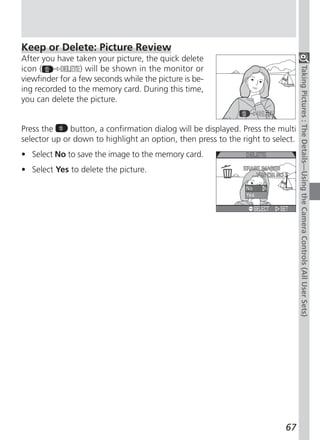
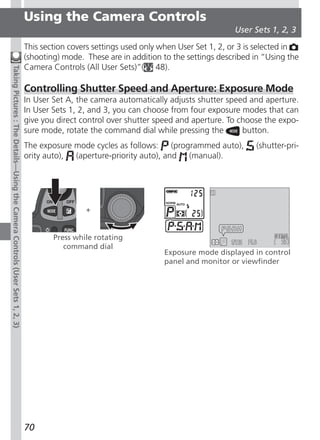
        quick delete icon (                 ) will be
        shown in the monitor for a few seconds
        while the picture is being recorded to the
        memory card ( 67).


      During Recording
While pictures are being recorded to the memory card, a         icon will be dis-
played in the monitor. Pictures taken while earlier images are being recorded
are stored in a temporary memory buffer. When the buffer is full, an hour-
glass ( ) icon will be displayed and the shutter release will be disabled.
Do not turn the camera off, remove the memory card, or remove or discon-
nect the power source while or     is displayed.

      Display Delay
When shooting, the image sent from the imaging chip (CCD) is processed and
displayed in the monitor or viewfinder. This processing causes the displayed
image to be slightly behind the actual movements of the subject. When shoot-
ing fast moving subjects, select Quick Response from the Shutter Release
Speed menu in the Monitor Options menu ( 126).
                                                                              29
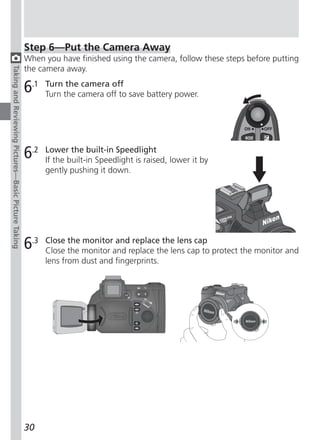
Step 6—Put the Camera Away
                                                     When you have finished using the camera, follow these steps before putting
                                                     the camera away.
Taking and Reviewing Pictures—Basic Picture Taking


                                                     6.1   Turn the camera off
                                                           Turn the camera off to save battery power.


                                                     6.2   Lower the built-in Speedlight
                                                           If the built-in Speedlight is raised, lower it by
                                                           gently pushing it down.


                                                     6.3   Close the monitor and replace the lens cap
                                                           Close the monitor and replace the lens cap to protect the monitor and
                                                           lens from dust and fingerprints.


                                                     30
Reviewing Your Pictures

Digital cameras allow you to see the results of your pictures immediately after
shooting, letting you to use the results of earlier attempts to improve your next
picture. Your COOLPIX camera allows you to review your pictures while the cam-


                                                                                    Taking and Reviewing Pictures—Reviewing Your Pictures
era is still in  (shooting) mode. Use either quick review or full-screen review
to look over your pictures.
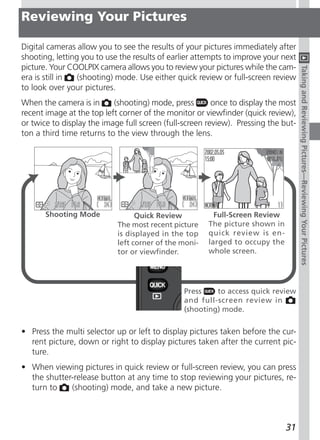
When the camera is in      (shooting) mode, press        once to display the most
recent image at the top left corner of the monitor or viewfinder (quick review),
or twice to display the image full screen (full-screen review). Pressing the but-
ton a third time returns to the view through the lens.


       Shooting Mode              Quick Review           Full-Screen Review
                            The most recent picture    The picture shown in
                            is displayed in the top    quick review is en-
                            left corner of the moni-   larged to occupy the
                            tor or viewfinder.         whole screen.


                                               Press    to access quick review
                                               and full-screen review in
                                               (shooting) mode.

• Press the multi selector up or left to display pictures taken before the cur-
  rent picture, down or right to display pictures taken after the current pic-
  ture.
• When viewing pictures in quick review or full-screen review, you can press
  the shutter-release button at any time to stop reviewing your pictures, re-
  turn to    (shooting) mode, and take a new picture.


                                                                              31
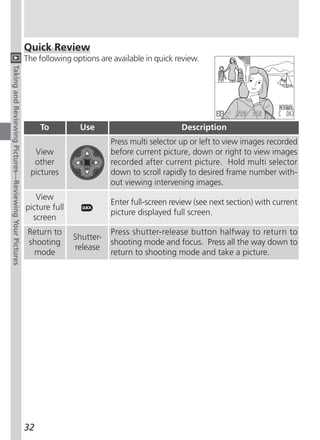
Quick Review
                                                        The following options are available in quick review.
Taking and Reviewing Pictures—Reviewing Your Pictures


                                                             To         Use                            Description
                                                                                  Press multi selector up or left to view images recorded
                                                          View                    before current picture, down or right to view images
                                                          other                   recorded after current picture. Hold multi selector
                                                         pictures                 down to scroll rapidly to desired frame number with-
                                                                                  out viewing intervening images.
                                                           View
                                                                                  Enter full-screen review (see next section) with current
                                                        picture full
                                                                                  picture displayed full screen.
                                                          screen
                                                         Return to                Press shutter-release button halfway to return to
                                                                       Shutter-
                                                         shooting                 shooting mode and focus. Press all the way down to
                                                                       release
                                                          mode                    return to shooting mode and take a picture.


                                                        32
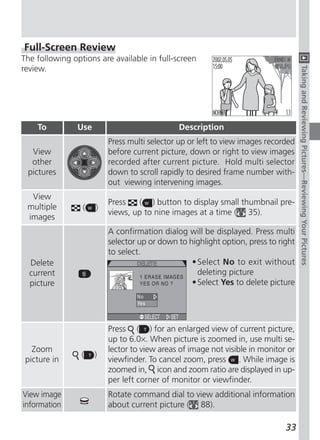
Full-Screen Review
The following options are available in full-screen
review.


                                                                                    Taking and Reviewing Pictures—Reviewing Your Pictures
    To          Use                           Description
                          Press multi selector up or left to view images recorded
  View                    before current picture, down or right to view images
  other                   recorded after current picture. Hold multi selector
 pictures                 down to scroll rapidly to desired frame number with-
                          out viewing intervening images.
  View
                          Press   ( ) button to display small thumbnail pre-
 multiple        (    )
                          views, up to nine images at a time ( 35).
 images
                          A confirmation dialog will be displayed. Press multi
                          selector up or down to highlight option, press to right
                          to select.
  Delete                                          • Select No to exit without
  current                                           deleting picture
  picture                                         • Select Yes to delete picture


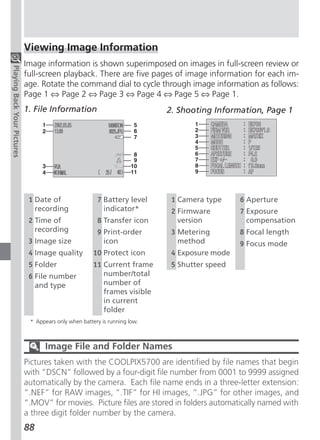
                          Press ( ) for an enlarged view of current picture,
                          up to 6.0×. When picture is zoomed in, use multi se-
   Zoom                   lector to view areas of image not visible in monitor or
                 (    )
 picture in               viewfinder. To cancel zoom, press . While image is
                          zoomed in, icon and zoom ratio are displayed in up-
                          per left corner of monitor or viewfinder.
View image                Rotate command dial to view additional information
information               about current picture ( 88).

                                                                              33
To         Use                          Description
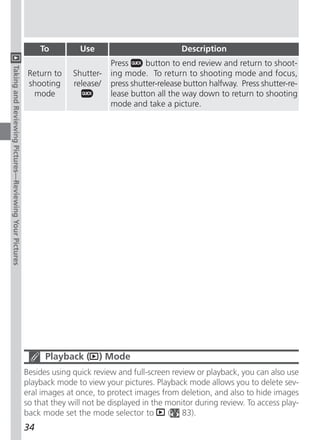
                                                                                 Press     button to end review and return to shoot-
Taking and Reviewing Pictures—Reviewing Your Pictures


                                                         Return to    Shutter-   ing mode. To return to shooting mode and focus,
                                                         shooting     release/   press shutter-release button halfway. Press shutter-re-
                                                          mode                   lease button all the way down to return to shooting
                                                                                 mode and take a picture.


                                                              Playback ( ) Mode
                                                        Besides using quick review and full-screen review or playback, you can also use
                                                        playback mode to view your pictures. Playback mode allows you to delete sev-
                                                        eral images at once, to protect images from deletion, and also to hide images
                                                        so that they will not be displayed in the monitor during review. To access play-
                                                        back mode set the mode selector to        ( 83).
                                                        34
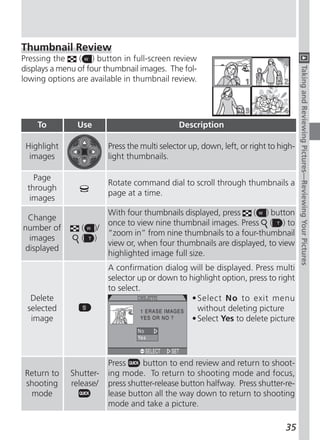
Thumbnail Review
Pressing the    ( ) button in full-screen review
displays a menu of four thumbnail images. The fol-


                                                                                       Taking and Reviewing Pictures—Reviewing Your Pictures
lowing options are available in thumbnail review.


    To         Use                             Description

 Highlight                Press the multi selector up, down, left, or right to high-
  images                  light thumbnails.

   Page
                          Rotate command dial to scroll through thumbnails a
 through
                          page at a time.
  images
                          With four thumbnails displayed, press   ( ) button
  Change
                          once to view nine thumbnail images. Press ( ) to
number of        (   )/
                          “zoom in” from nine thumbnails to a four-thumbnail
  images         (   )
                          view or, when four thumbnails are displayed, to view
 displayed
                          highlighted image full size.
                          A confirmation dialog will be displayed. Press multi
                          selector up or down to highlight option, press to right
                          to select.
  Delete                                          • Select No to exit menu
 selected                                           without deleting picture
  image                                           • Select Yes to delete picture


                          Press     button to end review and return to shoot-
 Return to   Shutter-     ing mode. To return to shooting mode and focus,
 shooting    release/     press shutter-release button halfway. Press shutter-re-
  mode                    lease button all the way down to return to shooting
                          mode and take a picture.

                                                                                 35
36
Connecting to a
      Doing More                                        Computer

                                                                       38–45

      with Your                                         Viewing Pictures on a
                                                        TV / VCR


      Digital Camera                                                       46


This chapter is divided into the following sections :
Connecting to a Computer
Shows you how to connect your camera to a com-
puter and save pictures to the hard disk.
Viewing Pictures on a TV / VCR
Takes you through the steps necessary to connect
your camera to a television or VCR and view pic-
tures on the television screen.


                                                                           37
Connecting to a Computer

                                                               Your Nikon digital camera stores pictures as digital data. Instead of making
                                                               the trip to a developer and getting negatives, you can simply copy your pic-
                                                               tures to a computer for long-term storage using the Nikon View 5 software
Doing More with Your Digital Camera—Connecting to a Computer


                                                               provided with your camera. Once transferred to your computer, your pictures
                                                               can be viewed, printed, sent to your acquaintances via e-mail, or saved to a
                                                               Zip disk or other removable media for delivery to a photofinisher. Any copies
                                                               stored on the memory card after transfer can be deleted to make way for new
                                                               pictures, which you can then add to the growing digital photo album on your
                                                               computer.

                                                               Before You Begin: Installing Nikon View 5
                                                               Before copying pictures to your computer, you will need to install Nikon View 5,
                                                               an application that allows you to transfer pictures from the camera memory
                                                               card to a computer hard disk and view them on the computer monitor. To
                                                               install Nikon View 5, you must have a computer running one of the following
                                                               operating systems:
                                                                                     Pre-installed versions of Windows XP Home Edition,
                                                                                     Windows XP Professional, Windows 2000 Professional,
                                                                     Windows
                                                                                     Windows Millennium Edition (Me), or Windows 98
                                                                                     Second Edition (SE).
                                                                                     Mac OS 9.0, 9.1, 9.2, Mac OS X (10.1.2 or later). Only
                                                                     Macintosh
                                                                                     models with built-in USB ports supported.
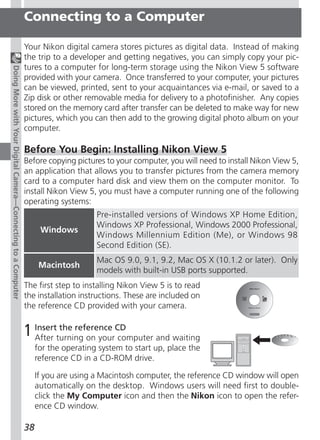
                                                               The first step to installing Nikon View 5 is to read
                                                               the installation instructions. These are included on
                                                               the reference CD provided with your camera.


                                                               1 Insertturning on yourCD
                                                                 After
                                                                        the reference
                                                                                       computer and waiting
                                                                    for the operating system to start up, place the
                                                                    reference CD in a CD-ROM drive.

                                                                    If you are using a Macintosh computer, the reference CD window will open
                                                                    automatically on the desktop. Windows users will need first to double-
                                                                    click the My Computer icon and then the Nikon icon to open the refer-
                                                                    ence CD window.

                                                               38
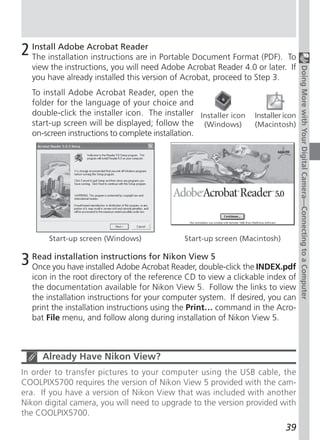
2 Install Adobe Acrobat Reader in Portable Document Format (PDF).
  The installation instructions are                                      To
  view the instructions, you will need Adobe Acrobat Reader 4.0 or later. If


                                                                                   Doing More with Your Digital Camera—Connecting to a Computer
  you have already installed this version of Acrobat, proceed to Step 3.
  To install Adobe Acrobat Reader, open the
  folder for the language of your choice and
  double-click the installer icon. The installer Installer icon   Installer icon
  start-up screen will be displayed; follow the (Windows)         (Macintosh)
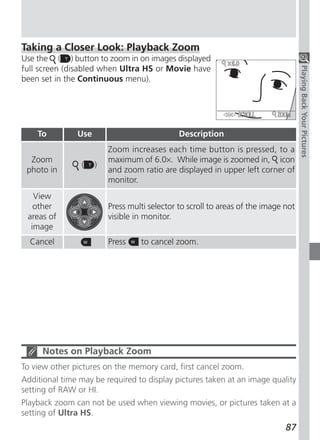
  on-screen instructions to complete installation.


       Start-up screen (Windows)             Start-up screen (Macintosh)


3 Read you have installed Adobe Acrobat Reader, double-click the INDEX.pdf
  Once
        installation instructions for Nikon View 5

  icon in the root directory of the reference CD to view a clickable index of
  the documentation available for Nikon View 5. Follow the links to view
  the installation instructions for your computer system. If desired, you can
  print the installation instructions using the Print… command in the Acro-
  bat File menu, and follow along during installation of Nikon View 5.


     Already Have Nikon View?
In order to transfer pictures to your computer using the USB cable, the
COOLPIX5700 requires the version of Nikon View 5 provided with the cam-
era. If you have a version of Nikon View that was included with another
Nikon digital camera, you will need to upgrade to the version provided with
the COOLPIX5700.
                                                                            39
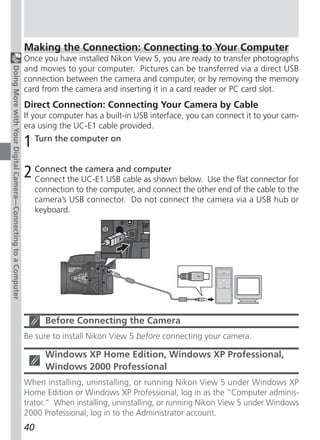
Making the Connection: Connecting to Your Computer
                                                               Once you have installed Nikon View 5, you are ready to transfer photographs
                                                               and movies to your computer. Pictures can be transferred via a direct USB
Doing More with Your Digital Camera—Connecting to a Computer


                                                               connection between the camera and computer, or by removing the memory
                                                               card from the camera and inserting it in a card reader or PC card slot.
                                                               Direct Connection: Connecting Your Camera by Cable
                                                               If your computer has a built-in USB interface, you can connect it to your cam-
                                                               era using the UC-E1 cable provided.

                                                               1 Turn the computer on
                                                               2 Connectthe UC-E1 USB cable as shown below. Use the flat connector for
                                                                 Connect
                                                                         the camera and computer

                                                                    connection to the computer, and connect the other end of the cable to the
                                                                    camera’s USB connector. Do not connect the camera via a USB hub or
                                                                    keyboard.


                                                                      Before Connecting the Camera
                                                               Be sure to install Nikon View 5 before connecting your camera.

                                                                      Windows XP Home Edition, Windows XP Professional,
                                                                      Windows 2000 Professional
                                                               When installing, uninstalling, or running Nikon View 5 under Windows XP
                                                               Home Edition or Windows XP Professional, log in as the “Computer adminis-
                                                               trator.” When installing, uninstalling, or running Nikon View 5 under Windows
                                                               2000 Professional, log in to the Administrator account.
                                                               40
3 Turn the camera on. Nikon View 5 will detect the camera and the Nikon
  Turn
        the camera on

    Transfer window will automatically be displayed. For details, see the Nikon


                                                                                    Doing More with Your Digital Camera—Connecting to a Computer
    View 5 Reference Manual (on CD). While the UC-E1 USB cable is con-
    nected, the camera monitor will remain off,      will appear in the control
    panel and all controls except the power switch will be inactive.

4 Transferall picturesto your memory
  To copy
           pictures
                       on the
                              computer

    card to your computer, select All im-
    ages from the Image transfer rule
    menu in the Nikon Transfer window
    and click the     button to begin
    transfer. While pictures are being
    copied to the computer, do not:
    • Disconnect the USB cable.
    • Turn the camera off.
    • Remove the memory card.
                                               Transfer button

5   View pictures
    When transfer is complete, the pictures that have been copied to your
    computer’s hard disk will be displayed in Nikon Browser. See the Nikon View 5
    Reference Manual (on CD) for details of the operations that can be performed.


       Selecting Pictures for Transfer
To copy only pictures marked for transfer using the Auto Transfer option in the
PLAY BACK menu ( 155), select Images marked for transfer from the Image
transfer rule menu before clicking the      button in the Nikon Transfer window.

       Transferring Ultra HS Images
Before transferring pictures to the camera for the first time, make sure to click
Change... in the Image Transfer window to display the File Destination and
Naming dialog. Check Copy folder names from camera. This will ensure
that each sequence of pictures created at a setting of Ultra HS ( 104) will
be copied to a separate folder on your computer. See the Nikon View 5
Reference Manual (on CD) for details.
                                                                             41
6 Removeselected in the camera USB menu (
                                                                 If PTP is
                                                                           the camera from the system
                                                                                                                143), turn the camera off
                                                                    and disconnect the USB cable. If Mass Storage is selected, you must
Doing More with Your Digital Camera—Connecting to a Computer


                                                                    remove the camera from the system as follows before disconnecting the
                                                                    cable or turning the camera off:
                                                                    Windows XP Home Edition/Windows XP Professional
                                                                    Click the “Safely Remove Hardware” icon ( ) in
                                                                    the taskbar and select Safely remove USB Mass
                                                                    Storage Device from the menu that appears.

                                                                    Windows 2000 Professional
                                                                    Click the “Unplug or Eject Hardware” icon ( )
                                                                    in the taskbar and select Stop USB Mass Stor-
                                                                    age Device from the menu that appears.

                                                                    Windows Millennium Edition (Me)
                                                                    Click the “Unplug or Eject Hardware” icon ( )
                                                                    in the taskbar and select Stop USB Disk from
                                                                    the menu that appears.

                                                                    Windows 98 Second Edition (SE)
                                                                    In My Computer, click with the right mouse
                                                                    button on the removable disk corresponding to
                                                                    the camera and select Eject from the menu that
                                                                    appears.


                                                                    Mac OS X
                                                                    Drag the “NO_NAME” camera volume into the
                                                                    Trash.
                                                                    Mac OS 9
                                                                    Drag the “untitled” camera volume into the
                                                                    Trash.
                                                                                                                     Mac OS X   Mac OS 9

                                                                    Once you have removed the camera from the system, you can disconnect
                                                                    the interface cable or turn the camera off.
                                                               42
Viewing RAW Pictures in Mac OS 9
Before using the Nikon View 5 (version 5.1) to display pictures taken at a


                                                                                Doing More with Your Digital Camera—Connecting to a Computer
camera image-quality setting of RAW ( 49), allocate at least 72 MB of
memory to Nikon View 5. If you attempt to open RAW images without
increasing the amount of memory allocated to Nikon View 5, the pictures
will not be opened; instead, the computer will display a message prompt-
ing you to increase the memory allocation.

     Use a Reliable Power Source
When transferring data between the camera and the computer, be sure that
the battery is fully charged. If in doubt, recharge the battery before begin-
ning transfer or use the EH-53 AC adapter or EH-21 AC adapter/battery charger
(both available separately).


                                                                          43
Reading Pictures from Memory Cards
                                                               If you have a CompactFlash™ card reader or your computer is equipped with a
                                                               PC card slot, you can transfer pictures directly from the memory card. Before
Doing More with Your Digital Camera—Connecting to a Computer


                                                               inserting the memory card in a card reader or card slot, turn the camera off
                                                               and remove the card from the camera.

                                                               1 Turnthe computer onon wait for the operating system to start up.
                                                                 Turn
                                                                       the computer
                                                                                       and

                                                               2 Insert are using a PC card slot, insert the memory card into a PC card
                                                                 If you
                                                                        the memory card

                                                                    adapter (see note below), and then insert the adapter into the PC card slot.
                                                                    If you are using a card reader, insert the memory card directly into the card
                                                                    reader. If installed, Nikon View 5 will detect cards from Nikon digital cam-
                                                                    eras and start automatically. See the Nikon View 5 Reference Manual (on
                                                                    CD) for information on transferring pictures to your computer.


                                                                       CompactFlash™ Card Readers
                                                               Before using a card reader, be sure to read all documentation provided by the
                                                               manufacturer.

                                                                       PC Card Adapter
                                                               To read CompactFlash™ memory cards using a PC
                                                               card slot, you will require an EC-AD1 PC-card
                                                               adapter (shown at right), available separately from
                                                               Nikon.
                                                               44
Removing the Memory Card
Be sure that transfer is complete before removing memory cards from the


                                                                               Doing More with Your Digital Camera—Connecting to a Computer
card reader or PC card slot.
Before removing the memory card from a PC card slot or card reader, you will
need to remove the card from the system:
Windows XP Home Edition/Windows XP Professional
Click the “Safely Remove Hardware” icon ( ) in the taskbar and remove the
memory card from the system.
Windows 2000 Professional/Windows Millennium Edition (Me)
Click the “Unplug or Eject Hardware” icon ( ) in the taskbar and remove
the memory card from the system.
Windows 98 Second Edition (SE)
In My Computer, right click on the removable disk corresponding to the
memory card and select Eject from the menu that appears.
Mac OS X
Drag the “NO_NAME” volume that represents the memory card into the Trash.
Mac OS 9
Drag the “untitled” volume that represents the memory card into the Trash.


                                                                         45
Viewing Pictures on a TV / VCR

                                                                     Using the audio/video cable provided with your camera, you can connect the
                                                                     COOLPIX5700 to a TV or VCR.
Doing More with Your Digital Camera—Viewing Pictures on a TV / VCR


                                                                     1 Connect the black plugthe the camera’s A / V
                                                                       Connect
                                                                               the cable to
                                                                                              to
                                                                                                 camera

                                                                          OUT connector.


                                                                     2 Connect the yellow to the video devicejack
                                                                       Connect
                                                                                the cable
                                                                                          plug to the video-in
                                                                          on the TV or VCR. Connect the white plug to
                                                                          the audio-in jack.


                                                                     3 Set TV to the video channel
                                                                     4 The TV will displayand set the mode selector to in(playback) mode
                                                                       Turn camera on
                                                                                           what would normally be shown the camera monitor
                                                                          or viewfinder, and the camera monitor or viewfinder will turn off.

                                                                            Auto Off
                                                                     When using the camera with the EN-EL1 battery (provided) or a 2CR5 (DL245)
                                                                     (available separately), the camera will turn off automatically if no operations
                                                                     are performed for a specified period of time. Output to the TV will stop and
                                                                     the screen will go blank, however, pressing the shutter-release button half-
                                                                     way or pressing the       button will restart output to the TV. The time limit for
                                                                     auto power off can be chosen from 30 seconds (the default setting), one
                                                                     minute , five minutes, and 30 minutes using the Auto Off menu ( 133).
                                                                     When using a battery, we recommend choose a later time limit. For extended
                                                                     use, connect the camera to an optional AC adapter.

                                                                            Choosing a Video Mode (             142)
                                                                     The Video Mode menu offers a choice of NTSC and PAL standards for video
                                                                     output. Be sure that the standard selected matches that of any video device
                                                                     to which you connect the camera.
                                                                     46
Using the Camera
      Taking Pictures                                     Controls
                                                          (All User Sets)
                                         The Details                     48–67
                                                          Choosing a User
                                                          Set

                                                                        68–69
                                                          Using the Camera
This section covers operations available in  (shoot-      Controls
ing) mode. By default, the camera is set to User Set      (User Sets 1, 2, 3)
A, the automatic point and shoot mode, where most                        70–81
settings are controlled by the camera. To gain wider
control over the camera settings, access User Sets 1,
2 or 3.
Using the Camera Controls (All User Sets)
Contains information on the most frequently-used
camera controls: zoom, image quality and size, focus,
flash, and exposure compensation.
Choosing a User Set
Shows you how to choose a User Set. User Sets al-
low you to record frequently used combinations of
camera settings.
Using the Camera Controls (User Sets 1, 2, 3)
Details the extra controls available in User Sets 1, 2,
and 3.


                                                                            47
Using the Camera Controls
                                                                                                                                          All User Sets

                                                                          Making Effective Use of Memory: Image Quality and Size
                                                                          Image quality and size determine the file size for each image. File size deter-
                                                                          mines the number of images that can be stored on a memory card. The table
Taking Pictures : The Details—Using the Camera Controls (All User Sets)


                                                                          below shows how image quality and size settings affect the number of images
                                                                          that can be stored on 16 MB, 32 MB, and 64 MB memory cards. The numbers
                                                                          below are approximate. File size of images depends on the scene recorded, pro-
                                                                          ducing wide variations in the number of images that can be stored. The ac-
                                                                          tual number of remaining images that can be taken will be displayed in the
                                                                          control panel and monitor or viewfinder while shooting ( 6, 8).

                                                                                       Image                            Image Size
                                                                           Card
                                                                                       Quality       FULL     UXGA SXGA         XGA      VGA       3:2
                                                                                        RAW             1       —        —       —        —        —
                                                                                          HI            1       —        —       —        —         1
                                                                          16 MB          FINE           6       16      24       37       86        7
                                                                                      NORMAL           12       31      47       69      144       14
                                                                                        BASIC          25       59      86       121     229       27
                                                                                        RAW             3       —        —       —        —        —
                                                                                          HI            2       —        —       —        —         2
                                                                          32 MB          FINE          13       32      50       75      173       14
                                                                                      NORMAL           26       62      95       139     289       28
                                                                                        BASIC          51      118      173      243     459       55
                                                                                        RAW             7       —        —       —        —        —
                                                                                          HI            4       —        —       —        —         4
                                                                          64 MB          FINE          26       65      100      151     347       29
                                                                                      NORMAL           52      125      190      278     578       57
                                                                                        BASIC         103      236      347      488     918      111


                                                                          48
Image Quality
Images can be compressed using JPEG compression when saved to the memory
card. This results in smaller files that take up less space on the memory card,


                                                                                  Taking Pictures : The Details—Using the Camera Controls (All User Sets)
but at high levels of compression, a perceptible loss of image detail may oc-
cur. Images can also be saved in uncompressed NEF or TIFF formats, which
preserves detail but takes up more space on the memory card.
            File Compres-
Option                      Quality                  Description
           Type sion Ratio*
                                      Raw uncompressed CCD data saved
                                      directly to memory card in Nikon Elec-
                                      tronic Format (NEF). Only available at
  RAW       NEF                       an image size of FULL. File size smaller
                                      than HI images. Black&White can not
                                      be selected from Saturation Control
                      None       High menu ( 108).
                                      High image quality. Image stored as
                                      TIFF file with no compression. TIFF
                                      files supported by many graphics ap-
   HI      TIFF
                                      plications. Quality on a par with RAW
                                      images. Only available at image sizes
                                      of FULL or 3:2.
                                         Fine image quality, suitable for en-
  FINE     JPEG       1:4
                                         largements or high-quality prints.
                                         Normal image quality, suited to most
NORMAL JPEG           1:8
                                         applications.
                                     Basic image quality, suitable for pic-
 BASIC     JPEG       1 : 16     Low tures for electronic distribution.
* Compression ratios are approximate


                                                                           49
To select an image-quality setting, press the         button repeatedly until the
                                                                          desired setting is displayed in the control panel, and monitor or viewfinder. The
                                                                          image quality setting cycles as follows: NORMAL, FINE, HI, RAW and BASIC.
Taking Pictures : The Details—Using the Camera Controls (All User Sets)


                                                                                                          Image quality displayed in control
                                                                                     Press                 panel, or monitor or viewfinder


                                                                                NEF File Format
                                                                          The Nikon Electronic Format (NEF) is Nikon’s proprietary graphic format, and
                                                                          requires Nikon View 5 or Nikon Capture 3 (available separately) to be viewed.
                                                                          NEF images can be saved and edited on a computer without any degradation
                                                                          in quality.

                                                                                RAW Images
                                                                          RAW (NEF) images can only be viewed with Nikon View 5 and Capture 3 (avail-
                                                                          able separately). To view RAW images with other applications, first convert the
                                                                          RAW images into HI (TIFF) pictures using the Convert RAW to HI option in
                                                                          full-screen review ( 85). The converted image file will have a new name and
                                                                          the .NEF extension will be changed to .TIF. The TIFF format is supported by
                                                                          most graphics applications.
                                                                          50
Image Size
Image size is measured in pixels. At a given image quality setting, smaller im-
age sizes require less space to store, making them suitable for electronic dis-


                                                                                   Taking Pictures : The Details—Using the Camera Controls (All User Sets)
tribution. Conversely, the larger the image, the larger prints can be made with-
out loss of detail.

        Option                Size (pixels)                Print Size
        FULL
                              2560 × 1920            22 × 16 cm (81/2” × 6”)
      (NO ICON)

        UXGA                  1600 × 1200            14 × 10 cm (51/2” × 4”)

         SXGA                  1280 × 960             11 × 8 cm (4” × 3”)

         XGA                   1024 × 768             9 × 6 cm (31/2” × 2”)

         VGA                    640 × 480             5 × 4 cm (2” × 11/2”)

          3:2                 2560 × 1704          22 × 14 cm (81/2” × 51/2”)


      Print Size
The size of images when printed depends on the resolution of the printer (the
higher the resolution, the smaller the final print size). The approximate sizes
given above assume a resolution of around 300 dpi (dots per inch).
                                                                              51
To choose an image size, rotate the command dial while pressing the
                                                                          button. The image size setting cycles as follows: FULL, UXGA, SXGA, XGA,
                                                                          VGA and 3:2.
Taking Pictures : The Details—Using the Camera Controls (All User Sets)


                                                                                                                 +


                                                                                                                      Rotate
                                                                                                      Press          command
                                                                                                                       dial


                                                                                       Image size displayed in monitor or viewfinder. While
                                                                                        dial is rotated, control-panel shutter-speed/aperture
                                                                                                display shows width of image in pixels.


                                                                          52
Focus Mode: The             Button
Choose a focus mode according to your subject and composition.


                                                                                 Taking Pictures : The Details—Using the Camera Controls (All User Sets)
  Setting           How it works                  When to use it
               Camera automatically adjusts
  NO ICON                                     Use with subjects 50 cm (1´8˝)
               focus according to distance to
  Autofocus                                   or more from lens.
               subject.
               Focus is fixed at infinity, allow- Use when shooting distant
               ing camera to focus on distant scenes through foreground
   Infinity
               scenes. Speedlight is disabled. objects such as a window.
               When turns yellow, camera
               can focus on objects as close as
   Macro                                        Use for close-ups.
               3 cm (1.2˝, measured from
  close-up
               lens). See note on next page.
                                             Use the 3 s delay to prevent pic-
               Combines macro close-up (see
                                             tures from blurring, especially
               above) at distances of 3 cm
                                             when using macro close-up.
  Self-timer   (1.2”) or more with shutter
                                             Use the 10 s delay for self por-
               release delay of 3 s or 10 s.
                                             traits.


                                                                           53
To select the focus mode, press the         button repeatedly until the desired
                                                                          setting is displayed in the control panel and monitor or viewfinder. The focus
                                                                          mode cycles as follows: autofocus (no icon), infinity ( ), macro close-up ( ),
Taking Pictures : The Details—Using the Camera Controls (All User Sets)


                                                                          self-timer ( ).


                                                                                                                                  F5.6

                                                                                      Press             Focus mode displayed in control panel
                                                                                                        and monitor or viewfinder. At setting of
                                                                                                        infinity,   icon appears in monitor or
                                                                                                        viewfinder and control panel.


                                                                          54
Getting Good Results with Autofocus
Autofocus performs best when:


                                                                                    Taking Pictures : The Details—Using the Camera Controls (All User Sets)
• There is contrast between the subject and the background. For example,
  autofocus may not perform well on subjects that are the same color as the
  background.
• The subject is evenly lit.
Autofocus does not perform well when:
• You attempt to focus simultaneously on two or more objects at different
  distances from the camera. For example, autofocus may not perform well
  when photographing an object inside a cage, because the bars of the cage
  will be closer to the camera than the main subject, and both the bars and
  the main subject will be in the focus area.
• The subject is very dark (the subject should not, however, be too much
  brighter than the background).
• The subject is moving rapidly.
If the camera is unable to focus using autofocus, the autofocus indicator will
flash in the monitor or viewfinder when the shutter-release button is pressed
halfway. Use focus lock ( 56) to focus on another subject at the same dis-
tance, or use manual focus ( 80).

      Macro Close-Up
When the camera is zoomed out to or past the middle optical zoom position,
the macro close-up icon ( ) in the monitor or viewfinder will turn yellow, indi-
cating that macro close-up can be used to focus on objects as close a s 3 c m
(0.8˝) from the lens. To minimize distortion when shooting flat objects such as
printed text or business cards, however, we recommend that you zoom the camera
in and adjust the range until you find a distance at which focus can be achieved.


                                                                             55
Focus and Exposure Lock
                                                                          At times, your subject may not be at the center of the final composition or
                                                                          autofocus will not give good results ( 55). If so, when the shutter-release
Taking Pictures : The Details—Using the Camera Controls (All User Sets)


                                                                          button is pressed halfway, the camera will not focus as expected and the main
                                                                          subject may not be in focus. Focus lock allows you to adjust the composition
                                                                          after focusing on your subject.

                                                                          1 Focus the subject in the center of
                                                                            Position
                                                                               the monitor or viewfinder and press
                                                                               the shutter-release button halfway.


                                                                          2 Check the subject is inindicator autofocus
                                                                            When
                                                                                  the autofocus
                                                                                                    focus, the
                                                                               indicator will be displayed in the monitor or
                                                                               viewfinder. Focus will remain locked while the
                                                                               shutter-release button is pressed halfway.


                                                                          3 Recompose the picture andbutton
                                                                            Keeping the shutter-release
                                                                                                        shoot

                                                                               pressed halfway, recompose your pic-
                                                                               ture. Press the shutter-release button
                                                                               the rest of the way down to shoot.
                                                                               Do not change the distance between
                                                                               the camera and your subject while fo-
                                                                               cus lock is in effect. If your subject moves, remove your finger from the shut-
                                                                               ter-release button and focus again at the new distance.


                                                                          56
AE/AF         Button: Locking Focus and Exposure
By default, pressing the AE/AF      button when the camera is in focus locks


                                                                                Taking Pictures : The Details—Using the Camera Controls (All User Sets)
both focus and exposure. The Controls: AE-L, AF-L option in the SET-UP menu
( 131) can be used to set the AE/AF         button to lock just focus or just
exposure. With focus set to lock, you can adjust exposure without refocusing
the camera. With exposure set to lock, you can refocus the camera without
adjusting exposure. You can improve results by manually selecting the center
focus area ( 112) and setting metering to spot or central-weighted meter-
ing ( 103).


                                                                          57
Delaying Shutter Release: Self-Timer Mode
                                                                          When the self-timer is used, the camera will not take a picture until either three
                                                                          or ten seconds after the shutter-release button is pressed. The three-second
Taking Pictures : The Details—Using the Camera Controls (All User Sets)


                                                                          timer prevents pictures from being blurred by camera movement that occurs
                                                                          when the shutter-release button is pressed. This feature is most useful when
                                                                          taking low-light or close-up shots with the flash turned off. The ten-second
                                                                          timer is generally used for pictures in which you wish to appear yourself, giv-
                                                                          ing you time to position yourself in front of the camera after pressing the shut-
                                                                          ter-release button.
                                                                          To use the self-timer:

                                                                          1 Position the camera a tripod (recommended) or rest it on a flat, stable
                                                                            Mount the camera on
                                                                               surface.

                                                                          2 Selectthe self-timer mode until the self-timer icon (
                                                                            Press
                                                                                    a
                                                                                            button repeatedly                              ) is displayed.
                                                                               The macro close-up icon ( ) will also be displayed to indicate that macro
                                                                               close-up pictures can also be taken.

                                                                                                                                Self-timer and macro close-
                                                                                                                                up icons displayed in con-
                                                                                                                                trol panel and monitor or
                                                                                                                                viewfinder


                                                                                          Press


                                                                          58
3 Compose the shot andcompose the shot, and press the shutter-release
  Adjust camera settings,
                          focus

  button halfway to focus.


                                                                                    Taking Pictures : The Details—Using the Camera Controls (All User Sets)
4 Start the timer
  Press the shutter-release button all the way
  down to activate the timer. Press once for a ten-
  second delay, twice for a three-second delay,
  and three times to stop the timer.
  When the shutter-release button is pressed, the              Full press
  camera will beep and the self-timer lamp below
  the shutter-release button will start to blink.
  The lamp will continue to blink until one second
  before the picture is taken. The self-timer lamp
  will stay lit during the final second to warn that
  the shutter is about to be released.

                                                       Count-down timer in
                                                       monitor or viewfinder
                                                       shows number of seconds
                                                       remaining until picture is
                                                       taken


                                                                             59
Optical and Digital Zoom: The                    Button
                                                                          Your camera offers two kinds of zoom: optical zoom, in which the camera’s
Taking Pictures : The Details—Using the Camera Controls (All User Sets)


                                                                          telescoping lens can be used to magnify the subject up to 8×, and digital zoom,
                                                                          which magnifies the image up to a further 4× (a total zoom factor of 32×).
                                                                          Optical Zoom
                                                                          Pictures can be framed in the viewfinder or monitor using the zoom button.

                                                                                                                               Indicator in monitor or
                                                                                                                               viewfinder displays de-
                                                                                                                               gree of zoom while either
                                                                                                                               button is pressed
                                                                          Press   to     Press   to
                                                                           zoom out       zoom in


                                                                          Digital Zoom
                                                                          At the maximum optical zoom position, holding the        button down for two
                                                                          seconds starts digital zoom.


                                                                               Maximum optical zoom         Hold              Zoom factor displayed
                                                                               position                      for 2 s          in monitor or viewfinder
                                                                          When digital zoom is on, the zoom factor increases each time    is pressed,
                                                                          to a maximum of 4×. Pressing    decreases the zoom factor. To cancel digital
                                                                          zoom, press    until the zoom factor is no longer displayed.


                                                                          60
Restrictions on Digital Zoom
• Digital zoom is not available when:


                                                                                    Taking Pictures : The Details—Using the Camera Controls (All User Sets)
   • Image quality is set to RAW or HI ( 49)
   • Black&White is selected in the Saturation Control menu ( 108)
   • Multi-Shot 16 or Ultra HS is selected in the Continuous menu ( 104)
   • Off is selected for Zoom Options: Digital Tele in the SET-UP menu for
     User Sets 1, 2, or 3 ( 131)
   • Wide Adapter is selected in the Lens menu ( 109)
• The maximum value for digital zoom when Movie is selected in the Continu-
  ous menu is 2× ( 104).

      Optical vs. Digital Zoom
In digital zoom, data from the camera’s image sensor are processed digitally,
enlarging the center portion of the image to fill the frame. Unlike optical zoom,
digital zoom does not increase the amount of detail visible in the picture. In-
stead, details visible at maximum zoom are enlarged, producing a slightly
“grainy” image.
In digital zoom, the camera uses the center focus area and center-weighted
metering.


                                                                             61
Flash Mode: The               Button
                                                                          The flash mode is controlled with the            button.
Taking Pictures : The Details—Using the Camera Controls (All User Sets)


                                                                          1                                        2


                                                                                                                                               F5.6
                                                                           Press      button to
                                                                           change flash mode.


                                                                                                                   Press      button repeatedly until desired
                                                                                                                   setting is displayed in control panel, and
                                                                                                                   monitor or viewfinder. At a setting of Auto,
                                                                                                                   no icon appears in monitor or viewfinder.

                                                                          The flash mode changes as shown below.


                                                                                                               Auto + red-
                                                                                  Auto         Flash Cancel                       Fill-flash          Slow Sync
                                                                                                              eye reduction

                                                                          To protect the built-in Speedlight, we recommend that you lower it when not
                                                                          in use.

                                                                               Setting the Built-in Speedlight to Manual
                                                                          The built-in Speedlight can be raised by pressing the  button when the
                                                                          Speedlight Opt.: Pop Up option in the SET-UP menu is set to Manual (
                                                                          136). The flash will fire whenever a picture is taken.
                                                                          The flash mode changes as shown below when set to Manual.

                                                                                                              Red-eye reduction           Fill-flash +
                                                                                         Fill-flash              + fill-flash             Slow Sync

                                                                          62
The following settings are available.
Speedlight Control
                   Monitor                        Description


                                                                                     Taking Pictures : The Details—Using the Camera Controls (All User Sets)
  Mode      Panel
                               When lighting is poor, built-in Speedlight will
                               pop up automatically when shutter-release
  Auto                 NO ICON button is pressed halfway, and flash will fire
                               when picture is taken. If left raised, flash will
                               not fire when there is sufficient light.
  Flash
 Cancel                           Flash will not fire even when lighting is poor.
  (off)
                                  Same as Auto, except that the red-eye re-
                                  duction lamp fires before main flash, min-
                                  imizing “red-eye.” Use for portraits (works
                                  best when subjects are well within range of
  Auto
                                  flash and looking at the lamp). Because a
with red-
                                  slight delay occurs after the shutter-release
 eye re-
                                  button is fully pressed to allow red-eye re-
duction
                                  duction to take effect, this setting is not rec-
                                  ommended with subjects that are moving
                                  erratically or in other situations in which you
                                  want the camera to react quickly.
                                  Flash fires whenever picture is taken. Use to
Fill-flash                        “fill-in” (illuminate) shadows and back-lit
                                  subjects.

                                  Auto flash combined with slow shutter
  Slow                            speed. Use to capture both subject and back-
  Sync                            ground at night or under dim light. Use of a
                                  tripod is recommended to prevent blurring.


                                                                               63
Do Not Obstruct the Built-in Speedlight
                                                                          • By default, the Pop Up option in the Speedlight Options menu is set to
Taking Pictures : The Details—Using the Camera Controls (All User Sets)


                                                                            Auto ( 136). When additional light is required for correct exposure, the
                                                                            built-in Speedlight will pop up automatically when the shutter-release but-
                                                                            ton is pressed halfway. The built-in Speedlight will also pop up when an
                                                                            external Speedlight is attached so that the photocell can
                                                                            be used to correctly set exposure for the shot ( 138).
                                                                            If your finger or another object obstructs the built-in
                                                                            Speedlight, preventing it from popping up when the shut-
                                                                            ter-release button is pressed halfway, the built-in Speed-
                                                                            light and any external Speedlight will not fire and a message will appear in
                                                                            the monitor.
                                                                          • When the built-in Speedlight is raised, keep your fingers and other objects
                                                                            away from the flash window and photocell.

                                                                                Red-Eye Reduction Mode
                                                                          When taking photos in red-eye reduction mode, make sure
                                                                          that your fingers are not obstructing the red-eye reduction
                                                                          lamp.


                                                                          64
When Lighting Is Poor
When lighting is poor and the flash is off ( ) or set to slow sync (    ), shut-


                                                                                       Taking Pictures : The Details—Using the Camera Controls (All User Sets)
ter speed slows and pictures may blur. For shutter speeds slower than 1/30 s,
use of a tripod is recommended. At speeds below 1/4 s, the shutter-speed indi-
cator in the monitor or viewfinder will turn yellow indicating that mottling
(“noise”) may appear in darker areas of the image. To reduce noise, turn Noise
Reduction on ( 117).
Note that the built-in Speedlight will turn off automatically when autofocus is
set to “infinity” ( 54). The flash also turns off when BSS is on ( 106), a
setting other than Single is selected for Continuous ( 104), a setting other
than Normal is selected in the Lens menu ( 109), On is selected for the AE
Lock option in the Exposure Options menu ( 110), or when Noise Reduc-
tion is set to Clear Image Mode ( 117).

      Low Batteries
When the low battery indicator appears in the control panel (           ) and moni-
tor or viewfinder (     ), and the built-in Speedlight fires, the monitor will go
blank if in use while the flash charges. If the viewfinder is in use, it will remain
on while the flash charges.

      The Flash-Ready Indicator
If the shutter-release button is pressed halfway while
the flash is still charging, the flash-ready indicator in
the monitor or viewfinder will flash. Remove your fin-
ger briefly from the shutter-release button and try
again.


                                                                                65
Exposure Compensation: The                     Button
                                                                          The     (exposure compensation) button allows you to alter exposure from
                                                                          the value suggested by the camera making pictures brighter or darker.
Taking Pictures : The Details—Using the Camera Controls (All User Sets)


                                                                          To set exposure compensation, rotate the command dial while pressing the
                                                                          button. Values range from –2.0EV to +2.0EV in 1/3 steps. At values other than
                                                                          ±0.0, the    icon is displayed in control panel and monitor or viewfinder. The
                                                                          monitor or viewfinder display the exposure compensation value.
                                                                          In User Sets 1, 2 and 3, to cancel exposure compensation, set the value to ±0.0.
                                                                          In User Set A, exposure compensation is cancelled when the camera is turned
                                                                          off.


                                                                                           +


                                                                                 Press while rotating
                                                                                    command dial


                                                                                                                                           F5.6
                                                                                                                 Exposure compensation displayed in
                                                                                                                 control panel and monitor or view-
                                                                                                                 finder


                                                                                Choosing an Exposure Compensation Value
                                                                          The camera may set exposure too low if large areas of the frame are very bright
                                                                          (containing, for example, sunlit expanses of water, sand, or snow) or the back-
                                                                          ground is much brighter than the main subject. If the image in the monitor is
                                                                          too dark, choose a positive value for exposure compensation. Similarly, the
                                                                          camera may set exposure too high if large areas of the frame are very dark
                                                                          (containing, for example, an expanse of dark green leaves) or the background
                                                                          is much darker than the main subject. If the image in the monitor is too bright,
                                                                          choose a negative value for exposure compensation.
                                                                          66
Keep or Delete: Picture Review
After you have taken your picture, the quick delete
icon (            ) will be shown in the monitor or


                                                                                 Taking Pictures : The Details—Using the Camera Controls (All User Sets)
viewfinder for a few seconds while the picture is be-
ing recorded to the memory card. During this time,
you can delete the picture.


Press the     button, a confirmation dialog will be displayed. Press the multi
selector up or down to highlight an option, then press to the right to select.
• Select No to save the image to the memory card.
• Select Yes to delete the picture.


                                                                           67
Choosing a User Set

                                                    By default the camera is set to User Set A, where the camera controls the ma-
                                                    jority of camera settings. If you set the camera to User Set 1, 2, or 3, you can
                                                    change default settings to suit your needs. Settings that can be altered in User
Taking Pictures : The Details—Choosing a User Set


                                                    Sets 1, 2 and 3 are as follows:
                                                                                                       Setting
                                                                                             Exposure Mode                   70
                                                                                             Sensitivity (ISO)               78
                                                                                             Manual Focus                    80
                                                                                             Shooting Menu Settings          100

                                                    SHOOTING menu settings for User Sets 1, 2, and 3 are stored separately. If there
                                                    is a particular combination of settings you use frequently, you can select User
                                                    Set 1 and set the camera to those settings. The camera will “remember” your
                                                    settings even when turned off, and will automatically restore these settings the
                                                    next time User Set 1 is selected. You can create further combinations of set-
                                                    tings for User Sets 2 and 3, and switch instantly from one combination of set-
                                                    tings to the other simply by selecting the desired User Set.
                                                    Settings for the following menu items are stored separately in each User Set.
                                                    The menu icons for these settings (step 3, next page) will turn red when set
                                                    to something other than the default setting.
                                                               Setting                                 Setting
                                                    White Balance                  101       Image Adjustment                107
                                                    Metering                       103       Saturation Control              108
                                                    Continuous                     104       Lens                            109
                                                    BSS                            106       Image Sharpening                114


                                                          The       Button (      130)
                                                    By default, the     button can be used to choose a User Set without access-
                                                    ing the camera menus. Press the       button while rotating the command dial,
                                                    the selected User Set will appear in the control panel while the    button is
                                                    pressed.
                                                    68
Follow the steps below to select a User Set.

1                                         2


                                                                                     Taking Pictures : The Details—Choosing a User Set
 Set mode selector to    (shooting              Display the list of User Sets
 mode). Press   button to enter SET-
 UP or SHOOTING menu


3                                         4


       Highlight A, 1, 2, or 3                 Make selection and return to
                                               SET-UP or SHOOTING menu

5


 Press     button once or twice to exit
 menu. Except in case of User Set A,
 User Set number displayed in monitor
 or viewfinder


                                                                                69
Using the Camera Controls
                                                                                                                                         User Sets 1, 2, 3

                                                                              This section covers settings used only when User Set 1, 2, or 3 is selected in
                                                                              (shooting) mode. These are in addition to the settings described in “Using the
                                                                              Camera Controls (All User Sets)”( 48).
Taking Pictures : The Details—Using the Camera Controls (User Sets 1, 2, 3)


                                                                              Controlling Shutter Speed and Aperture: Exposure Mode
                                                                              In User Set A, the camera automatically adjusts shutter speed and aperture.
                                                                              In User Sets 1, 2, and 3, you can choose from four exposure modes that can
                                                                              give you direct control over shutter speed and aperture. To choose the expo-
                                                                              sure mode, rotate the command dial while pressing the        button.
                                                                              The exposure mode cycles as follows: (programmed auto),          (shutter-pri-
                                                                              ority auto), (aperture-priority auto), and (manual).


                                                                                               +


                                                                                      Press while rotating
                                                                                         command dial
                                                                                                                     Exposure mode displayed in control
                                                                                                                     panel and monitor or viewfinder


                                                                              70
The following modes are available:

    Mode               How it works                  When to use it


                                                                                Taking Pictures : The Details—Using the Camera Controls (User Sets 1, 2, 3)
           Camera sets shutter speed and
           aperture for best exposure.
           Flexible program ( 72) and Best choice in most circum-
Programmed
           exposure compensation (       stances.
    auto
           66) offer a degree of control
           over exposure settings.

                                             High shutter speeds freeze ac-
               User chooses shutter speed;
                                             tion. Low shutter speeds sug-
   Shutter-    camera sets aperture for best
                                             gest movement by blurring
 priority auto exposure.
                                             moving objects.
                                             Large apertures (small f/-num-
                                             bers) soften background de-
                                             tails and let more light into
               User chooses aperture; camera
                                             camera, increasing range of
  Aperture- sets shutter speed for best ex-
                                             flash. Small apertures (large f/
 priority auto posure.
                                             -numbers) increase depth of
                                             field, bringing main subject
                                             and background into focus.
               User chooses both shutter Use when you want complete
   Manual      speed and aperture.       control over exposure.


                                                                          71
Programmed Auto
                                                                              In programmed auto, the camera automatically adjusts shutter speed and
                                                                              aperture according to the amount of light available. Adjustments to exposure
Taking Pictures : The Details—Using the Camera Controls (User Sets 1, 2, 3)


                                                                              can be made using the flexible program (see below), exposure compensation
                                                                              ( 66) or exposure bracketing ( 115).


                                                                                    Using the Flexible Program
                                                                              In User Set 1, 2, or 3, when the camera is set to programmed auto, the flex-
                                                                              ible program can be used to select different combinations of shutter speed and
                                                                              aperture which will produce the same exposure.
                                                                              To use the flexible program, set the camera to (programmed auto), then turn
                                                                              the command dial until the desired combination of shutter speed and aper-
                                                                              ture appears in the monitor or viewfinder. The shutter speed appears in the
                                                                              control panel. Press the      button to switch between displaying the shutter
                                                                              speed and the aperture.
                                                                              An asterisk (“*”) appears next to the exposure-mode indicator in the control
                                                                              panel and monitor or viewfinder to indicate that flexible program is in effect.
                                                                              The default values for shutter speed and aperture can be restored by rotating
                                                                              the command dial until the asterisk (“*”) is no longer displayed next to the
                                                                              exposure-mode indicator. Default values are also restored when another User
                                                                              Set is selected, the mode selector is set to (playback mode), another expo-
                                                                              sure mode is selected, or the camera is turned off.


                                                                                             F5.6                                            F8.0

                                                                              72
Shutter-Priority Auto
In shutter-priority auto, shutter-speed is controlled by rotating the command dial.
Options range from 8 s to 1/4000 s in increments equivalent to 1 EV (one step).


                                                                                       Taking Pictures : The Details—Using the Camera Controls (User Sets 1, 2, 3)
To adjust shutter speed, set the camera to       (shutter-priority auto), then ro-
tate the command dial.


                                                  Shutter-speed displayed in control
                                                  panel and monitor or viewfinder
• In and mode, if the selected shutter-speed or aperture would result in
  the picture being under- or over-exposed, the shutter speed or aperture dis-
  played in the control panel and monitor or viewfinder will flash when the shut-
  ter-release button is pressed halfway. Choose another setting and try again.
• At shutter speeds of 1/4 s or slower, the shutter-speed indicator in the monitor
  or viewfinder will turn yellow to show that mottling (“noise”) may appear
  in the final picture. We recommend that you either choose a faster shutter
  speed or turn Noise Reduction on ( 117).
      Faster Shutter Speeds
At a shutter speed of 1/4000 s, the aperture range is restricted. At maximum wide
angle, the f/-number of the lens ranges from f/5.0 to f/8.0; at maximum tele-
photo, the f/-number of the lens is f/7.4.

      Shutter-Speed Limitations
At Continuous settings of Ultra HS and Movie ( 104), the camera takes a
fixed number of frames per second. Shutter speed can not be set to values
slower than the frame advance rate (1/30 s and 1/15 s, respectively).
                                                                                73
Aperture-Priority Auto
                                                                              In aperture-priority auto, aperture is controlled by rotating the command dial,
                                                                              while the camera automatically adjusts shutter speed in the range 8 s–1/4000 s
Taking Pictures : The Details—Using the Camera Controls (User Sets 1, 2, 3)


                                                                              to produce optimal exposure. Aperture varies in increments equivalent to 1/3 EV
                                                                              (1/3 step).


                                                                                                                                Aperture displayed in con-
                                                                                                                                trol panel and monitor or
                                                                                                                                viewfinder


                                                                                     Aperture and Zoom
                                                                              The maximum and minimum values for aperture are the maximum and mini-
                                                                              mum values for the camera lens, adjusted for the current zoom setting. Higher
                                                                              f/-numbers (smaller apertures) can be achieved by zooming the camera in, lower
                                                                              f/-numbers (larger apertures) by zooming the camera out. Unless On is cho-
                                                                              sen for Fixed Aperture in the Zoom Options menu (accessible from the SET-
                                                                              UP menu –       131), aperture will change as the camera is zoomed in or out.
                                                                              If, for example, you choose the second-highest aperture setting with the cam-
                                                                              era zoomed all the way out, the camera will vary the f/-number to maintain
                                                                              aperture at the second-highest setting for the current zoom position as you
                                                                              zoom the camera in.
                                                                              74
Manual
In manual exposure mode, you control both shutter speed and aperture. Shut-
ter speed can be set to values between 8 s and 1/4000 s in increments equivalent


                                                                                    Taking Pictures : The Details—Using the Camera Controls (User Sets 1, 2, 3)
to 1 EV (one step), or the shutter can be held open indefinitely for a long time-
exposure of up to five minutes (BULB). Aperture can be adjusted in increments
equivalent to 1/3 EV (1/3 step).

1 After choosing (manual) as the exposure mode, remove your finger from
  the      button.

2 ter speed or aperture. The to select shut-
  Press the     button again
                             selected item
   is displayed in the control panel, or in
   green in the monitor or viewfinder. The
   item selected will change each time the
        button is pressed.

3 Rotate thespeed) to the desired value. The amount the pic-
  or shutter
             command dial to set the selected item (aperture

   ture would be under- or over-exposed at the selected set-
   ting is displayed in the control panel and in the exposure dis-
   play in the monitor or viewfinder.


  Control panel display is in EVs, rounded to nearest EV. Value is displayed for
  8 s before being replaced by exposure-count display. If image would be
  under- or over-exposed by more than 9 EV, display shows flashing –9 (under-
  exposure) or +9 (overexposure). Monitor or viewfinder exposure display
  shows values from –2 to +2 EV in increments of 1/3 EV.


4 Repeat steps 2 and 3 to set the other item (shutter speed or aperture).

                                                                              75
The Multi Selector
                                                                              The item not currently selected in the control panel shutter-speed/aperture
Taking Pictures : The Details—Using the Camera Controls (User Sets 1, 2, 3)


                                                                              display or monitor can be adjusted by pressing the multi selector left or right
                                                                              while the      button is held down. If aperture is displayed in green in the
                                                                              monitor or viewfinder, the multi selector can be used to set shutter speed, and
                                                                              vice-versa.
                                                                                    Long Time-Exposures (BULB)
                                                                              When manual exposure mode is selected and
                                                                              Continuous set to Single ( 104), shutter
                                                                              speed can be set to BULB for long time-expo-
                                                                              sures of up to five minutes. With shutter speed
                                                                              selected in the control panel or in the monitor
                                                                              or viewfinder, rotate the command dial until
                                                                              the control panel shows           (BULB will be dis-
                                                                              played in the monitor or viewfinder).
                                                                              At this setting, the shutter will remain open while the
                                                                              shutter-release button is pressed, to a maximum of
                                                                              1 min (for exposures of up to five minutes, set the
                                                                              Exposure Options: Maximum Bulb Duration
                                                                              item in the SHOOTING menu to 5 min;             110). To
                                                                              prevent blurring caused by camera shake, we recom-
                                                                              mend that you use a tripod and a remote shutter re-
                                                                              lease such as the MC-EU1 remote cord (available
                                                                              separately). We also recommend that you turn
                                                                              Noise Reduction on ( 117) to reduce mottling
                                                                              (“noise”).


                                                                              76
Making Movies: Movie Mode
The COOLPIX5700 can record movies up to 60 seconds in length at a rate of
about 15 frames per second, with sound recorded via the camera’s built-in mi-


                                                                                    Taking Pictures : The Details—Using the Camera Controls (User Sets 1, 2, 3)
crophone. Each frame is 320 × 240 pixels in size (QVGA).

1 In the SHOOTING menu, select Continuous: Movie (                104).


2 Press the shutter-release buttoninall the waydirectiontoasbeginlens, the im-
  If the monitor is rotated to point the same
                                                down
                                                             the
                                                                   recording.

   age in the monitor will be inverted. The exposure count display will show
   the length of the movie that can be recorded.


3 Press the shutter-release button all the way down again to end re-
  cording.
   Recording will end automatically after 60 seconds, or sooner
   if no more memory is available on the memory card. The movie
   will be stored as a QuickTime movie file with a file name end-
   ing in “.MOV”. For information on playing back your movie,
   see Movie Playback ( 90).
      Movie Mode
• Digital zoom ( 61) can zoom up to only 2×.
• The built-in Speedlight is disabled.
• If the monitor is rotated to point in the same direction as the lens, the image
  in the monitor will be inverted. Playback will also be inverted.
                                                                             77
Reacting Faster to Light: Sensitivity (ISO Equivalency)
                                                                              What Is “Sensitivity”?
Taking Pictures : The Details—Using the Camera Controls (User Sets 1, 2, 3)


                                                                              “Sensitivity” is a measure of how quickly your camera reacts to light. The higher
                                                                              the sensitivity, the less light needed to make an exposure, allowing the same
                                                                              exposure to be achieved with higher shutter speeds or smaller apertures. In a
                                                                              digital camera, increased sensitivity is similar to using a fast film: higher sensi-
                                                                              tivities allow higher shutter speeds, at the expense of mottling, or “noise” (the
                                                                              digital equivalent of film “grain”) appearing in the final image.
                                                                              Adjusting Sensitivity
                                                                              In User Set A, the camera sets sensitivity automatically in response to lighting
                                                                              conditions. In User Set 1, 2, or 3, you can choose a fixed value for sensitivity
                                                                              from four possible settings. Sensitivity is set by rotating the command dial while
                                                                              pressing the ISO (     ) button. The sensitivity setting cycles as follows: AUTO,
                                                                              800, 400, 200, and 100.
                                                                              Sensitivity is displayed in control panel and
                                                                              monitor or viewfinder. After ISO button is re-
                                                                              leased, ISO icon appears in control panel when
                                                                              sensitivity is above 100. At setting of AUTO,                     +
                                                                              AUTO is displayed in monitor or viewfinder
                                                                              until ISO button is released; ISO icon then ap-
                                                                              pears whenever sensitivity is above 100.                Press while rotating
                                                                                                                                         command dial


                                                                                    Noise
                                                                              At shutter speeds of 1/30 s or slower, mottling (“noise”) may appear in the final
                                                                              picture. We recommend that you either choose a faster shutter speed or turn
                                                                              Noise Reduction on ( 117).
                                                                              78
The following settings are available:
    Setting                              When to use it


                                                                                       Taking Pictures : The Details—Using the Camera Controls (User Sets 1, 2, 3)
                 Equivalent to a setting of 100 under normal conditions; when
                 lighting is poor, however, camera automatically raises sensi-
     AUTO        tivity to compensate (up to ISO 400). When sensitivity is raised
                 above a value approximately equivalent to ISO 100, ISO icon
                 appears in control panel and monitor or viewfinder.
                 Approximately equivalent to ISO 100, recommended except
                 when lighting is poor or when higher shutter speeds are re-
      100
                 quired. Noise may appear in pictures taken at settings above
                 this value.
      200        Approximately equivalent to ISO 200.
      400        Approximately equivalent to ISO 400.
                 Approximately equivalent to ISO 800. Value is displayed in red
                 in monitor or viewfinder to indicate that pictures taken at this
                 setting will likely contain appreciable noise. Use only to cap-
      800        ture natural lighting under low light conditions or when a fast
                 shutter speed is required. We recommend that Image Sharp-
                 ening ( 114) be turned off to avoid heightening the effects
                 of noise.


      Using the Flash
A setting of 800 is intended for use with natural lighting. We recommend that
you choose AUTO or a fixed value of 400 or less when using the flash.

      Exposure Mode
If sensitivity is set to AUTO in shutter-priority auto or manual exposure modes,
sensitivity will be fixed at ISO 100 equivalent and will not vary with lighting con-
ditions.
                                                                                79
Focusing by Hand: Manual Focus
                                                                              In User Sets 1, 2, and 3, manual focus can be used in place of the default
                                                                              autofocus for situations in which you are unable to achieve the desired results
Taking Pictures : The Details—Using the Camera Controls (User Sets 1, 2, 3)


                                                                              using autofocus. To use manual focus:

                                                                              1 Enterand hold the MF (
                                                                                Press
                                                                                      manual focus
                                                                                                               ) button and rotate the command dial until the
                                                                                   manual focus indicator appears in the monitor or viewfinder and        ap-
                                                                                   pears in the control panel.

                                                                              2 Focus pressing the MF (
                                                                                While                            ) button, rotate the command dial. Using the
                                                                                   monitor or viewfinder as your guide, continue to rotate the command dial
                                                                                   until your subject is in focus. The camera can focus from macro close-up
                                                                                   (about 3 cm (1“) measured from the lens) to infinity. If you zoom the lens
                                                                                   after focusing, you will have to refocus your subject.


                                                                                                 +


                                                                                        Press while rotating              icon in control panel and manual
                                                                                           command dial               focus indicator in monitor or viewfinder
                                                                                                                      show that manual focus is in effect.

                                                                              3 Take the shutter-release button all the way down to take the picture.
                                                                                Press
                                                                                      the picture


                                                                              Manual focus can be cancelled by pressing the       button to select a new focus
                                                                              mode.


                                                                              80
Close-ups and Optical Zoom
At short focus distances, the camera may be unable to focus at some zoom


                                                                                     Taking Pictures : The Details—Using the Camera Controls (User Sets 1, 2, 3)
positions. If the camera is unable to focus at the current zoom position, the
focus distance display in the monitor or viewfinder will turn red. Zoom the cam-
era in or out until the focus distance is no longer shown in red.

      Using the Self-Timer
When using the self-timer, be sure that the self-timer is selected ( 58) be-
fore manually adjusting focus. Changing the focus mode after setting focus-
ing will cancel manual focus.

      Focus Confirmation
Setting Focus Confirmation to MF or On ( 113) in the SHOOTING menu
will cause the areas in focus to be sharply outlined in the monitor or viewfinder,
making it easier to focus.


                                                                              81
82
Playing Back
     Your Pictures

Set the mode selector to   and play back your pic-
tures using playback mode.


                                                     83
Slide the mode selector to    to access playback
                             mode. The most recent picture will be displayed in
                             the monitor. In playback mode, the following op-
Playing Back Your Pictures


                             tions are available.


                             Full-Screen Playback
                             The following options are available in full-screen
                             playback.


                                  To        Use                           Description
                                                      Press multi selector up or left to view images recorded
                               View                   before current picture, down or right to view images
                               other                  recorded after current picture. Hold multi selector
                              pictures                down to scroll rapidly to desired frame number with-
                                                      out viewing intervening images.
                               View
                                                      Press   ( ) button to display small thumbnail pre-
                              multiple        (   )
                                                      views, up to nine images at a time ( 86).
                              images
                                                      A confirmation dialog will be displayed. Press multi
                                                      selector up or down to highlight option, press to right
                                                      to select.
                               Delete                                         • Select No to exit without
                               current                                          deleting picture.
                               picture                                        • Select Yes to delete picture.


                               Start
                                                      Press     to start movie playback (    90).
                               movie
                             84
To         Use                             Description
   Zoom                  Press ( ) for an enlarged view of current picture,
                (    )


                                                                                    Playing Back Your Pictures
 picture in              up to 6.0× ( 87).
View image               Rotate the command dial to view additional informa-
information              tion about the current picture ( 88).
  Display
 playback                Press the     button to display the PLAY BACK menu.
  menu

                         1 A confirmationdown to highlight option, press to
                           selector up or
                                          dialog will be displayed. Press multi

                            right to select.
                                                  • Select No to exit and return
                                                    to full-screen playback with-
                                                    out converting RAW image.
                                                  • Select Yes to convert RAW
                                                    image to HI image and save
 Convert                                            HI image. Proceed to step 2.
  RAW
images to
HI images                2 If you selected YesPress multiaselector up or dialog
                           will be displayed.
                                               in step 1, confirmation
                                                                         down
                            to highlight option, press to right to select.
                                                 • Select No to exit without
                                                   deleting RAW image data.
                                                 • Select Yes to delete RAW
                                                   image data.


      Converting RAW Images
When you convert a RAW image into a HI image, the converted image file will
have a new name and the .NEF extension will be changed to .TIF. Be sure there
is enough space on the card for the new HI image before converting the im-
age. One image requires about 15 MB of space on the memory card.
                                                                              85
Thumbnail Playback
                             Pressing the   ( ) button in full-screen playback
                             displays a menu of four thumbnail images. When
Playing Back Your Pictures


                             thumbnails are displayed, the following options are
                             available.


                                  To        Use                              Description


                              Highlight                Press the multi selector up, down, left, or right to high-
                               images                  light thumbnails.


                                Page
                                                       Rotate the command dial to scroll through thumbnails
                              through
                                                       one page at a time.
                               images
                                                       With four thumbnails displayed, press      ( ) but-
                              Change
                                                       ton once to view nine thumbnail images. Press ( )
                             number of        (   )/
                                                       to “zoom in” from nine thumbnails to four thumb-
                              images          (   )
                                                       nails, again to “zoom in” from four thumbnails to full
                             displayed
                                                       size (full-screen playback).
                                                       A confirmation dialog will be displayed. Press multi
                                                       selector up or down to highlight option, press to right
                                                       to select.
                               Delete                                          • Select No to exit menu
                              selected                                           without deleting picture.
                               image                                           • Select Yes to delete picture.


                             86
Taking a Closer Look: Playback Zoom
Use the ( ) button to zoom in on images displayed
full screen (disabled when Ultra HS or Movie have


                                                                                    Playing Back Your Pictures
been set in the Continuous menu).


    To         Use                            Description
                         Zoom increases each time button is pressed, to a
  Zoom                   maximum of 6.0×. While image is zoomed in, icon
                (    )
 photo in                and zoom ratio are displayed in upper left corner of
                         monitor.
   View
   other                 Press multi selector to scroll to areas of the image not
 areas of                visible in monitor.
  image
  Cancel                 Press    to cancel zoom.


     Notes on Playback Zoom
To view other pictures on the memory card, first cancel zoom.
Additional time may be required to display pictures taken at an image quality
setting of RAW or HI.
Playback zoom can not be used when viewing movies, or pictures taken at a
setting of Ultra HS.
                                                                              87
Viewing Image Information
                             Image information is shown superimposed on images in full-screen review or
Playing Back Your Pictures


                             full-screen playback. There are five pages of image information for each im-
                             age. Rotate the command dial to cycle through image information as follows:
                             Page 1 ⇔ Page 2 ⇔ Page 3 ⇔ Page 4 ⇔ Page 5 ⇔ Page 1.
                             1. File Information                            2. Shooting Information, Page 1


                              1 Date of                 7 Battery level      1 Camera type     6 Aperture
                                recording                 indicator*         2 Firmware        7 Exposure
                              2 Time of                 8 Transfer icon        version           compensation
                                recording               9 Print-order        3 Metering        8 Focal length
                              3 Image size                icon                 method          9 Focus mode
                              4 Image quality          10 Protect icon       4 Exposure mode
                              5 Folder                 11 Current frame      5 Shutter speed
                              6 File number               number/total
                                and type                  number of
                                                          frames visible
                                                          in current
                                                          folder
                              * Appears only when battery is running low.


                                   Image File and Folder Names
                             Pictures taken with the COOLPIX5700 are identified by file names that begin
                             with “DSCN” followed by a four-digit file number from 0001 to 9999 assigned
                             automatically by the camera. Each file name ends in a three-letter extension:
                             “.NEF” for RAW images, “.TIF” for HI images, “.JPG” for other images, and
                             “.MOV” for movies. Picture files are stored in folders automatically named with
                             a three digit folder number by the camera.
                             88
3. Shooting Information, Page 2


                                                                             Playing Back Your Pictures
                                  1 Flash status        5 Color
                                  2 Image                 saturation
                                    adjustment          6 Sharpening
                                  3 Sensitivity (ISO    7 Digital zoom
                                    equivalency)        8 Lens-converter
                                  4 White balance         status
                                                        9 File size

4. Exposure Information
                                  A Thumbnail preview (flashing border
                                    marks image highlights—i.e.,
                                    brightest areas of image)
                                  B Histogram (shows distribution of
                                    tones in image: horizontal axis gives
                                    pixel brightness, with dark tones to
                                    left and bright tones to right, verti-
                                    cal axis shows number of pixels of
                                    each brightness in image)

                                  1 File no. and type   5 Exposure com-
                                  2 Metering method       pensation
                                  3 Shutter speed       6 Sensitivity
                                  4 Aperture

5. Focus Confirmation
                                  1 File no. and type   7 Focus confir-
                                  2 Focal length          mation (areas
                                                          of image that
                                  3 Shutter speed         are in focus are
                                  4 Aperture              sharply out-
                                  5 Focus mode            lined, and ac-
                                                          tive focus area
                                  6 Noise reduction
                                                          is shown in red)


                                                                        89
Movie Playback
                             In full-screen playback, movies are indicated by a
Playing Back Your Pictures


                             icon in the lower left corner of the display. Movie
                             playback is controlled with the       button. During
                             playback, sound recorded with the movie is played
                             back over the camera’s built-in speaker, and the
                             zoom button is used to control playback volume.

                                  To         Use                           Description
                                Start/
                                                      When movie ends, final frame is displayed for one sec-
                               resume
                                                      ond, followed by a still image of the first frame.
                              playback
                               Pause
                                                      Pressing     while playback is in progress pauses display.
                              playback
                              Rewind
                                                      When movie is paused, pressing the multi selector up
                             movie one
                                                      or left rewinds the movie one frame.
                               frame
                                                      When movie is paused, pressing the multi selector
                             Advance                  down or right advances the movie one frame. If the
                             movie one                last frame of the movie is displayed, pressing the multi
                              frame                   selector down or right ends movie playback and dis-
                                                      plays the first frame of the movie.
                                                      While playback is in progress, press     to lower play-
                                                      back volume,    to increase. Four settings are available:
                               Adjust                                            •mute (              )
                              playback                                           •low (       )
                               volume
                                                                                 • medium (               )
                                                                                 •high (          )


                             90
List of Menu
      Menu Guide                                         Options

                                                                        92–96
                                                         Using the Menus


                                                                        97–99
                                                         Using the
List of Menu Options                                     SHOOTING Menu
Outlines all of the options available in the SHOOTING,
PLAY BACK and SETUP menus.                                         100–119
Using the Menus                                          Using the SET-UP
Explains how to use the camera menus to change           Menu
camera settings.
                                                                   120–144
Using the SHOOTING Menu
This menu contains a number of options for fine-         Using the
tuning shooting settings.                                PLAY BACK Menu
Using the SET-UP Menu
                                                                   145–156
This menu is used for basic camera setup.
Using the PLAY BACK Menu
The PLAY BACK menu contains options for manag-
ing images stored on memory cards.


                                                                            91
List of Menu Options

                                  SHOOTING Menu
                                  The SHOOTING menu contains two pages of advanced shooting options. It is available
                                  in User Set 1, 2, or 3 in  (shooting) mode. A      icon next to a menu item indicates
Menu Guide—List of Menu Options


                                  that the selection can be made directly from the main menu using the command dial.

                                                   User Setting
                                                   Choose User Set A, automatic
                                                   “point and shoot” mode; choose
                                                   User Set 1, 2, or 3 to control set-
                                                   tings.                     68
                                                   White Balance                              Auto               Fluorescent
                                                   Match white balance to your light          White Bal Preset   Cloudy
                                                   source.
                                                                                              Fine               Speedlight
                                                                              101             Incandescent
                                                   Metering                                    Matrix
                                                   Control how the camera sets ex-             Spot
                                                   posure.
                                                                                               Center-Weighted
                                                                              103              Spot AF Area
                                                   Continuous
                                                   Take pictures one at a time, in             Single             Multi-Shot 16
                                                   sequence, in a collage, or make a           Continuous High    Ultra HS
                                                   movie.
                                                                                               Continuous Low     Movie
                                                                              104
                                                   Best Shot Selector
                                                   Use when pictures could be            Off
                                                   blurred by inadvertent camera
                                                   movement.                             On
                                                                              106
                                                   Image Adjustment
                                                   Raise or lower contrast and                 Auto               Less Contrast
                                                   brightness.                                 Normal             Lighten Image
                                                                                               More Contrast      Darken Image
                                                                              107
                                                   Saturation Control
                                                   Control color in your pictures or           Maximum            Minimum
                                                   take pictures in black-and-white.           Normal             Black & White
                                                                                               Moderate
                                                                              108
                                  92
Menu Guide—List of Menu Options
Lens
Choose settings for optional con-           Normal
verter lenses.                              Wide Adapter
                                            Telephoto
                           109
Exposure Options
Lock exposure for a picture series    AE Lock                 Off / On / Reset
or set time limit for long expo-
sures.                                Maximum Bulb Duration   1min / 5min
                           110
Focus Options                         AF Area Mode            Auto / Manual / Off
Options for autofocus.                Auto-Focus Mode         Continuous AF / Single AF
                                      Focus Confirmation      MF / On / Off
                           112
Image Sharpening
Heighten or reduce the sharpness            Auto                 Low
of outlines in your pictures.               High                 Off
                                            Normal
                           114
Auto Bracketing
Automatically vary exposure or        Off                     3, ±0.3 / 3, ±0.7
white balance over a series of pic-   On                      3, ±1.0 / 5, ±0.3
tures.                                                        5, ±0.7 / 5, ±1.0
                                      WB Bracketing
                           115
Noise Reduction
Reduce “noise” in pictures taken      Off
with slow shutter speeds or high      On
sensitivity settings.
                                      Clear Image Mode
                           117
Reset All
Reset settings for the current User   No
Set to their default values.
                                      Reset
                           118
                                                                                   93
SET-UP Menu
                                  The options available in the SET-UP menu depend on the operating mode and, in
                                  (shooting) mode, on the User Set selected.
Menu Guide—List of Menu Options


                                                  Folders              A,1, 2, 3
                                                  Select folder for storage, create,    Options                    New /     Re-
                                                  rename, and delete folders.
                                                                                        NIKON                    name /  Delete
                                                                             121
                                                  Monitor Options 1, 2, 3/
                                                  Set start-up display, turn picture    Start-up Display        Brightness
                                                  review on and off, or control mon-    Review Options          Hue
                                                  itor display.
                                                                                        Shutter Release Speed
                                                                             126
                                                  Controls               1, 2, 3        Memorize                    /      /Mode/
                                                  Specify default settings; set func-                            User Setting /       /
                                                  tions of        and AE/AF             Func.                         / White Balance /
                                                  buttons.                                                       Metering
                                                                             129        AE-L, AF-L               AE-L&AF-L/AE-L/AF-L
                                                  Zoom Options           1, 2, 3
                                                  Control digital zoom, zoom speed      Digital Tele             On / Off
                                                  and aperture during zooming.          Fixed Aperture           Off / On
                                                                                        Zoom Speed               High / Low
                                                                             131
                                                  Auto Off           All Modes 30 s
                                                  Specify amount of time before         1M
                                                  camera enters sleep mode to save
                                                  power.                                5M
                                                                             133        30 M
                                                  Seq. Numbers         A,1, 2, 3
                                                  Control automatic file naming.        On
                                                                                        Off
                                                                                        Reset
                                                                             134
                                                  CF Card Format All modes
                                                  Format memory cards for use in        No
                                                  the COOLPIX5700.
                                                                                        Format
                                                                             135
                                  94
Menu Guide—List of Menu Options
User Set A   User Set 1,2,3 (1)         User Set 1,2,3 (2)      Play back mode
              Speedlight Options 1, 2, 3         Pop Up                  Auto / Manual
              Options for built-in Speedlight    Variable Power          –2.0 – +2.0
              and external Speedlights.
                                                 Speedlight Cntrl        Auto/Int&ExtActive
                                        136      Shot Confirmation       On / Off
              Shutter Sound All modes
              Control beep produced by camera    On
              to confirm such operations as
              shutter release.                   Off
                                        140
              Date                 All modes Year, Month, Day,
              Set time and date.
                                                 hour, minute, dis-
                                                 play order for year,
                                                 month, and day
                                        141
              info.txt             1, 2, 3/
              Save image information in text     Off
              format.
                                                 On
                                        141
              Video Mode           1, 2, 3/
              Choose standard for video output   NTSC
              from NTSC or PAL.
                                                 PAL
                                        142
              Language             1, 2, 3/
              Choose language in which cam-      De (German)               (Japanese)
              era messages and menus are dis-    En (English)           Es (Spanish)
              played.
                                                 Fr (French)
                                        142
              USB                    1, 2, 3
              Choose USB protocol used when      PTP
              camera is connected to a com-
              puter.                             Mass Storage
                                        143
                                                                                         95
PLAY BACK Menu
                                                             The PLAY BACK menu contains options for managing the images
                                                             stored on the memory card. It is available in playback mode.
Menu Guide—List of Menu Options


                                                            Delete                                   Selected Images
                                                            Delete all or selected images;           All Images
                                                            reset transfer or print mark-
                                                                                                     Print Set
                                                            ing.
                                                                                    145              Transfer
                                                            Folders                                Options               New /     Re-
                                                            Select the folder for playback;        All Folders         name /  Delete
                                                            create, rename, and delete
                                                                                                   NIKON
                                                            folders.
                                                                                     148           (Folder name)
                                                            Slide Show
                                                            Play images back in an auto-            Start
                                                            matic slide show.
                                                                                                    Frame Intvl        2 S/ 3 S/ 5 S/ 10 S
                                                                                    149
                                                            Protect
                                                            Protect selected pictures from
                                                            accidental deletion.              Select pictures

                                                                                    151
                                           HIDE IMAGE
                                                            Hide Image
                                                            Hide pictures during play-
                                       1          2     3
                                                            back.                             Select pictures
                                       4          5     6
                                                                                    152
                                                            Print Set
                                                            Select pictures for printing on   Select pictures; spec-   Add image Info
                                                            a DPOF-compatible device.         ify number of copies     Add image Date
                                                                                    153
                                                            Auto Transfer                             Selected
                                                            Mark pictures for transfer to                              Select pictures
                                                                                                      Photos
                                                            a computer.
                                                                                                      All Photos
                                                                                    155
                                  96
Using the Menus

This chapter explains how to use the camera menus to alter settings. Your cam-
era has three separate menus, the SHOOTING menu, the PLAY BACK menu,


                                                                                     Menu Guide—Using the Menus
and the SET-UP menu. The SHOOTING menu can only be displayed when the
mode selector is set to   (shooting) mode, and User Set 1, 2, or 3 is selected.
The PLAY BACK menu can only be displayed when the mode selector is set to
   (playback) mode. The SET-UP menu can be displayed in all modes and User
Sets, although the items in the menu differ according to the mode and User
Set in use ( 120).
1     Display menu

1.1                                      1.2


Set the mode selector to either shoot-   Press the     button to display the menu.
ing mode ( ) or playback mode ( ).       • In shooting mode, if you are using
                                           User Set A, the SET-UP menu will be
                                           displayed; if you are using User Set 1,
                                           2 or 3, the SHOOTING menu will be
                                           displayed.
                                         • In playback mode the PLAY BACK
                                           menu will be displayed.


       Taking Pictures while Menus are Displayed
When menus are displayed in        (shooting) mode, pressing the shutter-release
button halfway clears the menu and displays the view through the lens. Press
the shutter-release button all the way down to take a picture. When you take
your finger off the shutter-release button, the menu will be restored.
                                                                              97
2     Using the menus to adjust camera settings
                             To navigate through the menus, press the multi selector in the direction you
Menu Guide—Using the Menus


                             want to go.

                             2.1                                        2.2


                                      Highlight menu item                          Display options

                             2.3                                        2.4


                             Highlight options. If there is a further   Make selection. Highlighted setting is
                             menu repeat steps 2.2 and 2.3.             put into effect and screen returns to
                                                                        the main menu.

                             • A    icon appearing next to a highlighted item in the SHOOTING menu
                               shows that a selection can be made directly using the command dial. The
                               current selection for these items is shown by the icon that appears in the
                               main menu.


                                    Rotate the command dial             Stop when icon for desired option is
                                                                        displayed.
                             98
3     Exiting the menus
You can use     to exit the menu.


                                                                                   Menu Guide—Using the Menus
• If “PAGE 2” appears in the bottom left of the menu, press     once to go
  to the next page, again to exit the menu and return to shooting or play-
  back mode.
• If “OFF” appears in the bottom left of the menu, press    once to exit the
  menu and return to shooting or playback mode.


4     Moving between menus
To move between pages of a multi-page menu, or to access the SET-UP menu
from the SHOOTING and PLAY BACK menus:

4.1                                       4.2


With the main menu displayed, press       Press the multi selector up or down to
the multi selector to the left to high-   select the tab for the desired menu,
light the menu tab.                       then press the multi selector to the
                                          right to enter the menu.


                                                                            99
Using the SHOOTING Menu

                                     The SHOOTING menu can only be accessed in User Set 1, 2, or 3. Refer to page
                                     ( 68) for information on how to select a User Set. Any changes to settings
                                     in the SHOOTING menu are automatically stored in the selected User Set, and
Menu Guide—Using the SHOOTING Menu


                                     will be recalled the next time the User Set is selected.
                                     The SHOOTING menu contains two pages of options which are described on
                                     the following pages.

                                                                             Menu Item
                                                                             User Setting                 68
                                                                            White Balance                 101
                                                                               Metering                   103
                                                                             Continuous                   104
                                                                          Best Shot Selector              106
                                                                          Image Adjustment                107
                                                                          Saturation Control              108
                                                                                 Lens                     109
                                                                          Exposure Options                110
                                                                            Focus Options                 112
                                                                          Image Sharpening                114
                                                                           Auto Bracketing                115
                                                                           Noise Reduction                117
                                                                               Reset All                  118


                                     100
Keeping Colors True: White Balance
White balance is used to preserve natural colors under different types of lighting.


                                                                                      Menu Guide—Using the SHOOTING Menu
In User Sets 1, 2, and 3, white balance can be set us-
ing the White Balance menu (in User Set A, white bal-
ance is adjusted automatically).


       Option                                 Description
                        White balance automatically adjusted to suit lighting
        Auto            conditions. Best choice in most circumstances.
                        White object used as reference to set white balance
  White Bal Preset      under unusual lighting conditions.

                        White balance adjusted for direct sunlight.
         Fine
                        Use when taking pictures indoors under incandescent
    Incandescent        light.
                        Use when taking pictures indoors under fluorescent
     Fluorescent        light.

                        Use for pictures taken outdoors under overcast skies.
       Cloudy
                        White balance adjusted to match light produced by
     Speedlight         Speedlights.
The    button can be set to adjust white balance without having to access
the menu ( 130).
At settings other than Auto, the current White
Balance setting is indicated by an icon in the moni-
tor or viewfinder.


                                                                              101
Preset White Balance
                                     Preset white balance is used to adjust white balance
                                     when shooting under mixed lighting or to compensate
Menu Guide—Using the SHOOTING Menu


                                     for light sources with a strong color cast. When
                                     (White Bal Preset) is selected from the White Balance
                                     menu, the camera will zoom in and the menu shown
                                     at right will be displayed in the monitor or viewfinder.

                                            Option                                Description
                                                             Recalls the most recent setting for preset white balance
                                            Cancel
                                                             from memory and sets white balance to this value.
                                                             Measures a new value for white balance. Place a
                                                             white object, such as a piece of paper, under the
                                                             lighting that will be used in the final picture. Frame
                                                             this object so that it fills the square in the center of
                                           Measure           the menu shown above. Highlight Measure and
                                                             press the multi selector to the right to measure a new
                                                             value for white balance (shutter will be released and
                                                             camera will return to original zoom position, but no
                                                             picture will be recorded).

                                     Fine-Tuning White Balance
                                     At settings other than      (Auto) and (White Bal
                                     Preset), white balance can be “fine tuned” by high-
                                     lighting the desired setting and rotating the command
                                     dial to select an adjustment (–3 to +3) from the menu.
                                     Raising white balance tends to give images a blue cast,
                                     while lowering white balance generally makes pictures
                                     appear slightly yellow or red. In the case of (Fluorescent), the menu offers
                                     a choice of bulb types (see table below).
                                              Option                                 Bulb Type
                                                FL1              White (W)
                                                FL2              Daylight White (Neutral [N])
                                                FL3              Daylight (D)

                                     102
Measuring Light: Metering
User Sets 1, 2, and 3 offer a choice of four metering
methods. (In User Set A, matrix metering is used).


                                                                                   Menu Guide—Using the SHOOTING Menu
The following options are available:


    Option             How it works                  When to use it
                 Meters 256 areas of frame
                 producing optimal expo- Best choice in most circumstances.
    Matrix
                 sure for whole image.

                 Meters only area shown
                                            Ensures central subject will be cor-
                 by square in center of the
                             1              rectly exposed regardless of back-
    Spot*        monitor ( / 32 of total
                                            ground illumination.
                 frame).
                                   Use for portraits; adjusts exposure
           Meters whole frame; but
                   1               according to lighting at the center
  Center-  central / 4 has an 80%
                                   of the frame, but still preserves
 Weighted* weighting.
                                   background details.
                                          Useful when you want to use spot
                 Camera measures light in metering with manual or automat-
   Spot AF
                 current focus area only. ic focus-area selection ( 112) to
    Area
                                          meter an off-center subject.
*Can be used with autoexposure lock (       57) to meter off-center subjects.
      Viewing the Current Metering Setting
Current metering method is indicated by icons in the control panel or, moni-
tor or viewfinder.
      Spot metering exposure target

At a setting of Spot AF Area the
( ) icon is displayed in the control
panel, and the ( ) icon is displayed
in the monitor or viewfinder.
                                                                           103
Making Movies and Taking Pictures in a Sequence: Continuous
                                     The Continuous menu sets how many pictures are
                                     taken when the shutter-release button is pressed (and
Menu Guide—Using the SHOOTING Menu


                                     held down). A movie option is also included for record-
                                     ing short video clips with audio.


                                        Option                                 Description
                                                     Camera records one picture each time shutter-release button
                                         Single      is pressed.
                                                 Maximum of three pictures recorded at three fps* when shutter-re-
                                      Continuous lease button is held down. Monitor or viewfinder turns off automat-
                                         High    ically during shooting. Not available at image quality setting of HI.
                                                 Pictures recorded at1.5 fps (three frames every two seconds)
                                      Continuous when shutter-release button is held down. Not available at im-
                                         Low     age quality setting of HI.
                                                     Sixteen consecutive “thumbnail” images (640 × 480 pixels) re-
                                                     corded at three fps and combined into a collage (2560 × 1920
                                      Multi-shot
                                                     pixels). Image size setting must be FULL. Not available at im-
                                         16
                                                     age quality setting of RAW or HI.
                                                     Records up to 100 QVGA (320 × 240 pixels) images at NOR-
                                                     MAL image quality at 30 fps when shutter-release button is
                                       Ultra HS      held down.
                                                     Records QVGA movies (320 × 240 pixels) at 15 fps, built-in mi-
                                                     crophone records sound. Press shutter-release button all the way
                                                     down to start movie. Press all the way down again to end mov-
                                         Movie       ie. Movie ends automatically after 60 s or when memory card is
                                                     full ( 77). Movies stored as QuickTime movie files with names
                                                     ending in “.MOV”. Digital zoom is limited to a factor of 2x.
                                     * fps = frames per second
                                           Image Size and Shutter Speed
                                     At an image size setting of SXGA, XGA or VGA, and shutter speeds slower than
                                     1
                                      /30 s, we recommend settings of Single or Continuous Low.
                                     104
Restrictions on Using Continuous Mode
• At an image-quality setting of HI, Continuous Low and Continuous High


                                                                                       Menu Guide—Using the SHOOTING Menu
  are not available.
• At a setting of Continuous High, the monitor or viewfinder will turn off.
• At an image-quality setting of RAW or HI, Multi-Shot 16 is not available.
• At a setting of Ultra HS or Movie, BSS ( 106), Focus Confirmation (
  113), and bracketing ( 115) are not available.
• When shooting at settings of Ultra HS or Movie, the image displayed in the
  monitor will be inverted while shooting and during playback if the monitor
  is rotated forward.
• Select All Folders or a specific folder (i.e. N_001) from the Folders menu ( 148).

      Focus, Exposure, and White Balance
At settings other than Single and Movie, focus, exposure, and white balance
are determined by the first shot in each series.

      Speedlights
The built-in Speedlight is only available at a setting of Single. At settings of
Single, Continuous Low, Continuous High, and Multi-shot 16, an exter-
nal Speedlight can be used; however, if the built-in Speedlight is unable to pop
up in order to use the photocell, the external Speedlight will not fire.

      Ultra HS Sequence
Zoom indicator in monitor or viewfinder moves from
S (start) to E (end) during recording, showing remain-
ing time. Remove finger from shutter-release button
to interrupt shooting at any time.

      Viewing the Current Continuous Setting
At settings other than Single, the current Continu-
ous setting is indicated by an icon in the monitor or
viewfinder.


                                                                               105
Getting Sharper Pictures: Best Shot Selector
                                     If you are using a slow shutter speed, or if you are
                                     taking a close-up shot with either the zoom or macro
Menu Guide—Using the SHOOTING Menu


                                     focus, camera movement may blur your picture. Use
                                     the “best-shot selector” (BSS) to reduce the effects of
                                     blur in these situations.


                                            Option                                Description
                                              Off           BSS off; camera functions normally.
                                                            Camera takes pictures as long as the shutter-release
                                                            button is held down, to a maximum of ten. Sharpest
                                                            image (highest level of detail) of these ten is saved to
                                              On
                                                            memory card. Flash is turned off, and focus, exposure,
                                                            and white balance are determined by the first shot in
                                                            the series.


                                           Viewing the Current BSS Setting
                                     When the best-shot selector is on, a BSS icon appears
                                     in the monitor or viewfinder.


                                           BSS - Restrictions on Use
                                     • BSS may not produce the desired results with a moving subject or if you
                                       change the composition while the shutter-release button is pressed all the
                                       way down.
                                     • BSS is not available
                                       - at Continuous settings other than Single ( 104)
                                       - when auto bracketing or white balance bracketing is selected ( 115)
                                       - when Noise Reduction is set to On or Clear Image Mode ( 117)
                                       Selecting these settings automatically cancels BSS.
                                     106
Adjusting Contrast and Brightness: Image Adjustment
In User Set A, the camera automatically adjusts image
brightness and contrast. In User Sets 1, 2, and 3, you


                                                                                 Menu Guide—Using the SHOOTING Menu
can adjust image compensation using the menu op-
tions shown below.


       Option                               Description
                       Camera automatically adjusts brightness and contrast
        Auto           according to shooting conditions.
                       Same brightness and contrast adjustment on all imag-
       Normal          es, useful for images to be edited on computer.

                       Image contrast enhanced. Use when shooting land-
   More Contrast       scapes, low-contrast subjects, or under overcast skies.

                       Image contrast reduced. Use when bright light creates
   Less Contrast       strong shadows on subject.

                       Lightens mid-tones in image, without affecting detail
                       in highlights and shadows. Use for printers or monitors
   Lighten Image
                       that tend to produce dark images.

                       Darkens mid-tones in image, without affecting detail
                       in highlights and shadows. Use for printers or monitors
   Darken Image
                       that tend to produce light images.


     Viewing the Current Image Adjustment Setting
At settings other than Auto and Normal, an im-
age-adjustment icon appears in the monitor or
viewfinder.


                                                                         107
Controlling Color: Saturation Control
                                     Saturation control is used to heighten or reduce the
                                     vividness of colors.
Menu Guide—Using the SHOOTING Menu


                                     The Saturation Control menu also includes a
                                     Black&White option. Black-and-white images require
                                     the same amount of memory as color images, but
                                     show a higher level of detail.
                                            Option                   Description
                                                            Use for a vivid, photoprint effect when taking pictures
                                        +1 Maximum
                                                            that will be printed “as is,” without further editing.
                                           0 Normal         Best choice in most circumstances.
                                         –1 Moderate        Image contrast enhanced. Use when shooting landscapes,
                                                            low-contrast subjects, under overcast skies, or when tak-
                                         –2 Minimum         ing pictures that will later be edited on a computer.
                                                            Pictures recorded in black-and-white. Black-and-white
                                                            images require the same amount of memory as color
                                                            images, but show a higher level of detail. Monitor
                                         Black&White
                                                            shows view through lens in black-and-white. Not avail-
                                                            able at an image quality setting of RAW.


                                           Black and White
                                     At a setting of Black&White the monitor or view-
                                     finder shows the view through the lens in black-and-
                                     white. Indicators are shown in green, and a     icon
                                     is displayed.


                                     108
Settings for Optional Converter Lenses: Lens
To use an optional converter lens, attach a lens
adapter ring (available separately; 158), attach


                                                                                    Menu Guide—Using the SHOOTING Menu
the lens, and then choose the appropriate option
(see table below) from the Lens menu. For com-
plete information on use and handling, see the
documentation provided with your converter lens.

       Option                                Description
                       Normal camera operation, use when no converter lens
       Normal          is attached.

                       Camera zooms out to widest angle. Zoom can be ad-
   Wide Adapter
                       justed from wide to middle zoom position.
   (for WC-E80)

                       Camera zooms to maximum optical zoom position.
     Telephoto
                       Optical and digital zoom can be adjusted manually.
   (for TC-E15ED)


      Focus Mode with Converter Lenses
For best results, we recommend using the autofocus mode when a converter
lens is attached. We also recommend not using manual focus or the “infinity”
focus mode.

      Using Speedlights with Converter Lenses
 The built-in Speedlight turns off automatically when one of the converter lenses
is selected from the menu. External Speedlight accessories can still be used (
158).

      Viewing the Current Lens Setting
At settings other than Normal, a converter lens icon
appears in the monitor or viewfinder.
                                                                            109
Controlling Exposure: Exposure Options
                                     The Exposure Options menu contains two options
                                     for controlling exposure.
Menu Guide—Using the SHOOTING Menu


                                     Taking Multiple Pictures with the Same Exposure: AE Lock
                                     Use AE Lock to take a series of pictures (e.g. for a pan-
                                     orama) at the same exposure (shutter speed, aperture,
                                     sensitivity, white balance) settings.


                                        Option                                Description
                                           Off       Restores normal exposure, sensitivity, and white balance.
                                                     The first shot taken after On is selected sets shutter speed, ap-
                                            On       erture, sensitivity, and white balance for all subsequent shots.
                                                     The flash is turned off while AE lock is in effect.

                                                     Clears existing exposure settings. First shot resets exposure
                                           Reset     for all subsequent shots until Off is selected or Reset is
                                                     reselected.


                                            Confirming AE-Lock Settings
                                     When AE-Lock is On, AE-L (AE Lock) and WB-L
                                     (White Balance Lock) icons appear in the monitor or
                                     viewfinder. When On or Reset is chosen, or if you
                                     select a new value for white balance, shutter speed,
                                     or aperture, these icons turn yellow.

                                     110
Setting the Time Limit for Long-Time Exposures: Maximum Bulb Duration
In manual exposure mode, setting shutter speed to
BULB lets you keep the shutter open as long as the


                                                                        Menu Guide—Using the SHOOTING Menu
shutter-release button is pressed (   76). The default
Maximum Bulb Duration is 1 min. There is also a 5
min option. Note that longer exposure times increase
the amount of noise visible in the final image.


                                                                 111
Controlling Focus: Focus Options
                                     The Focus Options menu contains options controlling
                                     focus-area selection and focus mode, and an option
Menu Guide—Using the SHOOTING Menu


                                     for confirming focus visually in the monitor.


                                     Focus-Area Selection: AF Area Mode
                                     In User Set A, the camera automatically focuses on the
                                     center of the frame. In User Sets 1, 2, and 3, five fo-
                                     cus areas are available, unless digital zoom is in use,
                                     in which case the central focus area is used.


                                        Option                                Description
                                                     Focus area containing subject closest to camera is automati-
                                                     cally selected. Selected focus area displayed in red in monitor
                                           Auto      or viewfinder when shutter-release button is pressed halfway.
                                                     Auto is best used when there is little time to select focus area
                                                     manually (e.g. when subject is moving).
                                                     Manually select one of the five focus areas displayed in the
                                                     monitor or viewfinder using multi selector. Manual can be
                                        Manual
                                                     used instead of focus lock ( 56) to focus on an off center
                                                     stationary subject.
                                                     Center focus area is used. No focus area indicators are shown
                                           Off       in monitor. This option can be used in combination with fo-
                                                     cus lock to focus on an off-center subject.


                                           Spot metering and Autofocus Area Mode
                                     When Spot AF Area metering ( 103) is used together with Auto or Manual
                                     in the AF Area Mode menu, the camera meters only the selected focus area.
                                     If AF Area Mode is Off, Spot AF Area metering is unavailable and Matrix
                                     metering is used by default.
                                     112
Auto-Focus Mode
There are two autofocus mode options. Continuous
autofocus allows rapid focusing, while single autofocus


                                                                                  Menu Guide—Using the SHOOTING Menu
gives a less rapid response, but saves battery power.


   Option                                Description
            Focus continuously adjusted until shutter-release button is
 Continuous pressed halfway, focus then locks. Shots can be taken even
     AF     when subject is not in focus; check autofocus indicator before
            shooting.

                Focus only adjusted when shutter-release button is pressed
                halfway, then focus locks. Recommended when using macro
  Single AF
                close-up. Shots can be taken even when subject is not in fo-
                cus; check autofocus indicator before shooting.


Focus Confirmation
Use the options below to check which areas of the
frame are in focus before shooting. Focus confirma-
tion has no effect on the final picture.


   Option                                Description
                Areas in focus will be sharply outlined in the monitor or view-
      MF
                finder when manual focus is used ( 80).
      On        As above, but for all focus modes.
      Off       No indication of focus is given.


                                                                          113
Making Edges More Distinct: Image Sharpening
                                     This option controls whether pictures are processed for
                                     increased sharpness, and to what degree. Because this
Menu Guide—Using the SHOOTING Menu


                                     processing takes place only as the pictures are being
                                     saved to the memory card, the effects of sharpening
                                     can not be previewed in the monitor or viewfinder
                                     before shooting. In User Sets 1, 2, and 3, you can use
                                     the menu options shown below to control sharpening;
                                     in User Set A, Auto is the only setting.

                                            Option                               Description
                                                            Camera sharpens edges for optimal results; adjustment
                                             Auto           performed differs from image to image.
                                                            Photos processed to increase sharpness, making edg-
                                             High           es more distinct.
                                                            Camera performs same standard level of sharpening on
                                            Normal          all photos.
                                                            Amount of sharpening reduced below normal level for
                                             Low            a softer effect.

                                                            No sharpening performed.
                                              Off


                                           Viewing the Current Image Sharpening Setting
                                     At settings other than Auto, the current image-
                                     sharpening setting is shown by an icon in the
                                     monitor or viewfinder.


                                     114
Varying Settings Automatically: Auto Bracketing
At times, you may find it difficult to select appropri-
ate exposure compensation and white balance set-


                                                                                  Menu Guide—Using the SHOOTING Menu
tings, and yet not have time to check the results and
adjust settings after each shot. Auto Bracketing can
be used to vary these settings automatically over a
series of shots, “bracketing” a selected exposure com-
pensation or white balance setting.

On
Select On and choose the desired option from the
menu options shown below. Exposure is bracketed
around the exposure compensation value selected with
the     button ( 66).


 Option     No. of shots Exposure increment               Bracketing order
                                     1
 3, ±0.3          3                ± /3 EV                  0, +0.3, –0.3
                                     2
 3, ±0.7          3                ± /3 EV                  0, +0.7, –0.7
 3, ±1.0          3                 ±1 EV                   0, +1.0, –1.0
                                     1
 5, ±0.3          5                ± /3 EV          0, +0.7, +0.3, –0.3, –0.7
 5, ±0.7          5                ±2/3 EV          0, +1.3, +0.7, –0.7, –1.3
 5, ±1.0          5                 ±1 EV           0, +2.0, +1.0, –1.0, –2.0

      Notes on Autoexposure Bracketing
 • Autoexposure bracketing restarts from positive EV values when changes
   are made to any exposure setting (exposure mode, exposure compensa-
   tion, shutter speed, aperture, sensitivity, flash mode, and Variable Power).
 • If the shutter-release button is held down at settings of Continuous Low
   or Continuous High ( 104), shooting will pause after completing each
   bracketing cycle. At Continuous High, only three shots will be taken.
 • Bracketing is automatically cancelled when the camera is turned off, or set
   to User Set A.
                                                                            115
White Balance Bracketing
                                     Three shots are taken each time the shutter-release
                                     button is fully pressed. White balance is varied to pro-
Menu Guide—Using the SHOOTING Menu


                                     duce one image with the current white balance (
                                     101), one with a red cast, and one with a blue cast.
                                     The time required to save images to the memory card
                                     approximately triples when using white balance brack-
                                     eting.

                                     Off
                                     Select Off to restore normal exposure and white balance.


                                           Restrictions on Bracketing
                                     Neither autoexposure bracketing nor white balance bracketing can be used
                                     when BSS ( 106) is on, when Noise Reduction is set to On or Clear Im-
                                     age Mode ( 117), or when shutter speed is set to BULB ( 76).
                                     Autoexposure bracketing can not be used when Multi-shot 16, Ultra HS, or
                                     Movie is selected for Continuous ( 104), or when AE Lock ( 110) is on.
                                     White balance bracketing can not be used at an image quality of HI ( 49),
                                     or when a setting other than Single is chosen for Continuous ( 104).

                                           Confirming Bracketing


                                        When using autoexposure bracketing,               When using white bal-
                                        the    icon in the control panel flashes,         ance bracketing, a
                                        and a BKT icon appears in the monitor or          WB BKT icon appears in
                                        viewfinder with the selected exposure             the monitor or view-
                                        increment.                                        finder.
                                     116
Avoiding “Grainy” Pictures: Noise Reduction
When sensitivity (ISO equivalency) is above ISO 100 or
shutter speed is slower than 1/30 s , “noise” in the form


                                                                                  Menu Guide—Using the SHOOTING Menu
of randomly spaced, brightly colored pixels may appear
in pictures, particularly in shadows. Use the options be-
low to reduce noise.


       Option                                 Description
         Off            Noise reduction off; camera functions normally.
                        Reduces noise in long exposures (speeds of 1/30 sec or
          On            slower). The flash can be used, as can all image sizes
                        settings. Recording time more than doubles.
                 Minimizes noise and improves color gradation in SXGA
                 or smaller size images. Pressing shutter-release button
                 shoots three exposures, two with shutter open, and one
Clear Image Mode
                 with shutter closed. The three shots are compared to
                 reduce noise, and one picture is recorded. Recording
                 time more than triples. Tripod use recommended.

       Noise Reduction — Usage restrictions and other notes
  • Neither Noise Reduction settings can be used with BSS ( 106), brack-
     eting ( 115), or Continuous settings other than Single ( 104).
  • If Clear Image Mode is selected together with an image size of FULL, 3 : 2,
     or UXGA, an SXGA image will be recorded, since SXGA is the maximum
     permissible size.
  • Clear Image Mode works best when the camera and subject are station-
     ary. In Clear Image Mode, both the built-in Speedlight and any external
     Speedlights are disabled.
      Confirming Noise Reduction
While Noise Reduction is in effect and the shutter
speed is below 1/30 s, an NR icon appears in the moni-
tor or viewfinder. When set to Clear Image Mode, no
icon is displayed.
                                                                          117
Restoring Default Settings: Reset All
                                     The C (reset all) option in the SHOOTING menu resets
                                     the current User Set to its default values. The items
Menu Guide—Using the SHOOTING Menu


                                     listed on the following page are also reset for all User
                                     Sets and for playback mode. The Reset All menu con-
                                     tains the following options:


                                             Option                               Description
                                               No            Exit menu, leaving settings unchanged.
                                              Reset          Restore settings to default values.

                                     Choosing Reset restores the following menu settings for the current User Set
                                     to their default values. Settings in other User Sets are unaffected.

                                     SHOOTING menu
                                               Setting            Default              Setting         Default
                                                                           *
                                     White balance                 Auto        Focus options
                                     Metering                      Matrix         AF area mode           Auto
                                     Continuous                    Single                              Continu-
                                                                                  Autofocus mode
                                     BSS                             Off                                ous AF

                                     Image adjustment               Auto          Focus confirmation     MF
                                     Saturation control            Normal      Image sharpening          Auto
                                     Lens                          Normal      Auto bracketing           Off
                                     Exposure options                          Noise reduction           Off
                                           AE lock                   Off
                                     *Fine-tuning reset to 0.


                                     118
SET-UP menu
           Setting   Default                  Setting      Default


                                                                     Menu Guide—Using the SHOOTING Menu
Folders               NIKON        Auto off                 30 s
Monitor options                    Speedlight options
   Brightness            3            Variable power         ±0
   Hue                   6            Speedlight control    Auto
Controls                              Shot confirmation      Off
                        All        Shutter sound             On
   Memorize           options
                        on
Zoom options
   Digital tele         On
   Fixed aperture       Off

PLAY BACK menu
           Setting   Default
Folders              All folders
Auto Off                30 s
Slide show
   Frame Intvl           3s


                                                               119
Using the SET-UP Menu

                                   The options available in the SET-UP menu depend on the operating mode and,
                                   in     (shooting) mode, the User Set selected. The following table lists the op-
                                   tions available in each operating mode and User Set.
Menu Guide—Using the SET-UP Menu


                                                        (shooting) mode                          (playback) mode
                                                     User Set A


                                                        (shooting) mode                          (shooting) mode
                                                     User Set 1, 2, 3                         User Set 1, 2, 3
                                                     (Page 1)                                 (Page 2)


                                                 Option               User Set User Set
                                                                         A      1, 2, 3
                                                                                         *1
                                              User Setting                ✔          —           —          —
                                                 Folders                  ✔          ✔           —*2       121
                                            Monitor Options               —          ✔           ✔         126
                                                Controls                  —          ✔           —         129
                                             Zoom Options                 —          ✔           —         131
                                                Auto Off                  ✔          ✔           ✔         133
                                              Seq. Numbers                ✔          ✔           —         134
                                             CF Card Format               ✔          ✔           ✔         135
                                    *1
                                         User Setting option accessible from main SHOOTING menu.
                                    *2
                                         Playback Folders option accessible from main PLAY BACK menu (       145).


                                   120
Option                User Set User Set


                                                                    Menu Guide—Using the SET-UP Menu
                                     A      1, 2, 3
        Speedlight Opt.               —         ✔       —   136
        Shutter Sound                 ✔         ✔       ✔   140
              Date                    ✔         ✔       ✔   141
            info.txt                  —         ✔       —   141
          Video Mode                  —         ✔       ✔   142
           Language                   —         ✔       ✔   142
              USB                     —         ✔       —   143


Organizing Your Pictures: Folders
By default, pictures are stored on the memory card in
a folder labeled NIKON. To make it easier to locate
pictures during playback, you can create additional
folders and organize pictures by theme. The Folders
menu is used to create, rename, and delete folders,
and to select the folder in which subsequent pictures
and movies will be stored, or from which images will
be played back.
Creating, Renaming, and Deleting Folders: Options
The Options menu in the Folders menu can be used
to create, rename, or delete folders.


                                                              121
Creating New Folders

                                   1                               2
Menu Guide—Using the SET-UP Menu


                                                                                       L
                                                                                       M

                                                                                       N   I   K   O N

                                                                                       O
                                                                                       P


                                            Highlight New          Display default folder name (NIKON)


                                   3


                                            Highlight letter


                                   4                           Press multi selector up or down to edit se-
                                                               lected letter. Folder name can include up-
                                                               percase letters (“A”–”Z”), numbers, and
                                                               spaces. Press multi selector to right to set
                                                               selection. Repeat steps 3 and 4 to create
                                                               new five-letter folder name.


                                   5                           Highlight last letter and press multi selec-
                                                               tor to right to create new folder. Until a
                                                               different folder is selected from Folders
                                                               menu, all new images will be stored in new
                                                               folder. Press    button to exit without cre-
                                                               ating folder.


                                   122
Renaming Existing Folders

1                                      2


                                                                                  Menu Guide—Using the SET-UP Menu
        Highlight Rename               Display list of existing folders (folder
                                       NIKON can not be renamed)


3                                      4


      Highlight folder name                        Display menu


5                             Edit name as described in steps 3–5 of “Creating
                              New Folders” (opposite).


                                                                          123
Deleting Folders

                                   1                                        2
Menu Guide—Using the SET-UP Menu


                                             Highlight Delete                       Display list of folders


                                   3                                        4


                                          Highlight folder name             Confirmation dialog displayed. Press
                                                                            multi selector up or down to highlight
                                                                            option, press to right to select:
                                                                            • Select No to exit without deleting
                                                                              folder
                                                                            • Select Yes to delete selected folder


                                         Hidden and Protected Images
                                   If the selected folder contains hidden or protected images, the folder will not
                                   be deleted. Any images it contains that are neither hidden nor protected will,
                                   however, be deleted.
                                   124
Choosing a Folder
Once additional folders have been created, you can select the folder for play-
ing back or storing images in   (shooting) mode. Until a new folder is selected,


                                                                                   Menu Guide—Using the SET-UP Menu
all subsequent images will be stored in this folder, which will also be used for
playback.

1                                        2


       Highlight folder name             Folder name shown in monitor or
                                         viewfinder (no name displayed when
                                         folder NIKON is selected)


      Ultra HS
With each sequence of pictures taken at Ultra HS ( 104), the camera cre-
ates a new folder in which all pictures in the sequence are stored. Each folder
will have a name consisting of “N_” followed by a three-digit number assigned
automatically by the camera. Folders can be deleted or selected for playback
from the Folders menu, but folders created at a setting of Ultra HS can not
be selected for storing additional images.
                                                                           125
Adjusting Monitor Settings: Monitor Options
                                   The Monitor Options menu sets monitor brightness
                                   and hue. In User Sets 1, 2, and 3, it can also specify
Menu Guide—Using the SET-UP Menu


                                   whether the monitor or viewfinder will turn on auto-
                                   matically when the camera is turned on.


                                   Controlling the Monitor: Start-up Display
                                   This option specifies whether the monitor or viewfinder
                                   turns on when the camera is set to shooting mode
                                   (User Sets 1, 2, and 3) and turned on.


                                           Option                               Description
                                                          Monitor turns on automatically at start-up; however,
                                         Monitor On
                                                          if monitor is closed, viewfinder will turn on instead.
                                                          Viewfinder turns on at start up, or when switching from
                                      Viewfinder On
                                                          playback mode to shooting mode.
                                   Regardless of the setting chosen for Start-up Display, you can switch between
                                   the monitor and viewfinder any time the monitor is open by pressing the     /
                                   SEL button.


                                         Taking Pictures and the Quick Response Setting
                                   When Shutter Release Speed is set to Quick Response, pressing the shut-
                                   ter-release button all the way down while the previous image is displayed in
                                   the monitor (Review On), will take another picture. The new picture will use
                                   the previous image’s focus and exposure settings. Note, the built-in Speedlight
                                   will not fire.
                                   126
Setting “Keep or Delete” Display: Review Options
This option specifies whether or not pictures are dis-
played in the monitor for a few seconds after shooting.


                                                                                     Menu Guide—Using the SET-UP Menu
       Option                                 Description

     Review On          Pictures are displayed briefly in monitor after shooting.

                        Pictures are not displayed briefly in monitor after shoot-
     Review Off
                        ing.


Controlling Shutter Response Time: Shutter Release Speed
This option specifies the timelag between pressing the
shutter button all the way down and the actual tak-
ing of the picture. Display quality in the monitor or
viewfinder is also affected.


       Option                                 Description
                        Normal time lag between pressing shutter-release but-
                        ton and taking of picture. Image in monitor or view-
       Normal
                        finder will appear jerky if camera is moved, but display
                        quality will be high.
                        Shorter time lag between pressing shutter-release button
                        down and taking of picture, but display quality will be
  Quick Response
                        lower. Horizontal lines may appear in monitor or view-
                        finder.


                                                                             127
Adjusting Monitor Brightness: Brightness
                                   This option controls monitor brightness. Press the
                                   multi selector up or down to increase or decrease the
Menu Guide—Using the SET-UP Menu


                                   brightness of the monitor or viewfinder. Changes are
                                   immediately visible in the center of the display.


                                   Adjusting Monitor Tone: Hue
                                   This option controls the hue (tone) of the monitor. Press
                                   the multi selector up to give the monitor or viewfinder
                                   display a blue cast, down to give a red cast. Changes
                                   are immediately visible in the center of the display.


                                   128
Customizing Camera Controls: Controls
The options in the Controls menu determine what set-
tings made with the camera buttons are recalled when


                                                                                    Menu Guide—Using the SET-UP Menu
User Set 1, 2, or 3 is selected, what function is assigned
to the      button in User Sets 1, 2, and 3, and what
function is assigned to the AE/AF         button.
Restoring Button Settings: Memorize
The Memorize option determines what camera but-
ton settings remain in memory (User Set 1, 2, or 3)
when the camera is turned off. Any unchecked items
will be restored to default value settings when the cam-
era is turned off.


         Option                 Setting affected                  Default
                                                         Auto or auto with red-
                                   Flash mode
                                                            eye reduction*
                                   Focus mode                    Autofocus
          Mode                   Exposure mode               Programmed auto (P)
                            Exposure compensation                    ±0
*Will revert to whichever setting was last used.

To check, or uncheck, an option, highlight the item and press the multi selec-
tor to the right. Highlight Done and press the multi selector to the right to put
any changes into effect.


                                                                             129
Assigning Functions to the              Button: Func.
                                   In User Sets 1, 2, and 3, you can choose the function
                                   assigned to the      button, making it possible to se-
Menu Guide—Using the SET-UP Menu


                                   lect the User Set or adjust white balance and meter-
                                   ing without accessing the camera menus, or to adjust
                                   flash and focus mode without using the buttons on the
                                   camera. The following options are available:

                                         Option                                Description
                                     User Setting      Press     button and rotate command dial to change the
                                       (default)       User Set ( 68).
                                                       Press      button to change the focus mode ( 53).
                                                       Press      button and rotate command dial to enter man-
                                                       ual focus ( 80).
                                                       Press      button to change the flash mode ( 62).
                                                       Press      button and rotate command dial to set sensitiv-
                                                       ity (ISO value) ( 78).
                                                  Press     button and rotate the command dial to set white
                                                  balance ( 101).
                                    White Balance Press      button and hold for 2 sec. to measure preset
                                                  white balance according to the object in the center of the
                                                  frame.
                                                       Press      button and rotate the command dial to set me-
                                       Metering
                                                       tering (   103).


                                         Controlling White Balance with
                                   With the      button set to White Balance, pressing         will display the white
                                   balance setting in the control panel as follows: PrE (white balance preset), Sun,
                                   Inc (incandescent), Flu (fluorescent), Clo (cloudy), Fla (Speedlight), no display
                                   (auto).
                                   130
Options for the AE/AF             Button: AE-L, AF-L
By default, both focus and exposure are locked when


                                                                                 Menu Guide—Using the SET-UP Menu
the AE/AF       button is pressed. The options in the
AE-L, AF-L menu can be used to set the button to lock
only focus or exposure.


     Option                               Description
   AE-L&AF-L       Pressing the AE/AF    button locks both focus and exposure.
                   Pressing the AE/AF      button locks exposure only. Focus
      AE-L
                   is locked when shutter-release button is pressed halfway.
                   Pressing the AE/AF      button locks focus only. Exposure
      AF-L
                   is locked when shutter-release button is pressed halfway.


Controlling Zoom: Zoom Options
The Zoom Options menu contains settings for opti-
cal and digital zoom.


Digital Tele
This menu turns digital zoom on and off. If On is se-
lected, the camera enters digital zoom mode when the
    button is held down for more than two seconds at
the maximum optical zoom position. If Off is selected,
digital zoom can not be used.


                                                                         131
Fixed Aperture
                                   Normally, aperture changes with the zoom position. If
                                   desired, you can set the camera to maintain the f/-
Menu Guide—Using the SET-UP Menu


                                   number selected in aperture-priority or manual expo-
                                   sure modes as you zoom in or out.


                                         Option                                Description
                                          Off          Aperture changes as you zoom in or out.
                                                       In aperture-priority and manual exposure modes, aperture
                                                       is fixed at selected f/-number as camera is zoomed in or out.
                                           On          Note that the selected f/-number may exceed the camera’s
                                                       exposure range at the new zoom position; to prevent this,
                                                       choose an f/-number from about f/5 to around f/8.


                                   Zoom Speed
                                   Zoom speed is adjustable, and can be set to either of
                                   the options below.


                                       Option                                 Description
                                         High        Use when rapid response is required.
                                         Low         Use when precise control is required.

                                         Fixed Aperture and Auto Off
                                   If the camera goes into "sleep mode" (Auto Off, next page) while Fixed Ap-
                                   erture is set to On, the aperture will be set to the largest aperture (smallest f/
                                   number) when the camera is revived. Pressing the shutter-release button half-
                                   way will return the aperture to the setting it was at before the camera went
                                   into "sleep mode".
                                   132
Conserving Battery Power: Auto Off
When operated on battery power, the camera will
enter sleep mode if no operations are performed for


                                                                                   Menu Guide—Using the SET-UP Menu
30 seconds. This default time limit can be changed
from 30 seconds to one minute, five minutes, or 30
minutes using the Auto Off menu.
The time limit for   (shooting) mode can be set from
the SET-UP menu for any User Set, and applies to all User Sets. The time limit
for playback is independent of the time limit for    (shooting) mode, and is
set using the Auto Off option in the playback SET-UP menu.


      Sleep Mode
In sleep mode, all camera functions are deactivated and the camera itself is
effectively off, consuming almost no power. The camera can be reactivated by
pressing the shutter-release button halfway, moving the mode selector, or press-
ing      ,     , or   .

      Using an AC Adapter
When the camera is powered by the EH-53 AC adapter or the EH-21 AC
adapter/battery charger (both available separately), the camera will remain on
for 30 minutes if no operations are performed, regardless of the setting in the
Auto Off menu.
                                                                           133
File Numbering: Seq. Numbers
                                   The camera assigns each picture a file name consist-
                                   ing of “DSCN” followed by a four-digit number as-
Menu Guide—Using the SET-UP Menu


                                   signed automatically by the camera (e.g.,
                                   “DSCN0001.JPG”). This option controls how files are
                                   numbered.


                                          Option                               Description
                                                          The camera assigns all subsequent file and folder num-
                                                          bers sequentially in ascending order, starting from the
                                            On            last number used. If the memory card is formatted or
                                                          a new card inserted in the camera, file and folder num-
                                                          bering will continue from the last numbers used.
                                                          The camera does not store the last file and folder
                                            Off           numbers used. When a new file or folder is created,
                                                          numbering starts from the lowest number available.
                                                          Clears the current file and folder numbers from mem-
                                           Reset          ory. Sequential numbering begins again from the low-
                                                          est numbers available.

                                         File Numbering
                                   File numbering starts over from 0001 if a picture is taken when the current
                                   folder contains a file numbered 9999. The camera will create a new folder by
                                   adding one to the current folder number (for example, if the current folder is
                                   “100NIKON,” the new folder will be named “101NIKON”). The new picture
                                   will be numbered 0001 and stored in the new folder. Each folder can hold up
                                   to 200 pictures. If file numbering reaches 9999 when the card contains a folder
                                   numbered 999, no more pictures can be stored on the card, even if sufficient
                                   memory remains. Insert a new memory card or format the current card.

                                         Resetting File Numbering to 0001
                                   To reset file numbering to 0001, insert an empty memory card or format the
                                   current memory card before selecting Reset. Note that formatting the memory
                                   card deletes all data it may contain, including hidden and protected images.
                                   134
Formatting Memory Cards: CF Card Format
Use this menu to format the memory card. Formatting
permanently deletes all data on the memory card.


                                                                                Menu Guide—Using the SET-UP Menu
   Setting                             Description
     No        Exit without formatting card.
               Press multi selector to right to start formatting. Formatting
   Format      begins immediately. Formatting can not be reversed. All images
               on the card will be permanently deleted.

While formatting is in progress, the message shown
will be displayed.


     During Formatting
Do not remove the memory card, remove the battery, or unplug the AC
adapter (available separately) while formatting is in progress. Doing so
may damage the card and render it incapable of recording pictures.
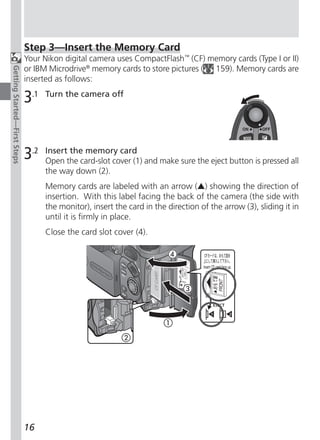
     Formatting Deletes Data
Formatting permanently deletes all data on the memory card. Before format-
ting, be sure to transfer to a computer any images you would like to keep.
                                                                        135
Controlling the Flash: Speedlight Options
                                   This menu controls both the built-in Speedlight and ex-
Menu Guide—Using the SET-UP Menu


                                   ternal Speedlight options.


                                   Controlling the Built-in Speedlight: Pop Up
                                   In the default auto mode, the built-in Speedlight pops
                                   up when needed. Use this menu to change the pop
                                   up setting so that the flash will only pop-up when the
                                        button is pressed.


                                      Setting                                Description
                                                   Built-in Speedlight pops up automatically when needed. Flash
                                         Auto      must be lowered manually. If left raised, flash only fires when
                                                   illumination is low, unless set to fill-flash mode.
                                                   Built-in Speedlight will only pop-up when the            button is
                                      Manual       pressed. Flash must be lowered manually. If left raised, flash fires
                                                   every time the shutter-release button is pressed.


                                   136
Controlling Flash Output: Variable Power
This menu adjusts flash output. Flash output can be
lowered or raised from –2.0 EV to +2.0 EV in incre-


                                                                                       Menu Guide—Using the SET-UP Menu
ments of 1/3 EV.


Options for External Speedlights: Speedlight Cntrl
This menu controls the built-in Speedlight when using
external Speedlights connected to the camera’s acces-
sory shoe ( 4).


     Option                                 Description
                    If no external Speedlight is attached, built-in Speedlight func-
      Auto          tions normally. When attached, only external Speedlight
                    fires.
 Int&Ext Active Built-in Speedlight fires at same time as external Speedlight.


Shot Confirmation
The red-eye reduction lamp can be fired after the shut-
ter is released to let your subjects know that a picture
has been taken.
To turn shot confirmation on, select On in the Shot
Confirmation menu. The default setting is Off.


                                                                               137
Using an External Speedlight
                                   Follow the instructions below to attach an external Speedlight. Refer to your
                                   Speedlight manual for detailed instructions regarding Speedlight operation.
Menu Guide—Using the SET-UP Menu


                                   1     Make sure that both the camera and the external Speedlight are
                                         turned off.

                                   2     Attach the Speedlight to the camera accessory shoe.

                                   3     Turn both the camera and the Speedlight on.

                                   4     Set the external Speedlight zoom head to an angle wider than
                                         28 mm.
                                         If you are using a Speedlight with Auto Power Zoom, set the zoom head
                                         angle manually. The COOLPIX5700 does not support power zoom.

                                   5     Set the external Speedlight flash mode to TTL.
                                         At this setting, the amount of light produced by the external Speedlight
                                         is measured by the camera’s photocell, and the flash shooting range
                                         adjusted automatically to ensure optimal exposure. D-TTL flash control
                                         (available with the SB-80DX, SB-50DX and SB-28DX) is not supported.

                                   6     Take the picture
                                         If the Speedlight Options: Speedlight Control option in the SET-UP
                                         menu is set to Auto, only the external Speedlight will fire. If this op-
                                         tion is set to Int & Ext Active then the external Speedlight and the built-
                                         in Speedlight will fire at the same time.
                                         The COOLPIX5700 does not support AF-assist illumination, or red-eye
                                         reduction using the red-eye reduction lamp on the external Speedlight.
                                         At a setting of STBY (standby), the Speedlight will turn on automati-
                                         cally whenever the camera turns on but will not turn off automati-
                                         cally when the camera turns off.
                                         Exact functionality varies with the Speedlight in use. Refer to your
                                         Speedlight manual for details.
                                         Use Only Nikon Flash Accessories
                                   Use only Nikon Speedlights. Negative voltages or voltages over 250 V applied
                                   to the camera’s sync terminal could not only prevent normal operation, but also
                                   damage the sync circuitry of the camera or flash.
                                   138
Notes on Built-in and External Speedlights
• By default, the flash mode is set to auto and when additional light is required


                                                                                     Menu Guide—Using the SET-UP Menu
  for correct exposure, the built-in Speedlight will pop up automatically when
  the shutter-release button is pressed halfway. The built-in Speedlight will also
  pop up when an external Speedlight is attached so that the photocell can be
  used to correctly set exposure for the shot. If your finger or another object
  obstructs the Speedlight, preventing it from popping up when the shutter-
  release button is pressed halfway, the built-in Speedlight and any external
  Speedlight will not fire and a message will appear in the monitor.
• When Pop Up is set to Manual, the built-in Speedlight will only pop up when
  the      button is pressed. To use the photocell for external Speedlights, press
  the      button.
• When the built-in Speedlight is raised, keep your fingers and other objects
  away from the flash window and photocell.

      Flash-Mode Indicators for External Speedlights
When Auto is selected in the Speedlight Cntrl menu and an external Speed-
light is attached, the flash-mode indicators in the control panel and monitor
or viewfinder show the flash mode as follows:
Setting: Pop Up > Auto
          Flash mode                 Control panel               Monitor
              Auto                                                 A
       Flash cancel (off)
   Auto with red-eye reduction
            Fill-flash
           Slow sync
Setting: Pop Up > Manual
          Flash mode                 Control panel               Monitor
            Fill-flash
Red-eye reduction with fill-flash
    Slow sync with fill-flash
                                                                             139
Audio Confirmation: Shutter Sound
                                   The Shutter Sound menu controls the “beep” made
                                   by the camera’s speaker.
Menu Guide—Using the SET-UP Menu


                                          Option                                   Description
                                                               • the camera has been turned on
                                                               • the shutter-release button has been pressed all the
                                                                 way down to release the shutter
                                                               • manual focus has been activated or a lens-converter
                                                    One beep


                                                                 option selected in the Lens menu
                                                               • images have been deleted or the memory card for-
                                                                 matted
                                         On                    • changes have been made to image status with the
                                                                 Hide, Protect, Print Set, or Auto Transfer items in
                                                                 the PLAY BACK menu
                                                               • Shutter Sound has been set to On
                                                   beeps


                                                               • the memory card is full
                                                    Two


                                                               • the memory card is not inserted

                                                               Confirmation and warning beeps disabled. Sound re-
                                            Off
                                                               corded with movies can still be played back.


                                         Quick Response
                                   Since priority is given to quick photography when the SET-UP menu’s Shutter
                                   Release Speed option is set to Quick Response, the camera will not beep
                                   even if Shutter Sound is set to On.
                                   140
Setting the Time and Date: Date
This option sets the camera to the current date and time.
For more information, see “Step 5 — Set the Time and


                                                                                 Menu Guide—Using the SET-UP Menu
Date” ( 19).


Storing Photo Info in a Separate File: info.txt
While On is selected in the info.txt menu, the follow-
ing information about each image recorded is stored
in an independent text file (“info.txt”):
• File number and type
• Camera type and firmware version
• Metering method
• Exposure mode
• Shutter speed
• Aperture
• Exposure compensation
• Focal length and digital zoom
• Image adjustment
• Sensitivity (ISO equivalency)
• White balance
• Sharpening
• Date of recording
• Image size and quality
• Saturation control
• Focus area
The info.txt file is stored in the same folder as the image. When the contents
of the memory card are viewed from a computer, this file can be read with a
text browser such as Notepad or SimpleText. Images are listed in the order re-
corded, separated by a blank line.


                                                                         141
Choosing a Video Standard: Video Mode
                                   The Video Mode menu is used to select the standard
                                   used for video output. Adjust this setting to match the
Menu Guide—Using the SET-UP Menu


                                   standard used in any video device to which you con-
                                   nect the camera ( 46).


                                         Option                               Description
                                         NTSC         Use when connecting camera to NTSC devices.
                                                      Use when connecting camera to PAL devices. If the video
                                          PAL         cable is connected to the camera at this setting, camera
                                                      monitor or viewfinder will turn off.

                                   Choosing a Language: Language
                                   This option is used to choose the language in which
                                   camera menus and messages are displayed. For more
                                   information, see “Step 4 — Choose a Language”
                                   ( 18).


                                         Option                               Description
                                          De          Deutsch (German)
                                           En         English
                                           Fr         Français (French)
                                                      Japanese
                                           Es         Español (Spanish)


                                   142
Choosing a USB Protocol: USB
This option is used to select the USB protocol used
when your camera is connected to a computer ( 40).


                                                                                     Menu Guide—Using the SET-UP Menu
Your camera supports two protocols: PTP (Picture
Transfer Protocol) and Mass Storage. The default
setting is Mass Storage.


   Setting                               Description
               PTP is supported only under Windows XP Home Edition,
               Windows XP Professional, and Mac OS X (version 10.1.2 or
     PTP
               later). Select this option when using PTP to transfer pictures
               to your computer.
               The Mass Storage protocol is supported under Windows XP
               Home Edition, Windows XP Professional, Windows 2000 Pro-
    Mass       fessional, Windows Millennium Edition (Me), Windows 98 Sec-
   Storage     ond Edition (SE), Mac OS X (version 10.1.2 or later), and Mac
               OS 9.0, 9.1, 9.2. If this option is selected, the camera will func-
               tion as a mass storage device when connected to a computer.


                                                                             143
Windows 2000 Professional, Windows Millennium Edition
                                         (Me), Windows 98 Second Edition (SE), Mac OS 9
Menu Guide—Using the SET-UP Menu


                                   Do not select PTP when connecting the COOLPIX5700 to a computer running
                                   one of the above operating systems (there is no need to change the USB set-
                                   ting when using the camera for the first time, as Mass Storage is the default
                                   setting).
                                   If you have already changed the USB setting to PTP, be sure to select Mass
                                   Storage before connecting the camera to your computer.
                                   If you have connected the camera to a computer running one of the above
                                   operating systems with PTP selected in the USB menu, disconnect the cam-
                                   era as described below. Be sure to select Mass Storage in the USB menu be-
                                   fore reconnecting the camera.
                                   Windows 2000 Professional
                                   A dialog will be displayed welcoming you to the Found New Hardware Wiz-
                                   ard. Click Cancel to close the dialog, and then disconnect the camera.
                                   Windows Millennium Edition (Me)
                                   After displaying a message stating that the hardware information database is
                                   being updated, the computer will start the Add New Hardware Wizard. Click
                                   Cancel to exit the wizard, and then disconnect the camera.
                                   Windows 98 Second Edition (SE)
                                   The Add New Hardware Wizard will be displayed. Click Cancel to exit the
                                   wizard, and then disconnect the camera.
                                   Mac OS 9
                                   A dialog will be displayed stating that the computer is unable to use the driver
                                   needed for the “Nikon Digital Camera E5700_PTP” USB device. Click Cancel
                                   to close the dialog, and then disconnect the camera.


                                   144
Using the PLAY BACK Menu

The items in the PLAY BACK menu are as follows:
                                        Menu Item


                                                                           Menu Guide—Using the PLAY BACK Menu
                                             Delete              145
                                            Folders              148
                                         Slide Show              149
                                            Protect              151
                                         Hide Image              152
                                            Print Set            153
                                        Auto Transfer            155

    Deleting Images: Delete
Use the Delete menu to delete all images, or only
selected images, from the memory card. The Delete
menu also allows you to delete the Print Set and re-
set Auto Transfer markings.


Deleting Selected Images and Movies
To delete selected images and movies:

1                                       2


     Highlight Selected Images          Display menu of thumbnail images


                                                                    145
3                                       4
Menu Guide—Using the PLAY BACK Menu


                                                Highlight image               Press multi selector up or down to select
                                                                              image for deletion. Selected images are
                                                                              marked by a icon. Repeat steps 3 and
                                                                              4 to select additional images for deletion.
                                                                              To deselect image, highlight and press
                                                                              multi selector up or down.


                                      5                                    Press     to display a confirmation dialog.
                                                                           Press multi selector up or down to high-
                                                                           light option, press to right to put choice
                                                                           into effect:
                                                                           • Select No to exit without deleting im-
                                                                             ages
                                                                           • Select Yes to delete all selected images


                                            Before Deletion
                                      Once deleted, pictures can not be recovered. Be sure that any pictures you
                                      would like to keep have been transferred to your computer.

                                            Hidden and Protected Pictures
                                      Pictures marked with a      icon are protected and can not be selected for de-
                                      letion. Pictures hidden with the Hide Image ( 152) option are not displayed
                                      in the Delete: Selected Images menu and can not be deleted.
                                      146
Deleting All Images and Movies
To delete all images and movies on the memory card (images that are protected
or hidden will not be deleted):


                                                                                     Menu Guide—Using the PLAY BACK Menu
1                                        2


        Highlight All Images             Confirmation dialog displayed. Press
                                         multi selector up or down to highlight
                                         option, press to right to put choice into
                                         effect:
                                         • Select No to exit without deleting im-
                                           ages
                                         • Select Yes to delete all images on
                                           memory card (images that are pro-
                                           tected or hidden will not be deleted)


Delete the Current Print Set
To delete the current print set ( 153),
select Print Set from the Delete menu
and press the multi selector to the right.


Reset Auto Transfer Markings
To remove transfer markings ( 156)
from all images, select Transfer from the
Delete menu and press the multi selec-
tor to the right.


      Cancelling the Print Order
To cancel the current print order when it is no longer needed, select Print Set
from the Delete menu. Note that this will also remove transfer markings from
any movies marked for transfer.
                                                                             147
Selecting a Folder for Playback: Folders
                                      The Folders menu in the PLAY BACK menu can be
                                      used to select images in all folders for playback, or play
Menu Guide—Using the PLAY BACK Menu


                                      back images in a selected folder.


                                      1                                          2


                                      Highlight desired folder. To view im-        Press multi selector to right, to se-
                                      ages in all folders, select All Folders      lect folder and return to PLAY
                                                                                   BACK menu


                                      3


                                                                                Press     button to return to full-
                                                                                screen playback, most recent im-
                                                                                age in selected folder displayed


                                            Playing Back Ultra HS Images
                                      With each sequence of pictures taken at Ultra HS ( 104), the camera cre-
                                      ates a new folder in which all pictures in the sequence are stored. Each folder
                                      will have a name consisting of “N_” followed by a three-digit number assigned
                                      automatically by the camera. Pictures can be played back by selecting the ap-
                                      propriate folder or All Folders from the playback Folders menu.
                                      148
Automated Playback: Slide Show
The Slide Show menu in the PLAY BACK menu is used
for automated sequential playback. To start a slide


                                                                                     Menu Guide—Using the PLAY BACK Menu
show, select Start from the Slide Show menu. All pic-
tures in the current folder that have not been hidden
using Hide Image will be played back one after the
other in the order recorded, with a pause between
each picture. Movies will be displayed as still images
showing the movie’s first frame.
To start a slide show follow the steps below:

1                                       2


            Highlight Start             Press multi selector to the right to cycle
                                        through all images in the current
                                        folder except hidden images


      After the Slide Show
Once all pictures have been shown, the slide show will pause with the first
picture in the folder displayed. To return to the PLAY BACK menu, press multi
selector to the left. To return to full-screen playback, press the  button.

      Auto Off
If no operation is performed for more than 30 minutes during a slide show,
the monitor or viewfinder will turn off automatically to save power.
                                                                            149
While the slide show is in progress, the following operations can be performed:
                                            To            Use                           Description
Menu Guide—Using the PLAY BACK Menu


                                                                    Press      to pause slide
                                                                    show. To restart, highlight
                                                                    Restart and press the
                                       Pause slide
                                                                    multi selector to the right.
                                         show
                                                                    Press the multi selector left
                                                                    to return to PLAY BACK
                                                                    menu.
                                       Go forward
                                                                    Press the multi selector up or left to go back one
                                       or back one
                                                                    frame, down or right to go to forward one frame.
                                          frame
                                        End slide                   Press the       button to end the slide show and
                                         show                       return to full-screen playback.

                                      Changing the Display Interval
                                      To set the duration of display for each slide, highlight
                                      Frame Intvl. (in the Slide Show menu or Pause dia-
                                      log) and press the multi selector to the right. Then
                                      highlight the desired setting from the menu shown
                                      right, and press the multi selector to the right again.


                                            Interval Setting
                                      The actual frame interval may differ slightly from the selected interval due to dif-
                                      ferences in file size.
                                      150
Safeguarding Valuable Images: Protect
Selecting Protect from the PLAY BACK menu displays
the menu shown at right, where you can select pictures


                                                                                    Menu Guide—Using the PLAY BACK Menu
to protect from accidental deletion. Protected files can
not be deleted in review, full-screen playback, or from
the Delete menu.


1                                         2


           Highlight image                Press multi selector up or down to se-
                                          lect image. Selected images are
                                          marked by        icon. Repeat steps 1
                                          and 2 to select additional pictures. To
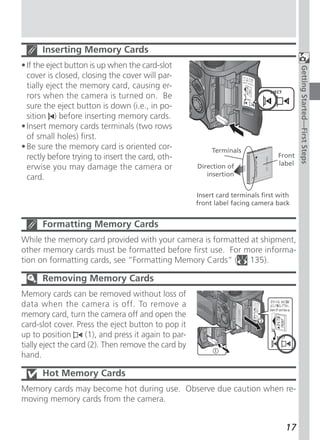
                                          deselect picture, highlight and press
                                          multi selector up or down.


3                                      Press     to complete operation. To exit
                                       Protect menu without changing protected
                                       status of pictures, press  button.


      Formatting the Memory Card
Note that protected pictures will be deleted when a memory card is formatted.
                                                                            151
Hiding Images During Playback: Hide Image
                                      The Hide Image menu allows you to hide any of the                    HIDE IMAGE

                                      images in the current folder. Once hidden, images can
Menu Guide—Using the PLAY BACK Menu


                                      only be viewed in the Hide Image menu. They can                  1            2       3
                                      not be deleted in full-screen review or full-screen play-
                                      back, or using the options in the Delete menu. Hide              4            5       6
                                      Image is useful for preparing slide shows.

                                      1                                         2                      HIDE IMAGE


                                                                                                   1            2       3


                                                                                                   4            5       6


                                                 Highlight image                Press multi selector up or down to se-
                                                                                lect image. Selected images are
                                                                                marked by a       icon. Repeat steps 1
                                                                                and 2 to select additional images. To
                                                                                deselect image, highlight and press
                                                                                multi selector up or down.

                                      3                                      Press    to complete operation. To exit
                                                                             Hide Image menu without changing hid-
                                                                             den status of images, press  button.


                                            Formatting the Memory Card
                                      Note that hidden images will be deleted when a memory card is formatted.

                                            “ALL IMAGES ARE HIDDEN”
                                      If all the images in the current playback folder are hidden, the message “ALL IM-
                                      AGES ARE HIDDEN” ( 170) will be displayed in full-screen review or full-screen
                                      playback. No images can be played back until another folder has been selected
                                      or Hide Image is used to reveal some of the images in the current folder.
                                      152
Ordering Prints: Print Set
Use the Print Set menu to select images for printing.
This “print set” is stored on the memory card in Digi-


                                                                                   Menu Guide—Using the PLAY BACK Menu
tal Print Order Format (DPOF).


1                                       2                        PRINT


                                                             1       2       3


                                                             4       5       6


          Highlight image                Press multi selector up to select image
                                          (selected images marked with a )


      Digital Print Order Format
With the Print Set menu, you can specify photographs to be printed, the num-
ber of prints, and the information to be included on each print. This informa-
tion is stored on the memory card in Digital Print Order Format (DPOF). Once
a print order has been created, the memory card can be removed from the cam-
era and inserted in any DPOF-compatible device—be it your personal photo
printer or a photofinisher’s print system—and images printed directly from the
card. The Nikon NP-100 photo printer does not support printing photo infor-
mation or dates.
                                                                           153
3                                        Press multi selector up to increase num-
                                                                               ber of print copies (maximum 9), down
Menu Guide—Using the PLAY BACK Menu


                                                                               to decrease number. To deselect image,
                                                                               press multi selector down when num-
                                                                               ber of prints is 1. Repeat steps 1–3 to
                                                                               select additional images.


                                      4                                        Press      to display options.
                                                                               Press multi selector up or down to
                                                                               highlight options.
                                                                               • Highlight Info and press multi selec-
                                                                                 tor right to print shutter speed and
                                                                                 aperture on all images.
                                                                               • Highlight Date and press multi selec-
                                                                                 tor right to print date of recording on
                                                                                 all images.
                                                                               • To deselect an item, highlight and
                                                                                 press multi selector to right.
                                                                               • When finished, highlight Done and
                                                                                 press multi selector to right. To exit
                                                                                 without altering print order, press
                                                                                      button.


                                            Cancelling the Print Order
                                      To cancel the current print order when it is no longer needed, select Print Set
                                      from the Delete menu ( 147).
                                      154
Selecting Images for Transfer: Auto Transfer
When the camera is connected to a computer running
Nikon View 5, images that have been selected for


                                                                                  Menu Guide—Using the PLAY BACK Menu
transfer using the Auto Transfer option can be cop-
ied to the computer.


Selecting Images for Transfer
Highlight Selected Photos in the Auto Transfer
menu and press the multi selector to the right. The
menu shown at right will be displayed. To select im-
ages for transfer to a computer:


1                                      2


          Highlight image              Press multi selector up or down to se-
                                       lect image for transfer. Selected images
                                       are marked by        icon. Repeat steps
                                       1 and 2 to select additional images. To
                                       deselect image, highlight and press
                                       multi selector up or down.

3                                   Press      to complete operation. To exit
                                    Auto Transfer menu without changing trans-
                                    fer status of images, press  button.


                                                                          155
Marking All Images for Transfer
                                      To mark all images for later transfer to a computer:
Menu Guide—Using the PLAY BACK Menu


                                      1                                       2


                                              Highlight All Photos            A confirmation dialog will be displayed.
                                                                              Press multi selector up or down to high-
                                                                              light option, press to right to select:
                                                                              • Select No to exit without changing
                                                                                the transfer status of images
                                                                              • Select Yes to select all images on the
                                                                                memory card for transfer


                                            Marking All Images for Transfer
                                      No more than 999 images can be transferred to a computer at one time using
                                      the Auto Transfer option. If a thousand images or more are selected for trans-
                                      fer, no images will be transferred when the camera is connected to a computer.
                                      To transfer more than 999 images, use Nikon View 5 to select the images for
                                      transfer.

                                            Removing Transfer Marking from All Images
                                      To remove transfer marking from all images on the memory card, select Trans-
                                      fer from the Delete menu ( 147).
                                      156
Technical
      Notes
      Camera Care, Options, and Resources


This chapter provides tips on cleaning and storing
your camera, a list of optional accessories available
for the COOLPIX5700, information on where to
get help online, troubleshooting advice, and cam-
era specifications.


                                                        157
Optional Accessories
                                                        At the time of writing, the following optional accessories were available for the
                                                        COOLPIX5700. Contact your retailer or local Nikon representative for details.
Technical Notes : Camera Care, Options, and Resources


                                                                Rechargeable battery Additional EN-EL1 Li-ion batteries are avail-
                                                                                     able from your retailer or local Nikon repre-
                                                                                     sentative
                                                        AC adapter/battery charger • EH-21 AC adapter/battery charger
                                                                                   • EH-53 AC adapter
                                                                                   • MH-53C battery charger (plugs into vehicle
                                                                                     cigarette-lighter socket)
                                                                          Battery pack MB-E5700 battery pack
                                                                         Carrying case CS-CP11 soft case
                                                              CompactFlash™ memory
                                                                                     EC-AD1 PC-card adapter
                                                                        card adapter
                                                                    Lens adapter ring UR-E8 step-down ring lens adapter for WC-
                                                                                      E80 wide-angle converter and TC-E15ED tele-
                                                                                      photo converter
                                                          Converter lenses (requires The COOLPIX5700 can only be used with the
                                                                 lens adapter ring) following converter lenses:
                                                                                     • WC-E80 wide-angle converter (0.8×)
                                                                                     • TC-E15ED telephoto converter (1.5×)
                                                                  Wired remote cable MC-EU1 remote cord
                                                                            Lens hood HR-E5700 lens hood
                                                                     Flash accessories The following Nikon Speedlights can be at-
                                                                                       tached directly to the camera accessory shoe
                                                                                       without a sync cable: SB-80DX, SB-50DX, SB-
                                                                                       30, SB-28DX, and SB-22s. An SC-17 sync
                                                                                       cable can be attached to the accessory shoe
                                                                                       for off-camera flash photography. For details
                                                                                       on attaching an external Speedlight, see the
                                                                                       “Using an External Speedlight” ( 138).


                                                        158
Use Only Nikon Flash Accessories
Use only Nikon Speedlights. Using another make of flash could damage the


                                                                                    Technical Notes : Camera Care, Options, and Resources
internal circuitry of the camera or flash. Before using a Nikon Speedlight not
included in the list on the previous page, contact a Nikon-authorized service
representative for more information.

      Using the UR-E8 lens adapter ring
Remove the optional UR-E8 lens adapter ring when not in use. If the UR-E8 is
used without a converter lens attached, the corners of the frame will be eclipsed
in any photographs taken.

      Approved Memory Cards
In addition to the memory card included with your camera and the Nikon EC-
CF series of memory cards, the following memory cards have been tested and
approved for use in the COOLPIX5700:
CompactFlash™ memory cards:
• SanDisk SDCFB series 16 MB, 32 MB, 48 MB, 64 MB, 96 MB, and 128 MB
• Lexar Media 4× USB series 8 MB, 16 MB, 32 MB, 48 MB, 64 MB, and 80 MB
• Lexar Media 8× USB series 8 MB, 16 MB, 32 MB, 48 MB, 64 MB, and 80 MB
• Lexar Media 10× USB series 128 MB and 160 MB
Microdrive® cards:
• IBM DSCM-10512 and DSCM-11000 Microdrive® cards
Operation is not guaranteed with other makes of memory card. For more details
on the above cards, please contact the manufacturer.


                                                                            159
Caring for the Camera and Battery
                                                        Keep dry                                        Keep away from strong magnetic fields
Technical Notes : Camera Care, Options, and Resources


                                                        This product is not waterproof, and may         Do not use or store this device in the vicin-
                                                        malfunction if immersed in water or ex-         ity of equipment that generates strong
                                                        posed to high levels of humidity. Rusting       electromagnetic radiation or magnetic
                                                        of the internal mechanism can cause ir-         fields. Strong static charges or the mag-
                                                        reparable damage.                               netic fields produced by equipment such as
                                                                                                        radio transmitters could interfere with the
                                                        Keep free of salt, sand, and dust               monitor or viewfinder, damage data stored
                                                        After using your camera at the beach or         on the memory card, or affect the product’s
                                                        seaside, wipe off any sand or salt with a       internal circuitry.
                                                        lightly dampened cloth and then dry your
                                                        camera thoroughly.                              Avoid sudden changes in temperature
                                                                                                        Sudden changes in temperature, such as
                                                        Do not touch the lens with your fingers         occur when entering or leaving a heated
                                                        The proper procedure for cleaning the lens      building on a cold day, can cause conden-
                                                        is described in “Technical Notes: Caring for    sation inside the device. To prevent con-
                                                        Your Camera.”                                   densation, place the device in a carrying
                                                        Handle the lens and all moving parts            case or a plastic bag before exposing it to
                                                        with care                                       sudden changes in temperature.
                                                        Do not apply force to the lens, built-in        Notes on the monitor and viewfinder
                                                        Speedlight, monitor, or to the battery, card,   • The monitor and viewfinder may contain
                                                        or connector covers. These parts are espe-        a few pixels that are always lit or that do
                                                        cially susceptible to damage.                     not light. This is a characteristic common
                                                        Turn the product off before removing              to all TFT LCD monitors and does not in-
                                                        the battery or unplugging the AC                  dicate a malfunction. Images recorded
                                                        adapter                                           with the product will not be affected.
                                                        Do not unplug the product or remove the         • Images in the monitor may be difficult to
                                                        battery while the product is on, or while         see in a bright light.
                                                        images are being recorded or deleted.           • The monitor and viewfinder are lit by a
                                                        Forcibly cutting power to the product in          fluorescent backlight. Should the moni-
                                                        these circumstances could result in loss of       tor or viewfinder begin to dim or flicker,
                                                        data or in damage to product memory or            contact your Nikon service representa-
                                                        internal circuitry. To prevent an accidental      tive.
                                                        interruption of power, avoid carrying the       • Do not apply pressure to the monitor or
                                                        product from one location to another while        viewfinder, as this could cause damage or
                                                        the AC adapter is connected.                      malfunction. Dust or lint adhering to the
                                                                                                          monitor or viewfinder can be removed
                                                        Do not drop                                       with a blower brush. Stains can be re-
                                                        The product may malfunction if subjected          moved by rubbing the surface lightly with
                                                        to strong shocks or vibration.                    a soft cloth or chamois leather.


                                                        160
• Should the monitor or viewfinder break,          leakage and store the camera in a plas-
  care should be taken to avoid injury due         tic bag containing a desiccant. Do not,
  to broken glass and to prevent the liquid        however, store the camera case in a plas-


                                                                                                Technical Notes : Camera Care, Options, and Resources
  crystal from the monitor touching the skin       tic bag, as this may cause the material to
  or entering the eyes or mouth.                   deteriorate. Note that desiccant gradu-
                                                   ally loses its capacity to absorb moisture
Batteries                                          and should be replaced at regular inter-
• When you turn the device on, check the           vals.
  battery-level displayed in the control         • Do not store the camera with naphtha or
  panel to determine whether the battery           camphor moth balls, close to equipment
  needs to be replaced. The battery needs          that produces strong magnetic fields, or
  to be replaced when the battery-level in-        in areas subject to extremes of tempera-
  dicator is flashing.                             ture, for example near a space heater or
• Ready a spare battery and keep it fully          in a closed vehicle on a hot day.
  charged when taking photographs on im-         • To prevent mold or mildew, take the cam-
  portant occasions. Depending on your lo-         era out of storage at least once a month.
  cation, you may find it difficult to pur-        Turn the camera on and release the shut-
  chase replacement batteries on short             ter a few times before putting the cam-
  notice.                                          era away again.
• On cold days, the capacity of batteries        • Store the battery in a cool, dry place.
  tends to decrease. Be sure the battery is
  fully charged before taking photographs
  outside in cold weather. Keep a spare
  battery in a warm place and exchange the
  two as necessary. Once warmed, a cold
  battery may recover some of its charge.
• Should the battery terminals become
  dirty, wipe them off with a clean, dry cloth
  before use.
Memory cards
• Turn the power off before inserting or re-
  moving memory cards. Inserting or re-
  moving cards with the power on could
  render them unusable.
• Insert memory cards in the correct orien-
  tation. Inserting cards upside down or
  backwards could damage the camera or
  the card.
Storage
• To prevent mold or mildew, store the
  camera in a dry, well-ventilated area. If
  you will not be using the product for long
  periods, remove the battery to prevent

                                                                                       161
Cleaning
                                                                         A key to cleaning these glass parts is to not touch them with
Technical Notes : Camera Care, Options, and Resources


                                                                         your fingers. Use a blower (typically a small device with a
                                                                         rubber bulb attached to one end that you pump to produce
                                                             Lens/       a stream of air out the other) to remove dust or lint. To re-
                                                          Viewfinder     move fingerprints or other stains that can not be removed
                                                                         with a blower, wipe the lens or viewfinder with a soft cloth,
                                                                         using a spiral motion that starts in the center of the lens and
                                                                         works out to the edges.
                                                                         Remove dust or lint with a blower. To remove fingerprints and
                                                           Monitor       other stains, clean the monitor with a soft, dry cloth, being
                                                                         careful not to apply pressure.
                                                                     Use a blower to remove dust and lint, then wipe gently with
                                                                     a soft, dry cloth. After using the camera at the beach or
                                                         Camera Body
                                                                     seaside, wipe off any sand or salt with a cloth lightly damp-
                                                                     ened with fresh water, then dry thoroughly.
                                                        Do not use alcohol, thinner, or other volatile chemicals
                                                        Storage
                                                        When the camera will not be used for an extended period, remove the bat-
                                                        tery after checking to make sure that the camera is off, the monitor closed,
                                                        and the lens cap in place. Do not store your camera in locations that:
                                                        • are poorly ventilated or damp
                                                        • are next to equipment that produces strong electromagnetic fields, such as
                                                           televisions or radios
                                                        • are exposed to temperatures above 50 °C (122 °F) or below –10 °C (14 °F)
                                                        • are subject to humidities of over 60%


                                                        162
Web Resources
At the time of writing, the following on-line resources were available for users
of Nikon digital imaging equipment:


                                                                                   Technical Notes : Camera Care, Options, and Resources
For Product Information and Tips
• For users in the USA: http://www.nikonusa.com/
• For users in Europe: http://www.nikon-euro.com/
• For users in Asia, Oceania, the Middle East, and Africa:
  http://www.nikon-asia.com/
For Contact Information
Contact information for the Nikon representative in your area may be found at:
  http://www.nikon-image.com/eng/


                                                                           163
Troubleshooting
                                                        If your camera fails to function as expected, check the list of common prob-
                                                        lems below before consulting your retailer or Nikon representative. Refer to
Technical Notes : Camera Care, Options, and Resources


                                                        the page numbers listed in the rightmost column for information on solving
                                                        the problems listed here.

                                                              Problem                              Possible cause
                                                                                  • Camera is off.                                   22
                                                                                  • Battery is not correctly inserted or battery-    14
                                                                                    chamber cover is not fully closed.
                                                            Control panel         • Battery is exhausted.                            23
                                                           display is blank       • AC adapter (available separately) is not prop-   15
                                                                                    erly connected.
                                                                                  • Camera is in sleep mode. Press shutter-release   24
                                                                                    button halfway, or press      button.
                                                          Camera turns off        • Battery is low.                                  23
                                                            immediately           • Battery is cold.                                 161
                                                                                  •Viewfinder is on. Press    to turn monitor on.     9
                                                                                  • Lens cap is attached. Remove lens cap.           13
                                                                                  • USB cable is connected.                          40
                                                           Monitor is blank
                                                                                  • Audio/ video cable is connected.                 46
                                                                                  • MC-EU1 remote cable is attached and in           —
                                                                                    stand-by.

                                                                                  • Indicators are hidden. Press    button to dis-    6
                                                        No indicators appear in
                                                                                    play indicators.
                                                        monitor or viewfinder
                                                                                  • Slide show is in progress.                       149
                                                                                  • Ambient lighting is too bright: use viewfinder 9
                                                           Monitor is hard          or move to a darker location.
                                                              to read             • Display options require adjustment.            126
                                                                                  • Monitor is dirty.                              162


                                                        164
Problem                            Possible cause
                        • Camera is in playback mode.                         84


                                                                                    Technical Notes : Camera Care, Options, and Resources
                        • Battery is exhausted.                               23
                        • Number of exposures remaining is zero: not          23
                          enough memory remaining.
                        • Focus indicator flashes: camera unable to focus.     28
  No photo is taken
                        • Flash-ready indicator flashes: flash is charging.    28
when shutter-release
                        • Message “MEMORY CARD IS NOT FORMAT-                 17,
button is fully pressed
                          TED” appears in monitor or viewfinder: memo-        135
                          ry card is not formatted for use in COOLPIX5700.
                        • Message “NO MEMORY CARD” appears in mon-            17
                          itor or viewfinder: no memory card in camera.
                        • Camera is set to self-timer mode.                   58
                         • Flash is off.                                       62
                         • Flash is blocked.                                   27
                         • Subject is outside range of flash.                 171
 Photos are too dark     • Exposure compensation is too low.                   66
   (underexposed)        • Shutter-speed indicator in monitor or viewfind-     73
                           er flashes: shutter speed too fast.
                         • Aperture indicator in monitor or viewfinder        74
                           flashes: f/-number too high.
                      • Exposure compensation is too high.              66
                      • Shutter-speed indicator in monitor or viewfind- 73
Photos are too bright
                        er flashes: shutter speed too slow.
   (overexposed)
                      • Aperture indicator in monitor or viewfinder 74
                        flashes: f/-number too low.
                         • Subject was not in focus area when shutter- 56
                           release button was pressed halfway or AE/AF
  Photos are out of             button was pressed.
       focus             • Focus indicator flashes: camera unable to fo- 28,
                           cus. You may be using autofocus with an un- 55
                           suitable subject.


                                                                              165
Problem                           Possible cause
                                                                                 Camera shook during shot: increase shutter         73
Technical Notes : Camera Care, Options, and Resources


                                                                                 speed. If shutter speed can not be increased
                                                                                 without causing underexposure:
                                                                                 – Use the flash                                    62
                                                                                 – Raise sensitivity (ISO equivalency)              78
                                                         Photos are blurred
                                                                                 – Select a larger aperture                         74
                                                                                 To minimize blur at low shutter speeds:
                                                                                 – Use the Best Shot Selector (BSS)                 106
                                                                                 – Use the self-timer                               58
                                                                                 – Use a tripod                                      —
                                                                                • Sensitivity raised above 100.                     78
                                                                                • Shutter speed too slow. If making a long time-    73,
                                                          Randomly-spaced
                                                                                  exposure of 1/30 s or longer, turn Noise Reduc-   117
                                                        bright pixels (“noise”)
                                                                                  tion on.
                                                           appear in image
                                                                                • Clear Image Mode is not selected: select          117
                                                                                  Clear Image Mode.
                                                                                 Flash is off. Note that flash turns off automat-   62
                                                                                 ically when:
                                                                                 – Focus is set to (infinity)                       54
                                                                                 – A setting other than Single is selected for      104
                                                                                   Continuous (User Set 1, 2, 3)
                                                                                 – The Best Shot Selector (BSS) is on (User Set     106
                                                                                   1, 2, 3)
                                                         Built-in Speedlight
                                                                                 – A setting other than Normal is selected for      109
                                                           does not fire
                                                                                   Lens (User Set 1, 2, 3)
                                                                                 – AE Lock is on (User Set 1, 2, 3)                 110
                                                                                 – Clear Image Mode is selected (User Set 1,        117
                                                                                   2, 3)
                                                                                 – Speedlight Cntrl is set to Auto and an ex-       137
                                                                                   ternal Speedlight accessory attached
                                                                                 – Battery is low                                   23
                                                                             • White balance does not match light source.           101
                                                        Colors are unnatural
                                                                             • Saturation control is too low or too high.           108


                                                        166
Problem                           Possible cause
  Image can not be       Image has been overwritten or renamed by a
                                                                            —


                                                                                  Technical Notes : Camera Care, Options, and Resources
    played back          computer or other make of camera.
 Image is inverted       While shooting at a setting of Ultra HS or 77,
 when played back        Movie, monitor was rotated forward.        104
                        • Video cable not correctly connected.          46
 Television does not    • Television off or not tuned to video channel. 46
    display image       • Video Mode setting does not match video 142
                          device.
  Image can not be
                        • Image is a movie.                                  77
   zoomed in when
                        • Image was taken at a setting of Ultra HS.         104
     played back
                       • Camera is off.                                     22
  Nikon View 5 does • AC adapter (available separately) is not prop-        —
 not start when cam- erly connected, or battery is exhausted.
   era connected or    • Interface cable not correctly connected, or card   41,
memory card inserted not properly inserted in card reader, card             44
in card reader or card adapter, or card slot.
          slot         See Nikon View 5 Reference Manual for further        —
                       information on troubleshooting Nikon View 5.


                                                                            167
Error Messages
                                                        The following table lists the error messages and other warnings that appear
                                                        in the monitor or viewfinder and how to deal with them.
Technical Notes : Camera Care, Options, and Resources


                                                               Display                Problem                  Solution
                                                                                                         Set clock calendar to
                                                                               Clock calendar not set.                          20
                                                               (Flashes)                                 current date and time.
                                                                                                         Turn camera off and re-
                                                                               Battery exhausted.                                23
                                                               (Flashes)                                 place battery.
                                                                                                         Focus on different sub-
                                                                               Can not focus.            ject at same distance 28
                                                         (Green dot flashes)
                                                                                                         and recompose shot.
                                                                                                       Take finger off shutter-
                                                                               Built-in Speedlight re-
                                                                                                       release button, then try 28
                                                          (Red dot flashes)    charging.
                                                                                                       again.
                                                        A flashing   icon in the control panel indicates that the battery is exhausted.
                                                        A flashing     icon appears in the control panel when the camera can not
                                                        detect a memory card, when an error occurs accessing the memory card, or
                                                        when the card has not been formatted for use in the camera.

                                                               Display                Problem                  Solution

                                                                                                     Turn camera off and
                                                                               Camera can not detect
                                                              NO CARD                                confirm that memory 16
                                                                               memory card.
                                                              PRESENT                                card is correctly inserted.

                                                                                                           • Use approved memo- 159
                                                                                                             ry card.
                                                               THIS CARD                                   • Check that connec- —
                                                          CANNOT BE USED                                     tors are clean.
                                                                                    Error accessing memory • Turn camera off then —
                                                                                    card.                    on again. If message
                                                                                                             reappears, card may
                                                                                                             be damaged, contact
                                                              WARNING ! !
                                                        This CF card cannot be read                          retailer or Nikon repre-
                                                                                                             sentative.
                                                        168
Display                Problem                 Solution
                       Camera turned off,
                                                 Message clears auto-


                                                                             Technical Notes : Camera Care, Options, and Resources
                       button pressed, or mode
    WARNING ! !                                  matically when record- —
Please wait for camera selector set to     while
                                                 ing is complete.
  to finish recording  pictures are being saved.

  CARD IS NOT                               Press multi selector up
  FORMATTED          Memory card has not to highlight FORMAT
                     been formatted for use and press to right to for- 135
  FORMAT             in COOLPIX5700.        mat card, or turn cam-
  NO                                        era off and replace card.
                                             • Reduce image quality 48
                     Insufficient memory to
                                               or size.
                     record further pictures
                                             • Delete photographs. 145
                     at current settings.
                                             • Insert new card.     17
OUT OF MEMORY        Insufficient memory to                           33,
                                             Delete unwanted pic-
                     record changes to print                         145,
                                             tures and re-attempt
                     order or transfer mark-                         154,
                                             changes.
                     ing.                                            156
                     • Memory card has not • Reformat memory 135
                       been formatted for card.
                       use in COOLPIX5700.
                     • Error encountered
 IMAGE CANNOT          while saving photo.
    BE SAVED         • Camera has run out of • Insert new card or re- 134
                       folder or file numbers. format card and se-
                                               lecting Off or Reset
                                               for Seq. Numbers.
                                             • Return to shooting 28
                     • Card contains no im-
                                               mode and take pic-
                       ages.
                                               tures.
CARD CONTAINS        • Folder selected in
  NO IMAGES                                  • To play images back, 121
                       playback or quick re-
                                               select folder contain-
                       view contains no im-
                                               ing images from Fold-
                       ages.
                                               ers menu.

                                                                      169
Display                 Problem                 Solution
                                                                                                       Select another folder or
Technical Notes : Camera Care, Options, and Resources


                                                              ALL IMAGES         All images in current use Hide Image to 148,
                                                              ARE HIDDEN         folder are hidden.    change hidden status of 152
                                                                                                       images in current folder.
                                                                                 File created by comput-
                                                           FILE CONTAINS                                 Delete file or reformat 124,
                                                          NO IMAGE DATA          er or different make of
                                                                                                         memory card.            135
                                                                                 camera.
                                                                                                        • For images not created
                                                                                                          with COOLPIX5700,
                                                                                 Folder contains hidden delete file or reformat
                                                              THE FOLDER                                                         135,
                                                                                 or protected images, or card.
                                                              CANNOT BE                                                          151,
                                                               DELETED           images not created • Folder can only be de-
                                                                                                                                 152
                                                                                 with COOLPIX5700.        leted if all images it
                                                                                                          contains are neither
                                                                                                          hidden nor protected.

                                                                                                        Turn the camera off,
                                                                                                        then on again. If error
                                                           LENS ERROR            Lens operation error                              22
                                                                                                        persists, contact retailer
                                                                                                        or Nikon representative.
                                                                                                     Turn camera off, unplug
                                                                                                     optional AC adapter (if
                                                          SYSTEM ERROR        Error has occurred in using), remove and re-
                                                                                                                                14,
                                                                              camera’s internal cir- insert battery, and turn
                                                                                                                                22
                                                                              cuitry.                camera on. If error per-
                                                           appears in control                        sists, contact retailer or
                                                        panel                                        Nikon representative.
                                                                                                         Remove obstruction
                                                                                 Built-in Speedlight ob-
                                                          Speedlight is in the                           from Speedlight and
                                                            closed position      structed by finger or                         27
                                                                                                         press shutter-release
                                                                                 other object.
                                                                                                         button halfway.


                                                        170
Specifications
 Type                    E5700 digital camera


                                                                             Technical Notes : Camera Care, Options, and Resources
 Effective pixels        5.0 million
                         2
 CCD                      /3˝ high-density CCD; total pixels: 5.24 million
  Image size (pixels)    • 2560 × 1920 (Full)     • 1280 × 960 (SXGA)
                         • 2560 × 1704 (3 : 2) • 1024 × 768 (XGA)
                         • 1600 × 1200 (UXGA) • 640 × 480 (VGA)
 Lens                    8× Zoom Nikkor
   Focal length          F = 8.9 – 71.2 mm (35-mm [135] camera format
                         equivalent: 35 – 280 mm)
  f/-number              f/2.8 – f/4.2
  Construction           Fourteen elements in ten groups
 Digital zoom            4×
 Autofocus (AF)          Contrast-detect through-the-lens (TTL) AF
  Focus range            50 cm (1´8˝) – ∞; 3 cm (0.8˝) – ∞ in macro and
                         manual focus modes (middle zoom position)
  Focus-area selection   Five-area multi AF and spot AF available
 Viewfinder              Color LCD viewfinder, 0.44˝, 180,000-dot, high
                         temperature polysilicon TFT LCD with diopter ad-
                         justment
  Magnification          0.27 – 2.1×
  Frame coverage         Approximately 97% vertical and 97% horizontal
  Diopter adjustment     –4 – +1 m–1
 Monitor                 1.5˝, 110,000-dot, low temperature polysilicon
                         TFT LCD with brightness and hue adjustment
  Frame coverage         Approximately 97% vertical and 97% horizontal


                                                                     171
Storage
                                                           Media                   Type I and II CompactFlash™ (CF) and Microdrive®
                                                                                   cards (512MB, 1GB)
Technical Notes : Camera Care, Options, and Resources


                                                          File system              Compliant with Design rule for Camera File sys-
                                                                                   tems (DCF) Exif 2.2, and Digital Print Order For-
                                                                                   mat (DPOF)
                                                          File formats             Compressed: JPEG-baseline-compliant (FINE-,
                                                                                   NORMAL-, and BASIC-quality images)
                                                                                   Uncompressed: NEF (RAW-quality images), and
                                                                                   TIFF-RGB (HI-quality images)
                                                                                   Movies: QuickTime
                                                         Exposure
                                                          Metering               Four mode through-the-lens (TTL) metering:
                                                                                 • 256-segment matrix • Spot
                                                                                 • Center-weighted        • AF spot
                                                          Exposure control       Programmed auto with flexible program, shut-
                                                                                 ter-priority auto, aperture-priority auto, manu-
                                                                                 al, exposure compensation (–2.0 – +2.0 EV in
                                                                                 steps of 1/3 EV), autoexposure bracketing
                                                          Range (ISO 100 equivalent)
                                                                                 W : –2.0 – +18.0 EV
                                                                                 T : –0.5 – +18.0 EV
                                                         Shutter                   Mechanical and charge-coupled electronic
                                                                                   shutter
                                                          Speed                    8 sec – 1/4000 sec, bulb (up to 5 min.) setting avail-
                                                                                   able
                                                         Aperture                  Seven-blade iris diaphragm
                                                          Range                    Ten settings in steps of 1/3 EV
                                                         Sensitivity               ISO equivalent approximately 100, 200, 400,
                                                                                   800, or Auto
                                                         Self-timer                Three- or ten-second duration


                                                        172
Built-in Speedlight     Equipped with automatic pop-up
 Range                  W : 0.5 – 4.0 m (1’10” – 13’1”)


                                                                               Technical Notes : Camera Care, Options, and Resources
                        T : 0.5 – 2.8 m (1’10”– 9’2”)
 Sync method            Automatic sync control
 Compatible Speedlights Nikon SB-80DX, 50DX, 30, 28DX, 28, 26, 25,
                        24, 22s, and 22
Accessory shoe           Standard ISO hot-shoe contact with safety lock
 Sync contact            X-contact only
Interface                USB
Video output             User can choose from NTSC and PAL
I/O terminals            • DC input
                         • Audio/video (A/V) output
                         • Data output (USB)
Power sources            • One rechargeable Nikon EN-EL1 lithium-ion
                           battery (supplied) or six-volt 2CR5 (DL245) lith-
                           ium battery (available separately)
                         • MB-E5700 battery pack (available separately)
                           with six LR6 (AA) alkaline, lithium, NiCad, or
                           NiMH batteries
                         • EH-21 AC adapter/battery charger (available
                           separately)
                         • EH-53 AC adapter (available separately)
Battery life (EN-EL1)    Approximately 90 minutes (as measured at room
                         temperature [20 °C/68 °F] under standard Nikon
                         test conditions: monitor on, zoom adjusted with
                         each shot, flash used in approximately one third of
                         photographs, FULL, image quality set to NORMAL
                         1
Tripod socket             /4” (ISO 1222)
Dimensions (W × H × D) 108 × 76 × 102 mm (4.3˝ × 3.0˝ × 4.0˝)
Weight                   Approximately 480g without battery and mem-
                         ory card
Operating Environment
 Temperature          0 – 40 °C (32 – 104 °F)
 Humidity             Less than 85% (no condensation)
                                                                       173
System requirements (Nikon View 5): Windows
                                                          OS                     Pre-installed versions of Windows XP Home Edi-
                                                                                 tion, Windows XP Professional, Windows 2000
Technical Notes : Camera Care, Options, and Resources


                                                                                 Professional, Windows Millennium Edition (Me),
                                                                                 Windows 98 Second Edition (SE)
                                                          Models                 Only models with built-in USB ports supported
                                                          CPU                    300 MHz Pentium or better
                                                          RAM                    128 MB or more recommended for working with
                                                                                 RAW images, 64 MB or more for other images
                                                          Hard-disk              25 MB required for installation, 10 MB plus dou-
                                                                                 ble the capacity of camera memory card avail-
                                                                                 able on system disk when Nikon View 5 is run-
                                                                                 ning.
                                                          Video resolution       800 × 600 or better with High Color (True Col-
                                                                                 or recommended)
                                                          Miscellaneous          CD-ROM drive required for installation
                                                         System requirements (Nikon View 5): Macintosh
                                                          OS                     Mac OS 9.0, Mac OS 9.1, Mac OS 9.2, Mac OS X
                                                                                 (10.1.2 or later)
                                                          Models                 iMac, iMac DV, Power Mac G3 (Blue & White),
                                                                                 Power Mac G4 or later, iBook, PowerBook G3 or
                                                                                 later; only models with built-in USB ports sup-
                                                                                 ported
                                                          RAM                    128 MB or more recommended for working with
                                                                                 RAW images, 64 MB or more for other images
                                                          Hard-disk              25 MB required for installation, 10 MB plus dou-
                                                                                 ble the capacity of camera memory card avail-
                                                                                 able on system disk when Nikon View 5 is run-
                                                                                 ning.
                                                          Video resolution       800 × 600 or better with thousands of colors
                                                                                 (millions of colors recommended)
                                                          Miscellaneous          CD-ROM drive required for installation


                                                        174
Index

 Symbols                                  AF Area Mode, 112
3 : 2, 48, 51                             Aperture, 70, 132. See also exposure
100, 200, 400, 800, 78                        mode


                                                                                  Index
     (shooting) mode, 9, 22               Audio. See movies
      (playback) mode, 9, 84              Audio/Visual. See television playback
      button, 86                          Auto. See flash mode; sensitivity
  button, 87                              Auto Bracketing, 115
     button, 66                           Autoexposure
      button, 62                           bracketing, 115
     button, 33, 67, 84                    lock, 57. See also AE Lock
      button, 50, 52                      Autofocus, 28, 53, 56, 112
   button, 9, 26                           continuous, 113
      button, 53, 59, 80                   single, 113
        ,     , 23, 65                    Autofocus indicator. See Indicators,
   , 15                                       autofocus
    , 80                                  Auto-Focus Mode, 113
  , ,         , 53, 58                    Auto Off, 133
 , ,          , , 62                      Auto Transfer, 155
   , 66, 116                              A / V OUT. See television playback
  , , , , , , 101                         B
    ,     ,     ,    , 103
                                          BASIC, 48, 49
    ,     ,     ,      ,   , 104
                                          Battery, 14, 23
       ,      ,      ,      , 107
                                            MB-E5700, 12, 158
    , 108
                                            storing, 161
      ,     , 109
                                          Best Shot Selector, 106
      ,     ,      ,     114
                                          BKT. See Auto Bracketing
  ,       ,       , 7, 88                 Black-and-white, 108
    , 152                                 Brightness, 128
 A                                        Brightness
                                            of monitor. See Brightness
   See exposure mode, aperture-priority     of photographs. See Image Adjust-
   auto                                        ment
Accessories. See optional accessories     BSS. See Best Shot Selector
AE. See autoexposure                      BULB. See long time-exposure
AE-L. See AE Lock
AE-L, AF-L, 131                           C
AE/AF       button, 57                    C See Reset All
 and autoexposure lock, 57                Camera strap, 13
 and focus lock, 56                            , 168
AE Lock, 110                              CF card. See memory card
AF. See autofocus                         CF Card Format, 135
                                                                          175
Clear Image Mode. See Noise Reduc-            Exposure mode, 70
           tion                                        aperture-priority auto, 74
        Clock-calendar, 19                             manual, 75
Index


        Close ups. See focus mode, macro close-up      programmed auto, 72
        Color                                            flexible program, 72
         in photographs. See Saturation Con-           shutter-priority auto, 73
             trol; White Balance                      Exposure Options, 110
         of monitor. See Hue
        Command dial, 4                               F
        CompactFlash™ card. See memory card           Files. See image files
        Compression. See image quality                FINE, 48, 49
        Computer. See image database software;        Fixed Aperture, 132
           Nikon View 5; transfer                     Flash, built-in, 27, 62
        Continuous, 104                               Flash, external, 138
        Contrast. See Image Adjustment                Flash mode, 62
        Control panel, 8                              Flash-ready indicator. See Indicators, flash-
        Controls, 129                                     ready
        Copying images. See transfer                  Flexible program. See exposure mode
                                                      Focus. See autofocus; focus area; focus
        D                                                 lock; focus mode; manual focus
        Date, 19, 141                                 Focus area, 112
        DCF, 172                                      Focus Confirmation, 113
        Delete, 145                                   Focus information. See Focus Confirma-
        Deleting images                                   tion; photo information
         from PLAY BACK menu, 145                     Focus lock, 56. See also AE-L/AF-L
         in full-screen review, 33                    Focus mode, 53
         in full-screen playback, 84                    autofocus. See autofocus
        Design rule for Camera File systems. See          with self-timer. See self-timer
           DCF                                          infinity, 53. See also manual focus
        Digital Print Order Format. See DPOF            macro close-up, 53
        Digital Tele, 60                                  with self-timer. See self-timer
        Diopter adjustment, 12                          manual. See manual focus
            button, 24                                Focus Options, 112
        DPOF, 153                                     Folders
                                                        PLAY BACK menu option, 148
        E                                               SET-UP menu option, 121
            , 170                                     Folders, 6, 88
        Error messages, 168                             creating, renaming, and deleting, 121
        Exposure compensation, 66                       numbering, 88
        Exposure count display, 8                       selecting for playback, 148
        Exposure information. See photo information     storing images in, 121
        Exposure metering. See Metering                 Ultra HS, 125, 148
        176
Formatting. See memory card              Lens, converter, 109
Func., 130                               Lens adapter ring, 158
    button, 11, 130                      Long time-exposure, 76


                                                                                    Index
                                              button, 57, 131
H
HI, 48, 49                               M
Hide Image, 152                           . See exposure mode, manual
Highlights. See photo information        Macro close-up. See focus mode
Histogram. See photo information         Manual focus, 80
Hue, 128                                 Maximum Bulb Duration, 111
                                         Memorize, 129
I                                        Memory card, 161
Image Adjustment, 107                     approved cards, 159
Image files, 88                           capacity of, 48
  file name and type, 88                  formatting, 135
  file size, 48, 89                       insertion and removal of, 16
Image quality, 48                         reading images from, 44
  and file size, 48                          button, 97
  and space on memory card, 48           Menus, 91
Image Sharpening, 114                    Metering, 103
Image size, 48                           MF button, 80
  and file size, 48                      Microdrive®. See memory card
  and print size, 51                     Microphone 77
  and space on memory card, 48               button, 70
Indicators, 28                           Mode selector, 9
  autofocus, 28, 56                      Monitor, 10
  flash-ready, 28                         brightness and hue, 128
INF. See focus mode; manual focus         indicators, 6
Infinity. See focus mode; manual focus    switching with viewfinder, 9
info.txt, 141                             turning on and off, 24
Information. See photo information       Monitor Options, 126
ISO. See sensitivity                     Monochrome. See black-and-white
ISO button, 78                           MOV. See image files
                                         Movies, 104
J
                                          playing back, 90
JPG. See image files                      recording, 77
JPEG. See image quality                  Multi selector, 18, 98
L
                                         N
Language, 18, 142
                                         NEF. See image files
LCD illuminator button, 4, 8
                                         Nikon Electronic Format. See image qual-
Lens, 13, 162
                                            ity
Lens cap, 13
                                                                            177
Nikon View 5, 38                            Reset All, 118
         system requirements for, 174               Reset print, 147
        Noise, 73, 117                              Reset transfer, 147
Index


        Noise Reduction, 117                        Retouch, photo, See Image Adjustment;
        NORMAL, 48, 49                                 Image Sharpening; Saturation Control
        NR. See Noise Reduction                     Review Options, 127
        NTSC. See Video Mode
                                                    S
        O                                             . See exposure mode, shutter-priority
        On/off. See power switch                        auto
        Optional accessories, 158                   Saturation Control, 108
                                                    Self-portrait. See monitor; self-timer
        P                                           Self-timer, 53, 58
          . See exposure mode, programmed           Sensitivity, 78
            auto.                                   Seq. Numbers, 134
        PAL. See Video Mode                         SET-UP menu, 120
        Photo information, 141. See also info.txt     playback, 120
        Playback, 83. See also quick review           User Sets 1, 2, 3, 120
          full-screen, 84                             User Set A, 120
          movie, 90                                 SHOOTING menu, 100
          thumbnail, 86                             Shooting mode. See        (shooting) mode
          zoom, 87                                  Shot Confirmation, 137
        PLAY BACK menu, 145                         Shutter-release button, 28
        Power switch, 22                            Shutter release delay. See self-timer
        Pop up Speedlight. See Flash, built-in      Shutter Sound, 140
        Print Set, 153                              Shutter speed, 70. See also exposure mode
        Programmed auto exposure. See exposure      Shutter-speed/aperture display, 6
            mode                                    Shutter Release Speed, 127
        Protect, 151                                Size. See image size
                                                    Slide Show, 149
        Q
                                                    Speaker, 90
        Quality. See image quality                  Specifications, 171
             button, 31                             Speedlight, pop up. See flash
        Quick review, 32                            Speedlight Cntrl, 137
         full-screen, 33                            Speedlight Opt., 136
         thumbnail, 35                              Start-up Display, 126
        QuickTime. See movies                       Strap. See camera strap
        QVGA. See Continuous                        SXGA, 48, 51
        R                                           T
        RAW, 48, 49                                    . See zoom, button
        Red-eye reduction. See flash mode           Telephoto. See Lens; zoom
        178
Television playback, 46                 X
Thumbnail display, 35, 86               XGA, 48, 51
TIF. See image files


                                                                  Index
TIFF. See image quality                 Z
Time and date. See Date                 Zoom
Time exposure. See long time-exposure    button, 27, 60
Transfer, 40                             digital, 60
  marking images for, 155                indicator, 60
Troubleshooting, 164                     optical, 60
                                        Zoom Options, 131
U
Ultra HS. See Continuous; folders
USB, 143.
User Set, 68
 1, 2, and 3, 68
 A, 68
 saving user settings, 68
 selecting, 69
User Setting, 68
UXGA, 48, 51
V
Variable Power, 137
VCR. See television playback
VGA, 48, 51
Video Mode, 142
Viewfinder, 10
 focusing, 28
 framing photographs in, 26
 switching with monitor, 9
W
   . See zoom, button
WB BKT. See White Balance, bracketing
WB-L. See AE Lock
Web resources, 163
White Balance, 101
 bracketing, 116
 fine tuning, 102
 preset, 102
Wide angle. See Lens; zoom


                                                            179
Printed in Japan
S2H05000301(11)
  6MAA2011-03

Nikon coolpix 5700

  • 1.
    En The Guide to Digital Photography with the DIGITAL CAMERA
  • 2.
    Using Your Camera— A Flowchart Guide STEP 1—Ready the camera Getting ready First Steps 13 Camera setup Using the SET-UP Menu 120 STEP 2—Take pictures Snapshots (auto mode) Basic Picture Taking 22 Custom shots and movies Taking Pictures: The Details 47 STEP 3—Play them back… …while shooting… Reviewing Your Pictures 31 …after shooting… Playing Back Your Pictures 83 …and delete unwanted pictures… …immediately Keep or Delete: Picture Review 67 …while shooting Reviewing Your Pictures 31 …during playback Playing Back Your Pictures 83 Delete multiple pictures Using the PLAY BACK Menu 145 STEP 4—Install camera software Install software Quick Start Guide (provided) — Nikon View 5 Reference Get to know Nikon View 5 — Manual (provided on CD) STEP 5—Enjoy your pictures Transfer pictures Connecting to a Computer 38 View pictures on a television View pictures on a 46 screen TV / VCR
  • 3.
    Product Documentation The documentationfor this product Overview and Symbols includes the manuals listed below. Please be sure to read all instructions Getting to Know the COOLPIX5700 thoroughly to get the most from your camera. First Steps Quick-Start Guide Basic Picture Taking The Quick-Start Guide takes you through the process of unpacking Reviewing Your Pictures and setting up your Nikon digital camera, taking your first photo- Connecting to a Computer graphs, and transferring them to your computer. Viewing Pictures on a TV / VCR Guide to Digital Photography The Guide to Digital Photography Using the Camera Controls (All User Sets) (this manual) provides complete operating instructions for your Choosing a User Set camera. Using the Camera Controls (User Sets 1, 2, 3) Nikon View 5 Reference Manual The Nikon View 5 Reference Playing Back Your Pictures Manual can be found in electronic format on the reference CD pro- List of Menu Options vided with your camera. For infor- mation on viewing the Reference Using the Menus Manual, see “Connections” in this manual. Using the SHOOTING Menu Using the SET-UP Menu Using the PLAY BACK Menu Technical Notes Index i
  • 4.
    For Your Safety Toprevent damage to your Nikon product or injury to yourself or to others, read the following safety precautions in their entirety before using this equip- ment. Keep these safety instructions where all those who use the product will read them. The consequences that could result from failure to observe the precautions listed in this section are indicated by the following symbol: This icon marks warnings, information that should be read before using your Nikon product to prevent possible injury. WARNINGS Do not place strap around neck Placing the camera strap around your Do not look at the sun through the neck could result in strangulation. viewfinder Special care should be taken to avoid Viewing the sun or other strong light placing the strap around the neck of source through the viewfinder could an infant or child. cause permanent visual impairment. Do not disassemble Touching the product’s internal parts Do not leave the viewfinder ex- could result in injury. In the event of posed to direct sunlight a malfunction, the product should be If left in direct sunlight, the lens of the repaired only by a qualified technician. viewfinder could concentrate sunlight Should the product break open as the on the viewfinder’s LCD and cause result of a fall or other accident, re- damage. move the battery and/or AC adapter Turn off immediately in the event and then take the product to a Nikon- of malfunction authorized service center for inspec- Should you notice smoke or an un- tion. usual smell coming from the equip- Observe proper precautions when ment or from the AC adapter (avail- handling batteries able separately), unplug the AC Batteries may leak or explode if im- adapter and remove the battery im- properly handled. Observe the follow- mediately, taking care to avoid burns. ing precautions when handling batter- Continued operation could result in ies for use in this product: injury. After removing the battery, • Be sure the product is off before re- take the equipment to a Nikon-autho- placing the battery. If you are using an rized service center for inspection. AC adapter, be sure it is unplugged. Do not use in the presence of flam- • Use only a rechargeable Nikon EN-EL1 mable gas lithium-ion battery (supplied) or a six- Do not use electronic equipment in volt 2CR5 (DL245) lithium battery the presence of flammable gas, as this (available separately). could result in explosion or fire. ii
  • 5.
    • When insertingthe battery, do not at- Removing memory cards tempt to insert it upside down or Memory cards may become hot dur- backwards. ing use. Observe due caution when • Do not short or disassemble the bat- removing memory cards from the tery. camera. • Do not expose the battery to flame or CD-ROMs to excessive heat. The CD-ROMs on which the software • Do not immerse in or expose to wa- and manuals are distributed should ter. not be played back on audio CD • Do not transport or store with metal equipment. Playing CD-ROMs on an objects such as necklaces or hairpins. audio CD player could cause hearing • Batteries are prone to leakage when loss or damage the equipment. fully discharged. To avoid damage to the product, be sure to remove the Observe caution when operating battery when no charge remains. the flash • When the battery is not in use, attach Using the flash close to your subject’s the terminal cover and store in a cool eyes could cause temporary visual im- place. pairment. Particular care should be • Immediately after use, or when the observed if photographing infants, product is used on battery power for when the flash should be no less than an extended period, the battery may one meter (39˝) from the subject. be hot. Before removing the battery, When using the viewfinder turn the camera off and allow the When operating the diopter adjust- battery to cool. ment dial with your eye to the • Discontinue use immediately should viewfinder, care should be taken not you notice any changes in the battery, to put your finger in your eye acciden- such as discoloration or deformation. tally. Use appropriate cables Avoid contact with liquid crystal When connecting cables to the input Should the monitor or viewfinder and output jacks, use only the cables break, care should be taken to avoid provided or sold by Nikon for the pur- injury due to broken glass and to pre- pose, to maintain compliance with vent liquid crystal from the monitor product regulations. touching the skin or entering the eyes Keep out of reach of children or mouth. Particular care should be taken to pre- vent infants from putting the battery or other small parts into their mouths. iii
  • 6.
    Notices • No partof the manuals included with this product may be reproduced, trans- mitted, transcribed, stored in a retrieval system, or translated into any lan- guage in any form, by any means, without Nikon’s prior written permission. • Nikon reserves the right to change the specifications of the hardware and software described in these manuals at any time and without prior notice. • Nikon will not be held liable for any damages resulting from the use of this product. • While every effort has been made to ensure that the information in these manuals is accurate and complete, we would appreciate it were you to bring any errors or omissions to the attention of the Nikon representative in your area (address provided separately). Notice for customers in Canada CAUTION This class B digital apparatus meets all requirements of the Canadian Interfer- ence Causing Equipment Regulations. ATTENTION Cet appareil numérique de la classe B respecte toutes les exigences du Règle- ment sur le matériel brouilleur du Canada. A Note on Electronically-Controlled Cameras In extremely rare instances, unusual characters may appear in the control panel and the camera may stop functioning. In most cases, this phenomenon is caused by a strong external static charge. Turn the camera off, remove and replace the battery, and turn the camera on again, or, if you are using an AC adapter (available separately), disconnect and reconnect the adapter and turn the camera on again. In the event of continued malfunction, contact your retailer or Nikon representative. Note that disconnecting the power source as described above may result in loss of any data not recorded to the memory card at the time the problem occurred. Data already recorded to the memory card will not be affected. iv
  • 7.
    Notice for customersin the U.S.A. Federal Communications Commission (FCC) Radio Frequency Interfer- ence Statement This equipment has been tested and found to comply with the limits for a Class B digital device, pursuant to Part 15 of the FCC rules. These limits are designed to provide reasonable pro- tection against harmful interference in a residential installation. This equip- ment generates, uses, and can radiate radio frequency energy and, if not in- stalled and used in accordance with the instructions, may cause harmful inter- ference to radio communications. However, there is no guarantee that inter- ference will not occur in a particular installation. If this equipment does cause harmful interference to radio or television reception, which can be determined by turning the equipment off and on, the user is encouraged to try to correct the interference by one or more of the following measures: • Reorient or relocate the receiving antenna. • Increase the separation between the equipment and receiver. • Connect the equipment into an outlet on a circuit different from that to which the receiver is connected. • Consult the dealer or an experienced radio/television technician for help. CAUTIONS Modifications The FCC requires the user to be notified that any changes or modifications made to this device that are not expressly approved by Nikon Corporation may void the user's authority to operate the equipment. Interface Cables Use the interface cables sold or provided by Nikon for your equipment. Using other interface cables may exceed the limits of Class B Part 15 of the FCC rules. Nikon Inc., 1300 Walt Whitman Road, Melville, New York 11747-3064, U.S.A. Tel.: 631-547-4200 v
  • 8.
    Notice Concerning Prohibitionof Copying or Reproduction Note that simply being in possession of material that has been digitally copied or repro- duced by means of a scanner, digital camera or other device may be punishable by law. • Items prohibited by law from being • Cautions on certain copies and repro- copied or reproduced ductions Do not copy or reproduce paper money, The government has issued cautions on coins, securities, government bonds, or copies or reproductions of securities is- local government bonds, even if such cop- sued by private companies (shares, bills, ies or reproductions are stamped checks, gift certificates, etc.), commuter “Sample.” passes, or coupon tickets, except when a The copying or reproduction of paper minimum of necessary copies are to be money, coins, or securities which are cir- provided for business use by a company. culated in a foreign country is prohibited. Also, do not copy or reproduce passports issued by the government, licenses issued Unless the prior permission of the govern- by public agencies and private groups, ID ment has been obtained, the copying or cards, and tickets, such as passes and meal reproduction of unused postage stamps coupons. or post cards issued by the government is prohibited. • Comply with copyright notices The copying or reproduction of copy- The copying or reproduction of stamps righted creative works such as books, mu- issued by the government and of certified sic, paintings, woodcut prints, maps, documents stipulated by law is prohibited. drawings, movies, and photographs is prohibited except when it is done for per- sonal use at home or for similar restricted and non-commercial use. Trademark Information Apple, the Apple logo, Macintosh, Mac OS, PowerBook, and QuickTime are registered trademarks of Apple Computer, Inc. Finder, iMac, and iBook are trademarks of Apple Computer, Inc. IBM and Microdrive are registered trademarks of International Business Machines Corporation. Microsoft and Windows are registered trademarks of Microsoft Corporation. Pentium is a trademark of Intel Corporation. Internet is a trademark of Digital Equipment Corporation. CompactFlash is a trademark of SanDisk Corpora- tion. Lexar Media is a trademark of Lexar Media Corporation. Adobe and Acrobat are registered trade- marks of Adobe Systems Inc. Zip is a registered trademark of Iomega Corporation in the U.S. and other countries. All other trade names mentioned in this manual or the other documentation provided with your Nikon product are trademarks or registered trademarks of their respective holders. vi
  • 9.
    Table of Contents Product Documentation ................................................................................ i For Your Safety ............................................................................................. ii Notices ......................................................................................................... iv Getting Started .............................................................................................. 1 Overview and Symbols ................................................................................ 2 Overview ...................................................................................................... 2 Symbols ........................................................................................................ 3 Getting to Know the COOLPIX5700 ........................................................... 4 Parts of the COOLPIX5700 ............................................................................. 4 Camera Displays ........................................................................................... 6 Camera Parts—The Details ........................................................................... 9 First Steps ..................................................................................................... 13 Step 1—Attach the Camera Strap .................................................................. 13 Step 2—Insert the Battery ............................................................................. 14 Step 3—Insert the Memory Card .................................................................. 16 Step 4—Choose a Language ........................................................................ 18 Step 5—Set the Time and Date ..................................................................... 19 Taking and Reviewing Pictures ..................................................................... 21 Basic Picture Taking ...................................................................................... 22 Step 1—Ready the Camera ........................................................................... 22 Step 2—Select User Set A ............................................................................. 25 Step 3—Adjust Camera Settings (Optional) ................................................... 25 Step 4—Frame the Shot ............................................................................... 26 Step 5—Focus and Shoot ............................................................................. 28 Step 6—Put the Camera Away ..................................................................... 30 Reviewing Your Pictures ............................................................................... 31 Quick Review ................................................................................................. 32 Full-Screen Review ........................................................................................ 33 Thumbnail Review ........................................................................................ 35 Doing More with Your Digital Camera ......................................................... 37 Connecting to a Computer .......................................................................... 38 Before You Begin: Installing Nikon View 5 ..................................................... 38 Making the Connection: Connecting to Your Computer ............................... 40 Viewing Pictures on a TV / VCR .................................................................... 46 vii
  • 10.
    Taking Pictures: TheDetails .......................................................................... 47 Using the Camera Controls (All User Sets) ................................................. 48 Making Effective Use of Memory: Image Quality and Size ............................. 48 Focus Mode: The Button ....................................................................... 53 Delaying Shutter Release: Self-Timer Mode ................................................... 58 Optical and Digital Zoom: The Button ................................................. 60 Flash Mode: The Button ........................................................................ 62 Exposure Compensation: The Button ..................................................... 66 Keep or Delete: Picture Review ..................................................................... 67 Choosing a User Set ...................................................................................... 68 Using the Camera Controls (User Sets 1,2,3) .............................................. 70 Controlling Shutter Speed and Aperture: Exposure Mode ............................. 70 Making Movies: Movie Mode ....................................................................... 77 Reacting Faster to Light: Sensitivity (ISO Equivalency) .................................... 78 Focusing by Hand: Manual Focus .................................................................. 80 Playing Back Your Pictures ............................................................................. 83 Full-Screen Playback ...................................................................................... 84 Thumbnail Playback ...................................................................................... 86 Taking a Closer Look: Playback Zoom ............................................................ 87 Viewing Image Information .......................................................................... 88 Movie Playback ............................................................................................. 90 Menu Guide ................................................................................................... 91 List of Menu Options ................................................................................... 92 Using the Menus .......................................................................................... 97 Using the SHOOTING Menu ........................................................................ 100 Keeping Colors True: White Balance ............................................................. 101 Measuring Light: Metering ........................................................................... 103 Making Movies and Taking Photographs in a Sequence: Continuous .................. 104 Getting Sharper Pictures: Best Shot Selector .................................................. 106 Adjusting Contrast and Brightness: Image Adjustment ................................... 107 Controlling Color: Saturation Control ........................................................... 108 Settings for Optional Converter Lenses: Lens ................................................ 109 Controlling Exposure: Exposure Options ......................................................... 110 Controlling Focus: Focus Options .................................................................. 112 Making Edges More Distinct: Image Sharpening ............................................ 114 Varying Settings Automatically: Auto Bracketing ............................................ 115 Avoiding “Grainy” Pictures: Noise Reduction ................................................ 117 Restoring Default Settings: Reset All ............................................................. 118 viii
  • 11.
    Using the SET-UPMenu ............................................................................... 120 Organizing Your Pictures: Folders .................................................................. 121 Adjusting Monitor Settings: Monitor Options ................................................ 126 Customizing Camera Controls: Controls ....................................................... 129 Controlling Zoom: Zoom Options .................................................................. 131 Conserving Battery Power: Auto Off ............................................................. 133 File Numbering: Seq. Numbers ...................................................................... 134 Formatting Memory Cards: CF Card Format .................................................. 135 Controlling the Flash: Speedlight Options ..................................................... 136 Audio Confirmation: Shutter Sound .............................................................. 140 Setting the Time and Date: Date .................................................................... 141 Storing Photo Info in a Separate File: info.txt ................................................ 141 Choosing a Video Standard: Video Mode ....................................................... 142 Choosing a Language: Language .................................................................. 142 Choosing a USB Protocol: USB ...................................................................... 143 Using the PLAY BACK Menu ....................................................................... 145 Deleting Images: Delete ................................................................................ 145 Selecting a Folder for Playback: Folders ......................................................... 148 Automated Playback: Slide Show .................................................................. 149 Safeguarding Valuable Images: Protect ......................................................... 151 Hiding Images During Playback: Hide Image ................................................. 152 Ordering Prints: Print Set ............................................................................... 153 Selecting Images for Transfer: Auto Transfer .................................................. 155 Technical Notes: Camera Care, Options, and Resources ............................. 157 Optional Accessories ...................................................................................... 158 Caring for the Camera and Battery ............................................................... 160 Web Resources ............................................................................................. 163 Troubleshooting ............................................................................................ 164 Specifications ............................................................................................... 171 Index ............................................................................................................... 175 ix
  • 12.
  • 13.
    Overview and Getting Symbols 2–3 Started Getting to Know the COOLPIX5700 4–12 First Steps This chapter is divided into the following sections: Overview and Symbols Describes organization of, and the symbols used to 13–20 navigate through, this manual. Getting to Know the COOLPIX5700 Introduces the various parts of the camera and where to find additional information. First Steps Takes you through the basic steps required to get your camera ready. STEP 1 Attach the Camera Strap 13 STEP 2 Insert the Battery 14–15 STEP 3 Insert the Memory Card 16–17 STEP 4 Choose a Language 18–19 STEP 5 Set the Time and Date 19–20 1
  • 14.
    Overview and Symbols Overview Thank you for purchasing a COOLPIX5700 digital camera. This manual explains the features of your camera and how to use it. The manual’s chapters are listed Getting Started—Overview and Symbols below along with a brief description of what each chapter contains. Getting Started: This chapter. Introduces the parts of your camera and the first steps necessary to ready your camera for taking pictures. Taking and Reviewing Pictures: Explains the basics of taking and reviewing pictures. Doing More with Your Digital Camera: Explains how to connect your cam- era to a computer and how to view your pictures on a TV or VCR. Taking Pictures—The Details: Explains how to use the camera’s controls and User Sets. Playing Back Your Pictures: Explains how to play back your pictures and de- tails on the image information displayed in the monitor or viewfinder in full- screen playback mode. Menu Guide: Describes how to operate the camera’s menus, and gives a full explanation of all the menus in your camera. Technical Notes: Describes how to care for your camera, optional accesso- ries, additional resources and troubleshooting information, and lists your camera’s specifications. Use Only Nikon Brand Electronic Accessories Your Nikon COOLPIX digital camera is designed to the highest standards and includes complex electronic circuitry. Only Nikon brand electronic accessories (including battery chargers, batteries, and AC adapters) certified by Nikon spe- cifically for use with your Nikon digital camera are engineered and proven to operate within the operational and safety requirements of this electronic cir- cuitry. THE USE OF NON-NIKON ELECTRONIC ACCESSORIES COULD DAMAGE YOUR CAMERA AND MAY VOID YOUR NIKON WARRANTY. For more information about Nikon brand accessories, contact your local au- thorized Nikon dealer. 2
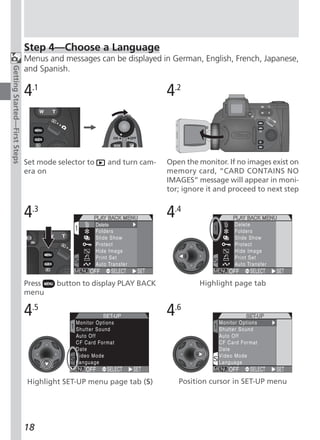
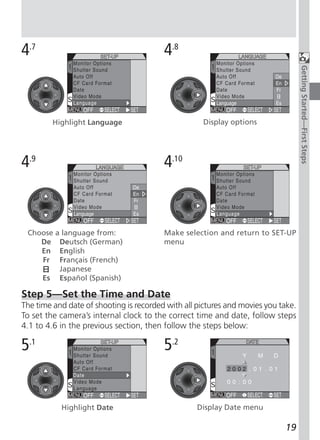
  • 15.
    Symbols To make iteasier to find the information you need, the following symbols are used: Getting Started—Overview and Symbols Cautions: information you Notes: information that you should read before use to pre- should read before using your vent damage to your camera. camera. Tips: helpful information for us- See: additional information in ing your camera. this manual. Life-Long Learning As part of Nikon’s “Life-Long Learning” commitment to ongoing product sup- port and education, continually-updated information is available on-line at the following sites: • For users in the U.S.A.: http://www.nikonusa.com/ • For users in Europe: http://www.nikon-euro.com/ • For users in Asia, Oceania, the Middle East, and Africa: http://www.nikon-asia.com/ Visit these sites to keep up-to-date with the latest product information, tips, answers to frequently-asked questions (FAQs), and general advice on digital imaging and photography. Additional information may be available from the Nikon representative in your area. See the URL below for contact information: http://www.nikon-image.com/eng/ 3
  • 16.
    Getting to Knowthe COOLPIX5700 Parts of the COOLPIX5700 The parts of the camera are identified below. For more information on the Getting Started—Getting to Know the COOLPIX5700 function of each part, refer to the page numbers listed. 1 Command dial 11 Power switch ........................ 22 2 LCD illuminator button ........... 8 12 Shutter-release button ......... 28 3 (Exposure compensation) 13 Eyelet for camera strap (x2) ... 13 button .................................. 66 14 Audio/video (A/V) out connector 4 (Exposure mode) button .. 70 (under cover) ........................ 46 5 Accessory shoe ........... 138, 158 15 DC-IN connector (under cover) 6 Built-in Speedlight .......... 27, 62 ............................................ 15 7 Photocell ...................... 26, 138 16 USB connector (under cover) . 41 8 Lens .............................. 13, 162 17 Speaker ................................ 90 9 Microphone .......................... 77 18 / SIZE (Image Quality /Image 10 Self-timer/red-eye reduction/shot Size) button .................... 49, 51 confirmation lamp .. 58, 63, 137 4
  • 17.
    Getting Started—Getting toKnow the COOLPIX5700 19 / MF (Focus mode / Manual 28 (Quick Review) button .... 31 Focus) button ................. 53, 80 29 (Menu) button ................ 97 20 (AE / AF Lock) button 30 Tripod socket .................................... 56, 131 31 Battery-chamber cover latch . 14 21 / ISO (Flash mode / Sensitiv- ity) button ...................... 62, 78 A Mode selector ......................... 9 22 Control panel .......................... 8 B / SEL button ....................... 9 23 Zoom ( / ) buttons C Electronic viewfinder ............. 10 .................... 27, 35, 60, 86, 87 D Monitor ................................ 10 24 Memory card-slot cover ........ 16 E (Function) button ........... 11 25 Multi selector .................. 18, 99 F Battery-chamber cover / Cou- 26 (Delete) button ... 33, 67, 84 pling contacts cover .............. 12 27 (Display) button .......... 6, 24 G Diopter adjustment dial ........ 12 5
  • 18.
    Camera Displays Monitor or Viewfinder (Shooting Mode) Getting Started—Getting to Know the COOLPIX5700 In (shooting mode), the icons in the monitor or viewfinder indicate the sta- tus of the following camera settings: 1 2 8 4 Self-timer indicator ............... 58 9 5 Shutter speed ....................... 73 3 10 11 6 Exposure mode ..................... 70 4 12 7 Metering mode ................... 103 5 13 8 Flash-ready indicator ............. 28 6 14 7 15 9 Flash mode ........................... 62 10 Battery level indicator 1........... 23 16 17 18 11 ”Date not set“ icon 2.............. 20 User Set A 12 Focus indicator 3 ..................... 28 1 Digital zoom ......................... 60 13 Focus mode .......................... 53 2 Zoom indicator ............. 60, 105 14 Image size ............................ 51 3 Current folder ..................... 125 15 Image quality ........................ 49 1 Appears when battery is running low. 16 Aperture ............................... 74 2 Appears when clock-calendar has not been set. 17 Exposure compensation ........ 66 3 Appears when shutter-release button is pressed halfway. 18 Number of exposures remaining/ length of movie .............. 23, 77 The (Display) Button To turn the display of camera settings or photo information in the monitor on and off, press . Photo Photo information information displayed hidden 6
  • 19.
    19 24 White balance lock ............. 110 20 28 25 Exposure lock ........................ 56 21 29 26 White balance bracketing indica- Getting Started—Getting to Know the COOLPIX5700 22 23 30 31 tor ...................................... 116 24 32 27 Continuous shooting mode .. 104 25 33 28 Manual focus indicator ......... 80 26 34 29 Image sharpening ............... 114 27 35 36 37 30 White balance .................... 101 4 User Sets 1, 2, and 3 31 Sensitivity (ISO equivalency) .. 78 32 Black-and-white mode indicator 19 Progress bar (Ultra HS) ........ 105 .......................................... 108 20 User Setting No. (User Set) .... 68 33 Image adjustment ............... 107 21 Converter lens setting ......... 109 34 Focus areas / metering areas 22 Best Shot Selector (BSS) ...... 106 .......................................... 112 23 Noise reduction ................... 117 35 Spot metering target .......... 103 4 Appears at sensitivity (ISO equivalency) setting oth- 36 Bracketing indicator ............ 116 er than AUTO. ISO displayed when sensitivity is raised above ISO 100 in AUTO. 37 Exposure display ................... 75 Monitor or Viewfinder (Playback Mode) In (playback mode), the icons in the monitor or viewfinder indicate the sta- tus of the following camera settings: 4 Image quality ........................ 49 5 Folder ........................... 88, 121 6 File number and type .......... 134 * 7 Battery level indicator ........... 23 8 Transfer icon ....................... 155 9 Print-order icon ................... 153 1 Date of recording .................. 19 10 Protect icon ........................ 151 2 Time of recording ................. 19 11 Current frame number/total 3 Image size ............................ 51 number of frames visible in * Appears only when battery is running low. current folder 7
  • 20.
    Control Panel The indicators in the control panel show the status of the following camera Getting Started—Getting to Know the COOLPIX5700 settings. To aid explanation, the control panel graphic below shows all icons, unlike normal use. 5 Exposure mode ..................... 70 6 Shutter-speed ......................... 73 Aperture ................................ 74 Image size ............................ 51 Exposure compensation value ... 66 Sensitivity ............................... 78 White balance setting ........... 130 Image transfer status .............. 42 7 Manual focus ........................ 80 1 Sensitivity (ISO equivalency) indicator ............................... 78 8 Continuous shooting mode .. 104 2 White balance indicator (appears 9 Exposure compensation when button is used to set indicator ............................... 66 white balance; shutter-speed/ap- 10 Flash mode ........................... 62 erture display shows white bal- 11 Exposure count display .......... 23 ance mode selected) ........... 130 Exposure indicator ................ 66 3 Battery level indicator ........... 23 12 Metering mode ................... 103 4 Image quality ........................ 49 13 Self-timer/Focus mode .......... 53 LCD Illuminator Button The control panel can be illuminated for up to 8 seconds by pressing the LCD illuminator button ( 4). 8
  • 21.
    Camera Parts —The Details A The Mode Selector Getting Started—Getting to Know the COOLPIX5700 The mode selector selects the operating mode. Choose (shooting mode) to take still pictures and movies ( 22), (playback mode) to play them back ( 84). B / SEL Button Pictures can be framed in the monitor or viewfinder. The monitor and viewfinder display the same con- tents. Pressing the / SEL button will toggle between the monitor and viewfinder (which cannot be used si- multaneously) when the monitor is open. Note that the / SEL button is disabled in (playback) mode. Using the Monitor Do not apply excessive force to the monitor when folded out from the camera body as this could damage the hinge that connects the monitor to the camera. Closing the Monitor Closing the monitor while in use will automatically turn off the monitor, and turn on the viewfinder. Opening the monitor while the viewfinder is in use will do the opposite. Note, if you press the / SEL button and switch to the viewfinder before closing the monitor, the monitor will not turn on automati- cally when you open it again. Press the / SEL button after opening the moni- tor to turn it on. 9
  • 22.
    C The ElectronicViewfinder The viewfinder is a smaller version of the monitor Getting Started—Getting to Know the COOLPIX5700 and can be used when bright ambient lighting conditions make the display in the monitor diffi- cult to see. D The Monitor The monitor shows the view through the camera lens together with icons indicating the status of various camera settings during shooting ( 6). The monitor is also used to review the pictures that you have taken ( 31, 84). When folded out as shown, the monitor can be rotated forward 180°, and backward 90°. You can take self-portraits by rotating the moni- tor to point in the same direction as the lens; the monitor will show a mirror image of the final pic- ture. When the monitor is pointing in the same direc- tion as the lens, it can be folded back onto the cam- era body for shooting or playback. When the monitor is not in use, you can fold it onto the camera body as shown to protect it from dust or fingerprints. 10
  • 23.
    E The (Function) Button By default, the button can be used to choose a User Set without access- Getting Started—Getting to Know the COOLPIX5700 ing the camera menus. Press the button while rotating the command dial, the selected User Set will appear in the top left of the monitor or viewfinder (User Sets 1, 2, and 3 only). It will also appear in the control panel shutter-speed/ aperture display while the button is pressed. By default, the camera is set to the automatic “point-and-shoot” mode, User Set A. Menu settings for User Sets 1, 2, and 3 are stored separately. You can create combinations of settings for User Sets 1, 2 and 3, and switch instantly from one combination of settings to the other simply by selecting the desired User Set ( 68). In User Sets 1, 2, and 3, you can choose the function assigned to the but- ton, making it possible to select the User Set or adjust white balance and metering without accessing the camera menus, or to adjust flash and focus mode without using the buttons on the camera ( 129). Setting assigned to button User Set (default setting) 68 (Focus Mode) 53 (Speedlight Mode) 62 White Balance 101 Metering 103 11
  • 24.
    F The Battery-Chamberand Coupling Contacts Covers The COOLPIX5700 can be equipped with the MB-E5700 battery pack (avail- Getting Started—Getting to Know the COOLPIX5700 able separately) which takes six LR6 (AA) batteries. To attach the MB-E5700, you must remove the coupling contacts and battery-chamber covers. Open the battery-chamber cover. Remove the coupling contacts cover by pushing it A down at A- and sliding it out. Hold the battery-chamber cover at about 45°, gen- tly pull the cover in the direction of A- until the peg at A- pulls free and remove the cover. Do not attempt to remove the battery-chamber cover before the coupling contacts cover or you may damage the camera. To replace the battery-chamber cover, insert the cover’s right peg into the hole at B- , B then slide the left peg (closest to the cou- pling contacts) into its slot. Slide the cou- pling contacts cover back into place (B- ). For more information, refer to the instruc- tion manual included with the MB-E5700. G The Diopter Adjustment Dial If the view in the viewfinder appears blurred, viewfinder focus can be adjusted using the di- opter adjustment dial. Look through the viewfinder, and rotate the adjustment dial until the view is in focus. When operating the diopter adjustment dial with your eye to the viewfinder, care should be taken to avoid accidentally putting your fingers or fin- gernails in your eye. 12
  • 25.
    First Steps Complete thesteps in this section before using your camera for the first time. Step 1—Attach the Camera Strap Getting Started—First Steps Attach the strap to the two eyelets on the camera body as shown below. To avoid losing the lens cap, use the cord provided to attach it to the camera strap as shown. Removing and Replacing the Lens Cap Remove or replace the lens cap by pressing the tabs on either side of the cap. Remove the lens cap be- fore trying to take pictures. 13
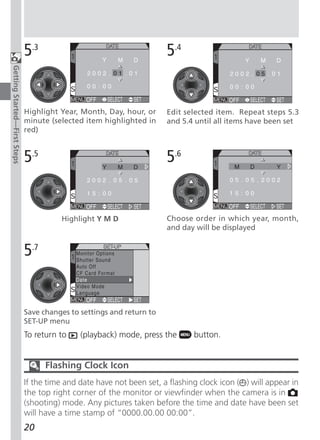
  • 26.
    Step 2—Insert theBattery Your camera is powered by a single rechargeable Nikon EN-EL1 lithium-ion battery (provided) or a non-rechargeable 2CR5 (DL245) lithium battery (avail- Getting Started—First Steps able separately). 2.1 Charge the battery The EN-EL1 is not fully charged at shipment. A battery charger is pro- vided with the camera; we recommend that you charge the battery be- fore use. Instructions for charging the battery are in the instruction manual included with the charger. 2.2 Turn the camera off 2.3 Open the battery-chamber cover Slide the battery-chamber cover latch to the position (1) and flip the cover open (2). 2.4 Insert the battery Insert a fully-charged EN-EL1 or new 2CR5 (DL245) battery as shown on the label on the underside of the battery-chamber cover. 2.5 Close the battery-chamber cover Close the battery-chamber cover (1) and slide the latch to the position (2). To pre- vent the battery being dislodged during operation, be sure that the battery-chamber cover is properly latched. 14
  • 27.
    Battery — Cautions •When using the EN-EL1 rechargeable battery, read and follow all warning Getting Started—First Steps and instructions supplied with the battery. When inserting the battery, be sure to refer to “Caring for the Camera and Battery” ( 160). • Note that on some occasions when an exhausted battery is reinserted into the camera, the “battery exhausted” icon may fail to appear in the control panel and monitor or viewfinder. • The battery may be hot after use. Turn the camera off and wait for the bat- tery to cool down before removing the battery. • When using a tripod, the camera must be removed from the tripod before the battery can be exchanged. The Clock Battery The camera’s internal clock-calendar is powered by a separate, rechargeable power source, which is charged as necessary when the main battery is installed or the camera powered by an AC adapter (available separately). After charg- ing for about ten hours, this power source can provide roughly three days of back-up power. If the main battery has been removed for an extended period, or removed before charging is complete, a flashing icon may appear in the monitor, indicating that the clock needs to be reset ( 20). Removing the Battery The battery can be removed without affecting pictures stored on the memory card. Alternative Power Sources Besides the Nikon EN-EL1, the COOLPIX5700 can use non-rechargeable 2CR5 (DL245) lithium batteries, available at a variety of retail outlets. To power your camera continuously for extended periods, use an EH- 53 AC adapter or EH-21 AC adapter/battery charger (both available separately). The MB-E5700 battery pack (available separately), which takes six ordinary Connect AC adapter to LR6 (AA) batteries, can also be used to power the cam- COOLPIX5700 DC-IN era for extended periods. connector 15
  • 28.
    Step 3—Insert theMemory Card Your Nikon digital camera uses CompactFlash™ (CF) memory cards (Type I or II) or IBM Microdrive® memory cards to store pictures ( 159). Memory cards are Getting Started—First Steps inserted as follows: 3.1 Turn the camera off 3.2 Insert the memory card Open the card-slot cover (1) and make sure the eject button is pressed all the way down (2). Memory cards are labeled with an arrow (v) showing the direction of insertion. With this label facing the back of the camera (the side with the monitor), insert the card in the direction of the arrow (3), sliding it in until it is firmly in place. Close the card slot cover (4). 16
  • 29.
    Inserting Memory Cards •If the eject button is up when the card-slot Getting Started—First Steps cover is closed, closing the cover will par- tially eject the memory card, causing er- rors when the camera is turned on. Be sure the eject button is down (i.e., in po- sition ) before inserting memory cards. • Insert memory cards terminals (two rows of small holes) first. • Be sure the memory card is oriented cor- Terminals rectly before trying to insert the card, oth- Front label erwise you may damage the camera or Direction of card. insertion Insert card terminals first with front label facing camera back Formatting Memory Cards While the memory card provided with your camera is formatted at shipment, other memory cards must be formatted before first use. For more informa- tion on formatting cards, see “Formatting Memory Cards” ( 135). Removing Memory Cards Memory cards can be removed without loss of data when the camera is off. To remove a memory card, turn the camera off and open the card-slot cover. Press the eject button to pop it up to position (1), and press it again to par- tially eject the card (2). Then remove the card by hand. Hot Memory Cards Memory cards may become hot during use. Observe due caution when re- moving memory cards from the camera. 17
  • 30.
    Step 4—Choose aLanguage Menus and messages can be displayed in German, English, French, Japanese, and Spanish. Getting Started—First Steps 4.1 4.2 Set mode selector to and turn cam- Open the monitor. If no images exist on era on memory card, “CARD CONTAINS NO IMAGES” message will appear in moni- tor; ignore it and proceed to next step 4.3 4.4 Press button to display PLAY BACK Highlight page tab menu 4.5 4.6 Highlight SET-UP menu page tab (S) Position cursor in SET-UP menu 18
  • 31.
    4.7 4.8 Monitor Options Getting Started—First Steps Shutter Sound Auto Off CF Card For mat Date Video Mode Language Highlight Language Display options 4.9 4.10 Monitor Options Shutter Sound Auto Off CF Card For mat Date Video Mode Language Choose a language from: Make selection and return to SET-UP De Deutsch (German) menu En English Fr Français (French) Japanese Es Español (Spanish) Step 5—Set the Time and Date The time and date of shooting is recorded with all pictures and movies you take. To set the camera’s internal clock to the correct time and date, follow steps 4.1 to 4.6 in the previous section, then follow the steps below: 5.1 5.2 Highlight Date Display Date menu 19
  • 32.
    5.3 5.4 Getting Started—First Steps Highlight Year, Month, Day, hour, or Edit selected item. Repeat steps 5.3 minute (selected item highlighted in and 5.4 until all items have been set red) 5.5 5.6 Highlight Y M D Choose order in which year, month, and day will be displayed 5.7 Save changes to settings and return to SET-UP menu To return to (playback) mode, press the button. Flashing Clock Icon If the time and date have not been set, a flashing clock icon ( ) will appear in the top right corner of the monitor or viewfinder when the camera is in (shooting) mode. Any pictures taken before the time and date have been set will have a time stamp of “0000.00.00 00:00”. 20
  • 33.
    Basic Picture Taking and Taking 22–30 Reviewing Reviewing Your Pictures Pictures 31–35 This chapter is divided into the following sections : Basic Picture Taking Outlines the basic steps necessary to take your first digital picture. STEP 1 Ready the Camera 22–24 STEP 2 Select User Set A 25 STEP 3 Adjust Camera Settings 25 STEP 4 Frame the Shot 26–27 STEP 5 Focus and Shoot 28–29 STEP 6 Put the Camera Away 30 Reviewing Your Pictures Illustrates how to review your pictures in the moni- tor or viewfinder. 21
  • 34.
    Basic Picture Taking This section details the steps for taking pictures in the automatic “point and shoot” mode, User Set A. When you first use the camera, it will be set to User Set A by default. Taking and Reviewing Pictures—Basic Picture Taking Step 1—Ready the Camera Before using your camera, complete the following steps: 1.1 Remove the lens cap Remove the lens cap by pressing the tabs on either side of the cap. 1.2 Open the monitor as shown in (1) through (5) 1.3 Slide the mode selector to (shooting mode) 1.4 Turn the camera on A beep will sound and the lens will extend. After a short pause, current settings will be displayed in the control panel and the monitor or viewfinder; the monitor or viewfinder will show the view through the lens. 22
  • 35.
    1.5 Check indicators in the control panel, monitor or viewfinder Check the battery indicator to make sure the battery has enough power. See the table below for battery indicator meanings. Taking and Reviewing Pictures—Basic Picture Taking Make sure the memory card has enough memory. If the number of ex- posures remaining reaches zero, or if the “OUT OF MEMORY” message is displayed in the monitor or viewfinder, change the memory card or de- lete some images ( 33, 35) to free up space on the card. It may be pos- sible to record more pictures at a different image quality or size ( 49). Battery indicator Number of exposures remaining Monitor Control panel Monitor Control Panel Meaning Camera status None Battery fully charged. Camera functions normally. Low battery. Charge As above, except that EN-EL1 as soon as monitor will go blank after possible or ready a using flash as flash re- new 2CR5 (DL245) charges. battery. Battery exhausted. Recharge EN-EL1 or No pictures can be taken replace with fully until battery has been re- (Flashes) (Flashes) charged EN-EL1, or charged or replaced. use a new 2CR5 (DL245) battery. 23
  • 36.
    Auto Power Off To save power, the camera will enter “sleep” mode if no operations are per- Taking and Reviewing Pictures—Basic Picture Taking formed for the period of time specified in the Auto Off menu (default 30 sec- onds; 133). In sleep mode, the monitor or viewfinder turn off and all cam- era functions are deactivated. The camera itself is effectively off. To reactivate the camera, press or press the shutter-release button halfway. The / SEL Button Press the / SEL button to switch between the monitor and viewfinder when the monitor is open. The monitor and viewfinder display the same contents. 24
  • 37.
    Step 2—Select UserSet A The following steps assume the camera is in the au- tomatic “point and shoot” mode, User Set A. Taking and Reviewing Pictures—Basic Picture Taking When you first use the camera, it will be set to User Set A by default. If a , , or appears in the up- per left corner of the monitor or viewfinder, the camera is set to User Set 1, 2 or 3 respectively. For details on setting the camera to User Set A, see ”Choosing a User Set“ ( 68). Step 3—Adjust Camera Settings (Optional) In User Set A, you can use the , , , and buttons to control the settings listed in the following table. The default settings, suitable for most situations, are also shown below. Refer to the rightmost column page num- bers for information on changing these settings. This section assumes that the defaults are used. Setting Default Description Control Speedlight pops up and Flash mode Auto fires automatically in poor 62 lighting. Camera focuses automati- Focus mode Autofocus cally at distances over 53 50 cm (1´8˝). Pictures compressed for Image balance between quality NORMAL 49 quality and file size that is ideal for snapshots. Pictures are 2,560 × 1,920 Image size FULL + 51 pixels in size. Camera records one pic- Continuous Single ture each time shutter-re- 104 mode lease button is pressed. 25
  • 38.
    Step 4—Frame theShot After adjusting camera settings, you are ready to frame your shot. Taking and Reviewing Pictures—Basic Picture Taking 4.1 Ready the camera To prevent camera shake, hold the camera steadily in both hands. Switch between the monitor or viewfinder, whichever best suits your shooting conditions, by pressing the / SEL button. To avoid blocking red- Avoid pressing buttons eye reduction lamp, keep on side of camera while fingers below ridges on shooting camera grip Don’t Block the Shot To avoid dark or partially obscured pictures, keep your fingers and other ob- jects away from the lens, flash, and photocell. Ridges on the camera grip also keep your fingers from blocking the red-eye reduction lamp when holding the camera. 26
  • 39.
    4.2 Frame your subject Subjects can be framed in the monitor or Zoom out Zoom in Taking and Reviewing Pictures—Basic Picture Taking viewfinder using the zoom button to adjust the camera’s 8× optical zoom lens. Press (wide) to zoom out from your subject. Press (telephoto) to zoom in on your subject. The degree of zoom is shown in the moni- tor or viewfinder. When the camera is zoomed all the way in, holding down for two seconds activates digital zoom and “zooms” in another 4× ( 60) for a total zoom factor of 32×. The de- Degree of zoom shown gree of digital zoom is shown next to the in monitor or viewfinder while zoom button is optical zoom indicator. pressed Do Not Obstruct the Built-in Speedlight • In User Set A, if the flash mode is set to auto (the default setting), red-eye reduction, or slow sync and additional light is required for correct exposure, the built-in Speed- light will pop up automatically when the shutter-release button is pressed halfway. When set to fill-flash, the built- in Speedlight will pop up whenever the shutter-release button is pressed halfway. If your finger or another object obstructs the Speedlight, prevent- ing it from popping up when the shutter-release button is pressed halfway, the flash will not fire and a message will appear in the monitor. • The Speedlight must be lowered by hand. Push the flash down gently until it clicks back into place. 27
  • 40.
    Step 5—Focus andShoot 5.1 Focus Taking and Reviewing Pictures—Basic Picture Taking In User Set A, the camera automatically fo- cuses on the subject in the center of the frame. To lock focus, press the shutter-release button halfway and check the status of the autofocus ( ) and flash-ready indicators ( ), shown right, in the monitor or viewfinder. The following table explains the status of the autofocus and flash-ready indicators. Note that when focus mode is set to infinity, the autofocus indicator will not appear. Indicator Meaning Green Subject in focus. Autofocus Flash-ready indicator Camera unable to focus on subject. Use focus lock Green ( 56) to focus on another subject at same distance, (flashes) then recompose the picture. Red Speedlight will fire when picture is taken. indicator Red Speedlight charging. Remove finger briefly from shut- (flashes) ter-release button, then try again. None Speedlight not required or set to “off”. Custom Focus Settings (User Sets 1, 2, and 3) In User Sets 1, 2, and 3, manual focus ( 80) can be used in situations in which the camera is unable to focus using autofocus. Manual or automatic focus- area selection ( 112) can be used to focus on an off-center subject without using focus lock. 28
  • 41.
    5.2 Take the picture • To take a picture, smoothly press the shut- ter-release button all the way down. Taking and Reviewing Pictures—Basic Picture Taking • If necessary, the built-in Speedlight will pop up and fire. • Jabbing the shutter-release button will cause the camera to shake and result in blurred pictures. Smoothly press the shut- ter-release button all the way down. • After you have taken your picture, the quick delete icon ( ) will be shown in the monitor for a few seconds while the picture is being recorded to the memory card ( 67). During Recording While pictures are being recorded to the memory card, a icon will be dis- played in the monitor. Pictures taken while earlier images are being recorded are stored in a temporary memory buffer. When the buffer is full, an hour- glass ( ) icon will be displayed and the shutter release will be disabled. Do not turn the camera off, remove the memory card, or remove or discon- nect the power source while or is displayed. Display Delay When shooting, the image sent from the imaging chip (CCD) is processed and displayed in the monitor or viewfinder. This processing causes the displayed image to be slightly behind the actual movements of the subject. When shoot- ing fast moving subjects, select Quick Response from the Shutter Release Speed menu in the Monitor Options menu ( 126). 29
  • 42.
    Step 6—Put theCamera Away When you have finished using the camera, follow these steps before putting the camera away. Taking and Reviewing Pictures—Basic Picture Taking 6.1 Turn the camera off Turn the camera off to save battery power. 6.2 Lower the built-in Speedlight If the built-in Speedlight is raised, lower it by gently pushing it down. 6.3 Close the monitor and replace the lens cap Close the monitor and replace the lens cap to protect the monitor and lens from dust and fingerprints. 30
  • 43.
    Reviewing Your Pictures Digitalcameras allow you to see the results of your pictures immediately after shooting, letting you to use the results of earlier attempts to improve your next picture. Your COOLPIX camera allows you to review your pictures while the cam- Taking and Reviewing Pictures—Reviewing Your Pictures era is still in (shooting) mode. Use either quick review or full-screen review to look over your pictures. When the camera is in (shooting) mode, press once to display the most recent image at the top left corner of the monitor or viewfinder (quick review), or twice to display the image full screen (full-screen review). Pressing the but- ton a third time returns to the view through the lens. Shooting Mode Quick Review Full-Screen Review The most recent picture The picture shown in is displayed in the top quick review is en- left corner of the moni- larged to occupy the tor or viewfinder. whole screen. Press to access quick review and full-screen review in (shooting) mode. • Press the multi selector up or left to display pictures taken before the cur- rent picture, down or right to display pictures taken after the current pic- ture. • When viewing pictures in quick review or full-screen review, you can press the shutter-release button at any time to stop reviewing your pictures, re- turn to (shooting) mode, and take a new picture. 31
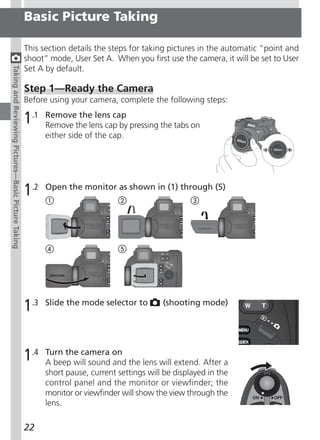
  • 44.
    Quick Review The following options are available in quick review. Taking and Reviewing Pictures—Reviewing Your Pictures To Use Description Press multi selector up or left to view images recorded View before current picture, down or right to view images other recorded after current picture. Hold multi selector pictures down to scroll rapidly to desired frame number with- out viewing intervening images. View Enter full-screen review (see next section) with current picture full picture displayed full screen. screen Return to Press shutter-release button halfway to return to Shutter- shooting shooting mode and focus. Press all the way down to release mode return to shooting mode and take a picture. 32
  • 45.
    Full-Screen Review The followingoptions are available in full-screen review. Taking and Reviewing Pictures—Reviewing Your Pictures To Use Description Press multi selector up or left to view images recorded View before current picture, down or right to view images other recorded after current picture. Hold multi selector pictures down to scroll rapidly to desired frame number with- out viewing intervening images. View Press ( ) button to display small thumbnail pre- multiple ( ) views, up to nine images at a time ( 35). images A confirmation dialog will be displayed. Press multi selector up or down to highlight option, press to right to select. Delete • Select No to exit without current deleting picture picture • Select Yes to delete picture Press ( ) for an enlarged view of current picture, up to 6.0×. When picture is zoomed in, use multi se- Zoom lector to view areas of image not visible in monitor or ( ) picture in viewfinder. To cancel zoom, press . While image is zoomed in, icon and zoom ratio are displayed in up- per left corner of monitor or viewfinder. View image Rotate command dial to view additional information information about current picture ( 88). 33
  • 46.
    To Use Description Press button to end review and return to shoot- Taking and Reviewing Pictures—Reviewing Your Pictures Return to Shutter- ing mode. To return to shooting mode and focus, shooting release/ press shutter-release button halfway. Press shutter-re- mode lease button all the way down to return to shooting mode and take a picture. Playback ( ) Mode Besides using quick review and full-screen review or playback, you can also use playback mode to view your pictures. Playback mode allows you to delete sev- eral images at once, to protect images from deletion, and also to hide images so that they will not be displayed in the monitor during review. To access play- back mode set the mode selector to ( 83). 34
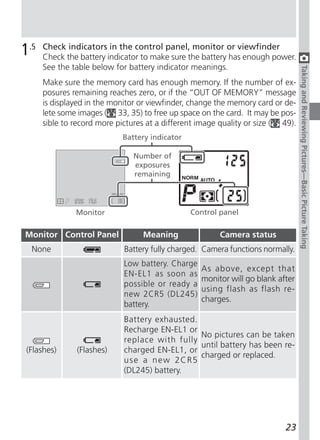
  • 47.
    Thumbnail Review Pressing the ( ) button in full-screen review displays a menu of four thumbnail images. The fol- Taking and Reviewing Pictures—Reviewing Your Pictures lowing options are available in thumbnail review. To Use Description Highlight Press the multi selector up, down, left, or right to high- images light thumbnails. Page Rotate command dial to scroll through thumbnails a through page at a time. images With four thumbnails displayed, press ( ) button Change once to view nine thumbnail images. Press ( ) to number of ( )/ “zoom in” from nine thumbnails to a four-thumbnail images ( ) view or, when four thumbnails are displayed, to view displayed highlighted image full size. A confirmation dialog will be displayed. Press multi selector up or down to highlight option, press to right to select. Delete • Select No to exit menu selected without deleting picture image • Select Yes to delete picture Press button to end review and return to shoot- Return to Shutter- ing mode. To return to shooting mode and focus, shooting release/ press shutter-release button halfway. Press shutter-re- mode lease button all the way down to return to shooting mode and take a picture. 35
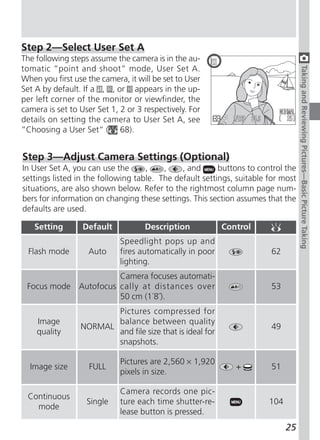
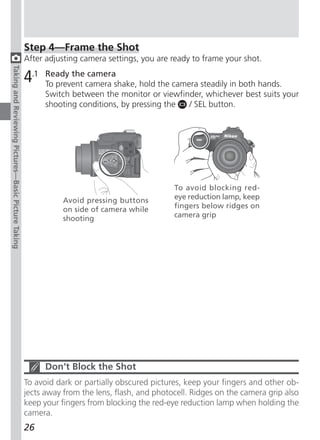
  • 48.
  • 49.
    Connecting to a Doing More Computer 38–45 with Your Viewing Pictures on a TV / VCR Digital Camera 46 This chapter is divided into the following sections : Connecting to a Computer Shows you how to connect your camera to a com- puter and save pictures to the hard disk. Viewing Pictures on a TV / VCR Takes you through the steps necessary to connect your camera to a television or VCR and view pic- tures on the television screen. 37
  • 50.
    Connecting to aComputer Your Nikon digital camera stores pictures as digital data. Instead of making the trip to a developer and getting negatives, you can simply copy your pic- tures to a computer for long-term storage using the Nikon View 5 software Doing More with Your Digital Camera—Connecting to a Computer provided with your camera. Once transferred to your computer, your pictures can be viewed, printed, sent to your acquaintances via e-mail, or saved to a Zip disk or other removable media for delivery to a photofinisher. Any copies stored on the memory card after transfer can be deleted to make way for new pictures, which you can then add to the growing digital photo album on your computer. Before You Begin: Installing Nikon View 5 Before copying pictures to your computer, you will need to install Nikon View 5, an application that allows you to transfer pictures from the camera memory card to a computer hard disk and view them on the computer monitor. To install Nikon View 5, you must have a computer running one of the following operating systems: Pre-installed versions of Windows XP Home Edition, Windows XP Professional, Windows 2000 Professional, Windows Windows Millennium Edition (Me), or Windows 98 Second Edition (SE). Mac OS 9.0, 9.1, 9.2, Mac OS X (10.1.2 or later). Only Macintosh models with built-in USB ports supported. The first step to installing Nikon View 5 is to read the installation instructions. These are included on the reference CD provided with your camera. 1 Insertturning on yourCD After the reference computer and waiting for the operating system to start up, place the reference CD in a CD-ROM drive. If you are using a Macintosh computer, the reference CD window will open automatically on the desktop. Windows users will need first to double- click the My Computer icon and then the Nikon icon to open the refer- ence CD window. 38
  • 51.
    2 Install AdobeAcrobat Reader in Portable Document Format (PDF). The installation instructions are To view the instructions, you will need Adobe Acrobat Reader 4.0 or later. If Doing More with Your Digital Camera—Connecting to a Computer you have already installed this version of Acrobat, proceed to Step 3. To install Adobe Acrobat Reader, open the folder for the language of your choice and double-click the installer icon. The installer Installer icon Installer icon start-up screen will be displayed; follow the (Windows) (Macintosh) on-screen instructions to complete installation. Start-up screen (Windows) Start-up screen (Macintosh) 3 Read you have installed Adobe Acrobat Reader, double-click the INDEX.pdf Once installation instructions for Nikon View 5 icon in the root directory of the reference CD to view a clickable index of the documentation available for Nikon View 5. Follow the links to view the installation instructions for your computer system. If desired, you can print the installation instructions using the Print… command in the Acro- bat File menu, and follow along during installation of Nikon View 5. Already Have Nikon View? In order to transfer pictures to your computer using the USB cable, the COOLPIX5700 requires the version of Nikon View 5 provided with the cam- era. If you have a version of Nikon View that was included with another Nikon digital camera, you will need to upgrade to the version provided with the COOLPIX5700. 39
  • 52.
    Making the Connection:Connecting to Your Computer Once you have installed Nikon View 5, you are ready to transfer photographs and movies to your computer. Pictures can be transferred via a direct USB Doing More with Your Digital Camera—Connecting to a Computer connection between the camera and computer, or by removing the memory card from the camera and inserting it in a card reader or PC card slot. Direct Connection: Connecting Your Camera by Cable If your computer has a built-in USB interface, you can connect it to your cam- era using the UC-E1 cable provided. 1 Turn the computer on 2 Connectthe UC-E1 USB cable as shown below. Use the flat connector for Connect the camera and computer connection to the computer, and connect the other end of the cable to the camera’s USB connector. Do not connect the camera via a USB hub or keyboard. Before Connecting the Camera Be sure to install Nikon View 5 before connecting your camera. Windows XP Home Edition, Windows XP Professional, Windows 2000 Professional When installing, uninstalling, or running Nikon View 5 under Windows XP Home Edition or Windows XP Professional, log in as the “Computer adminis- trator.” When installing, uninstalling, or running Nikon View 5 under Windows 2000 Professional, log in to the Administrator account. 40
  • 53.
    3 Turn thecamera on. Nikon View 5 will detect the camera and the Nikon Turn the camera on Transfer window will automatically be displayed. For details, see the Nikon Doing More with Your Digital Camera—Connecting to a Computer View 5 Reference Manual (on CD). While the UC-E1 USB cable is con- nected, the camera monitor will remain off, will appear in the control panel and all controls except the power switch will be inactive. 4 Transferall picturesto your memory To copy pictures on the computer card to your computer, select All im- ages from the Image transfer rule menu in the Nikon Transfer window and click the button to begin transfer. While pictures are being copied to the computer, do not: • Disconnect the USB cable. • Turn the camera off. • Remove the memory card. Transfer button 5 View pictures When transfer is complete, the pictures that have been copied to your computer’s hard disk will be displayed in Nikon Browser. See the Nikon View 5 Reference Manual (on CD) for details of the operations that can be performed. Selecting Pictures for Transfer To copy only pictures marked for transfer using the Auto Transfer option in the PLAY BACK menu ( 155), select Images marked for transfer from the Image transfer rule menu before clicking the button in the Nikon Transfer window. Transferring Ultra HS Images Before transferring pictures to the camera for the first time, make sure to click Change... in the Image Transfer window to display the File Destination and Naming dialog. Check Copy folder names from camera. This will ensure that each sequence of pictures created at a setting of Ultra HS ( 104) will be copied to a separate folder on your computer. See the Nikon View 5 Reference Manual (on CD) for details. 41
  • 54.
    6 Removeselected inthe camera USB menu ( If PTP is the camera from the system 143), turn the camera off and disconnect the USB cable. If Mass Storage is selected, you must Doing More with Your Digital Camera—Connecting to a Computer remove the camera from the system as follows before disconnecting the cable or turning the camera off: Windows XP Home Edition/Windows XP Professional Click the “Safely Remove Hardware” icon ( ) in the taskbar and select Safely remove USB Mass Storage Device from the menu that appears. Windows 2000 Professional Click the “Unplug or Eject Hardware” icon ( ) in the taskbar and select Stop USB Mass Stor- age Device from the menu that appears. Windows Millennium Edition (Me) Click the “Unplug or Eject Hardware” icon ( ) in the taskbar and select Stop USB Disk from the menu that appears. Windows 98 Second Edition (SE) In My Computer, click with the right mouse button on the removable disk corresponding to the camera and select Eject from the menu that appears. Mac OS X Drag the “NO_NAME” camera volume into the Trash. Mac OS 9 Drag the “untitled” camera volume into the Trash. Mac OS X Mac OS 9 Once you have removed the camera from the system, you can disconnect the interface cable or turn the camera off. 42
  • 55.
    Viewing RAW Picturesin Mac OS 9 Before using the Nikon View 5 (version 5.1) to display pictures taken at a Doing More with Your Digital Camera—Connecting to a Computer camera image-quality setting of RAW ( 49), allocate at least 72 MB of memory to Nikon View 5. If you attempt to open RAW images without increasing the amount of memory allocated to Nikon View 5, the pictures will not be opened; instead, the computer will display a message prompt- ing you to increase the memory allocation. Use a Reliable Power Source When transferring data between the camera and the computer, be sure that the battery is fully charged. If in doubt, recharge the battery before begin- ning transfer or use the EH-53 AC adapter or EH-21 AC adapter/battery charger (both available separately). 43
  • 56.
    Reading Pictures fromMemory Cards If you have a CompactFlash™ card reader or your computer is equipped with a PC card slot, you can transfer pictures directly from the memory card. Before Doing More with Your Digital Camera—Connecting to a Computer inserting the memory card in a card reader or card slot, turn the camera off and remove the card from the camera. 1 Turnthe computer onon wait for the operating system to start up. Turn the computer and 2 Insert are using a PC card slot, insert the memory card into a PC card If you the memory card adapter (see note below), and then insert the adapter into the PC card slot. If you are using a card reader, insert the memory card directly into the card reader. If installed, Nikon View 5 will detect cards from Nikon digital cam- eras and start automatically. See the Nikon View 5 Reference Manual (on CD) for information on transferring pictures to your computer. CompactFlash™ Card Readers Before using a card reader, be sure to read all documentation provided by the manufacturer. PC Card Adapter To read CompactFlash™ memory cards using a PC card slot, you will require an EC-AD1 PC-card adapter (shown at right), available separately from Nikon. 44
  • 57.
    Removing the MemoryCard Be sure that transfer is complete before removing memory cards from the Doing More with Your Digital Camera—Connecting to a Computer card reader or PC card slot. Before removing the memory card from a PC card slot or card reader, you will need to remove the card from the system: Windows XP Home Edition/Windows XP Professional Click the “Safely Remove Hardware” icon ( ) in the taskbar and remove the memory card from the system. Windows 2000 Professional/Windows Millennium Edition (Me) Click the “Unplug or Eject Hardware” icon ( ) in the taskbar and remove the memory card from the system. Windows 98 Second Edition (SE) In My Computer, right click on the removable disk corresponding to the memory card and select Eject from the menu that appears. Mac OS X Drag the “NO_NAME” volume that represents the memory card into the Trash. Mac OS 9 Drag the “untitled” volume that represents the memory card into the Trash. 45
  • 58.
    Viewing Pictures ona TV / VCR Using the audio/video cable provided with your camera, you can connect the COOLPIX5700 to a TV or VCR. Doing More with Your Digital Camera—Viewing Pictures on a TV / VCR 1 Connect the black plugthe the camera’s A / V Connect the cable to to camera OUT connector. 2 Connect the yellow to the video devicejack Connect the cable plug to the video-in on the TV or VCR. Connect the white plug to the audio-in jack. 3 Set TV to the video channel 4 The TV will displayand set the mode selector to in(playback) mode Turn camera on what would normally be shown the camera monitor or viewfinder, and the camera monitor or viewfinder will turn off. Auto Off When using the camera with the EN-EL1 battery (provided) or a 2CR5 (DL245) (available separately), the camera will turn off automatically if no operations are performed for a specified period of time. Output to the TV will stop and the screen will go blank, however, pressing the shutter-release button half- way or pressing the button will restart output to the TV. The time limit for auto power off can be chosen from 30 seconds (the default setting), one minute , five minutes, and 30 minutes using the Auto Off menu ( 133). When using a battery, we recommend choose a later time limit. For extended use, connect the camera to an optional AC adapter. Choosing a Video Mode ( 142) The Video Mode menu offers a choice of NTSC and PAL standards for video output. Be sure that the standard selected matches that of any video device to which you connect the camera. 46
  • 59.
    Using the Camera Taking Pictures Controls (All User Sets) The Details 48–67 Choosing a User Set 68–69 Using the Camera This section covers operations available in (shoot- Controls ing) mode. By default, the camera is set to User Set (User Sets 1, 2, 3) A, the automatic point and shoot mode, where most 70–81 settings are controlled by the camera. To gain wider control over the camera settings, access User Sets 1, 2 or 3. Using the Camera Controls (All User Sets) Contains information on the most frequently-used camera controls: zoom, image quality and size, focus, flash, and exposure compensation. Choosing a User Set Shows you how to choose a User Set. User Sets al- low you to record frequently used combinations of camera settings. Using the Camera Controls (User Sets 1, 2, 3) Details the extra controls available in User Sets 1, 2, and 3. 47
  • 60.
    Using the CameraControls All User Sets Making Effective Use of Memory: Image Quality and Size Image quality and size determine the file size for each image. File size deter- mines the number of images that can be stored on a memory card. The table Taking Pictures : The Details—Using the Camera Controls (All User Sets) below shows how image quality and size settings affect the number of images that can be stored on 16 MB, 32 MB, and 64 MB memory cards. The numbers below are approximate. File size of images depends on the scene recorded, pro- ducing wide variations in the number of images that can be stored. The ac- tual number of remaining images that can be taken will be displayed in the control panel and monitor or viewfinder while shooting ( 6, 8). Image Image Size Card Quality FULL UXGA SXGA XGA VGA 3:2 RAW 1 — — — — — HI 1 — — — — 1 16 MB FINE 6 16 24 37 86 7 NORMAL 12 31 47 69 144 14 BASIC 25 59 86 121 229 27 RAW 3 — — — — — HI 2 — — — — 2 32 MB FINE 13 32 50 75 173 14 NORMAL 26 62 95 139 289 28 BASIC 51 118 173 243 459 55 RAW 7 — — — — — HI 4 — — — — 4 64 MB FINE 26 65 100 151 347 29 NORMAL 52 125 190 278 578 57 BASIC 103 236 347 488 918 111 48
  • 61.
    Image Quality Images canbe compressed using JPEG compression when saved to the memory card. This results in smaller files that take up less space on the memory card, Taking Pictures : The Details—Using the Camera Controls (All User Sets) but at high levels of compression, a perceptible loss of image detail may oc- cur. Images can also be saved in uncompressed NEF or TIFF formats, which preserves detail but takes up more space on the memory card. File Compres- Option Quality Description Type sion Ratio* Raw uncompressed CCD data saved directly to memory card in Nikon Elec- tronic Format (NEF). Only available at RAW NEF an image size of FULL. File size smaller than HI images. Black&White can not be selected from Saturation Control None High menu ( 108). High image quality. Image stored as TIFF file with no compression. TIFF files supported by many graphics ap- HI TIFF plications. Quality on a par with RAW images. Only available at image sizes of FULL or 3:2. Fine image quality, suitable for en- FINE JPEG 1:4 largements or high-quality prints. Normal image quality, suited to most NORMAL JPEG 1:8 applications. Basic image quality, suitable for pic- BASIC JPEG 1 : 16 Low tures for electronic distribution. * Compression ratios are approximate 49
  • 62.
    To select animage-quality setting, press the button repeatedly until the desired setting is displayed in the control panel, and monitor or viewfinder. The image quality setting cycles as follows: NORMAL, FINE, HI, RAW and BASIC. Taking Pictures : The Details—Using the Camera Controls (All User Sets) Image quality displayed in control Press panel, or monitor or viewfinder NEF File Format The Nikon Electronic Format (NEF) is Nikon’s proprietary graphic format, and requires Nikon View 5 or Nikon Capture 3 (available separately) to be viewed. NEF images can be saved and edited on a computer without any degradation in quality. RAW Images RAW (NEF) images can only be viewed with Nikon View 5 and Capture 3 (avail- able separately). To view RAW images with other applications, first convert the RAW images into HI (TIFF) pictures using the Convert RAW to HI option in full-screen review ( 85). The converted image file will have a new name and the .NEF extension will be changed to .TIF. The TIFF format is supported by most graphics applications. 50
  • 63.
    Image Size Image sizeis measured in pixels. At a given image quality setting, smaller im- age sizes require less space to store, making them suitable for electronic dis- Taking Pictures : The Details—Using the Camera Controls (All User Sets) tribution. Conversely, the larger the image, the larger prints can be made with- out loss of detail. Option Size (pixels) Print Size FULL 2560 × 1920 22 × 16 cm (81/2” × 6”) (NO ICON) UXGA 1600 × 1200 14 × 10 cm (51/2” × 4”) SXGA 1280 × 960 11 × 8 cm (4” × 3”) XGA 1024 × 768 9 × 6 cm (31/2” × 2”) VGA 640 × 480 5 × 4 cm (2” × 11/2”) 3:2 2560 × 1704 22 × 14 cm (81/2” × 51/2”) Print Size The size of images when printed depends on the resolution of the printer (the higher the resolution, the smaller the final print size). The approximate sizes given above assume a resolution of around 300 dpi (dots per inch). 51
  • 64.
    To choose animage size, rotate the command dial while pressing the button. The image size setting cycles as follows: FULL, UXGA, SXGA, XGA, VGA and 3:2. Taking Pictures : The Details—Using the Camera Controls (All User Sets) + Rotate Press command dial Image size displayed in monitor or viewfinder. While dial is rotated, control-panel shutter-speed/aperture display shows width of image in pixels. 52
  • 65.
    Focus Mode: The Button Choose a focus mode according to your subject and composition. Taking Pictures : The Details—Using the Camera Controls (All User Sets) Setting How it works When to use it Camera automatically adjusts NO ICON Use with subjects 50 cm (1´8˝) focus according to distance to Autofocus or more from lens. subject. Focus is fixed at infinity, allow- Use when shooting distant ing camera to focus on distant scenes through foreground Infinity scenes. Speedlight is disabled. objects such as a window. When turns yellow, camera can focus on objects as close as Macro Use for close-ups. 3 cm (1.2˝, measured from close-up lens). See note on next page. Use the 3 s delay to prevent pic- Combines macro close-up (see tures from blurring, especially above) at distances of 3 cm when using macro close-up. Self-timer (1.2”) or more with shutter Use the 10 s delay for self por- release delay of 3 s or 10 s. traits. 53
  • 66.
    To select thefocus mode, press the button repeatedly until the desired setting is displayed in the control panel and monitor or viewfinder. The focus mode cycles as follows: autofocus (no icon), infinity ( ), macro close-up ( ), Taking Pictures : The Details—Using the Camera Controls (All User Sets) self-timer ( ). F5.6 Press Focus mode displayed in control panel and monitor or viewfinder. At setting of infinity, icon appears in monitor or viewfinder and control panel. 54
  • 67.
    Getting Good Resultswith Autofocus Autofocus performs best when: Taking Pictures : The Details—Using the Camera Controls (All User Sets) • There is contrast between the subject and the background. For example, autofocus may not perform well on subjects that are the same color as the background. • The subject is evenly lit. Autofocus does not perform well when: • You attempt to focus simultaneously on two or more objects at different distances from the camera. For example, autofocus may not perform well when photographing an object inside a cage, because the bars of the cage will be closer to the camera than the main subject, and both the bars and the main subject will be in the focus area. • The subject is very dark (the subject should not, however, be too much brighter than the background). • The subject is moving rapidly. If the camera is unable to focus using autofocus, the autofocus indicator will flash in the monitor or viewfinder when the shutter-release button is pressed halfway. Use focus lock ( 56) to focus on another subject at the same dis- tance, or use manual focus ( 80). Macro Close-Up When the camera is zoomed out to or past the middle optical zoom position, the macro close-up icon ( ) in the monitor or viewfinder will turn yellow, indi- cating that macro close-up can be used to focus on objects as close a s 3 c m (0.8˝) from the lens. To minimize distortion when shooting flat objects such as printed text or business cards, however, we recommend that you zoom the camera in and adjust the range until you find a distance at which focus can be achieved. 55
  • 68.
    Focus and ExposureLock At times, your subject may not be at the center of the final composition or autofocus will not give good results ( 55). If so, when the shutter-release Taking Pictures : The Details—Using the Camera Controls (All User Sets) button is pressed halfway, the camera will not focus as expected and the main subject may not be in focus. Focus lock allows you to adjust the composition after focusing on your subject. 1 Focus the subject in the center of Position the monitor or viewfinder and press the shutter-release button halfway. 2 Check the subject is inindicator autofocus When the autofocus focus, the indicator will be displayed in the monitor or viewfinder. Focus will remain locked while the shutter-release button is pressed halfway. 3 Recompose the picture andbutton Keeping the shutter-release shoot pressed halfway, recompose your pic- ture. Press the shutter-release button the rest of the way down to shoot. Do not change the distance between the camera and your subject while fo- cus lock is in effect. If your subject moves, remove your finger from the shut- ter-release button and focus again at the new distance. 56
  • 69.
    AE/AF Button: Locking Focus and Exposure By default, pressing the AE/AF button when the camera is in focus locks Taking Pictures : The Details—Using the Camera Controls (All User Sets) both focus and exposure. The Controls: AE-L, AF-L option in the SET-UP menu ( 131) can be used to set the AE/AF button to lock just focus or just exposure. With focus set to lock, you can adjust exposure without refocusing the camera. With exposure set to lock, you can refocus the camera without adjusting exposure. You can improve results by manually selecting the center focus area ( 112) and setting metering to spot or central-weighted meter- ing ( 103). 57
  • 70.
    Delaying Shutter Release:Self-Timer Mode When the self-timer is used, the camera will not take a picture until either three or ten seconds after the shutter-release button is pressed. The three-second Taking Pictures : The Details—Using the Camera Controls (All User Sets) timer prevents pictures from being blurred by camera movement that occurs when the shutter-release button is pressed. This feature is most useful when taking low-light or close-up shots with the flash turned off. The ten-second timer is generally used for pictures in which you wish to appear yourself, giv- ing you time to position yourself in front of the camera after pressing the shut- ter-release button. To use the self-timer: 1 Position the camera a tripod (recommended) or rest it on a flat, stable Mount the camera on surface. 2 Selectthe self-timer mode until the self-timer icon ( Press a button repeatedly ) is displayed. The macro close-up icon ( ) will also be displayed to indicate that macro close-up pictures can also be taken. Self-timer and macro close- up icons displayed in con- trol panel and monitor or viewfinder Press 58
  • 71.
    3 Compose theshot andcompose the shot, and press the shutter-release Adjust camera settings, focus button halfway to focus. Taking Pictures : The Details—Using the Camera Controls (All User Sets) 4 Start the timer Press the shutter-release button all the way down to activate the timer. Press once for a ten- second delay, twice for a three-second delay, and three times to stop the timer. When the shutter-release button is pressed, the Full press camera will beep and the self-timer lamp below the shutter-release button will start to blink. The lamp will continue to blink until one second before the picture is taken. The self-timer lamp will stay lit during the final second to warn that the shutter is about to be released. Count-down timer in monitor or viewfinder shows number of seconds remaining until picture is taken 59
  • 72.
    Optical and DigitalZoom: The Button Your camera offers two kinds of zoom: optical zoom, in which the camera’s Taking Pictures : The Details—Using the Camera Controls (All User Sets) telescoping lens can be used to magnify the subject up to 8×, and digital zoom, which magnifies the image up to a further 4× (a total zoom factor of 32×). Optical Zoom Pictures can be framed in the viewfinder or monitor using the zoom button. Indicator in monitor or viewfinder displays de- gree of zoom while either button is pressed Press to Press to zoom out zoom in Digital Zoom At the maximum optical zoom position, holding the button down for two seconds starts digital zoom. Maximum optical zoom Hold Zoom factor displayed position for 2 s in monitor or viewfinder When digital zoom is on, the zoom factor increases each time is pressed, to a maximum of 4×. Pressing decreases the zoom factor. To cancel digital zoom, press until the zoom factor is no longer displayed. 60
  • 73.
    Restrictions on DigitalZoom • Digital zoom is not available when: Taking Pictures : The Details—Using the Camera Controls (All User Sets) • Image quality is set to RAW or HI ( 49) • Black&White is selected in the Saturation Control menu ( 108) • Multi-Shot 16 or Ultra HS is selected in the Continuous menu ( 104) • Off is selected for Zoom Options: Digital Tele in the SET-UP menu for User Sets 1, 2, or 3 ( 131) • Wide Adapter is selected in the Lens menu ( 109) • The maximum value for digital zoom when Movie is selected in the Continu- ous menu is 2× ( 104). Optical vs. Digital Zoom In digital zoom, data from the camera’s image sensor are processed digitally, enlarging the center portion of the image to fill the frame. Unlike optical zoom, digital zoom does not increase the amount of detail visible in the picture. In- stead, details visible at maximum zoom are enlarged, producing a slightly “grainy” image. In digital zoom, the camera uses the center focus area and center-weighted metering. 61
  • 74.
    Flash Mode: The Button The flash mode is controlled with the button. Taking Pictures : The Details—Using the Camera Controls (All User Sets) 1 2 F5.6 Press button to change flash mode. Press button repeatedly until desired setting is displayed in control panel, and monitor or viewfinder. At a setting of Auto, no icon appears in monitor or viewfinder. The flash mode changes as shown below. Auto + red- Auto Flash Cancel Fill-flash Slow Sync eye reduction To protect the built-in Speedlight, we recommend that you lower it when not in use. Setting the Built-in Speedlight to Manual The built-in Speedlight can be raised by pressing the button when the Speedlight Opt.: Pop Up option in the SET-UP menu is set to Manual ( 136). The flash will fire whenever a picture is taken. The flash mode changes as shown below when set to Manual. Red-eye reduction Fill-flash + Fill-flash + fill-flash Slow Sync 62
  • 75.
    The following settingsare available. Speedlight Control Monitor Description Taking Pictures : The Details—Using the Camera Controls (All User Sets) Mode Panel When lighting is poor, built-in Speedlight will pop up automatically when shutter-release Auto NO ICON button is pressed halfway, and flash will fire when picture is taken. If left raised, flash will not fire when there is sufficient light. Flash Cancel Flash will not fire even when lighting is poor. (off) Same as Auto, except that the red-eye re- duction lamp fires before main flash, min- imizing “red-eye.” Use for portraits (works best when subjects are well within range of Auto flash and looking at the lamp). Because a with red- slight delay occurs after the shutter-release eye re- button is fully pressed to allow red-eye re- duction duction to take effect, this setting is not rec- ommended with subjects that are moving erratically or in other situations in which you want the camera to react quickly. Flash fires whenever picture is taken. Use to Fill-flash “fill-in” (illuminate) shadows and back-lit subjects. Auto flash combined with slow shutter Slow speed. Use to capture both subject and back- Sync ground at night or under dim light. Use of a tripod is recommended to prevent blurring. 63
  • 76.
    Do Not Obstructthe Built-in Speedlight • By default, the Pop Up option in the Speedlight Options menu is set to Taking Pictures : The Details—Using the Camera Controls (All User Sets) Auto ( 136). When additional light is required for correct exposure, the built-in Speedlight will pop up automatically when the shutter-release but- ton is pressed halfway. The built-in Speedlight will also pop up when an external Speedlight is attached so that the photocell can be used to correctly set exposure for the shot ( 138). If your finger or another object obstructs the built-in Speedlight, preventing it from popping up when the shut- ter-release button is pressed halfway, the built-in Speed- light and any external Speedlight will not fire and a message will appear in the monitor. • When the built-in Speedlight is raised, keep your fingers and other objects away from the flash window and photocell. Red-Eye Reduction Mode When taking photos in red-eye reduction mode, make sure that your fingers are not obstructing the red-eye reduction lamp. 64
  • 77.
    When Lighting IsPoor When lighting is poor and the flash is off ( ) or set to slow sync ( ), shut- Taking Pictures : The Details—Using the Camera Controls (All User Sets) ter speed slows and pictures may blur. For shutter speeds slower than 1/30 s, use of a tripod is recommended. At speeds below 1/4 s, the shutter-speed indi- cator in the monitor or viewfinder will turn yellow indicating that mottling (“noise”) may appear in darker areas of the image. To reduce noise, turn Noise Reduction on ( 117). Note that the built-in Speedlight will turn off automatically when autofocus is set to “infinity” ( 54). The flash also turns off when BSS is on ( 106), a setting other than Single is selected for Continuous ( 104), a setting other than Normal is selected in the Lens menu ( 109), On is selected for the AE Lock option in the Exposure Options menu ( 110), or when Noise Reduc- tion is set to Clear Image Mode ( 117). Low Batteries When the low battery indicator appears in the control panel ( ) and moni- tor or viewfinder ( ), and the built-in Speedlight fires, the monitor will go blank if in use while the flash charges. If the viewfinder is in use, it will remain on while the flash charges. The Flash-Ready Indicator If the shutter-release button is pressed halfway while the flash is still charging, the flash-ready indicator in the monitor or viewfinder will flash. Remove your fin- ger briefly from the shutter-release button and try again. 65
  • 78.
    Exposure Compensation: The Button The (exposure compensation) button allows you to alter exposure from the value suggested by the camera making pictures brighter or darker. Taking Pictures : The Details—Using the Camera Controls (All User Sets) To set exposure compensation, rotate the command dial while pressing the button. Values range from –2.0EV to +2.0EV in 1/3 steps. At values other than ±0.0, the icon is displayed in control panel and monitor or viewfinder. The monitor or viewfinder display the exposure compensation value. In User Sets 1, 2 and 3, to cancel exposure compensation, set the value to ±0.0. In User Set A, exposure compensation is cancelled when the camera is turned off. + Press while rotating command dial F5.6 Exposure compensation displayed in control panel and monitor or view- finder Choosing an Exposure Compensation Value The camera may set exposure too low if large areas of the frame are very bright (containing, for example, sunlit expanses of water, sand, or snow) or the back- ground is much brighter than the main subject. If the image in the monitor is too dark, choose a positive value for exposure compensation. Similarly, the camera may set exposure too high if large areas of the frame are very dark (containing, for example, an expanse of dark green leaves) or the background is much darker than the main subject. If the image in the monitor is too bright, choose a negative value for exposure compensation. 66
  • 79.
    Keep or Delete:Picture Review After you have taken your picture, the quick delete icon ( ) will be shown in the monitor or Taking Pictures : The Details—Using the Camera Controls (All User Sets) viewfinder for a few seconds while the picture is be- ing recorded to the memory card. During this time, you can delete the picture. Press the button, a confirmation dialog will be displayed. Press the multi selector up or down to highlight an option, then press to the right to select. • Select No to save the image to the memory card. • Select Yes to delete the picture. 67
  • 80.
    Choosing a UserSet By default the camera is set to User Set A, where the camera controls the ma- jority of camera settings. If you set the camera to User Set 1, 2, or 3, you can change default settings to suit your needs. Settings that can be altered in User Taking Pictures : The Details—Choosing a User Set Sets 1, 2 and 3 are as follows: Setting Exposure Mode 70 Sensitivity (ISO) 78 Manual Focus 80 Shooting Menu Settings 100 SHOOTING menu settings for User Sets 1, 2, and 3 are stored separately. If there is a particular combination of settings you use frequently, you can select User Set 1 and set the camera to those settings. The camera will “remember” your settings even when turned off, and will automatically restore these settings the next time User Set 1 is selected. You can create further combinations of set- tings for User Sets 2 and 3, and switch instantly from one combination of set- tings to the other simply by selecting the desired User Set. Settings for the following menu items are stored separately in each User Set. The menu icons for these settings (step 3, next page) will turn red when set to something other than the default setting. Setting Setting White Balance 101 Image Adjustment 107 Metering 103 Saturation Control 108 Continuous 104 Lens 109 BSS 106 Image Sharpening 114 The Button ( 130) By default, the button can be used to choose a User Set without access- ing the camera menus. Press the button while rotating the command dial, the selected User Set will appear in the control panel while the button is pressed. 68
  • 81.
    Follow the stepsbelow to select a User Set. 1 2 Taking Pictures : The Details—Choosing a User Set Set mode selector to (shooting Display the list of User Sets mode). Press button to enter SET- UP or SHOOTING menu 3 4 Highlight A, 1, 2, or 3 Make selection and return to SET-UP or SHOOTING menu 5 Press button once or twice to exit menu. Except in case of User Set A, User Set number displayed in monitor or viewfinder 69
  • 82.
    Using the CameraControls User Sets 1, 2, 3 This section covers settings used only when User Set 1, 2, or 3 is selected in (shooting) mode. These are in addition to the settings described in “Using the Camera Controls (All User Sets)”( 48). Taking Pictures : The Details—Using the Camera Controls (User Sets 1, 2, 3) Controlling Shutter Speed and Aperture: Exposure Mode In User Set A, the camera automatically adjusts shutter speed and aperture. In User Sets 1, 2, and 3, you can choose from four exposure modes that can give you direct control over shutter speed and aperture. To choose the expo- sure mode, rotate the command dial while pressing the button. The exposure mode cycles as follows: (programmed auto), (shutter-pri- ority auto), (aperture-priority auto), and (manual). + Press while rotating command dial Exposure mode displayed in control panel and monitor or viewfinder 70
  • 83.
    The following modesare available: Mode How it works When to use it Taking Pictures : The Details—Using the Camera Controls (User Sets 1, 2, 3) Camera sets shutter speed and aperture for best exposure. Flexible program ( 72) and Best choice in most circum- Programmed exposure compensation ( stances. auto 66) offer a degree of control over exposure settings. High shutter speeds freeze ac- User chooses shutter speed; tion. Low shutter speeds sug- Shutter- camera sets aperture for best gest movement by blurring priority auto exposure. moving objects. Large apertures (small f/-num- bers) soften background de- tails and let more light into User chooses aperture; camera camera, increasing range of Aperture- sets shutter speed for best ex- flash. Small apertures (large f/ priority auto posure. -numbers) increase depth of field, bringing main subject and background into focus. User chooses both shutter Use when you want complete Manual speed and aperture. control over exposure. 71
  • 84.
    Programmed Auto In programmed auto, the camera automatically adjusts shutter speed and aperture according to the amount of light available. Adjustments to exposure Taking Pictures : The Details—Using the Camera Controls (User Sets 1, 2, 3) can be made using the flexible program (see below), exposure compensation ( 66) or exposure bracketing ( 115). Using the Flexible Program In User Set 1, 2, or 3, when the camera is set to programmed auto, the flex- ible program can be used to select different combinations of shutter speed and aperture which will produce the same exposure. To use the flexible program, set the camera to (programmed auto), then turn the command dial until the desired combination of shutter speed and aper- ture appears in the monitor or viewfinder. The shutter speed appears in the control panel. Press the button to switch between displaying the shutter speed and the aperture. An asterisk (“*”) appears next to the exposure-mode indicator in the control panel and monitor or viewfinder to indicate that flexible program is in effect. The default values for shutter speed and aperture can be restored by rotating the command dial until the asterisk (“*”) is no longer displayed next to the exposure-mode indicator. Default values are also restored when another User Set is selected, the mode selector is set to (playback mode), another expo- sure mode is selected, or the camera is turned off. F5.6 F8.0 72
  • 85.
    Shutter-Priority Auto In shutter-priorityauto, shutter-speed is controlled by rotating the command dial. Options range from 8 s to 1/4000 s in increments equivalent to 1 EV (one step). Taking Pictures : The Details—Using the Camera Controls (User Sets 1, 2, 3) To adjust shutter speed, set the camera to (shutter-priority auto), then ro- tate the command dial. Shutter-speed displayed in control panel and monitor or viewfinder • In and mode, if the selected shutter-speed or aperture would result in the picture being under- or over-exposed, the shutter speed or aperture dis- played in the control panel and monitor or viewfinder will flash when the shut- ter-release button is pressed halfway. Choose another setting and try again. • At shutter speeds of 1/4 s or slower, the shutter-speed indicator in the monitor or viewfinder will turn yellow to show that mottling (“noise”) may appear in the final picture. We recommend that you either choose a faster shutter speed or turn Noise Reduction on ( 117). Faster Shutter Speeds At a shutter speed of 1/4000 s, the aperture range is restricted. At maximum wide angle, the f/-number of the lens ranges from f/5.0 to f/8.0; at maximum tele- photo, the f/-number of the lens is f/7.4. Shutter-Speed Limitations At Continuous settings of Ultra HS and Movie ( 104), the camera takes a fixed number of frames per second. Shutter speed can not be set to values slower than the frame advance rate (1/30 s and 1/15 s, respectively). 73
  • 86.
    Aperture-Priority Auto In aperture-priority auto, aperture is controlled by rotating the command dial, while the camera automatically adjusts shutter speed in the range 8 s–1/4000 s Taking Pictures : The Details—Using the Camera Controls (User Sets 1, 2, 3) to produce optimal exposure. Aperture varies in increments equivalent to 1/3 EV (1/3 step). Aperture displayed in con- trol panel and monitor or viewfinder Aperture and Zoom The maximum and minimum values for aperture are the maximum and mini- mum values for the camera lens, adjusted for the current zoom setting. Higher f/-numbers (smaller apertures) can be achieved by zooming the camera in, lower f/-numbers (larger apertures) by zooming the camera out. Unless On is cho- sen for Fixed Aperture in the Zoom Options menu (accessible from the SET- UP menu – 131), aperture will change as the camera is zoomed in or out. If, for example, you choose the second-highest aperture setting with the cam- era zoomed all the way out, the camera will vary the f/-number to maintain aperture at the second-highest setting for the current zoom position as you zoom the camera in. 74
  • 87.
    Manual In manual exposuremode, you control both shutter speed and aperture. Shut- ter speed can be set to values between 8 s and 1/4000 s in increments equivalent Taking Pictures : The Details—Using the Camera Controls (User Sets 1, 2, 3) to 1 EV (one step), or the shutter can be held open indefinitely for a long time- exposure of up to five minutes (BULB). Aperture can be adjusted in increments equivalent to 1/3 EV (1/3 step). 1 After choosing (manual) as the exposure mode, remove your finger from the button. 2 ter speed or aperture. The to select shut- Press the button again selected item is displayed in the control panel, or in green in the monitor or viewfinder. The item selected will change each time the button is pressed. 3 Rotate thespeed) to the desired value. The amount the pic- or shutter command dial to set the selected item (aperture ture would be under- or over-exposed at the selected set- ting is displayed in the control panel and in the exposure dis- play in the monitor or viewfinder. Control panel display is in EVs, rounded to nearest EV. Value is displayed for 8 s before being replaced by exposure-count display. If image would be under- or over-exposed by more than 9 EV, display shows flashing –9 (under- exposure) or +9 (overexposure). Monitor or viewfinder exposure display shows values from –2 to +2 EV in increments of 1/3 EV. 4 Repeat steps 2 and 3 to set the other item (shutter speed or aperture). 75
  • 88.
    The Multi Selector The item not currently selected in the control panel shutter-speed/aperture Taking Pictures : The Details—Using the Camera Controls (User Sets 1, 2, 3) display or monitor can be adjusted by pressing the multi selector left or right while the button is held down. If aperture is displayed in green in the monitor or viewfinder, the multi selector can be used to set shutter speed, and vice-versa. Long Time-Exposures (BULB) When manual exposure mode is selected and Continuous set to Single ( 104), shutter speed can be set to BULB for long time-expo- sures of up to five minutes. With shutter speed selected in the control panel or in the monitor or viewfinder, rotate the command dial until the control panel shows (BULB will be dis- played in the monitor or viewfinder). At this setting, the shutter will remain open while the shutter-release button is pressed, to a maximum of 1 min (for exposures of up to five minutes, set the Exposure Options: Maximum Bulb Duration item in the SHOOTING menu to 5 min; 110). To prevent blurring caused by camera shake, we recom- mend that you use a tripod and a remote shutter re- lease such as the MC-EU1 remote cord (available separately). We also recommend that you turn Noise Reduction on ( 117) to reduce mottling (“noise”). 76
  • 89.
    Making Movies: MovieMode The COOLPIX5700 can record movies up to 60 seconds in length at a rate of about 15 frames per second, with sound recorded via the camera’s built-in mi- Taking Pictures : The Details—Using the Camera Controls (User Sets 1, 2, 3) crophone. Each frame is 320 × 240 pixels in size (QVGA). 1 In the SHOOTING menu, select Continuous: Movie ( 104). 2 Press the shutter-release buttoninall the waydirectiontoasbeginlens, the im- If the monitor is rotated to point the same down the recording. age in the monitor will be inverted. The exposure count display will show the length of the movie that can be recorded. 3 Press the shutter-release button all the way down again to end re- cording. Recording will end automatically after 60 seconds, or sooner if no more memory is available on the memory card. The movie will be stored as a QuickTime movie file with a file name end- ing in “.MOV”. For information on playing back your movie, see Movie Playback ( 90). Movie Mode • Digital zoom ( 61) can zoom up to only 2×. • The built-in Speedlight is disabled. • If the monitor is rotated to point in the same direction as the lens, the image in the monitor will be inverted. Playback will also be inverted. 77
  • 90.
    Reacting Faster toLight: Sensitivity (ISO Equivalency) What Is “Sensitivity”? Taking Pictures : The Details—Using the Camera Controls (User Sets 1, 2, 3) “Sensitivity” is a measure of how quickly your camera reacts to light. The higher the sensitivity, the less light needed to make an exposure, allowing the same exposure to be achieved with higher shutter speeds or smaller apertures. In a digital camera, increased sensitivity is similar to using a fast film: higher sensi- tivities allow higher shutter speeds, at the expense of mottling, or “noise” (the digital equivalent of film “grain”) appearing in the final image. Adjusting Sensitivity In User Set A, the camera sets sensitivity automatically in response to lighting conditions. In User Set 1, 2, or 3, you can choose a fixed value for sensitivity from four possible settings. Sensitivity is set by rotating the command dial while pressing the ISO ( ) button. The sensitivity setting cycles as follows: AUTO, 800, 400, 200, and 100. Sensitivity is displayed in control panel and monitor or viewfinder. After ISO button is re- leased, ISO icon appears in control panel when sensitivity is above 100. At setting of AUTO, + AUTO is displayed in monitor or viewfinder until ISO button is released; ISO icon then ap- pears whenever sensitivity is above 100. Press while rotating command dial Noise At shutter speeds of 1/30 s or slower, mottling (“noise”) may appear in the final picture. We recommend that you either choose a faster shutter speed or turn Noise Reduction on ( 117). 78
  • 91.
    The following settingsare available: Setting When to use it Taking Pictures : The Details—Using the Camera Controls (User Sets 1, 2, 3) Equivalent to a setting of 100 under normal conditions; when lighting is poor, however, camera automatically raises sensi- AUTO tivity to compensate (up to ISO 400). When sensitivity is raised above a value approximately equivalent to ISO 100, ISO icon appears in control panel and monitor or viewfinder. Approximately equivalent to ISO 100, recommended except when lighting is poor or when higher shutter speeds are re- 100 quired. Noise may appear in pictures taken at settings above this value. 200 Approximately equivalent to ISO 200. 400 Approximately equivalent to ISO 400. Approximately equivalent to ISO 800. Value is displayed in red in monitor or viewfinder to indicate that pictures taken at this setting will likely contain appreciable noise. Use only to cap- 800 ture natural lighting under low light conditions or when a fast shutter speed is required. We recommend that Image Sharp- ening ( 114) be turned off to avoid heightening the effects of noise. Using the Flash A setting of 800 is intended for use with natural lighting. We recommend that you choose AUTO or a fixed value of 400 or less when using the flash. Exposure Mode If sensitivity is set to AUTO in shutter-priority auto or manual exposure modes, sensitivity will be fixed at ISO 100 equivalent and will not vary with lighting con- ditions. 79
  • 92.
    Focusing by Hand:Manual Focus In User Sets 1, 2, and 3, manual focus can be used in place of the default autofocus for situations in which you are unable to achieve the desired results Taking Pictures : The Details—Using the Camera Controls (User Sets 1, 2, 3) using autofocus. To use manual focus: 1 Enterand hold the MF ( Press manual focus ) button and rotate the command dial until the manual focus indicator appears in the monitor or viewfinder and ap- pears in the control panel. 2 Focus pressing the MF ( While ) button, rotate the command dial. Using the monitor or viewfinder as your guide, continue to rotate the command dial until your subject is in focus. The camera can focus from macro close-up (about 3 cm (1“) measured from the lens) to infinity. If you zoom the lens after focusing, you will have to refocus your subject. + Press while rotating icon in control panel and manual command dial focus indicator in monitor or viewfinder show that manual focus is in effect. 3 Take the shutter-release button all the way down to take the picture. Press the picture Manual focus can be cancelled by pressing the button to select a new focus mode. 80
  • 93.
    Close-ups and OpticalZoom At short focus distances, the camera may be unable to focus at some zoom Taking Pictures : The Details—Using the Camera Controls (User Sets 1, 2, 3) positions. If the camera is unable to focus at the current zoom position, the focus distance display in the monitor or viewfinder will turn red. Zoom the cam- era in or out until the focus distance is no longer shown in red. Using the Self-Timer When using the self-timer, be sure that the self-timer is selected ( 58) be- fore manually adjusting focus. Changing the focus mode after setting focus- ing will cancel manual focus. Focus Confirmation Setting Focus Confirmation to MF or On ( 113) in the SHOOTING menu will cause the areas in focus to be sharply outlined in the monitor or viewfinder, making it easier to focus. 81
  • 94.
  • 95.
    Playing Back Your Pictures Set the mode selector to and play back your pic- tures using playback mode. 83
  • 96.
    Slide the modeselector to to access playback mode. The most recent picture will be displayed in the monitor. In playback mode, the following op- Playing Back Your Pictures tions are available. Full-Screen Playback The following options are available in full-screen playback. To Use Description Press multi selector up or left to view images recorded View before current picture, down or right to view images other recorded after current picture. Hold multi selector pictures down to scroll rapidly to desired frame number with- out viewing intervening images. View Press ( ) button to display small thumbnail pre- multiple ( ) views, up to nine images at a time ( 86). images A confirmation dialog will be displayed. Press multi selector up or down to highlight option, press to right to select. Delete • Select No to exit without current deleting picture. picture • Select Yes to delete picture. Start Press to start movie playback ( 90). movie 84
  • 97.
    To Use Description Zoom Press ( ) for an enlarged view of current picture, ( ) Playing Back Your Pictures picture in up to 6.0× ( 87). View image Rotate the command dial to view additional informa- information tion about the current picture ( 88). Display playback Press the button to display the PLAY BACK menu. menu 1 A confirmationdown to highlight option, press to selector up or dialog will be displayed. Press multi right to select. • Select No to exit and return to full-screen playback with- out converting RAW image. • Select Yes to convert RAW image to HI image and save Convert HI image. Proceed to step 2. RAW images to HI images 2 If you selected YesPress multiaselector up or dialog will be displayed. in step 1, confirmation down to highlight option, press to right to select. • Select No to exit without deleting RAW image data. • Select Yes to delete RAW image data. Converting RAW Images When you convert a RAW image into a HI image, the converted image file will have a new name and the .NEF extension will be changed to .TIF. Be sure there is enough space on the card for the new HI image before converting the im- age. One image requires about 15 MB of space on the memory card. 85
  • 98.
    Thumbnail Playback Pressing the ( ) button in full-screen playback displays a menu of four thumbnail images. When Playing Back Your Pictures thumbnails are displayed, the following options are available. To Use Description Highlight Press the multi selector up, down, left, or right to high- images light thumbnails. Page Rotate the command dial to scroll through thumbnails through one page at a time. images With four thumbnails displayed, press ( ) but- Change ton once to view nine thumbnail images. Press ( ) number of ( )/ to “zoom in” from nine thumbnails to four thumb- images ( ) nails, again to “zoom in” from four thumbnails to full displayed size (full-screen playback). A confirmation dialog will be displayed. Press multi selector up or down to highlight option, press to right to select. Delete • Select No to exit menu selected without deleting picture. image • Select Yes to delete picture. 86
  • 99.
    Taking a CloserLook: Playback Zoom Use the ( ) button to zoom in on images displayed full screen (disabled when Ultra HS or Movie have Playing Back Your Pictures been set in the Continuous menu). To Use Description Zoom increases each time button is pressed, to a Zoom maximum of 6.0×. While image is zoomed in, icon ( ) photo in and zoom ratio are displayed in upper left corner of monitor. View other Press multi selector to scroll to areas of the image not areas of visible in monitor. image Cancel Press to cancel zoom. Notes on Playback Zoom To view other pictures on the memory card, first cancel zoom. Additional time may be required to display pictures taken at an image quality setting of RAW or HI. Playback zoom can not be used when viewing movies, or pictures taken at a setting of Ultra HS. 87
  • 100.
    Viewing Image Information Image information is shown superimposed on images in full-screen review or Playing Back Your Pictures full-screen playback. There are five pages of image information for each im- age. Rotate the command dial to cycle through image information as follows: Page 1 ⇔ Page 2 ⇔ Page 3 ⇔ Page 4 ⇔ Page 5 ⇔ Page 1. 1. File Information 2. Shooting Information, Page 1 1 Date of 7 Battery level 1 Camera type 6 Aperture recording indicator* 2 Firmware 7 Exposure 2 Time of 8 Transfer icon version compensation recording 9 Print-order 3 Metering 8 Focal length 3 Image size icon method 9 Focus mode 4 Image quality 10 Protect icon 4 Exposure mode 5 Folder 11 Current frame 5 Shutter speed 6 File number number/total and type number of frames visible in current folder * Appears only when battery is running low. Image File and Folder Names Pictures taken with the COOLPIX5700 are identified by file names that begin with “DSCN” followed by a four-digit file number from 0001 to 9999 assigned automatically by the camera. Each file name ends in a three-letter extension: “.NEF” for RAW images, “.TIF” for HI images, “.JPG” for other images, and “.MOV” for movies. Picture files are stored in folders automatically named with a three digit folder number by the camera. 88
  • 101.
    3. Shooting Information,Page 2 Playing Back Your Pictures 1 Flash status 5 Color 2 Image saturation adjustment 6 Sharpening 3 Sensitivity (ISO 7 Digital zoom equivalency) 8 Lens-converter 4 White balance status 9 File size 4. Exposure Information A Thumbnail preview (flashing border marks image highlights—i.e., brightest areas of image) B Histogram (shows distribution of tones in image: horizontal axis gives pixel brightness, with dark tones to left and bright tones to right, verti- cal axis shows number of pixels of each brightness in image) 1 File no. and type 5 Exposure com- 2 Metering method pensation 3 Shutter speed 6 Sensitivity 4 Aperture 5. Focus Confirmation 1 File no. and type 7 Focus confir- 2 Focal length mation (areas of image that 3 Shutter speed are in focus are 4 Aperture sharply out- 5 Focus mode lined, and ac- tive focus area 6 Noise reduction is shown in red) 89
  • 102.
    Movie Playback In full-screen playback, movies are indicated by a Playing Back Your Pictures icon in the lower left corner of the display. Movie playback is controlled with the button. During playback, sound recorded with the movie is played back over the camera’s built-in speaker, and the zoom button is used to control playback volume. To Use Description Start/ When movie ends, final frame is displayed for one sec- resume ond, followed by a still image of the first frame. playback Pause Pressing while playback is in progress pauses display. playback Rewind When movie is paused, pressing the multi selector up movie one or left rewinds the movie one frame. frame When movie is paused, pressing the multi selector Advance down or right advances the movie one frame. If the movie one last frame of the movie is displayed, pressing the multi frame selector down or right ends movie playback and dis- plays the first frame of the movie. While playback is in progress, press to lower play- back volume, to increase. Four settings are available: Adjust •mute ( ) playback •low ( ) volume • medium ( ) •high ( ) 90
  • 103.
    List of Menu Menu Guide Options 92–96 Using the Menus 97–99 Using the List of Menu Options SHOOTING Menu Outlines all of the options available in the SHOOTING, PLAY BACK and SETUP menus. 100–119 Using the Menus Using the SET-UP Explains how to use the camera menus to change Menu camera settings. 120–144 Using the SHOOTING Menu This menu contains a number of options for fine- Using the tuning shooting settings. PLAY BACK Menu Using the SET-UP Menu 145–156 This menu is used for basic camera setup. Using the PLAY BACK Menu The PLAY BACK menu contains options for manag- ing images stored on memory cards. 91
  • 104.
    List of MenuOptions SHOOTING Menu The SHOOTING menu contains two pages of advanced shooting options. It is available in User Set 1, 2, or 3 in (shooting) mode. A icon next to a menu item indicates Menu Guide—List of Menu Options that the selection can be made directly from the main menu using the command dial. User Setting Choose User Set A, automatic “point and shoot” mode; choose User Set 1, 2, or 3 to control set- tings. 68 White Balance Auto Fluorescent Match white balance to your light White Bal Preset Cloudy source. Fine Speedlight 101 Incandescent Metering Matrix Control how the camera sets ex- Spot posure. Center-Weighted 103 Spot AF Area Continuous Take pictures one at a time, in Single Multi-Shot 16 sequence, in a collage, or make a Continuous High Ultra HS movie. Continuous Low Movie 104 Best Shot Selector Use when pictures could be Off blurred by inadvertent camera movement. On 106 Image Adjustment Raise or lower contrast and Auto Less Contrast brightness. Normal Lighten Image More Contrast Darken Image 107 Saturation Control Control color in your pictures or Maximum Minimum take pictures in black-and-white. Normal Black & White Moderate 108 92
  • 105.
    Menu Guide—List ofMenu Options Lens Choose settings for optional con- Normal verter lenses. Wide Adapter Telephoto 109 Exposure Options Lock exposure for a picture series AE Lock Off / On / Reset or set time limit for long expo- sures. Maximum Bulb Duration 1min / 5min 110 Focus Options AF Area Mode Auto / Manual / Off Options for autofocus. Auto-Focus Mode Continuous AF / Single AF Focus Confirmation MF / On / Off 112 Image Sharpening Heighten or reduce the sharpness Auto Low of outlines in your pictures. High Off Normal 114 Auto Bracketing Automatically vary exposure or Off 3, ±0.3 / 3, ±0.7 white balance over a series of pic- On 3, ±1.0 / 5, ±0.3 tures. 5, ±0.7 / 5, ±1.0 WB Bracketing 115 Noise Reduction Reduce “noise” in pictures taken Off with slow shutter speeds or high On sensitivity settings. Clear Image Mode 117 Reset All Reset settings for the current User No Set to their default values. Reset 118 93
  • 106.
    SET-UP Menu The options available in the SET-UP menu depend on the operating mode and, in (shooting) mode, on the User Set selected. Menu Guide—List of Menu Options Folders A,1, 2, 3 Select folder for storage, create, Options New / Re- rename, and delete folders. NIKON name / Delete 121 Monitor Options 1, 2, 3/ Set start-up display, turn picture Start-up Display Brightness review on and off, or control mon- Review Options Hue itor display. Shutter Release Speed 126 Controls 1, 2, 3 Memorize / /Mode/ Specify default settings; set func- User Setting / / tions of and AE/AF Func. / White Balance / buttons. Metering 129 AE-L, AF-L AE-L&AF-L/AE-L/AF-L Zoom Options 1, 2, 3 Control digital zoom, zoom speed Digital Tele On / Off and aperture during zooming. Fixed Aperture Off / On Zoom Speed High / Low 131 Auto Off All Modes 30 s Specify amount of time before 1M camera enters sleep mode to save power. 5M 133 30 M Seq. Numbers A,1, 2, 3 Control automatic file naming. On Off Reset 134 CF Card Format All modes Format memory cards for use in No the COOLPIX5700. Format 135 94
  • 107.
    Menu Guide—List ofMenu Options User Set A User Set 1,2,3 (1) User Set 1,2,3 (2) Play back mode Speedlight Options 1, 2, 3 Pop Up Auto / Manual Options for built-in Speedlight Variable Power –2.0 – +2.0 and external Speedlights. Speedlight Cntrl Auto/Int&ExtActive 136 Shot Confirmation On / Off Shutter Sound All modes Control beep produced by camera On to confirm such operations as shutter release. Off 140 Date All modes Year, Month, Day, Set time and date. hour, minute, dis- play order for year, month, and day 141 info.txt 1, 2, 3/ Save image information in text Off format. On 141 Video Mode 1, 2, 3/ Choose standard for video output NTSC from NTSC or PAL. PAL 142 Language 1, 2, 3/ Choose language in which cam- De (German) (Japanese) era messages and menus are dis- En (English) Es (Spanish) played. Fr (French) 142 USB 1, 2, 3 Choose USB protocol used when PTP camera is connected to a com- puter. Mass Storage 143 95
  • 108.
    PLAY BACK Menu The PLAY BACK menu contains options for managing the images stored on the memory card. It is available in playback mode. Menu Guide—List of Menu Options Delete Selected Images Delete all or selected images; All Images reset transfer or print mark- Print Set ing. 145 Transfer Folders Options New / Re- Select the folder for playback; All Folders name / Delete create, rename, and delete NIKON folders. 148 (Folder name) Slide Show Play images back in an auto- Start matic slide show. Frame Intvl 2 S/ 3 S/ 5 S/ 10 S 149 Protect Protect selected pictures from accidental deletion. Select pictures 151 HIDE IMAGE Hide Image Hide pictures during play- 1 2 3 back. Select pictures 4 5 6 152 Print Set Select pictures for printing on Select pictures; spec- Add image Info a DPOF-compatible device. ify number of copies Add image Date 153 Auto Transfer Selected Mark pictures for transfer to Select pictures Photos a computer. All Photos 155 96
  • 109.
    Using the Menus Thischapter explains how to use the camera menus to alter settings. Your cam- era has three separate menus, the SHOOTING menu, the PLAY BACK menu, Menu Guide—Using the Menus and the SET-UP menu. The SHOOTING menu can only be displayed when the mode selector is set to (shooting) mode, and User Set 1, 2, or 3 is selected. The PLAY BACK menu can only be displayed when the mode selector is set to (playback) mode. The SET-UP menu can be displayed in all modes and User Sets, although the items in the menu differ according to the mode and User Set in use ( 120). 1 Display menu 1.1 1.2 Set the mode selector to either shoot- Press the button to display the menu. ing mode ( ) or playback mode ( ). • In shooting mode, if you are using User Set A, the SET-UP menu will be displayed; if you are using User Set 1, 2 or 3, the SHOOTING menu will be displayed. • In playback mode the PLAY BACK menu will be displayed. Taking Pictures while Menus are Displayed When menus are displayed in (shooting) mode, pressing the shutter-release button halfway clears the menu and displays the view through the lens. Press the shutter-release button all the way down to take a picture. When you take your finger off the shutter-release button, the menu will be restored. 97
  • 110.
    2 Using the menus to adjust camera settings To navigate through the menus, press the multi selector in the direction you Menu Guide—Using the Menus want to go. 2.1 2.2 Highlight menu item Display options 2.3 2.4 Highlight options. If there is a further Make selection. Highlighted setting is menu repeat steps 2.2 and 2.3. put into effect and screen returns to the main menu. • A icon appearing next to a highlighted item in the SHOOTING menu shows that a selection can be made directly using the command dial. The current selection for these items is shown by the icon that appears in the main menu. Rotate the command dial Stop when icon for desired option is displayed. 98
  • 111.
    3 Exiting the menus You can use to exit the menu. Menu Guide—Using the Menus • If “PAGE 2” appears in the bottom left of the menu, press once to go to the next page, again to exit the menu and return to shooting or play- back mode. • If “OFF” appears in the bottom left of the menu, press once to exit the menu and return to shooting or playback mode. 4 Moving between menus To move between pages of a multi-page menu, or to access the SET-UP menu from the SHOOTING and PLAY BACK menus: 4.1 4.2 With the main menu displayed, press Press the multi selector up or down to the multi selector to the left to high- select the tab for the desired menu, light the menu tab. then press the multi selector to the right to enter the menu. 99
  • 112.
    Using the SHOOTINGMenu The SHOOTING menu can only be accessed in User Set 1, 2, or 3. Refer to page ( 68) for information on how to select a User Set. Any changes to settings in the SHOOTING menu are automatically stored in the selected User Set, and Menu Guide—Using the SHOOTING Menu will be recalled the next time the User Set is selected. The SHOOTING menu contains two pages of options which are described on the following pages. Menu Item User Setting 68 White Balance 101 Metering 103 Continuous 104 Best Shot Selector 106 Image Adjustment 107 Saturation Control 108 Lens 109 Exposure Options 110 Focus Options 112 Image Sharpening 114 Auto Bracketing 115 Noise Reduction 117 Reset All 118 100
  • 113.
    Keeping Colors True:White Balance White balance is used to preserve natural colors under different types of lighting. Menu Guide—Using the SHOOTING Menu In User Sets 1, 2, and 3, white balance can be set us- ing the White Balance menu (in User Set A, white bal- ance is adjusted automatically). Option Description White balance automatically adjusted to suit lighting Auto conditions. Best choice in most circumstances. White object used as reference to set white balance White Bal Preset under unusual lighting conditions. White balance adjusted for direct sunlight. Fine Use when taking pictures indoors under incandescent Incandescent light. Use when taking pictures indoors under fluorescent Fluorescent light. Use for pictures taken outdoors under overcast skies. Cloudy White balance adjusted to match light produced by Speedlight Speedlights. The button can be set to adjust white balance without having to access the menu ( 130). At settings other than Auto, the current White Balance setting is indicated by an icon in the moni- tor or viewfinder. 101
  • 114.
    Preset White Balance Preset white balance is used to adjust white balance when shooting under mixed lighting or to compensate Menu Guide—Using the SHOOTING Menu for light sources with a strong color cast. When (White Bal Preset) is selected from the White Balance menu, the camera will zoom in and the menu shown at right will be displayed in the monitor or viewfinder. Option Description Recalls the most recent setting for preset white balance Cancel from memory and sets white balance to this value. Measures a new value for white balance. Place a white object, such as a piece of paper, under the lighting that will be used in the final picture. Frame this object so that it fills the square in the center of Measure the menu shown above. Highlight Measure and press the multi selector to the right to measure a new value for white balance (shutter will be released and camera will return to original zoom position, but no picture will be recorded). Fine-Tuning White Balance At settings other than (Auto) and (White Bal Preset), white balance can be “fine tuned” by high- lighting the desired setting and rotating the command dial to select an adjustment (–3 to +3) from the menu. Raising white balance tends to give images a blue cast, while lowering white balance generally makes pictures appear slightly yellow or red. In the case of (Fluorescent), the menu offers a choice of bulb types (see table below). Option Bulb Type FL1 White (W) FL2 Daylight White (Neutral [N]) FL3 Daylight (D) 102
  • 115.
    Measuring Light: Metering UserSets 1, 2, and 3 offer a choice of four metering methods. (In User Set A, matrix metering is used). Menu Guide—Using the SHOOTING Menu The following options are available: Option How it works When to use it Meters 256 areas of frame producing optimal expo- Best choice in most circumstances. Matrix sure for whole image. Meters only area shown Ensures central subject will be cor- by square in center of the 1 rectly exposed regardless of back- Spot* monitor ( / 32 of total ground illumination. frame). Use for portraits; adjusts exposure Meters whole frame; but 1 according to lighting at the center Center- central / 4 has an 80% of the frame, but still preserves Weighted* weighting. background details. Useful when you want to use spot Camera measures light in metering with manual or automat- Spot AF current focus area only. ic focus-area selection ( 112) to Area meter an off-center subject. *Can be used with autoexposure lock ( 57) to meter off-center subjects. Viewing the Current Metering Setting Current metering method is indicated by icons in the control panel or, moni- tor or viewfinder. Spot metering exposure target At a setting of Spot AF Area the ( ) icon is displayed in the control panel, and the ( ) icon is displayed in the monitor or viewfinder. 103
  • 116.
    Making Movies andTaking Pictures in a Sequence: Continuous The Continuous menu sets how many pictures are taken when the shutter-release button is pressed (and Menu Guide—Using the SHOOTING Menu held down). A movie option is also included for record- ing short video clips with audio. Option Description Camera records one picture each time shutter-release button Single is pressed. Maximum of three pictures recorded at three fps* when shutter-re- Continuous lease button is held down. Monitor or viewfinder turns off automat- High ically during shooting. Not available at image quality setting of HI. Pictures recorded at1.5 fps (three frames every two seconds) Continuous when shutter-release button is held down. Not available at im- Low age quality setting of HI. Sixteen consecutive “thumbnail” images (640 × 480 pixels) re- corded at three fps and combined into a collage (2560 × 1920 Multi-shot pixels). Image size setting must be FULL. Not available at im- 16 age quality setting of RAW or HI. Records up to 100 QVGA (320 × 240 pixels) images at NOR- MAL image quality at 30 fps when shutter-release button is Ultra HS held down. Records QVGA movies (320 × 240 pixels) at 15 fps, built-in mi- crophone records sound. Press shutter-release button all the way down to start movie. Press all the way down again to end mov- Movie ie. Movie ends automatically after 60 s or when memory card is full ( 77). Movies stored as QuickTime movie files with names ending in “.MOV”. Digital zoom is limited to a factor of 2x. * fps = frames per second Image Size and Shutter Speed At an image size setting of SXGA, XGA or VGA, and shutter speeds slower than 1 /30 s, we recommend settings of Single or Continuous Low. 104
  • 117.
    Restrictions on UsingContinuous Mode • At an image-quality setting of HI, Continuous Low and Continuous High Menu Guide—Using the SHOOTING Menu are not available. • At a setting of Continuous High, the monitor or viewfinder will turn off. • At an image-quality setting of RAW or HI, Multi-Shot 16 is not available. • At a setting of Ultra HS or Movie, BSS ( 106), Focus Confirmation ( 113), and bracketing ( 115) are not available. • When shooting at settings of Ultra HS or Movie, the image displayed in the monitor will be inverted while shooting and during playback if the monitor is rotated forward. • Select All Folders or a specific folder (i.e. N_001) from the Folders menu ( 148). Focus, Exposure, and White Balance At settings other than Single and Movie, focus, exposure, and white balance are determined by the first shot in each series. Speedlights The built-in Speedlight is only available at a setting of Single. At settings of Single, Continuous Low, Continuous High, and Multi-shot 16, an exter- nal Speedlight can be used; however, if the built-in Speedlight is unable to pop up in order to use the photocell, the external Speedlight will not fire. Ultra HS Sequence Zoom indicator in monitor or viewfinder moves from S (start) to E (end) during recording, showing remain- ing time. Remove finger from shutter-release button to interrupt shooting at any time. Viewing the Current Continuous Setting At settings other than Single, the current Continu- ous setting is indicated by an icon in the monitor or viewfinder. 105
  • 118.
    Getting Sharper Pictures:Best Shot Selector If you are using a slow shutter speed, or if you are taking a close-up shot with either the zoom or macro Menu Guide—Using the SHOOTING Menu focus, camera movement may blur your picture. Use the “best-shot selector” (BSS) to reduce the effects of blur in these situations. Option Description Off BSS off; camera functions normally. Camera takes pictures as long as the shutter-release button is held down, to a maximum of ten. Sharpest image (highest level of detail) of these ten is saved to On memory card. Flash is turned off, and focus, exposure, and white balance are determined by the first shot in the series. Viewing the Current BSS Setting When the best-shot selector is on, a BSS icon appears in the monitor or viewfinder. BSS - Restrictions on Use • BSS may not produce the desired results with a moving subject or if you change the composition while the shutter-release button is pressed all the way down. • BSS is not available - at Continuous settings other than Single ( 104) - when auto bracketing or white balance bracketing is selected ( 115) - when Noise Reduction is set to On or Clear Image Mode ( 117) Selecting these settings automatically cancels BSS. 106
  • 119.
    Adjusting Contrast andBrightness: Image Adjustment In User Set A, the camera automatically adjusts image brightness and contrast. In User Sets 1, 2, and 3, you Menu Guide—Using the SHOOTING Menu can adjust image compensation using the menu op- tions shown below. Option Description Camera automatically adjusts brightness and contrast Auto according to shooting conditions. Same brightness and contrast adjustment on all imag- Normal es, useful for images to be edited on computer. Image contrast enhanced. Use when shooting land- More Contrast scapes, low-contrast subjects, or under overcast skies. Image contrast reduced. Use when bright light creates Less Contrast strong shadows on subject. Lightens mid-tones in image, without affecting detail in highlights and shadows. Use for printers or monitors Lighten Image that tend to produce dark images. Darkens mid-tones in image, without affecting detail in highlights and shadows. Use for printers or monitors Darken Image that tend to produce light images. Viewing the Current Image Adjustment Setting At settings other than Auto and Normal, an im- age-adjustment icon appears in the monitor or viewfinder. 107
  • 120.
    Controlling Color: SaturationControl Saturation control is used to heighten or reduce the vividness of colors. Menu Guide—Using the SHOOTING Menu The Saturation Control menu also includes a Black&White option. Black-and-white images require the same amount of memory as color images, but show a higher level of detail. Option Description Use for a vivid, photoprint effect when taking pictures +1 Maximum that will be printed “as is,” without further editing. 0 Normal Best choice in most circumstances. –1 Moderate Image contrast enhanced. Use when shooting landscapes, low-contrast subjects, under overcast skies, or when tak- –2 Minimum ing pictures that will later be edited on a computer. Pictures recorded in black-and-white. Black-and-white images require the same amount of memory as color images, but show a higher level of detail. Monitor Black&White shows view through lens in black-and-white. Not avail- able at an image quality setting of RAW. Black and White At a setting of Black&White the monitor or view- finder shows the view through the lens in black-and- white. Indicators are shown in green, and a icon is displayed. 108
  • 121.
    Settings for OptionalConverter Lenses: Lens To use an optional converter lens, attach a lens adapter ring (available separately; 158), attach Menu Guide—Using the SHOOTING Menu the lens, and then choose the appropriate option (see table below) from the Lens menu. For com- plete information on use and handling, see the documentation provided with your converter lens. Option Description Normal camera operation, use when no converter lens Normal is attached. Camera zooms out to widest angle. Zoom can be ad- Wide Adapter justed from wide to middle zoom position. (for WC-E80) Camera zooms to maximum optical zoom position. Telephoto Optical and digital zoom can be adjusted manually. (for TC-E15ED) Focus Mode with Converter Lenses For best results, we recommend using the autofocus mode when a converter lens is attached. We also recommend not using manual focus or the “infinity” focus mode. Using Speedlights with Converter Lenses The built-in Speedlight turns off automatically when one of the converter lenses is selected from the menu. External Speedlight accessories can still be used ( 158). Viewing the Current Lens Setting At settings other than Normal, a converter lens icon appears in the monitor or viewfinder. 109
  • 122.
    Controlling Exposure: ExposureOptions The Exposure Options menu contains two options for controlling exposure. Menu Guide—Using the SHOOTING Menu Taking Multiple Pictures with the Same Exposure: AE Lock Use AE Lock to take a series of pictures (e.g. for a pan- orama) at the same exposure (shutter speed, aperture, sensitivity, white balance) settings. Option Description Off Restores normal exposure, sensitivity, and white balance. The first shot taken after On is selected sets shutter speed, ap- On erture, sensitivity, and white balance for all subsequent shots. The flash is turned off while AE lock is in effect. Clears existing exposure settings. First shot resets exposure Reset for all subsequent shots until Off is selected or Reset is reselected. Confirming AE-Lock Settings When AE-Lock is On, AE-L (AE Lock) and WB-L (White Balance Lock) icons appear in the monitor or viewfinder. When On or Reset is chosen, or if you select a new value for white balance, shutter speed, or aperture, these icons turn yellow. 110
  • 123.
    Setting the TimeLimit for Long-Time Exposures: Maximum Bulb Duration In manual exposure mode, setting shutter speed to BULB lets you keep the shutter open as long as the Menu Guide—Using the SHOOTING Menu shutter-release button is pressed ( 76). The default Maximum Bulb Duration is 1 min. There is also a 5 min option. Note that longer exposure times increase the amount of noise visible in the final image. 111
  • 124.
    Controlling Focus: FocusOptions The Focus Options menu contains options controlling focus-area selection and focus mode, and an option Menu Guide—Using the SHOOTING Menu for confirming focus visually in the monitor. Focus-Area Selection: AF Area Mode In User Set A, the camera automatically focuses on the center of the frame. In User Sets 1, 2, and 3, five fo- cus areas are available, unless digital zoom is in use, in which case the central focus area is used. Option Description Focus area containing subject closest to camera is automati- cally selected. Selected focus area displayed in red in monitor Auto or viewfinder when shutter-release button is pressed halfway. Auto is best used when there is little time to select focus area manually (e.g. when subject is moving). Manually select one of the five focus areas displayed in the monitor or viewfinder using multi selector. Manual can be Manual used instead of focus lock ( 56) to focus on an off center stationary subject. Center focus area is used. No focus area indicators are shown Off in monitor. This option can be used in combination with fo- cus lock to focus on an off-center subject. Spot metering and Autofocus Area Mode When Spot AF Area metering ( 103) is used together with Auto or Manual in the AF Area Mode menu, the camera meters only the selected focus area. If AF Area Mode is Off, Spot AF Area metering is unavailable and Matrix metering is used by default. 112
  • 125.
    Auto-Focus Mode There aretwo autofocus mode options. Continuous autofocus allows rapid focusing, while single autofocus Menu Guide—Using the SHOOTING Menu gives a less rapid response, but saves battery power. Option Description Focus continuously adjusted until shutter-release button is Continuous pressed halfway, focus then locks. Shots can be taken even AF when subject is not in focus; check autofocus indicator before shooting. Focus only adjusted when shutter-release button is pressed halfway, then focus locks. Recommended when using macro Single AF close-up. Shots can be taken even when subject is not in fo- cus; check autofocus indicator before shooting. Focus Confirmation Use the options below to check which areas of the frame are in focus before shooting. Focus confirma- tion has no effect on the final picture. Option Description Areas in focus will be sharply outlined in the monitor or view- MF finder when manual focus is used ( 80). On As above, but for all focus modes. Off No indication of focus is given. 113
  • 126.
    Making Edges MoreDistinct: Image Sharpening This option controls whether pictures are processed for increased sharpness, and to what degree. Because this Menu Guide—Using the SHOOTING Menu processing takes place only as the pictures are being saved to the memory card, the effects of sharpening can not be previewed in the monitor or viewfinder before shooting. In User Sets 1, 2, and 3, you can use the menu options shown below to control sharpening; in User Set A, Auto is the only setting. Option Description Camera sharpens edges for optimal results; adjustment Auto performed differs from image to image. Photos processed to increase sharpness, making edg- High es more distinct. Camera performs same standard level of sharpening on Normal all photos. Amount of sharpening reduced below normal level for Low a softer effect. No sharpening performed. Off Viewing the Current Image Sharpening Setting At settings other than Auto, the current image- sharpening setting is shown by an icon in the monitor or viewfinder. 114
  • 127.
    Varying Settings Automatically:Auto Bracketing At times, you may find it difficult to select appropri- ate exposure compensation and white balance set- Menu Guide—Using the SHOOTING Menu tings, and yet not have time to check the results and adjust settings after each shot. Auto Bracketing can be used to vary these settings automatically over a series of shots, “bracketing” a selected exposure com- pensation or white balance setting. On Select On and choose the desired option from the menu options shown below. Exposure is bracketed around the exposure compensation value selected with the button ( 66). Option No. of shots Exposure increment Bracketing order 1 3, ±0.3 3 ± /3 EV 0, +0.3, –0.3 2 3, ±0.7 3 ± /3 EV 0, +0.7, –0.7 3, ±1.0 3 ±1 EV 0, +1.0, –1.0 1 5, ±0.3 5 ± /3 EV 0, +0.7, +0.3, –0.3, –0.7 5, ±0.7 5 ±2/3 EV 0, +1.3, +0.7, –0.7, –1.3 5, ±1.0 5 ±1 EV 0, +2.0, +1.0, –1.0, –2.0 Notes on Autoexposure Bracketing • Autoexposure bracketing restarts from positive EV values when changes are made to any exposure setting (exposure mode, exposure compensa- tion, shutter speed, aperture, sensitivity, flash mode, and Variable Power). • If the shutter-release button is held down at settings of Continuous Low or Continuous High ( 104), shooting will pause after completing each bracketing cycle. At Continuous High, only three shots will be taken. • Bracketing is automatically cancelled when the camera is turned off, or set to User Set A. 115
  • 128.
    White Balance Bracketing Three shots are taken each time the shutter-release button is fully pressed. White balance is varied to pro- Menu Guide—Using the SHOOTING Menu duce one image with the current white balance ( 101), one with a red cast, and one with a blue cast. The time required to save images to the memory card approximately triples when using white balance brack- eting. Off Select Off to restore normal exposure and white balance. Restrictions on Bracketing Neither autoexposure bracketing nor white balance bracketing can be used when BSS ( 106) is on, when Noise Reduction is set to On or Clear Im- age Mode ( 117), or when shutter speed is set to BULB ( 76). Autoexposure bracketing can not be used when Multi-shot 16, Ultra HS, or Movie is selected for Continuous ( 104), or when AE Lock ( 110) is on. White balance bracketing can not be used at an image quality of HI ( 49), or when a setting other than Single is chosen for Continuous ( 104). Confirming Bracketing When using autoexposure bracketing, When using white bal- the icon in the control panel flashes, ance bracketing, a and a BKT icon appears in the monitor or WB BKT icon appears in viewfinder with the selected exposure the monitor or view- increment. finder. 116
  • 129.
    Avoiding “Grainy” Pictures:Noise Reduction When sensitivity (ISO equivalency) is above ISO 100 or shutter speed is slower than 1/30 s , “noise” in the form Menu Guide—Using the SHOOTING Menu of randomly spaced, brightly colored pixels may appear in pictures, particularly in shadows. Use the options be- low to reduce noise. Option Description Off Noise reduction off; camera functions normally. Reduces noise in long exposures (speeds of 1/30 sec or On slower). The flash can be used, as can all image sizes settings. Recording time more than doubles. Minimizes noise and improves color gradation in SXGA or smaller size images. Pressing shutter-release button shoots three exposures, two with shutter open, and one Clear Image Mode with shutter closed. The three shots are compared to reduce noise, and one picture is recorded. Recording time more than triples. Tripod use recommended. Noise Reduction — Usage restrictions and other notes • Neither Noise Reduction settings can be used with BSS ( 106), brack- eting ( 115), or Continuous settings other than Single ( 104). • If Clear Image Mode is selected together with an image size of FULL, 3 : 2, or UXGA, an SXGA image will be recorded, since SXGA is the maximum permissible size. • Clear Image Mode works best when the camera and subject are station- ary. In Clear Image Mode, both the built-in Speedlight and any external Speedlights are disabled. Confirming Noise Reduction While Noise Reduction is in effect and the shutter speed is below 1/30 s, an NR icon appears in the moni- tor or viewfinder. When set to Clear Image Mode, no icon is displayed. 117
  • 130.
    Restoring Default Settings:Reset All The C (reset all) option in the SHOOTING menu resets the current User Set to its default values. The items Menu Guide—Using the SHOOTING Menu listed on the following page are also reset for all User Sets and for playback mode. The Reset All menu con- tains the following options: Option Description No Exit menu, leaving settings unchanged. Reset Restore settings to default values. Choosing Reset restores the following menu settings for the current User Set to their default values. Settings in other User Sets are unaffected. SHOOTING menu Setting Default Setting Default * White balance Auto Focus options Metering Matrix AF area mode Auto Continuous Single Continu- Autofocus mode BSS Off ous AF Image adjustment Auto Focus confirmation MF Saturation control Normal Image sharpening Auto Lens Normal Auto bracketing Off Exposure options Noise reduction Off AE lock Off *Fine-tuning reset to 0. 118
  • 131.
    SET-UP menu Setting Default Setting Default Menu Guide—Using the SHOOTING Menu Folders NIKON Auto off 30 s Monitor options Speedlight options Brightness 3 Variable power ±0 Hue 6 Speedlight control Auto Controls Shot confirmation Off All Shutter sound On Memorize options on Zoom options Digital tele On Fixed aperture Off PLAY BACK menu Setting Default Folders All folders Auto Off 30 s Slide show Frame Intvl 3s 119
  • 132.
    Using the SET-UPMenu The options available in the SET-UP menu depend on the operating mode and, in (shooting) mode, the User Set selected. The following table lists the op- tions available in each operating mode and User Set. Menu Guide—Using the SET-UP Menu (shooting) mode (playback) mode User Set A (shooting) mode (shooting) mode User Set 1, 2, 3 User Set 1, 2, 3 (Page 1) (Page 2) Option User Set User Set A 1, 2, 3 *1 User Setting ✔ — — — Folders ✔ ✔ —*2 121 Monitor Options — ✔ ✔ 126 Controls — ✔ — 129 Zoom Options — ✔ — 131 Auto Off ✔ ✔ ✔ 133 Seq. Numbers ✔ ✔ — 134 CF Card Format ✔ ✔ ✔ 135 *1 User Setting option accessible from main SHOOTING menu. *2 Playback Folders option accessible from main PLAY BACK menu ( 145). 120
  • 133.
    Option User Set User Set Menu Guide—Using the SET-UP Menu A 1, 2, 3 Speedlight Opt. — ✔ — 136 Shutter Sound ✔ ✔ ✔ 140 Date ✔ ✔ ✔ 141 info.txt — ✔ — 141 Video Mode — ✔ ✔ 142 Language — ✔ ✔ 142 USB — ✔ — 143 Organizing Your Pictures: Folders By default, pictures are stored on the memory card in a folder labeled NIKON. To make it easier to locate pictures during playback, you can create additional folders and organize pictures by theme. The Folders menu is used to create, rename, and delete folders, and to select the folder in which subsequent pictures and movies will be stored, or from which images will be played back. Creating, Renaming, and Deleting Folders: Options The Options menu in the Folders menu can be used to create, rename, or delete folders. 121
  • 134.
    Creating New Folders 1 2 Menu Guide—Using the SET-UP Menu L M N I K O N O P Highlight New Display default folder name (NIKON) 3 Highlight letter 4 Press multi selector up or down to edit se- lected letter. Folder name can include up- percase letters (“A”–”Z”), numbers, and spaces. Press multi selector to right to set selection. Repeat steps 3 and 4 to create new five-letter folder name. 5 Highlight last letter and press multi selec- tor to right to create new folder. Until a different folder is selected from Folders menu, all new images will be stored in new folder. Press button to exit without cre- ating folder. 122
  • 135.
    Renaming Existing Folders 1 2 Menu Guide—Using the SET-UP Menu Highlight Rename Display list of existing folders (folder NIKON can not be renamed) 3 4 Highlight folder name Display menu 5 Edit name as described in steps 3–5 of “Creating New Folders” (opposite). 123
  • 136.
    Deleting Folders 1 2 Menu Guide—Using the SET-UP Menu Highlight Delete Display list of folders 3 4 Highlight folder name Confirmation dialog displayed. Press multi selector up or down to highlight option, press to right to select: • Select No to exit without deleting folder • Select Yes to delete selected folder Hidden and Protected Images If the selected folder contains hidden or protected images, the folder will not be deleted. Any images it contains that are neither hidden nor protected will, however, be deleted. 124
  • 137.
    Choosing a Folder Onceadditional folders have been created, you can select the folder for play- ing back or storing images in (shooting) mode. Until a new folder is selected, Menu Guide—Using the SET-UP Menu all subsequent images will be stored in this folder, which will also be used for playback. 1 2 Highlight folder name Folder name shown in monitor or viewfinder (no name displayed when folder NIKON is selected) Ultra HS With each sequence of pictures taken at Ultra HS ( 104), the camera cre- ates a new folder in which all pictures in the sequence are stored. Each folder will have a name consisting of “N_” followed by a three-digit number assigned automatically by the camera. Folders can be deleted or selected for playback from the Folders menu, but folders created at a setting of Ultra HS can not be selected for storing additional images. 125
  • 138.
    Adjusting Monitor Settings:Monitor Options The Monitor Options menu sets monitor brightness and hue. In User Sets 1, 2, and 3, it can also specify Menu Guide—Using the SET-UP Menu whether the monitor or viewfinder will turn on auto- matically when the camera is turned on. Controlling the Monitor: Start-up Display This option specifies whether the monitor or viewfinder turns on when the camera is set to shooting mode (User Sets 1, 2, and 3) and turned on. Option Description Monitor turns on automatically at start-up; however, Monitor On if monitor is closed, viewfinder will turn on instead. Viewfinder turns on at start up, or when switching from Viewfinder On playback mode to shooting mode. Regardless of the setting chosen for Start-up Display, you can switch between the monitor and viewfinder any time the monitor is open by pressing the / SEL button. Taking Pictures and the Quick Response Setting When Shutter Release Speed is set to Quick Response, pressing the shut- ter-release button all the way down while the previous image is displayed in the monitor (Review On), will take another picture. The new picture will use the previous image’s focus and exposure settings. Note, the built-in Speedlight will not fire. 126
  • 139.
    Setting “Keep orDelete” Display: Review Options This option specifies whether or not pictures are dis- played in the monitor for a few seconds after shooting. Menu Guide—Using the SET-UP Menu Option Description Review On Pictures are displayed briefly in monitor after shooting. Pictures are not displayed briefly in monitor after shoot- Review Off ing. Controlling Shutter Response Time: Shutter Release Speed This option specifies the timelag between pressing the shutter button all the way down and the actual tak- ing of the picture. Display quality in the monitor or viewfinder is also affected. Option Description Normal time lag between pressing shutter-release but- ton and taking of picture. Image in monitor or view- Normal finder will appear jerky if camera is moved, but display quality will be high. Shorter time lag between pressing shutter-release button down and taking of picture, but display quality will be Quick Response lower. Horizontal lines may appear in monitor or view- finder. 127
  • 140.
    Adjusting Monitor Brightness:Brightness This option controls monitor brightness. Press the multi selector up or down to increase or decrease the Menu Guide—Using the SET-UP Menu brightness of the monitor or viewfinder. Changes are immediately visible in the center of the display. Adjusting Monitor Tone: Hue This option controls the hue (tone) of the monitor. Press the multi selector up to give the monitor or viewfinder display a blue cast, down to give a red cast. Changes are immediately visible in the center of the display. 128
  • 141.
    Customizing Camera Controls:Controls The options in the Controls menu determine what set- tings made with the camera buttons are recalled when Menu Guide—Using the SET-UP Menu User Set 1, 2, or 3 is selected, what function is assigned to the button in User Sets 1, 2, and 3, and what function is assigned to the AE/AF button. Restoring Button Settings: Memorize The Memorize option determines what camera but- ton settings remain in memory (User Set 1, 2, or 3) when the camera is turned off. Any unchecked items will be restored to default value settings when the cam- era is turned off. Option Setting affected Default Auto or auto with red- Flash mode eye reduction* Focus mode Autofocus Mode Exposure mode Programmed auto (P) Exposure compensation ±0 *Will revert to whichever setting was last used. To check, or uncheck, an option, highlight the item and press the multi selec- tor to the right. Highlight Done and press the multi selector to the right to put any changes into effect. 129
  • 142.
    Assigning Functions tothe Button: Func. In User Sets 1, 2, and 3, you can choose the function assigned to the button, making it possible to se- Menu Guide—Using the SET-UP Menu lect the User Set or adjust white balance and meter- ing without accessing the camera menus, or to adjust flash and focus mode without using the buttons on the camera. The following options are available: Option Description User Setting Press button and rotate command dial to change the (default) User Set ( 68). Press button to change the focus mode ( 53). Press button and rotate command dial to enter man- ual focus ( 80). Press button to change the flash mode ( 62). Press button and rotate command dial to set sensitiv- ity (ISO value) ( 78). Press button and rotate the command dial to set white balance ( 101). White Balance Press button and hold for 2 sec. to measure preset white balance according to the object in the center of the frame. Press button and rotate the command dial to set me- Metering tering ( 103). Controlling White Balance with With the button set to White Balance, pressing will display the white balance setting in the control panel as follows: PrE (white balance preset), Sun, Inc (incandescent), Flu (fluorescent), Clo (cloudy), Fla (Speedlight), no display (auto). 130
  • 143.
    Options for theAE/AF Button: AE-L, AF-L By default, both focus and exposure are locked when Menu Guide—Using the SET-UP Menu the AE/AF button is pressed. The options in the AE-L, AF-L menu can be used to set the button to lock only focus or exposure. Option Description AE-L&AF-L Pressing the AE/AF button locks both focus and exposure. Pressing the AE/AF button locks exposure only. Focus AE-L is locked when shutter-release button is pressed halfway. Pressing the AE/AF button locks focus only. Exposure AF-L is locked when shutter-release button is pressed halfway. Controlling Zoom: Zoom Options The Zoom Options menu contains settings for opti- cal and digital zoom. Digital Tele This menu turns digital zoom on and off. If On is se- lected, the camera enters digital zoom mode when the button is held down for more than two seconds at the maximum optical zoom position. If Off is selected, digital zoom can not be used. 131
  • 144.
    Fixed Aperture Normally, aperture changes with the zoom position. If desired, you can set the camera to maintain the f/- Menu Guide—Using the SET-UP Menu number selected in aperture-priority or manual expo- sure modes as you zoom in or out. Option Description Off Aperture changes as you zoom in or out. In aperture-priority and manual exposure modes, aperture is fixed at selected f/-number as camera is zoomed in or out. On Note that the selected f/-number may exceed the camera’s exposure range at the new zoom position; to prevent this, choose an f/-number from about f/5 to around f/8. Zoom Speed Zoom speed is adjustable, and can be set to either of the options below. Option Description High Use when rapid response is required. Low Use when precise control is required. Fixed Aperture and Auto Off If the camera goes into "sleep mode" (Auto Off, next page) while Fixed Ap- erture is set to On, the aperture will be set to the largest aperture (smallest f/ number) when the camera is revived. Pressing the shutter-release button half- way will return the aperture to the setting it was at before the camera went into "sleep mode". 132
  • 145.
    Conserving Battery Power:Auto Off When operated on battery power, the camera will enter sleep mode if no operations are performed for Menu Guide—Using the SET-UP Menu 30 seconds. This default time limit can be changed from 30 seconds to one minute, five minutes, or 30 minutes using the Auto Off menu. The time limit for (shooting) mode can be set from the SET-UP menu for any User Set, and applies to all User Sets. The time limit for playback is independent of the time limit for (shooting) mode, and is set using the Auto Off option in the playback SET-UP menu. Sleep Mode In sleep mode, all camera functions are deactivated and the camera itself is effectively off, consuming almost no power. The camera can be reactivated by pressing the shutter-release button halfway, moving the mode selector, or press- ing , , or . Using an AC Adapter When the camera is powered by the EH-53 AC adapter or the EH-21 AC adapter/battery charger (both available separately), the camera will remain on for 30 minutes if no operations are performed, regardless of the setting in the Auto Off menu. 133
  • 146.
    File Numbering: Seq.Numbers The camera assigns each picture a file name consist- ing of “DSCN” followed by a four-digit number as- Menu Guide—Using the SET-UP Menu signed automatically by the camera (e.g., “DSCN0001.JPG”). This option controls how files are numbered. Option Description The camera assigns all subsequent file and folder num- bers sequentially in ascending order, starting from the On last number used. If the memory card is formatted or a new card inserted in the camera, file and folder num- bering will continue from the last numbers used. The camera does not store the last file and folder Off numbers used. When a new file or folder is created, numbering starts from the lowest number available. Clears the current file and folder numbers from mem- Reset ory. Sequential numbering begins again from the low- est numbers available. File Numbering File numbering starts over from 0001 if a picture is taken when the current folder contains a file numbered 9999. The camera will create a new folder by adding one to the current folder number (for example, if the current folder is “100NIKON,” the new folder will be named “101NIKON”). The new picture will be numbered 0001 and stored in the new folder. Each folder can hold up to 200 pictures. If file numbering reaches 9999 when the card contains a folder numbered 999, no more pictures can be stored on the card, even if sufficient memory remains. Insert a new memory card or format the current card. Resetting File Numbering to 0001 To reset file numbering to 0001, insert an empty memory card or format the current memory card before selecting Reset. Note that formatting the memory card deletes all data it may contain, including hidden and protected images. 134
  • 147.
    Formatting Memory Cards:CF Card Format Use this menu to format the memory card. Formatting permanently deletes all data on the memory card. Menu Guide—Using the SET-UP Menu Setting Description No Exit without formatting card. Press multi selector to right to start formatting. Formatting Format begins immediately. Formatting can not be reversed. All images on the card will be permanently deleted. While formatting is in progress, the message shown will be displayed. During Formatting Do not remove the memory card, remove the battery, or unplug the AC adapter (available separately) while formatting is in progress. Doing so may damage the card and render it incapable of recording pictures. Formatting Deletes Data Formatting permanently deletes all data on the memory card. Before format- ting, be sure to transfer to a computer any images you would like to keep. 135
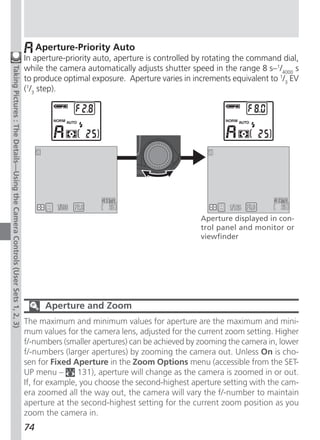
  • 148.
    Controlling the Flash:Speedlight Options This menu controls both the built-in Speedlight and ex- Menu Guide—Using the SET-UP Menu ternal Speedlight options. Controlling the Built-in Speedlight: Pop Up In the default auto mode, the built-in Speedlight pops up when needed. Use this menu to change the pop up setting so that the flash will only pop-up when the button is pressed. Setting Description Built-in Speedlight pops up automatically when needed. Flash Auto must be lowered manually. If left raised, flash only fires when illumination is low, unless set to fill-flash mode. Built-in Speedlight will only pop-up when the button is Manual pressed. Flash must be lowered manually. If left raised, flash fires every time the shutter-release button is pressed. 136
  • 149.
    Controlling Flash Output:Variable Power This menu adjusts flash output. Flash output can be lowered or raised from –2.0 EV to +2.0 EV in incre- Menu Guide—Using the SET-UP Menu ments of 1/3 EV. Options for External Speedlights: Speedlight Cntrl This menu controls the built-in Speedlight when using external Speedlights connected to the camera’s acces- sory shoe ( 4). Option Description If no external Speedlight is attached, built-in Speedlight func- Auto tions normally. When attached, only external Speedlight fires. Int&Ext Active Built-in Speedlight fires at same time as external Speedlight. Shot Confirmation The red-eye reduction lamp can be fired after the shut- ter is released to let your subjects know that a picture has been taken. To turn shot confirmation on, select On in the Shot Confirmation menu. The default setting is Off. 137
  • 150.
    Using an ExternalSpeedlight Follow the instructions below to attach an external Speedlight. Refer to your Speedlight manual for detailed instructions regarding Speedlight operation. Menu Guide—Using the SET-UP Menu 1 Make sure that both the camera and the external Speedlight are turned off. 2 Attach the Speedlight to the camera accessory shoe. 3 Turn both the camera and the Speedlight on. 4 Set the external Speedlight zoom head to an angle wider than 28 mm. If you are using a Speedlight with Auto Power Zoom, set the zoom head angle manually. The COOLPIX5700 does not support power zoom. 5 Set the external Speedlight flash mode to TTL. At this setting, the amount of light produced by the external Speedlight is measured by the camera’s photocell, and the flash shooting range adjusted automatically to ensure optimal exposure. D-TTL flash control (available with the SB-80DX, SB-50DX and SB-28DX) is not supported. 6 Take the picture If the Speedlight Options: Speedlight Control option in the SET-UP menu is set to Auto, only the external Speedlight will fire. If this op- tion is set to Int & Ext Active then the external Speedlight and the built- in Speedlight will fire at the same time. The COOLPIX5700 does not support AF-assist illumination, or red-eye reduction using the red-eye reduction lamp on the external Speedlight. At a setting of STBY (standby), the Speedlight will turn on automati- cally whenever the camera turns on but will not turn off automati- cally when the camera turns off. Exact functionality varies with the Speedlight in use. Refer to your Speedlight manual for details. Use Only Nikon Flash Accessories Use only Nikon Speedlights. Negative voltages or voltages over 250 V applied to the camera’s sync terminal could not only prevent normal operation, but also damage the sync circuitry of the camera or flash. 138
  • 151.
    Notes on Built-inand External Speedlights • By default, the flash mode is set to auto and when additional light is required Menu Guide—Using the SET-UP Menu for correct exposure, the built-in Speedlight will pop up automatically when the shutter-release button is pressed halfway. The built-in Speedlight will also pop up when an external Speedlight is attached so that the photocell can be used to correctly set exposure for the shot. If your finger or another object obstructs the Speedlight, preventing it from popping up when the shutter- release button is pressed halfway, the built-in Speedlight and any external Speedlight will not fire and a message will appear in the monitor. • When Pop Up is set to Manual, the built-in Speedlight will only pop up when the button is pressed. To use the photocell for external Speedlights, press the button. • When the built-in Speedlight is raised, keep your fingers and other objects away from the flash window and photocell. Flash-Mode Indicators for External Speedlights When Auto is selected in the Speedlight Cntrl menu and an external Speed- light is attached, the flash-mode indicators in the control panel and monitor or viewfinder show the flash mode as follows: Setting: Pop Up > Auto Flash mode Control panel Monitor Auto A Flash cancel (off) Auto with red-eye reduction Fill-flash Slow sync Setting: Pop Up > Manual Flash mode Control panel Monitor Fill-flash Red-eye reduction with fill-flash Slow sync with fill-flash 139
  • 152.
    Audio Confirmation: ShutterSound The Shutter Sound menu controls the “beep” made by the camera’s speaker. Menu Guide—Using the SET-UP Menu Option Description • the camera has been turned on • the shutter-release button has been pressed all the way down to release the shutter • manual focus has been activated or a lens-converter One beep option selected in the Lens menu • images have been deleted or the memory card for- matted On • changes have been made to image status with the Hide, Protect, Print Set, or Auto Transfer items in the PLAY BACK menu • Shutter Sound has been set to On beeps • the memory card is full Two • the memory card is not inserted Confirmation and warning beeps disabled. Sound re- Off corded with movies can still be played back. Quick Response Since priority is given to quick photography when the SET-UP menu’s Shutter Release Speed option is set to Quick Response, the camera will not beep even if Shutter Sound is set to On. 140
  • 153.
    Setting the Timeand Date: Date This option sets the camera to the current date and time. For more information, see “Step 5 — Set the Time and Menu Guide—Using the SET-UP Menu Date” ( 19). Storing Photo Info in a Separate File: info.txt While On is selected in the info.txt menu, the follow- ing information about each image recorded is stored in an independent text file (“info.txt”): • File number and type • Camera type and firmware version • Metering method • Exposure mode • Shutter speed • Aperture • Exposure compensation • Focal length and digital zoom • Image adjustment • Sensitivity (ISO equivalency) • White balance • Sharpening • Date of recording • Image size and quality • Saturation control • Focus area The info.txt file is stored in the same folder as the image. When the contents of the memory card are viewed from a computer, this file can be read with a text browser such as Notepad or SimpleText. Images are listed in the order re- corded, separated by a blank line. 141
  • 154.
    Choosing a VideoStandard: Video Mode The Video Mode menu is used to select the standard used for video output. Adjust this setting to match the Menu Guide—Using the SET-UP Menu standard used in any video device to which you con- nect the camera ( 46). Option Description NTSC Use when connecting camera to NTSC devices. Use when connecting camera to PAL devices. If the video PAL cable is connected to the camera at this setting, camera monitor or viewfinder will turn off. Choosing a Language: Language This option is used to choose the language in which camera menus and messages are displayed. For more information, see “Step 4 — Choose a Language” ( 18). Option Description De Deutsch (German) En English Fr Français (French) Japanese Es Español (Spanish) 142
  • 155.
    Choosing a USBProtocol: USB This option is used to select the USB protocol used when your camera is connected to a computer ( 40). Menu Guide—Using the SET-UP Menu Your camera supports two protocols: PTP (Picture Transfer Protocol) and Mass Storage. The default setting is Mass Storage. Setting Description PTP is supported only under Windows XP Home Edition, Windows XP Professional, and Mac OS X (version 10.1.2 or PTP later). Select this option when using PTP to transfer pictures to your computer. The Mass Storage protocol is supported under Windows XP Home Edition, Windows XP Professional, Windows 2000 Pro- Mass fessional, Windows Millennium Edition (Me), Windows 98 Sec- Storage ond Edition (SE), Mac OS X (version 10.1.2 or later), and Mac OS 9.0, 9.1, 9.2. If this option is selected, the camera will func- tion as a mass storage device when connected to a computer. 143
  • 156.
    Windows 2000 Professional,Windows Millennium Edition (Me), Windows 98 Second Edition (SE), Mac OS 9 Menu Guide—Using the SET-UP Menu Do not select PTP when connecting the COOLPIX5700 to a computer running one of the above operating systems (there is no need to change the USB set- ting when using the camera for the first time, as Mass Storage is the default setting). If you have already changed the USB setting to PTP, be sure to select Mass Storage before connecting the camera to your computer. If you have connected the camera to a computer running one of the above operating systems with PTP selected in the USB menu, disconnect the cam- era as described below. Be sure to select Mass Storage in the USB menu be- fore reconnecting the camera. Windows 2000 Professional A dialog will be displayed welcoming you to the Found New Hardware Wiz- ard. Click Cancel to close the dialog, and then disconnect the camera. Windows Millennium Edition (Me) After displaying a message stating that the hardware information database is being updated, the computer will start the Add New Hardware Wizard. Click Cancel to exit the wizard, and then disconnect the camera. Windows 98 Second Edition (SE) The Add New Hardware Wizard will be displayed. Click Cancel to exit the wizard, and then disconnect the camera. Mac OS 9 A dialog will be displayed stating that the computer is unable to use the driver needed for the “Nikon Digital Camera E5700_PTP” USB device. Click Cancel to close the dialog, and then disconnect the camera. 144
  • 157.
    Using the PLAYBACK Menu The items in the PLAY BACK menu are as follows: Menu Item Menu Guide—Using the PLAY BACK Menu Delete 145 Folders 148 Slide Show 149 Protect 151 Hide Image 152 Print Set 153 Auto Transfer 155 Deleting Images: Delete Use the Delete menu to delete all images, or only selected images, from the memory card. The Delete menu also allows you to delete the Print Set and re- set Auto Transfer markings. Deleting Selected Images and Movies To delete selected images and movies: 1 2 Highlight Selected Images Display menu of thumbnail images 145
  • 158.
    3 4 Menu Guide—Using the PLAY BACK Menu Highlight image Press multi selector up or down to select image for deletion. Selected images are marked by a icon. Repeat steps 3 and 4 to select additional images for deletion. To deselect image, highlight and press multi selector up or down. 5 Press to display a confirmation dialog. Press multi selector up or down to high- light option, press to right to put choice into effect: • Select No to exit without deleting im- ages • Select Yes to delete all selected images Before Deletion Once deleted, pictures can not be recovered. Be sure that any pictures you would like to keep have been transferred to your computer. Hidden and Protected Pictures Pictures marked with a icon are protected and can not be selected for de- letion. Pictures hidden with the Hide Image ( 152) option are not displayed in the Delete: Selected Images menu and can not be deleted. 146
  • 159.
    Deleting All Imagesand Movies To delete all images and movies on the memory card (images that are protected or hidden will not be deleted): Menu Guide—Using the PLAY BACK Menu 1 2 Highlight All Images Confirmation dialog displayed. Press multi selector up or down to highlight option, press to right to put choice into effect: • Select No to exit without deleting im- ages • Select Yes to delete all images on memory card (images that are pro- tected or hidden will not be deleted) Delete the Current Print Set To delete the current print set ( 153), select Print Set from the Delete menu and press the multi selector to the right. Reset Auto Transfer Markings To remove transfer markings ( 156) from all images, select Transfer from the Delete menu and press the multi selec- tor to the right. Cancelling the Print Order To cancel the current print order when it is no longer needed, select Print Set from the Delete menu. Note that this will also remove transfer markings from any movies marked for transfer. 147
  • 160.
    Selecting a Folderfor Playback: Folders The Folders menu in the PLAY BACK menu can be used to select images in all folders for playback, or play Menu Guide—Using the PLAY BACK Menu back images in a selected folder. 1 2 Highlight desired folder. To view im- Press multi selector to right, to se- ages in all folders, select All Folders lect folder and return to PLAY BACK menu 3 Press button to return to full- screen playback, most recent im- age in selected folder displayed Playing Back Ultra HS Images With each sequence of pictures taken at Ultra HS ( 104), the camera cre- ates a new folder in which all pictures in the sequence are stored. Each folder will have a name consisting of “N_” followed by a three-digit number assigned automatically by the camera. Pictures can be played back by selecting the ap- propriate folder or All Folders from the playback Folders menu. 148
  • 161.
    Automated Playback: SlideShow The Slide Show menu in the PLAY BACK menu is used for automated sequential playback. To start a slide Menu Guide—Using the PLAY BACK Menu show, select Start from the Slide Show menu. All pic- tures in the current folder that have not been hidden using Hide Image will be played back one after the other in the order recorded, with a pause between each picture. Movies will be displayed as still images showing the movie’s first frame. To start a slide show follow the steps below: 1 2 Highlight Start Press multi selector to the right to cycle through all images in the current folder except hidden images After the Slide Show Once all pictures have been shown, the slide show will pause with the first picture in the folder displayed. To return to the PLAY BACK menu, press multi selector to the left. To return to full-screen playback, press the button. Auto Off If no operation is performed for more than 30 minutes during a slide show, the monitor or viewfinder will turn off automatically to save power. 149
  • 162.
    While the slideshow is in progress, the following operations can be performed: To Use Description Menu Guide—Using the PLAY BACK Menu Press to pause slide show. To restart, highlight Restart and press the Pause slide multi selector to the right. show Press the multi selector left to return to PLAY BACK menu. Go forward Press the multi selector up or left to go back one or back one frame, down or right to go to forward one frame. frame End slide Press the button to end the slide show and show return to full-screen playback. Changing the Display Interval To set the duration of display for each slide, highlight Frame Intvl. (in the Slide Show menu or Pause dia- log) and press the multi selector to the right. Then highlight the desired setting from the menu shown right, and press the multi selector to the right again. Interval Setting The actual frame interval may differ slightly from the selected interval due to dif- ferences in file size. 150
  • 163.
    Safeguarding Valuable Images:Protect Selecting Protect from the PLAY BACK menu displays the menu shown at right, where you can select pictures Menu Guide—Using the PLAY BACK Menu to protect from accidental deletion. Protected files can not be deleted in review, full-screen playback, or from the Delete menu. 1 2 Highlight image Press multi selector up or down to se- lect image. Selected images are marked by icon. Repeat steps 1 and 2 to select additional pictures. To deselect picture, highlight and press multi selector up or down. 3 Press to complete operation. To exit Protect menu without changing protected status of pictures, press button. Formatting the Memory Card Note that protected pictures will be deleted when a memory card is formatted. 151
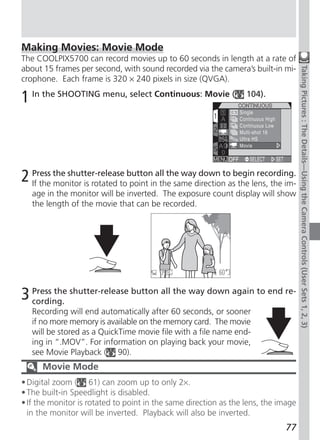
  • 164.
    Hiding Images DuringPlayback: Hide Image The Hide Image menu allows you to hide any of the HIDE IMAGE images in the current folder. Once hidden, images can Menu Guide—Using the PLAY BACK Menu only be viewed in the Hide Image menu. They can 1 2 3 not be deleted in full-screen review or full-screen play- back, or using the options in the Delete menu. Hide 4 5 6 Image is useful for preparing slide shows. 1 2 HIDE IMAGE 1 2 3 4 5 6 Highlight image Press multi selector up or down to se- lect image. Selected images are marked by a icon. Repeat steps 1 and 2 to select additional images. To deselect image, highlight and press multi selector up or down. 3 Press to complete operation. To exit Hide Image menu without changing hid- den status of images, press button. Formatting the Memory Card Note that hidden images will be deleted when a memory card is formatted. “ALL IMAGES ARE HIDDEN” If all the images in the current playback folder are hidden, the message “ALL IM- AGES ARE HIDDEN” ( 170) will be displayed in full-screen review or full-screen playback. No images can be played back until another folder has been selected or Hide Image is used to reveal some of the images in the current folder. 152
  • 165.
    Ordering Prints: PrintSet Use the Print Set menu to select images for printing. This “print set” is stored on the memory card in Digi- Menu Guide—Using the PLAY BACK Menu tal Print Order Format (DPOF). 1 2 PRINT 1 2 3 4 5 6 Highlight image Press multi selector up to select image (selected images marked with a ) Digital Print Order Format With the Print Set menu, you can specify photographs to be printed, the num- ber of prints, and the information to be included on each print. This informa- tion is stored on the memory card in Digital Print Order Format (DPOF). Once a print order has been created, the memory card can be removed from the cam- era and inserted in any DPOF-compatible device—be it your personal photo printer or a photofinisher’s print system—and images printed directly from the card. The Nikon NP-100 photo printer does not support printing photo infor- mation or dates. 153
  • 166.
    3 Press multi selector up to increase num- ber of print copies (maximum 9), down Menu Guide—Using the PLAY BACK Menu to decrease number. To deselect image, press multi selector down when num- ber of prints is 1. Repeat steps 1–3 to select additional images. 4 Press to display options. Press multi selector up or down to highlight options. • Highlight Info and press multi selec- tor right to print shutter speed and aperture on all images. • Highlight Date and press multi selec- tor right to print date of recording on all images. • To deselect an item, highlight and press multi selector to right. • When finished, highlight Done and press multi selector to right. To exit without altering print order, press button. Cancelling the Print Order To cancel the current print order when it is no longer needed, select Print Set from the Delete menu ( 147). 154
  • 167.
    Selecting Images forTransfer: Auto Transfer When the camera is connected to a computer running Nikon View 5, images that have been selected for Menu Guide—Using the PLAY BACK Menu transfer using the Auto Transfer option can be cop- ied to the computer. Selecting Images for Transfer Highlight Selected Photos in the Auto Transfer menu and press the multi selector to the right. The menu shown at right will be displayed. To select im- ages for transfer to a computer: 1 2 Highlight image Press multi selector up or down to se- lect image for transfer. Selected images are marked by icon. Repeat steps 1 and 2 to select additional images. To deselect image, highlight and press multi selector up or down. 3 Press to complete operation. To exit Auto Transfer menu without changing trans- fer status of images, press button. 155
  • 168.
    Marking All Imagesfor Transfer To mark all images for later transfer to a computer: Menu Guide—Using the PLAY BACK Menu 1 2 Highlight All Photos A confirmation dialog will be displayed. Press multi selector up or down to high- light option, press to right to select: • Select No to exit without changing the transfer status of images • Select Yes to select all images on the memory card for transfer Marking All Images for Transfer No more than 999 images can be transferred to a computer at one time using the Auto Transfer option. If a thousand images or more are selected for trans- fer, no images will be transferred when the camera is connected to a computer. To transfer more than 999 images, use Nikon View 5 to select the images for transfer. Removing Transfer Marking from All Images To remove transfer marking from all images on the memory card, select Trans- fer from the Delete menu ( 147). 156
  • 169.
    Technical Notes Camera Care, Options, and Resources This chapter provides tips on cleaning and storing your camera, a list of optional accessories available for the COOLPIX5700, information on where to get help online, troubleshooting advice, and cam- era specifications. 157
  • 170.
    Optional Accessories At the time of writing, the following optional accessories were available for the COOLPIX5700. Contact your retailer or local Nikon representative for details. Technical Notes : Camera Care, Options, and Resources Rechargeable battery Additional EN-EL1 Li-ion batteries are avail- able from your retailer or local Nikon repre- sentative AC adapter/battery charger • EH-21 AC adapter/battery charger • EH-53 AC adapter • MH-53C battery charger (plugs into vehicle cigarette-lighter socket) Battery pack MB-E5700 battery pack Carrying case CS-CP11 soft case CompactFlash™ memory EC-AD1 PC-card adapter card adapter Lens adapter ring UR-E8 step-down ring lens adapter for WC- E80 wide-angle converter and TC-E15ED tele- photo converter Converter lenses (requires The COOLPIX5700 can only be used with the lens adapter ring) following converter lenses: • WC-E80 wide-angle converter (0.8×) • TC-E15ED telephoto converter (1.5×) Wired remote cable MC-EU1 remote cord Lens hood HR-E5700 lens hood Flash accessories The following Nikon Speedlights can be at- tached directly to the camera accessory shoe without a sync cable: SB-80DX, SB-50DX, SB- 30, SB-28DX, and SB-22s. An SC-17 sync cable can be attached to the accessory shoe for off-camera flash photography. For details on attaching an external Speedlight, see the “Using an External Speedlight” ( 138). 158
  • 171.
    Use Only NikonFlash Accessories Use only Nikon Speedlights. Using another make of flash could damage the Technical Notes : Camera Care, Options, and Resources internal circuitry of the camera or flash. Before using a Nikon Speedlight not included in the list on the previous page, contact a Nikon-authorized service representative for more information. Using the UR-E8 lens adapter ring Remove the optional UR-E8 lens adapter ring when not in use. If the UR-E8 is used without a converter lens attached, the corners of the frame will be eclipsed in any photographs taken. Approved Memory Cards In addition to the memory card included with your camera and the Nikon EC- CF series of memory cards, the following memory cards have been tested and approved for use in the COOLPIX5700: CompactFlash™ memory cards: • SanDisk SDCFB series 16 MB, 32 MB, 48 MB, 64 MB, 96 MB, and 128 MB • Lexar Media 4× USB series 8 MB, 16 MB, 32 MB, 48 MB, 64 MB, and 80 MB • Lexar Media 8× USB series 8 MB, 16 MB, 32 MB, 48 MB, 64 MB, and 80 MB • Lexar Media 10× USB series 128 MB and 160 MB Microdrive® cards: • IBM DSCM-10512 and DSCM-11000 Microdrive® cards Operation is not guaranteed with other makes of memory card. For more details on the above cards, please contact the manufacturer. 159
  • 172.
    Caring for theCamera and Battery Keep dry Keep away from strong magnetic fields Technical Notes : Camera Care, Options, and Resources This product is not waterproof, and may Do not use or store this device in the vicin- malfunction if immersed in water or ex- ity of equipment that generates strong posed to high levels of humidity. Rusting electromagnetic radiation or magnetic of the internal mechanism can cause ir- fields. Strong static charges or the mag- reparable damage. netic fields produced by equipment such as radio transmitters could interfere with the Keep free of salt, sand, and dust monitor or viewfinder, damage data stored After using your camera at the beach or on the memory card, or affect the product’s seaside, wipe off any sand or salt with a internal circuitry. lightly dampened cloth and then dry your camera thoroughly. Avoid sudden changes in temperature Sudden changes in temperature, such as Do not touch the lens with your fingers occur when entering or leaving a heated The proper procedure for cleaning the lens building on a cold day, can cause conden- is described in “Technical Notes: Caring for sation inside the device. To prevent con- Your Camera.” densation, place the device in a carrying Handle the lens and all moving parts case or a plastic bag before exposing it to with care sudden changes in temperature. Do not apply force to the lens, built-in Notes on the monitor and viewfinder Speedlight, monitor, or to the battery, card, • The monitor and viewfinder may contain or connector covers. These parts are espe- a few pixels that are always lit or that do cially susceptible to damage. not light. This is a characteristic common Turn the product off before removing to all TFT LCD monitors and does not in- the battery or unplugging the AC dicate a malfunction. Images recorded adapter with the product will not be affected. Do not unplug the product or remove the • Images in the monitor may be difficult to battery while the product is on, or while see in a bright light. images are being recorded or deleted. • The monitor and viewfinder are lit by a Forcibly cutting power to the product in fluorescent backlight. Should the moni- these circumstances could result in loss of tor or viewfinder begin to dim or flicker, data or in damage to product memory or contact your Nikon service representa- internal circuitry. To prevent an accidental tive. interruption of power, avoid carrying the • Do not apply pressure to the monitor or product from one location to another while viewfinder, as this could cause damage or the AC adapter is connected. malfunction. Dust or lint adhering to the monitor or viewfinder can be removed Do not drop with a blower brush. Stains can be re- The product may malfunction if subjected moved by rubbing the surface lightly with to strong shocks or vibration. a soft cloth or chamois leather. 160
  • 173.
    • Should themonitor or viewfinder break, leakage and store the camera in a plas- care should be taken to avoid injury due tic bag containing a desiccant. Do not, to broken glass and to prevent the liquid however, store the camera case in a plas- Technical Notes : Camera Care, Options, and Resources crystal from the monitor touching the skin tic bag, as this may cause the material to or entering the eyes or mouth. deteriorate. Note that desiccant gradu- ally loses its capacity to absorb moisture Batteries and should be replaced at regular inter- • When you turn the device on, check the vals. battery-level displayed in the control • Do not store the camera with naphtha or panel to determine whether the battery camphor moth balls, close to equipment needs to be replaced. The battery needs that produces strong magnetic fields, or to be replaced when the battery-level in- in areas subject to extremes of tempera- dicator is flashing. ture, for example near a space heater or • Ready a spare battery and keep it fully in a closed vehicle on a hot day. charged when taking photographs on im- • To prevent mold or mildew, take the cam- portant occasions. Depending on your lo- era out of storage at least once a month. cation, you may find it difficult to pur- Turn the camera on and release the shut- chase replacement batteries on short ter a few times before putting the cam- notice. era away again. • On cold days, the capacity of batteries • Store the battery in a cool, dry place. tends to decrease. Be sure the battery is fully charged before taking photographs outside in cold weather. Keep a spare battery in a warm place and exchange the two as necessary. Once warmed, a cold battery may recover some of its charge. • Should the battery terminals become dirty, wipe them off with a clean, dry cloth before use. Memory cards • Turn the power off before inserting or re- moving memory cards. Inserting or re- moving cards with the power on could render them unusable. • Insert memory cards in the correct orien- tation. Inserting cards upside down or backwards could damage the camera or the card. Storage • To prevent mold or mildew, store the camera in a dry, well-ventilated area. If you will not be using the product for long periods, remove the battery to prevent 161
  • 174.
    Cleaning A key to cleaning these glass parts is to not touch them with Technical Notes : Camera Care, Options, and Resources your fingers. Use a blower (typically a small device with a rubber bulb attached to one end that you pump to produce Lens/ a stream of air out the other) to remove dust or lint. To re- Viewfinder move fingerprints or other stains that can not be removed with a blower, wipe the lens or viewfinder with a soft cloth, using a spiral motion that starts in the center of the lens and works out to the edges. Remove dust or lint with a blower. To remove fingerprints and Monitor other stains, clean the monitor with a soft, dry cloth, being careful not to apply pressure. Use a blower to remove dust and lint, then wipe gently with a soft, dry cloth. After using the camera at the beach or Camera Body seaside, wipe off any sand or salt with a cloth lightly damp- ened with fresh water, then dry thoroughly. Do not use alcohol, thinner, or other volatile chemicals Storage When the camera will not be used for an extended period, remove the bat- tery after checking to make sure that the camera is off, the monitor closed, and the lens cap in place. Do not store your camera in locations that: • are poorly ventilated or damp • are next to equipment that produces strong electromagnetic fields, such as televisions or radios • are exposed to temperatures above 50 °C (122 °F) or below –10 °C (14 °F) • are subject to humidities of over 60% 162
  • 175.
    Web Resources At thetime of writing, the following on-line resources were available for users of Nikon digital imaging equipment: Technical Notes : Camera Care, Options, and Resources For Product Information and Tips • For users in the USA: http://www.nikonusa.com/ • For users in Europe: http://www.nikon-euro.com/ • For users in Asia, Oceania, the Middle East, and Africa: http://www.nikon-asia.com/ For Contact Information Contact information for the Nikon representative in your area may be found at: http://www.nikon-image.com/eng/ 163
  • 176.
    Troubleshooting If your camera fails to function as expected, check the list of common prob- lems below before consulting your retailer or Nikon representative. Refer to Technical Notes : Camera Care, Options, and Resources the page numbers listed in the rightmost column for information on solving the problems listed here. Problem Possible cause • Camera is off. 22 • Battery is not correctly inserted or battery- 14 chamber cover is not fully closed. Control panel • Battery is exhausted. 23 display is blank • AC adapter (available separately) is not prop- 15 erly connected. • Camera is in sleep mode. Press shutter-release 24 button halfway, or press button. Camera turns off • Battery is low. 23 immediately • Battery is cold. 161 •Viewfinder is on. Press to turn monitor on. 9 • Lens cap is attached. Remove lens cap. 13 • USB cable is connected. 40 Monitor is blank • Audio/ video cable is connected. 46 • MC-EU1 remote cable is attached and in — stand-by. • Indicators are hidden. Press button to dis- 6 No indicators appear in play indicators. monitor or viewfinder • Slide show is in progress. 149 • Ambient lighting is too bright: use viewfinder 9 Monitor is hard or move to a darker location. to read • Display options require adjustment. 126 • Monitor is dirty. 162 164
  • 177.
    Problem Possible cause • Camera is in playback mode. 84 Technical Notes : Camera Care, Options, and Resources • Battery is exhausted. 23 • Number of exposures remaining is zero: not 23 enough memory remaining. • Focus indicator flashes: camera unable to focus. 28 No photo is taken • Flash-ready indicator flashes: flash is charging. 28 when shutter-release • Message “MEMORY CARD IS NOT FORMAT- 17, button is fully pressed TED” appears in monitor or viewfinder: memo- 135 ry card is not formatted for use in COOLPIX5700. • Message “NO MEMORY CARD” appears in mon- 17 itor or viewfinder: no memory card in camera. • Camera is set to self-timer mode. 58 • Flash is off. 62 • Flash is blocked. 27 • Subject is outside range of flash. 171 Photos are too dark • Exposure compensation is too low. 66 (underexposed) • Shutter-speed indicator in monitor or viewfind- 73 er flashes: shutter speed too fast. • Aperture indicator in monitor or viewfinder 74 flashes: f/-number too high. • Exposure compensation is too high. 66 • Shutter-speed indicator in monitor or viewfind- 73 Photos are too bright er flashes: shutter speed too slow. (overexposed) • Aperture indicator in monitor or viewfinder 74 flashes: f/-number too low. • Subject was not in focus area when shutter- 56 release button was pressed halfway or AE/AF Photos are out of button was pressed. focus • Focus indicator flashes: camera unable to fo- 28, cus. You may be using autofocus with an un- 55 suitable subject. 165
  • 178.
    Problem Possible cause Camera shook during shot: increase shutter 73 Technical Notes : Camera Care, Options, and Resources speed. If shutter speed can not be increased without causing underexposure: – Use the flash 62 – Raise sensitivity (ISO equivalency) 78 Photos are blurred – Select a larger aperture 74 To minimize blur at low shutter speeds: – Use the Best Shot Selector (BSS) 106 – Use the self-timer 58 – Use a tripod — • Sensitivity raised above 100. 78 • Shutter speed too slow. If making a long time- 73, Randomly-spaced exposure of 1/30 s or longer, turn Noise Reduc- 117 bright pixels (“noise”) tion on. appear in image • Clear Image Mode is not selected: select 117 Clear Image Mode. Flash is off. Note that flash turns off automat- 62 ically when: – Focus is set to (infinity) 54 – A setting other than Single is selected for 104 Continuous (User Set 1, 2, 3) – The Best Shot Selector (BSS) is on (User Set 106 1, 2, 3) Built-in Speedlight – A setting other than Normal is selected for 109 does not fire Lens (User Set 1, 2, 3) – AE Lock is on (User Set 1, 2, 3) 110 – Clear Image Mode is selected (User Set 1, 117 2, 3) – Speedlight Cntrl is set to Auto and an ex- 137 ternal Speedlight accessory attached – Battery is low 23 • White balance does not match light source. 101 Colors are unnatural • Saturation control is too low or too high. 108 166
  • 179.
    Problem Possible cause Image can not be Image has been overwritten or renamed by a — Technical Notes : Camera Care, Options, and Resources played back computer or other make of camera. Image is inverted While shooting at a setting of Ultra HS or 77, when played back Movie, monitor was rotated forward. 104 • Video cable not correctly connected. 46 Television does not • Television off or not tuned to video channel. 46 display image • Video Mode setting does not match video 142 device. Image can not be • Image is a movie. 77 zoomed in when • Image was taken at a setting of Ultra HS. 104 played back • Camera is off. 22 Nikon View 5 does • AC adapter (available separately) is not prop- — not start when cam- erly connected, or battery is exhausted. era connected or • Interface cable not correctly connected, or card 41, memory card inserted not properly inserted in card reader, card 44 in card reader or card adapter, or card slot. slot See Nikon View 5 Reference Manual for further — information on troubleshooting Nikon View 5. 167
  • 180.
    Error Messages The following table lists the error messages and other warnings that appear in the monitor or viewfinder and how to deal with them. Technical Notes : Camera Care, Options, and Resources Display Problem Solution Set clock calendar to Clock calendar not set. 20 (Flashes) current date and time. Turn camera off and re- Battery exhausted. 23 (Flashes) place battery. Focus on different sub- Can not focus. ject at same distance 28 (Green dot flashes) and recompose shot. Take finger off shutter- Built-in Speedlight re- release button, then try 28 (Red dot flashes) charging. again. A flashing icon in the control panel indicates that the battery is exhausted. A flashing icon appears in the control panel when the camera can not detect a memory card, when an error occurs accessing the memory card, or when the card has not been formatted for use in the camera. Display Problem Solution Turn camera off and Camera can not detect NO CARD confirm that memory 16 memory card. PRESENT card is correctly inserted. • Use approved memo- 159 ry card. THIS CARD • Check that connec- — CANNOT BE USED tors are clean. Error accessing memory • Turn camera off then — card. on again. If message reappears, card may be damaged, contact WARNING ! ! This CF card cannot be read retailer or Nikon repre- sentative. 168
  • 181.
    Display Problem Solution Camera turned off, Message clears auto- Technical Notes : Camera Care, Options, and Resources button pressed, or mode WARNING ! ! matically when record- — Please wait for camera selector set to while ing is complete. to finish recording pictures are being saved. CARD IS NOT Press multi selector up FORMATTED Memory card has not to highlight FORMAT been formatted for use and press to right to for- 135 FORMAT in COOLPIX5700. mat card, or turn cam- NO era off and replace card. • Reduce image quality 48 Insufficient memory to or size. record further pictures • Delete photographs. 145 at current settings. • Insert new card. 17 OUT OF MEMORY Insufficient memory to 33, Delete unwanted pic- record changes to print 145, tures and re-attempt order or transfer mark- 154, changes. ing. 156 • Memory card has not • Reformat memory 135 been formatted for card. use in COOLPIX5700. • Error encountered IMAGE CANNOT while saving photo. BE SAVED • Camera has run out of • Insert new card or re- 134 folder or file numbers. format card and se- lecting Off or Reset for Seq. Numbers. • Return to shooting 28 • Card contains no im- mode and take pic- ages. tures. CARD CONTAINS • Folder selected in NO IMAGES • To play images back, 121 playback or quick re- select folder contain- view contains no im- ing images from Fold- ages. ers menu. 169
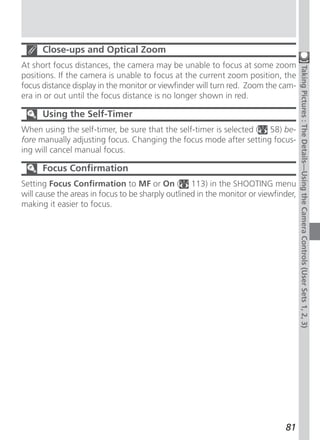
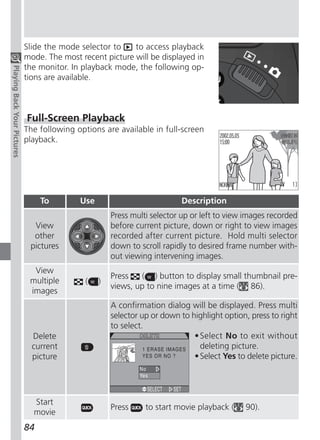
  • 182.
    Display Problem Solution Select another folder or Technical Notes : Camera Care, Options, and Resources ALL IMAGES All images in current use Hide Image to 148, ARE HIDDEN folder are hidden. change hidden status of 152 images in current folder. File created by comput- FILE CONTAINS Delete file or reformat 124, NO IMAGE DATA er or different make of memory card. 135 camera. • For images not created with COOLPIX5700, Folder contains hidden delete file or reformat THE FOLDER 135, or protected images, or card. CANNOT BE 151, DELETED images not created • Folder can only be de- 152 with COOLPIX5700. leted if all images it contains are neither hidden nor protected. Turn the camera off, then on again. If error LENS ERROR Lens operation error 22 persists, contact retailer or Nikon representative. Turn camera off, unplug optional AC adapter (if SYSTEM ERROR Error has occurred in using), remove and re- 14, camera’s internal cir- insert battery, and turn 22 cuitry. camera on. If error per- appears in control sists, contact retailer or panel Nikon representative. Remove obstruction Built-in Speedlight ob- Speedlight is in the from Speedlight and closed position structed by finger or 27 press shutter-release other object. button halfway. 170
  • 183.
    Specifications Type E5700 digital camera Technical Notes : Camera Care, Options, and Resources Effective pixels 5.0 million 2 CCD /3˝ high-density CCD; total pixels: 5.24 million Image size (pixels) • 2560 × 1920 (Full) • 1280 × 960 (SXGA) • 2560 × 1704 (3 : 2) • 1024 × 768 (XGA) • 1600 × 1200 (UXGA) • 640 × 480 (VGA) Lens 8× Zoom Nikkor Focal length F = 8.9 – 71.2 mm (35-mm [135] camera format equivalent: 35 – 280 mm) f/-number f/2.8 – f/4.2 Construction Fourteen elements in ten groups Digital zoom 4× Autofocus (AF) Contrast-detect through-the-lens (TTL) AF Focus range 50 cm (1´8˝) – ∞; 3 cm (0.8˝) – ∞ in macro and manual focus modes (middle zoom position) Focus-area selection Five-area multi AF and spot AF available Viewfinder Color LCD viewfinder, 0.44˝, 180,000-dot, high temperature polysilicon TFT LCD with diopter ad- justment Magnification 0.27 – 2.1× Frame coverage Approximately 97% vertical and 97% horizontal Diopter adjustment –4 – +1 m–1 Monitor 1.5˝, 110,000-dot, low temperature polysilicon TFT LCD with brightness and hue adjustment Frame coverage Approximately 97% vertical and 97% horizontal 171
  • 184.
    Storage Media Type I and II CompactFlash™ (CF) and Microdrive® cards (512MB, 1GB) Technical Notes : Camera Care, Options, and Resources File system Compliant with Design rule for Camera File sys- tems (DCF) Exif 2.2, and Digital Print Order For- mat (DPOF) File formats Compressed: JPEG-baseline-compliant (FINE-, NORMAL-, and BASIC-quality images) Uncompressed: NEF (RAW-quality images), and TIFF-RGB (HI-quality images) Movies: QuickTime Exposure Metering Four mode through-the-lens (TTL) metering: • 256-segment matrix • Spot • Center-weighted • AF spot Exposure control Programmed auto with flexible program, shut- ter-priority auto, aperture-priority auto, manu- al, exposure compensation (–2.0 – +2.0 EV in steps of 1/3 EV), autoexposure bracketing Range (ISO 100 equivalent) W : –2.0 – +18.0 EV T : –0.5 – +18.0 EV Shutter Mechanical and charge-coupled electronic shutter Speed 8 sec – 1/4000 sec, bulb (up to 5 min.) setting avail- able Aperture Seven-blade iris diaphragm Range Ten settings in steps of 1/3 EV Sensitivity ISO equivalent approximately 100, 200, 400, 800, or Auto Self-timer Three- or ten-second duration 172
  • 185.
    Built-in Speedlight Equipped with automatic pop-up Range W : 0.5 – 4.0 m (1’10” – 13’1”) Technical Notes : Camera Care, Options, and Resources T : 0.5 – 2.8 m (1’10”– 9’2”) Sync method Automatic sync control Compatible Speedlights Nikon SB-80DX, 50DX, 30, 28DX, 28, 26, 25, 24, 22s, and 22 Accessory shoe Standard ISO hot-shoe contact with safety lock Sync contact X-contact only Interface USB Video output User can choose from NTSC and PAL I/O terminals • DC input • Audio/video (A/V) output • Data output (USB) Power sources • One rechargeable Nikon EN-EL1 lithium-ion battery (supplied) or six-volt 2CR5 (DL245) lith- ium battery (available separately) • MB-E5700 battery pack (available separately) with six LR6 (AA) alkaline, lithium, NiCad, or NiMH batteries • EH-21 AC adapter/battery charger (available separately) • EH-53 AC adapter (available separately) Battery life (EN-EL1) Approximately 90 minutes (as measured at room temperature [20 °C/68 °F] under standard Nikon test conditions: monitor on, zoom adjusted with each shot, flash used in approximately one third of photographs, FULL, image quality set to NORMAL 1 Tripod socket /4” (ISO 1222) Dimensions (W × H × D) 108 × 76 × 102 mm (4.3˝ × 3.0˝ × 4.0˝) Weight Approximately 480g without battery and mem- ory card Operating Environment Temperature 0 – 40 °C (32 – 104 °F) Humidity Less than 85% (no condensation) 173
  • 186.
    System requirements (NikonView 5): Windows OS Pre-installed versions of Windows XP Home Edi- tion, Windows XP Professional, Windows 2000 Technical Notes : Camera Care, Options, and Resources Professional, Windows Millennium Edition (Me), Windows 98 Second Edition (SE) Models Only models with built-in USB ports supported CPU 300 MHz Pentium or better RAM 128 MB or more recommended for working with RAW images, 64 MB or more for other images Hard-disk 25 MB required for installation, 10 MB plus dou- ble the capacity of camera memory card avail- able on system disk when Nikon View 5 is run- ning. Video resolution 800 × 600 or better with High Color (True Col- or recommended) Miscellaneous CD-ROM drive required for installation System requirements (Nikon View 5): Macintosh OS Mac OS 9.0, Mac OS 9.1, Mac OS 9.2, Mac OS X (10.1.2 or later) Models iMac, iMac DV, Power Mac G3 (Blue & White), Power Mac G4 or later, iBook, PowerBook G3 or later; only models with built-in USB ports sup- ported RAM 128 MB or more recommended for working with RAW images, 64 MB or more for other images Hard-disk 25 MB required for installation, 10 MB plus dou- ble the capacity of camera memory card avail- able on system disk when Nikon View 5 is run- ning. Video resolution 800 × 600 or better with thousands of colors (millions of colors recommended) Miscellaneous CD-ROM drive required for installation 174
  • 187.
    Index Symbols AF Area Mode, 112 3 : 2, 48, 51 Aperture, 70, 132. See also exposure 100, 200, 400, 800, 78 mode Index (shooting) mode, 9, 22 Audio. See movies (playback) mode, 9, 84 Audio/Visual. See television playback button, 86 Auto. See flash mode; sensitivity button, 87 Auto Bracketing, 115 button, 66 Autoexposure button, 62 bracketing, 115 button, 33, 67, 84 lock, 57. See also AE Lock button, 50, 52 Autofocus, 28, 53, 56, 112 button, 9, 26 continuous, 113 button, 53, 59, 80 single, 113 , , 23, 65 Autofocus indicator. See Indicators, , 15 autofocus , 80 Auto-Focus Mode, 113 , , , 53, 58 Auto Off, 133 , , , , 62 Auto Transfer, 155 , 66, 116 A / V OUT. See television playback , , , , , , 101 B , , , , 103 BASIC, 48, 49 , , , , , 104 Battery, 14, 23 , , , , 107 MB-E5700, 12, 158 , 108 storing, 161 , , 109 Best Shot Selector, 106 , , , 114 BKT. See Auto Bracketing , , , 7, 88 Black-and-white, 108 , 152 Brightness, 128 A Brightness of monitor. See Brightness See exposure mode, aperture-priority of photographs. See Image Adjust- auto ment Accessories. See optional accessories BSS. See Best Shot Selector AE. See autoexposure BULB. See long time-exposure AE-L. See AE Lock AE-L, AF-L, 131 C AE/AF button, 57 C See Reset All and autoexposure lock, 57 Camera strap, 13 and focus lock, 56 , 168 AE Lock, 110 CF card. See memory card AF. See autofocus CF Card Format, 135 175
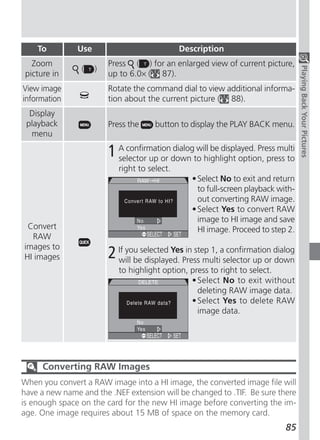
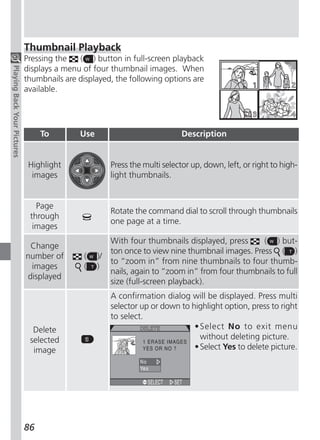
  • 188.
    Clear Image Mode.See Noise Reduc- Exposure mode, 70 tion aperture-priority auto, 74 Clock-calendar, 19 manual, 75 Index Close ups. See focus mode, macro close-up programmed auto, 72 Color flexible program, 72 in photographs. See Saturation Con- shutter-priority auto, 73 trol; White Balance Exposure Options, 110 of monitor. See Hue Command dial, 4 F CompactFlash™ card. See memory card Files. See image files Compression. See image quality FINE, 48, 49 Computer. See image database software; Fixed Aperture, 132 Nikon View 5; transfer Flash, built-in, 27, 62 Continuous, 104 Flash, external, 138 Contrast. See Image Adjustment Flash mode, 62 Control panel, 8 Flash-ready indicator. See Indicators, flash- Controls, 129 ready Copying images. See transfer Flexible program. See exposure mode Focus. See autofocus; focus area; focus D lock; focus mode; manual focus Date, 19, 141 Focus area, 112 DCF, 172 Focus Confirmation, 113 Delete, 145 Focus information. See Focus Confirma- Deleting images tion; photo information from PLAY BACK menu, 145 Focus lock, 56. See also AE-L/AF-L in full-screen review, 33 Focus mode, 53 in full-screen playback, 84 autofocus. See autofocus Design rule for Camera File systems. See with self-timer. See self-timer DCF infinity, 53. See also manual focus Digital Print Order Format. See DPOF macro close-up, 53 Digital Tele, 60 with self-timer. See self-timer Diopter adjustment, 12 manual. See manual focus button, 24 Focus Options, 112 DPOF, 153 Folders PLAY BACK menu option, 148 E SET-UP menu option, 121 , 170 Folders, 6, 88 Error messages, 168 creating, renaming, and deleting, 121 Exposure compensation, 66 numbering, 88 Exposure count display, 8 selecting for playback, 148 Exposure information. See photo information storing images in, 121 Exposure metering. See Metering Ultra HS, 125, 148 176
  • 189.
    Formatting. See memorycard Lens, converter, 109 Func., 130 Lens adapter ring, 158 button, 11, 130 Long time-exposure, 76 Index button, 57, 131 H HI, 48, 49 M Hide Image, 152 . See exposure mode, manual Highlights. See photo information Macro close-up. See focus mode Histogram. See photo information Manual focus, 80 Hue, 128 Maximum Bulb Duration, 111 Memorize, 129 I Memory card, 161 Image Adjustment, 107 approved cards, 159 Image files, 88 capacity of, 48 file name and type, 88 formatting, 135 file size, 48, 89 insertion and removal of, 16 Image quality, 48 reading images from, 44 and file size, 48 button, 97 and space on memory card, 48 Menus, 91 Image Sharpening, 114 Metering, 103 Image size, 48 MF button, 80 and file size, 48 Microdrive®. See memory card and print size, 51 Microphone 77 and space on memory card, 48 button, 70 Indicators, 28 Mode selector, 9 autofocus, 28, 56 Monitor, 10 flash-ready, 28 brightness and hue, 128 INF. See focus mode; manual focus indicators, 6 Infinity. See focus mode; manual focus switching with viewfinder, 9 info.txt, 141 turning on and off, 24 Information. See photo information Monitor Options, 126 ISO. See sensitivity Monochrome. See black-and-white ISO button, 78 MOV. See image files Movies, 104 J playing back, 90 JPG. See image files recording, 77 JPEG. See image quality Multi selector, 18, 98 L N Language, 18, 142 NEF. See image files LCD illuminator button, 4, 8 Nikon Electronic Format. See image qual- Lens, 13, 162 ity Lens cap, 13 177
  • 190.
    Nikon View 5,38 Reset All, 118 system requirements for, 174 Reset print, 147 Noise, 73, 117 Reset transfer, 147 Index Noise Reduction, 117 Retouch, photo, See Image Adjustment; NORMAL, 48, 49 Image Sharpening; Saturation Control NR. See Noise Reduction Review Options, 127 NTSC. See Video Mode S O . See exposure mode, shutter-priority On/off. See power switch auto Optional accessories, 158 Saturation Control, 108 Self-portrait. See monitor; self-timer P Self-timer, 53, 58 . See exposure mode, programmed Sensitivity, 78 auto. Seq. Numbers, 134 PAL. See Video Mode SET-UP menu, 120 Photo information, 141. See also info.txt playback, 120 Playback, 83. See also quick review User Sets 1, 2, 3, 120 full-screen, 84 User Set A, 120 movie, 90 SHOOTING menu, 100 thumbnail, 86 Shooting mode. See (shooting) mode zoom, 87 Shot Confirmation, 137 PLAY BACK menu, 145 Shutter-release button, 28 Power switch, 22 Shutter release delay. See self-timer Pop up Speedlight. See Flash, built-in Shutter Sound, 140 Print Set, 153 Shutter speed, 70. See also exposure mode Programmed auto exposure. See exposure Shutter-speed/aperture display, 6 mode Shutter Release Speed, 127 Protect, 151 Size. See image size Slide Show, 149 Q Speaker, 90 Quality. See image quality Specifications, 171 button, 31 Speedlight, pop up. See flash Quick review, 32 Speedlight Cntrl, 137 full-screen, 33 Speedlight Opt., 136 thumbnail, 35 Start-up Display, 126 QuickTime. See movies Strap. See camera strap QVGA. See Continuous SXGA, 48, 51 R T RAW, 48, 49 . See zoom, button Red-eye reduction. See flash mode Telephoto. See Lens; zoom 178
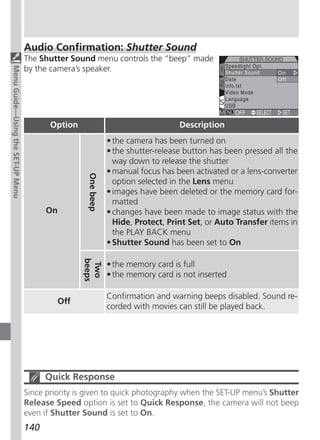
  • 191.
    Television playback, 46 X Thumbnail display, 35, 86 XGA, 48, 51 TIF. See image files Index TIFF. See image quality Z Time and date. See Date Zoom Time exposure. See long time-exposure button, 27, 60 Transfer, 40 digital, 60 marking images for, 155 indicator, 60 Troubleshooting, 164 optical, 60 Zoom Options, 131 U Ultra HS. See Continuous; folders USB, 143. User Set, 68 1, 2, and 3, 68 A, 68 saving user settings, 68 selecting, 69 User Setting, 68 UXGA, 48, 51 V Variable Power, 137 VCR. See television playback VGA, 48, 51 Video Mode, 142 Viewfinder, 10 focusing, 28 framing photographs in, 26 switching with monitor, 9 W . See zoom, button WB BKT. See White Balance, bracketing WB-L. See AE Lock Web resources, 163 White Balance, 101 bracketing, 116 fine tuning, 102 preset, 102 Wide angle. See Lens; zoom 179
  • 192.